
Stop hoarding plugins. Start using the right ones.
When I first started, I installed every shiny plugin I found. Soon my site slowed down, I got conflicts, and my dashboard looked like a mess.
Then I learned: less is more.
You don’t need 50 plugins. You need 6–8 good ones that do exactly what they promise.
In this guide, I’ll share the essential WordPress plugins I use on this site – all free or freemium – and explain why each one matters.
By the end, you’ll have a clean, fast, and secure WordPress setup.
1. Security: Wordfence (Free)
What it does: Firewall, malware scanner, login security, real-time threat defense.
Why you need it: WordPress is the most hacked CMS – not because it’s insecure, but because it’s popular. Wordfence blocks brute force attacks, scans your files for malware, and alerts you if something’s wrong.
Key features (free):
- Web application firewall (WAF)
- Malware signature scanner
- Login attempt limiting
- Two‑factor authentication (2FA)
- Live traffic monitoring
Setup tip: After installing, go to Wordfence → All Options and set “How much memory should Wordfence request…” to 256 MB. Enable “Immediately block fake Google crawlers”.
Alternatives: Sucuri Security (also good), iThemes Security (more complex).
👉 I mentioned security in previous articles – now you have the tool to implement it.
2. SEO: RankMath (Free)
What it does: Helps you optimize each post for search engines.
Why you need it: Writing great content isn’t enough if Google can’t understand it. RankMath guides you through title, meta description, keyword usage, and readability.
Key features (free):
- SEO analysis with actionable suggestions
- Schema markup (rich snippets) for recipes, reviews, articles
- XML sitemap (submit to Google Search Console)
- Social media previews (Facebook, Twitter)
- Redirections manager
Setup tip: Run the setup wizard – it automatically configures most settings. Then go to RankMath → General Settings → Links and set “Open external links in new tab” to on.
Alternatives: Yoast SEO (more popular, but premium features cost), All in One SEO (solid).
👉 I used RankMath for every article in this series – including this one.
3. Caching & Performance: WP Rocket (Paid) or Litespeed (Free)
Caching makes your site load faster – critical for user experience and SEO.
Option A (Paid, easier): WP Rocket
- Cost: $59/year (one site)
- Why I use it: Simplest caching plugin. Just install, enable, and it works. Also includes image lazy loading, database optimization, and CDN integration.
Option B (Free, powerful): Litespeed Cache
- Cost: Free
- Requires: Litespeed server (most hosts support it – check yours)
- Features: Page caching, image optimization (with WebP), CSS/JS minification, database cleaner.
My recommendation for beginners: Start with WP Rocket if you have the budget. If not, Litespeed Cache (if your host uses Litespeed) or W3 Total Cache (free, but more complex).
Alternative free caching: Cache Enabler (lightweight, simple) or WP Super Cache (by Automattic).
💡 If you’re on a budget, Litespeed Cache + a free CDN like Cloudflare is excellent.
4. Backups: UpdraftPlus (Free)
What it does: Automatic backups of your entire site (files + database).
Why you need it: Hosting fails. Updates break things. Hackers happen. A recent backup means you can restore your site in 5 minutes instead of rebuilding from scratch.
Key features (free):
- Schedule backups (daily, weekly, etc.)
- Store backups on remote destinations: Google Drive, Dropbox, OneDrive, S3, email
- One‑click restore
Setup tip: Go to UpdraftPlus → Settings. Set backup schedule to “Weekly” for files, “Daily” for database. Choose remote storage (Google Drive is free up to 15 GB). Run a manual backup first to test.
Alternatives: Jetpack Backup (paid, better but expensive), BlogVault (paid).
👉 I scheduled weekly backups to Google Drive – peace of mind costs nothing.
5. Forms: WPForms Lite (Free)
What it does: Create contact forms, subscription forms, feedback forms – no coding.
Why you need it: Every site needs a way for visitors to contact you.
Key features (free):
- Drag‑and‑drop form builder
- Email notifications
- Spam protection (honeypot)
- Shortcode embedding
Setup tip: Create a “Contact” page. Add WPForms block, choose “Simple Contact Form”, customize fields (Name, Email, Message). Set your admin email in form settings.
Alternatives: Fluent Forms (more features in free version), Contact Form 7 (powerful but less beginner-friendly).
👉 I use WPForms Lite for my contact page – it’s enough for 99% of users.
6 (Bonus). Analytics: Site Kit by Google (Free)
What it does: Connects Google Analytics, Search Console, Adsense, PageSpeed Insights – all in your WordPress dashboard.
Why you need it: You shouldn’t have to log into multiple Google accounts. Site Kit shows everything in one place.
Key features:
- Google Analytics stats inside dashboard
- Search Console performance (clicks, impressions)
- PageSpeed score and suggestions
- AdSense earnings (if you monetize)
Setup tip: Install, connect your Google account, and enable all services. No coding required.
👉 I covered Google Analytics setup in Article #7 – Site Kit makes it even easier.
What NOT to Install (Beginners Mistakes)
Avoid these:
- Multiple caching plugins – they conflict and slow your site.
- “All-in-one” plugins that claim to do everything – they’re usually bloated.
- Nulled (pirated) premium plugins – security nightmare, no updates.
- Plugins you don’t need – deactivate and delete unused plugins.
Golden rule: If a plugin hasn’t been updated in 6+ months or has low ratings, don’t install it.
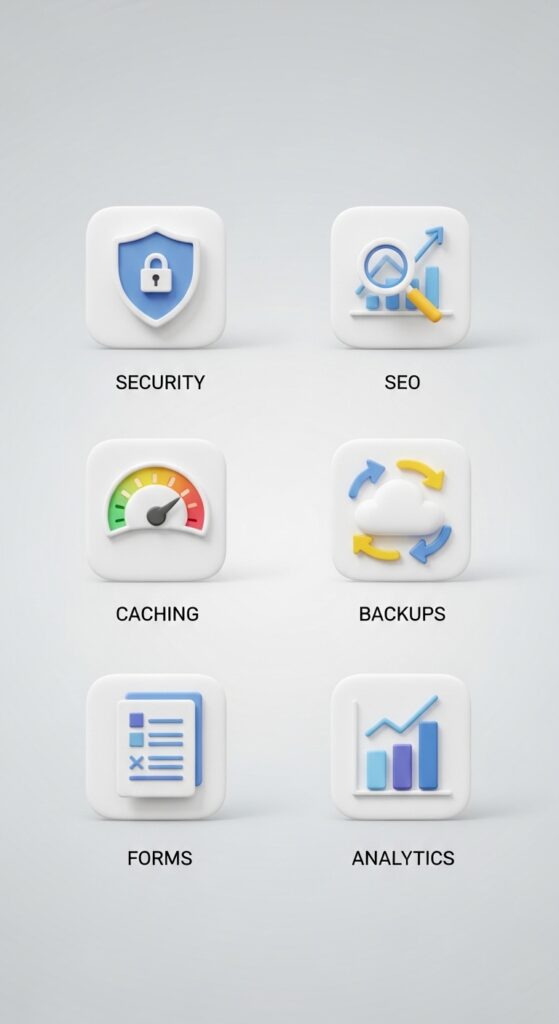
My Personal Plugin Stack (This Site)
Here’s exactly what I’m running:
| Plugin | Purpose |
|---|---|
| Kadence Theme | Theme (not a plugin, but core) |
| Kadence Blocks | Page building |
| Wordfence | Security |
| RankMath | SEO |
| WP Rocket | Caching (paid) |
| UpdraftPlus | Backups |
| WPForms Lite | Contact forms |
| Site Kit by Google | Analytics |
| MailerLite | Email newsletter |
That’s 8 active plugins – clean, fast, and covers everything.
Could I add more? Sure. Do I need more? No.
Plugin Checklist for New Site
- Install Wordfence – run first scan
- Install RankMath – run setup wizard
- Install caching plugin (WP Rocket or Litespeed)
- Install UpdraftPlus – schedule weekly backups to cloud
- Install WPForms Lite – create a contact page
- Install Site Kit – connect Google Analytics
- Deactivate and delete all unused default plugins (Hello Dolly, etc.)
What About WooCommerce? Page Builders?
I didn’t include WooCommerce because not every site needs an online store. I’ll cover WooCommerce separately in a future article (when we talk about selling plugins).
Similarly, if you use Elementor or Beaver Builder instead of Kadence Blocks, that’s fine – but keep it to one builder, not multiple.
How Often to Update Plugins
Weekly. Turn on automatic updates for minor versions (most plugins support this). For major updates, wait 2–3 days after release to ensure compatibility.
WordPress notifies you of available updates in the dashboard. Before updating, run a backup (UpdraftPlus makes this easy).
What’s next?
You now have a secure, fast, SEO‑friendly WordPress site. Next, we’ll turn it into a business.
👉 Next article: How to Monetize Your WordPress Blog – First $100 Affiliate & Products – coming soon.
Which plugin surprised you the most? Any must‑have I missed? Let me know in the comments.
First published: May 06, 2026
Last updated: May 06, 2026
📌 Key takeaways (for skimmers)
- 6 essential plugins: Security (Wordfence) + SEO (RankMath) + Caching (WP Rocket/Litespeed) + Backups (UpdraftPlus) + Forms (WPForms) + Analytics (Site Kit).
- Less is more – avoid plugin bloat. Delete unused plugins.
- Schedule backups weekly to remote storage (Google Drive, Dropbox).
- Update plugins weekly – but backup before major updates.
- My site runs 8 active plugins – that’s enough for a professional blog.
🔗 Internal links used in this article
- Article #7 – Getting First 100 Readers & Google Analytics
- Article #8 – Building Email List
- Future article on WooCommerce
- Future article on monetization