
Stop renting your audience. Own it.
When I published my first article, I had zero email subscribers. Nobody to notify when I wrote something new. Every visitor came and went — and I had no way to bring them back.
Then I learned the hard truth: social media algorithms change. Search engines update. But your email list is yours forever.
However, even if you only have 10 visitors a day, you can start collecting emails. As a result, over time, that list becomes your most valuable asset — one that no platform can take away.
What this guide covers:
- Step 1: Why email beats social media (with real numbers)
- Step 2: Choose a free email service (4 options compared)
- Step 3: Connect it to WordPress (click-by-click for MailerLite)
- Step 4: Create a lead magnet people actually want
- Step 5: Place signup forms where they convert
- Step 6: Send a 3-email welcome sequence
- Step 7: Promote your list even with zero traffic
- Real numbers: my first 30 days of email growth
- An 8-point checklist to start today
No paid plans required. Let’s build your list from day one.

Step 1: Why Email Beats Social Media (The Numbers)
First, let’s look at the data. Email consistently outperforms social media for reaching your audience — and the gap is significant.
| Channel | Average open rate | You own the audience? |
|---|---|---|
| 20–40% | ✅ Yes | |
| 2–6% (organic reach) | ❌ No | |
| Twitter / X | 0.5–3% (organic) | ❌ No |
| 1–5% (without ads) | ❌ No |
In practice, email outperforms social by 5–10×. Why? Because people who give you their email want to hear from you. They’ve opted in.
However, there’s another critical difference: ownership. You can export your email list anytime. No algorithm can take it away. No platform can shut you down. As a result, your email list is the only audience asset that’s truly yours.
Step 2: Choose a Free Email Marketing Service
First, you don’t need to pay anything until you have over 1,000 subscribers. Then, compare the free tiers.
| Service | Free plan limits | Best for |
|---|---|---|
| MailerLite | 1,000 subscribers, 12,000 emails/month | Best overall free plan |
| Mailchimp | 500 subscribers, 1,000 emails/month | Beginners, simple newsletters |
| Brevo (ex-Sendinblue) | Unlimited subscribers, 300 emails/day | Growing lists, transactional emails |
| ConvertKit | 300 subscribers, unlimited emails | Bloggers, creators, automations |
My recommendation for beginners: MailerLite — most generous free plan (1,000 subscribers) and easy WordPress integration.
Alternatively, choose ConvertKit if you plan to do advanced automations later (free up to 300 subscribers).
For a full comparison of plugins, see our Must-Have WordPress Plugins guide.
Step 3: Connect Your Email Service to WordPress
First, each service provides either an official plugin, an embed code, or a native WordPress block. Then, here’s the exact setup for MailerLite — the easiest for beginners.
Step 3.1: Sign up for MailerLite
- Go to mailerlite.com
- Click “Sign Up Free”
- Enter your email and create a password
- Verify your email address
- Complete your account setup — company name, website URL, and timezone
Step 3.2: Create a signup form
- In MailerLite, go to Forms → Create new form
- Choose “Embedded” or “Pop-up” — start with Embedded
- Pick a template (the “Simple” one works fine)
- In the form builder, ensure you have:
- Email field (required)
- Name field (optional, but useful for personalization)
- Under “Settings”, set:
- Success message: “Thanks! Check your inbox for the download link.”
- Double opt-in: ON (this confirms real subscribers)
- Click “Save”
Step 3.3: Get the embed code
- After saving, click “Publish”
- MailerLite shows you the embed code — a block of HTML/JavaScript
- Copy it to your clipboard
Step 3.4: Add it to WordPress (3 methods)
Method A: Using the MailerLite plugin (recommended)
- In WordPress, go to Plugins → Add New
- Search for “MailerLite” (official plugin)
- Click Install Now, then Activate
- Go to MailerLite → Settings
- Paste your API key — found in MailerLite dashboard under Integrations → API
- Save settings
Now you can add a MailerLite block inside any post or page.
Method B: Using a Custom HTML block
- In the WordPress editor, click “+”
- Search for “Custom HTML”
- Paste the embed code from Step 3.3
- Click “Update”
Method C: Using a Kadence form block (Pro)
If you have Kadence Pro, use the “Form (Adv)” block instead — it integrates with MailerLite via API and looks cleaner.
💡 Pro tip: Method A gives you the cleanest integration. Method B works if you want to avoid another plugin.
Step 4: Create a Lead Magnet People Actually Want
First, people won’t give you their email just because you ask. However, they will give it in exchange for something valuable.
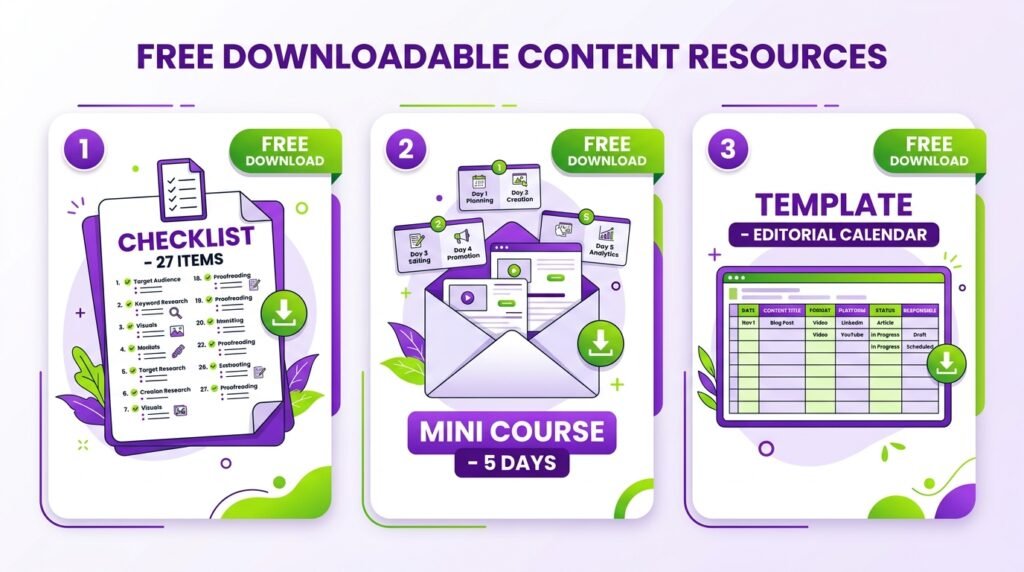
A lead magnet is a freebie you offer in exchange for their email address. Here are five types that work:
| Type | Example | Effort |
|---|---|---|
| PDF cheat sheet | “10 WordPress Mistakes to Avoid” | Low |
| Checklist | “Launch Checklist for New Bloggers” | Low |
| Mini email course | 5 emails over 5 days | Medium |
| Template | “Editorial Calendar Template” | Medium |
| Exclusive video | 10-minute tutorial | High |
For example, my lead magnet is:
“Free WordPress Launch Checklist — 27 things to do before going live. Download PDF.”
How I created it:
- Wrote the content in Google Docs
- Exported as PDF
- Uploaded to my site’s media library
- Set up an automation in MailerLite to send the download link
Step 4.1: Set up the automation (MailerLite)
- Go to Automations → Create new automation
- Choose “Welcome email” as the trigger
- Trigger: “When someone subscribes to a form” → select your form
- Action: “Send email” → write a welcome email with the PDF link
- Optional: Add subscribers to a “New Subscribers” group
- Click “Save” and “Activate”
No coding required. Just point and click.
For more lead magnet ideas, see our How to Write Your First Blog Post guide — it covers content upgrades that double as list builders.
Step 5: Where to Place Signup Forms (Ranked by Conversion)
First, don’t hide your form. Then, place it where people naturally look.
| Placement | Conversion rate | Effort | Recommendation |
|---|---|---|---|
| After each blog post | 3–5% | Medium | ✅ Essential |
| Footer (site-wide) | 1–2% | Low | ✅ Essential |
| Sidebar | 1–2% | Low | Optional |
| Pop-up | 5–8% | Medium | Use sparingly |
| Dedicated landing page | 10–20% | High | For campaigns |
| About page | 2–3% | Low | ✅ Easy win |
How to add a form after each post (Kadence)
- Open any blog post in the editor
- At the bottom, add a Row Layout block (from Kadence Blocks)
- Set it to 2 columns:
- Left column: heading + short text
- Right column: your MailerLite form (via block or shortcode)
- Style with a subtle background color from your Global Palette
- Save this as a reusable block — then reuse it on every post
How to add a footer form
- Go to Appearance → Customize → Footer
- Add a widget area with your email form
- Save — this appears site-wide
As a result, every page has at least one signup opportunity.
Step 6: Send a 3-Email Welcome Sequence
First, most beginners make this mistake: they collect emails and then send nothing. However, the welcome sequence is where you build trust.
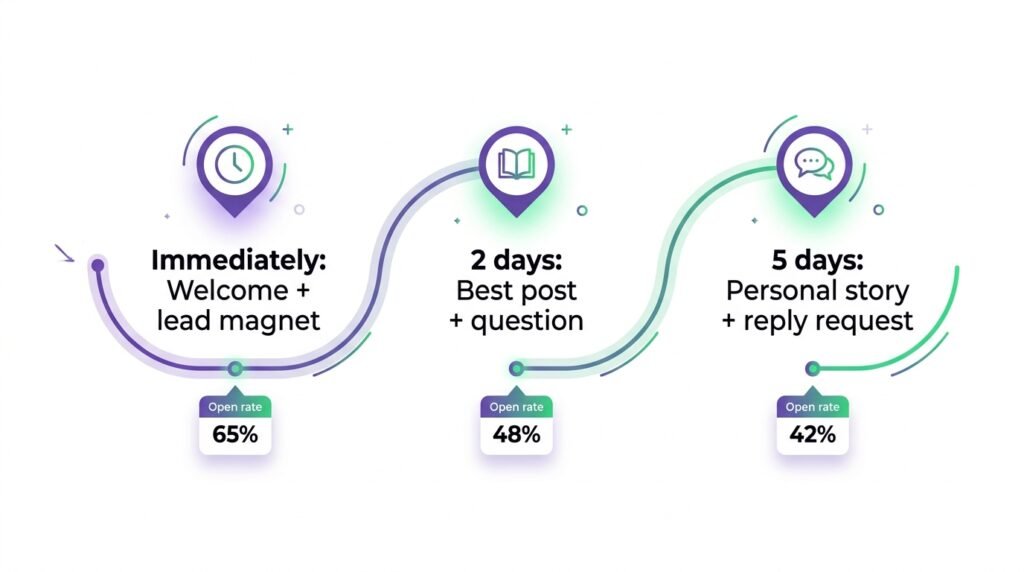
Here’s the sequence I use:
| Timing | Content | |
|---|---|---|
| Welcome | Immediately | Thank them, deliver the lead magnet (PDF link), tell them what to expect |
| Value | 2 days later | Share your best blog post — the one most helpful for beginners |
| Story | 5 days later | Tell them why you started this blog. Ask them to reply with their biggest challenge |
After that: send one email per week with your latest post, a quick tip, or a question. However, no sales pitches until you’ve built trust.
For example, my weekly email structure is:
- 1 personal intro (2–3 sentences)
- 1 link to the new post
- 1 question at the end
As a result, open rates stay above 40% — because subscribers know what to expect.
Step 7: Promote Your Email List (Even with Zero Traffic)
First, you can’t get subscribers if nobody knows about your list. Then, promote it from day one.
| Where | How |
|---|---|
| Every blog post | End with “Join 100+ readers getting weekly WordPress tips. Subscribe here.” |
| Social bios | Add link to your newsletter landing page |
| About page | Mention your newsletter and why people should join |
| Blog comments | When appropriate, say “I write about WordPress too — here’s my newsletter” |
| Email signature | Add a one-line link to your newsletter |
However, don’t spam. For example, don’t drop your link in 20 Reddit threads. Instead, mention it only when it’s genuinely relevant.
For more promotion tactics, see our How to Get Your First 100 Readers guide.
Real Numbers: My First 30 Days of Email Growth
When I started this blog, here’s what my email growth looked like:
| Week | Subscribers | What I did |
|---|---|---|
| Week 1 | 5 | Added form after each post |
| Week 2 | 12 | Promoted on Twitter |
| Week 3 | 28 | Created a PDF checklist lead magnet |
| Week 4 | 53 | Added footer form |
After one month: 53 subscribers. Not a huge number — but those 53 people get every post. And some became commenters and sharers.
By month 6: 400 subscribers. Slow, but steady. And every single one is mine — not Facebook’s.
Here’s the math: if each subscriber shares one post with one friend, and 20% of those friends subscribe, you add 10% to your list every month from shares alone. As a result, growth compounds.
The 8-Point Checklist: Build Your Email List from Day One
Run through this list today — most items take under 10 minutes:
- □ Signed up for a free email service (MailerLite or ConvertKit)
- □ Connected it to WordPress (plugin or embed code)
- □ Created a lead magnet (PDF, checklist, or mini course)
- □ Set up an automation to send the lead magnet after signup
- □ Added signup form after each blog post
- □ Added signup form in footer (site-wide)
- □ Created a “Newsletter” page with signup form
- □ Wrote a 3-email welcome sequence
- □ Mentioned the newsletter in social bios and About page
Save this list. Every item you complete moves you from “renting” an audience to “owning” one.
Frequently Asked Questions
Q1: How many subscribers do I need before email marketing “works”?
Zero is enough to start. However, meaningful engagement usually begins around 50–100 subscribers. The first 100 take the longest; after that, growth compounds through shares and referrals. For example, I had 53 subscribers after month one, but 400 by month six.
Q2: Which free email service is best for WordPress beginners?
MailerLite — it has the most generous free tier (1,000 subscribers, 12,000 emails/month) and clean WordPress integration. However, if you plan to run complex automations later, start with ConvertKit (300 subscribers free) and upgrade as you grow. For more plugin recommendations, see our Must-Have WordPress Plugins guide.
Q3: Do I need a lead magnet, or can I just ask for emails?
You need a lead magnet. First, people guard their email addresses. Then, a free PDF, checklist, or template gives them a reason to trust you. As a result, conversion rates jump from under 1% (no magnet) to 3–5% (with magnet).
Q4: How often should I email my list?
Once a week is ideal for most blogs. However, the content matters more than frequency. For example, a weekly email with one helpful post beats a daily email with five sales pitches. Consistency builds trust; frequency without value builds unsubscribes.
Q5: What if someone unsubscribes?
That’s normal — expect 1–2% unsubscribes per email. However, it’s better than sending to people who don’t want your content. In practice, an engaged list of 500 beats a disengaged list of 5,000 for both deliverability and revenue.
Q6: Can I build an email list without a blog?
Yes — but it’s harder. First, you need somewhere to send traffic (a landing page, social profile, or YouTube channel). Then, offer a lead magnet and collect emails. As a result, you can build a list from social media alone, but a blog makes it sustainable.
Q7: When should I start monetizing my email list?
After 3–6 months of consistent value. First, build trust with weekly emails and no sales pitches. Then, introduce a relevant product, affiliate link, or service. However, if you pitch too early (month 1), you’ll lose subscribers before you’ve earned their attention.
Key Takeaways
- Email list > social media — you own it, algorithms can’t take it away
- Start free with MailerLite (1,000 subscribers) or ConvertKit (300 subscribers)
- Create a lead magnet — a PDF checklist is the fastest to make
- Place forms after posts, in footer, and on About page — 3 placements cover 90% of conversions
- Send a 3-email welcome sequence — welcome, value, story
- Promote even with zero traffic — social bios, About page, blog comments
- First 100 subscribers take 4–8 weeks — consistency compounds after that
What’s Next?
You have a list — even if it’s small. Now let’s make sure your emails actually get opened and clicked.
👉 Next in this series: How to Write Emails People Actually Read — newsletter tips for beginners (coming soon).
If you already collect emails, share your subscriber count in the comments. I’ll give you one tip to grow it faster.
Related Reading
- How to Write Your First Blog Post — create content worth subscribing to
- How to Get Your First 100 Readers — traffic sources before you build the list
- Build a WordPress Homepage with Kadence — a homepage that converts visitors
- Must-Have WordPress Plugins — email plugins and other essentials
- Why I Built My WordPress Site from Scratch — the honest beginner story
- WooCommerce Analytics & Reporting — for readers who also run a store