
Stop hoarding plugins. Start using the right ones.
When I first started, I installed every shiny plugin I found. However, within a month, my site slowed down, I got conflicts, and my dashboard looked like a mess. As a result, I spent more time fixing plugin problems than writing content.
Then I learned a simple rule: less is more. You don’t need 50 plugins. You need 6–8 good ones that do exactly what they promise — and nothing more.
In this guide, I’ll share the essential WordPress plugins I use on this site. First, I’ll cover each plugin in detail — what it does, why it matters, exact setup steps, and alternatives. Then, I’ll show you what NOT to install (the mistakes most beginners make).
What this guide covers:
- The 6 essential plugins — Security, SEO, Caching, Backups, Forms, Analytics
- Exact setup steps for each (with the settings I actually use)
- Free vs paid comparison for each plugin category
- Alternatives if you don’t like my choice
- What NOT to install — the 4 types of plugins that hurt your site
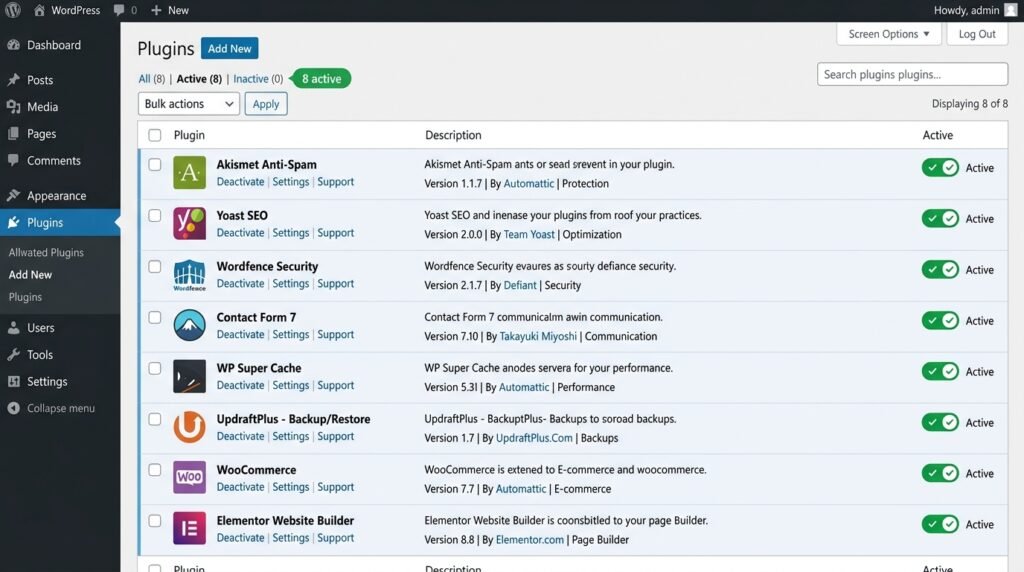
- My exact plugin stack — 8 active plugins, no more
- A plugin checklist for new sites
- Update strategy — when and how to update safely
By the end, you’ll have a clean, fast, and secure WordPress setup.
Plugin #1: Wordfence — Security (Free)
What it does
Wordfence is a complete security suite: web application firewall (WAF), malware scanner, login security, and real-time threat defense. In practice, it’s the single most important plugin on this list — because a hacked site loses everything.
Why you need it
WordPress is the most hacked CMS — not because it’s insecure, but because it’s popular. For example, over 90,000 brute-force attacks hit the average WordPress site daily. As a result, without a security plugin, you’re trusting your host’s firewall alone — which isn’t enough.
Wordfence blocks brute-force attacks, scans your files for malware, and alerts you the moment something’s wrong.
Key features (free version)
| Feature | What it does |
|---|---|
| Web Application Firewall (WAF) | Blocks malicious traffic before it reaches WordPress |
| Malware scanner | Compares your files against a signature database |
| Login attempt limiting | Blocks IPs after 3–5 failed logins |
| Two-factor authentication (2FA) | Adds a second login step (app-based code) |
| Live traffic monitoring | Shows every visitor and bot in real time |
| Country blocking | Blocks traffic from high-risk regions |
Step-by-step setup
- Go to Plugins → Add New
- Search for “Wordfence Security”
- Click Install Now, then Activate
- On the Wordfence welcome screen, enter your email address to receive security alerts
- Click “Register this site” — this enables the free firewall rules
- Go to Wordfence → All Options
- Set “How much memory should Wordfence request” to 256 MB
- Under Firewall Options, enable:
- ✅ “Immediately block fake Google crawlers”
- ✅ “Enable Rate Limiting” (set to 240 requests/minute)
- ✅ “Enable Live Traffic View”
- Under Login Security Options, enable:
- ✅ “Enable 2FA” (install Google Authenticate or Authy on your phone)
- ✅ “Limit login attempts” (set to 3 attempts, then lockout for 5 minutes)
Alternatives
- Sucuri Security — better WAF (DNS-level), but the free version is limited
- iThemes Security (SolidWP) — more granular settings, but more complex
- MalCare — dedicated malware scanner with auto-cleanup ($99/year)
💡 My recommendation: Start with Wordfence (free). Upgrade to Sucuri ($199/year) only if you get attacked despite having Wordfence.
Once security is set up, your next priority is SEO — see our How to Write Your First Blog Post guide for SEO-friendly content structure.
Plugin #2: RankMath — SEO (Free)
What it does
RankMath helps you optimize each post for search engines — without needing to understand SEO deeply. It guides you through title, meta description, keyword usage, readability, and schema markup.
Why you need it
Writing great content isn’t enough if Google can’t understand it. For example, two identical posts — one with proper title and meta description, one without — will rank completely differently. As a result, RankMath is the difference between “published” and “published and found.”
Key features (free version)
| Feature | What it does |
|---|---|
| SEO analysis | Real-time suggestions as you write |
| Schema markup | Rich snippets for articles, recipes, reviews |
| XML sitemap | Auto-generated and submitted to Google |
| Social previews | See how posts look on Facebook, Twitter |
| Redirections manager | Handle 301 redirects without extra plugins |
| Focus keyword tracking | Checks keyword density and placement |
Step-by-step setup
- Install via Plugins → Add New → search “RankMath SEO”
- Click Install Now, then Activate
- The setup wizard launches — click “Start Wizard”
- Choose “Easy” mode (you can switch to Advanced later)
- Connect your Google Search Console account (recommended but optional)
- Skip the sitemap step for now — RankMath will auto-generate one
- Choose “Skip” on advanced options
- Click “Finish Setup”
Then configure links:
- Go to RankMath → General Settings → Links
- Enable “Open external links in new tab”
- Save
How to use it on each post
When you edit a post, RankMath adds a sidebar panel. First, enter your Focus Keyword (the main term you want to rank for). Then, edit the SEO Title (under 60 characters) and Meta Description (under 160 characters). Finally, check the Readability score — aim for green, but don’t obsess.
Alternatives
- Yoast SEO — more popular, but premium features cost more
- All in One SEO (AIOSEO) — solid free version, cleaner UI
- SEOPress — lightweight, developer-friendly
💡 My recommendation: RankMath (free) is more feature-rich than Yoast’s free version. Use it unless you already have a Yoast workflow.
Plugin #3: Caching & Performance — WP Rocket (Paid) or LiteSpeed Cache (Free)
What it does
Caching makes your site load faster by storing pre-rendered versions of your pages. First, this improves user experience. Then, it boosts SEO because Google uses page speed as a ranking signal.
Why you need it
For example, a site that takes 5 seconds to load loses 40% of mobile visitors before the page renders. As a result, caching isn’t optional — it’s foundational.
Two options: Paid vs Free
Option A — WP Rocket (Paid, easiest)
| Aspect | Details |
|---|---|
| Cost | $59/year (1 site), $119/year (3 sites) |
| Best for | Beginners who want zero configuration |
| Includes | Page caching, image lazy loading, database optimization, CDN integration, CSS/JS minification |
Why I use it: It works the moment you activate it. No settings to tweak unless you want to. For example, WP Rocket auto-detects WooCommerce, excludes cart/checkout pages from cache, and applies best-practice settings out of the box.
Option B — LiteSpeed Cache (Free, powerful)
| Aspect | Details |
|---|---|
| Cost | Free |
| Requires | LiteSpeed server (check with your host — most support it) |
| Includes | Page caching, image optimization (WebP), CSS/JS minification, database cleaner |
Why it’s great: On a LiteSpeed server, it’s faster than any paid plugin. However, if your host uses Apache or Nginx, it won’t work well.
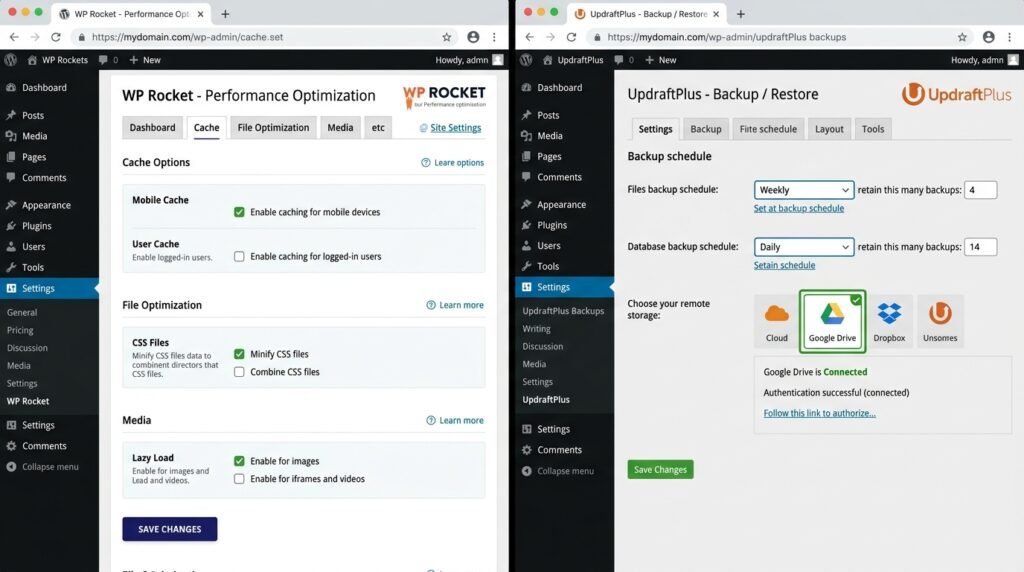
Step-by-step setup (WP Rocket)
- Purchase from wp-rocket.me — download the ZIP
- In WordPress, go to Plugins → Add New → Upload Plugin
- Upload the ZIP, activate, and enter your license key
- Go to Settings → WP Rocket
- Under Cache, enable:
- ✅ Mobile cache
- ✅ Separate cache files for mobile devices
- ✅ User cache (for logged-in users)
- Under File Optimization, enable:
- ✅ Minify CSS files
- ✅ Minify JavaScript files
- ✅ Load JavaScript deferred
- ✅ Optimize CSS delivery
- Under Media, enable:
- ✅ Lazy load images
- ✅ Replace YouTube iframe with preview image
- Under Preload, enable:
- ✅ Preload cache
- ✅ Preload sitemap
- Click Save Changes — WP Rocket starts caching immediately
Step-by-step setup (LiteSpeed Cache)
- Install from Plugins → Add New → search “LiteSpeed Cache”
- Activate — it auto-connects to your LiteSpeed server
- Go to LiteSpeed Cache → Cache
- Enable “Enable Cache” → “ON”
- Under Cache → Excludes, ensure
/cart/,/checkout/,/my-account/are excluded - Go to LiteSpeed Cache → Page Optimization
- Enable:
- ✅ CSS Minify
- ✅ JS Minify
- ✅ CSS Combine
- ✅ JS Defer
- Under Image Optimization, enable “Request WebP versions”
- Click Save Changes
Alternatives
- W3 Total Cache — free, powerful, but complex
- Cache Enabler — lightweight, simple
- WP Super Cache — by Automattic, stable but basic
💡 My recommendation: WP Rocket if budget allows. LiteSpeed Cache if your host supports it. Otherwise, W3 Total Cache with default settings.
Plugin #4: UpdraftPlus — Backups (Free)
What it does
UpdraftPlus automatically backs up your entire site — files and database — to remote storage like Google Drive, Dropbox, or Amazon S3.
Why you need it
Hosting fails. Updates break things. Hackers happen. As a result, a recent backup means you can restore your site in 5 minutes instead of rebuilding from scratch. For example, I once lost a full week of work because I had no backup — never again.
Key features (free version)
| Feature | What it does |
|---|---|
| Scheduled backups | Daily, weekly, monthly |
| Remote storage | Google Drive, Dropbox, OneDrive, S3, email |
| One-click restore | Restore directly from dashboard |
| Selective backup | Back up only files, only database, or both |
| Migration | Clone your site to a new host |
Step-by-step setup
- Install via Plugins → Add New → search “UpdraftPlus”
- Click Install Now, then Activate
- Go to Settings → UpdraftPlus Backups
- Click the Settings tab
- Set “Files backup schedule” to Weekly
- Set “Database backup schedule” to Daily
- Set “Retain this many backup sets” to 4 (four weeks of history)
- Under “Choose your remote storage”, select Google Drive
- Click “Save Changes”
- Click “Connect with Google Drive” and authorize
- Run a manual backup now — click the “Backup / Restore” tab → “Backup Now” → select files + database
💡 Pro tip: Test a restore on a staging site once. A backup you’ve never restored isn’t a backup — it’s a hope.
Alternatives
- Jetpack Backup — real-time backups, but $4.95+/month
- BlogVault — paid, includes migrations
- BackWPup — free alternative with similar features
Plugin #5: WPForms Lite — Contact Forms (Free)
What it does
WPForms Lite creates contact forms, subscription forms, and feedback forms — no coding required.
Why you need it
Every site needs a way for visitors to contact you. However, a plain email address on the About page invites spam. As a result, a proper form with spam protection is essential.
Key features (free version)
| Feature | What it does |
|---|---|
| Drag-and-drop builder | Build forms visually |
| Email notifications | Get alerts when someone submits |
| Spam protection | Honeypot + CAPTCHA support |
| Shortcode embedding | Add forms to any page or post |
| Pre-built templates | Simple contact, newsletter, feedback |
Step-by-step setup
- Install via Plugins → Add New → search “WPForms Lite”
- Click Install Now, then Activate
- Go to WPForms → Add New
- Choose “Simple Contact Form” from templates
- In the form builder, drag and drop fields:
- Name (required)
- Email (required)
- Message (required)
- Click “Save” — the form now has a shortcode
- Create a new page: Pages → Add New → title “Contact”
- Add a “Shortcode” block and paste the WPForms shortcode
- Go to WPForms → Settings → Email and enter your admin email address
- Publish the Contact page and add it to your menu
Alternatives
- Fluent Forms — more features in free version (conditional logic, multi-step)
- Contact Form 7 — powerful, but less beginner-friendly
- Forminator — free, includes polls and quizzes
💡 My recommendation: WPForms Lite is enough for 99% of users. If you need conditional logic (e.g., “show this field only if the user picks X”), switch to Fluent Forms.
Once your contact form is set up, you can use the same pattern for email signup forms — see our How to Build an Email List from Day One guide.
Plugin #6: Site Kit by Google — Analytics (Free)
What it does
Site Kit connects Google Analytics 4, Search Console, AdSense, and PageSpeed Insights directly into your WordPress dashboard.
Why you need it
You shouldn’t have to log into multiple Google accounts to see how your site is doing. For example, Site Kit shows you — in one dashboard — how many visitors you had today, which keywords brought them, and your site’s speed score. As a result, you make decisions faster without switching tabs.
Key features
| Feature | What it shows |
|---|---|
| Google Analytics 4 | Users, sessions, engagement time, traffic sources |
| Search Console | Clicks, impressions, average position, top queries |
| PageSpeed Insights | Performance score and specific suggestions |
| AdSense | Earnings (if you monetize) |
Step-by-step setup
- Install via Plugins → Add New → search “Site Kit by Google”
- Click Install Now, then Activate
- Go to Dashboard → Site Kit
- Click “Sign in with Google” and choose your Google account
- Grant permissions for the services you want
- When prompted, select your Google Analytics 4 property (create one if you haven’t — see our How to Get Your First 100 Readers guide)
- When prompted, verify your Search Console property
- Click “Go to Dashboard” — you now see stats inside WordPress
Alternatives
- GA Google Analytics — simpler, just adds tracking code
- MonsterInsights — paid, more features ($99+/year)
- Independent Analytics — privacy-focused, no Google account
What NOT to Install (Beginner Mistakes)
First, here’s what to avoid — these are the mistakes that hurt most new sites:
| ❌ Don’t install | Why it’s bad |
|---|---|
| Multiple caching plugins | They conflict, slow your site, and break each other |
| “All-in-one” plugins | Claim to do everything, do nothing well |
| Nulled (pirated) premium plugins | Security nightmare — often contain malware |
| Plugins you don’t need | Every plugin adds code, queries, and potential conflicts |
| Plugins not updated in 6+ months | Security risk, compatibility risk |
| Plugins with under 4-star ratings | Usually abandoned or poorly built |
The “active plugins” rule
My rule: if I haven’t used a plugin in 3 months, I deactivate and delete it. For example, I tried a social sharing plugin for 2 weeks — it slowed my site by 400ms and gave me zero shares. Deleted.
In practice, 8–12 active plugins is the sweet spot for most sites. Above 20, you start seeing performance issues.
My Personal Plugin Stack (This Site)
Here’s exactly what I’m running:
| Plugin | Purpose | Cost |
|---|---|---|
| Kadence Theme | Theme (core) | Free |
| Kadence Blocks | Page building | Free |
| Wordfence | Security | Free |
| RankMath | SEO | Free |
| WP Rocket | Caching | $59/year |
| UpdraftPlus | Backups | Free |
| WPForms Lite | Contact forms | Free |
| Site Kit by Google | Analytics | Free |
| MailerLite | Email newsletter | Free (up to 1,000 subscribers) |
That’s 8 active plugins + 1 theme. Clean, fast, covers everything I need.
Could I add more? Sure. Do I need more? No.
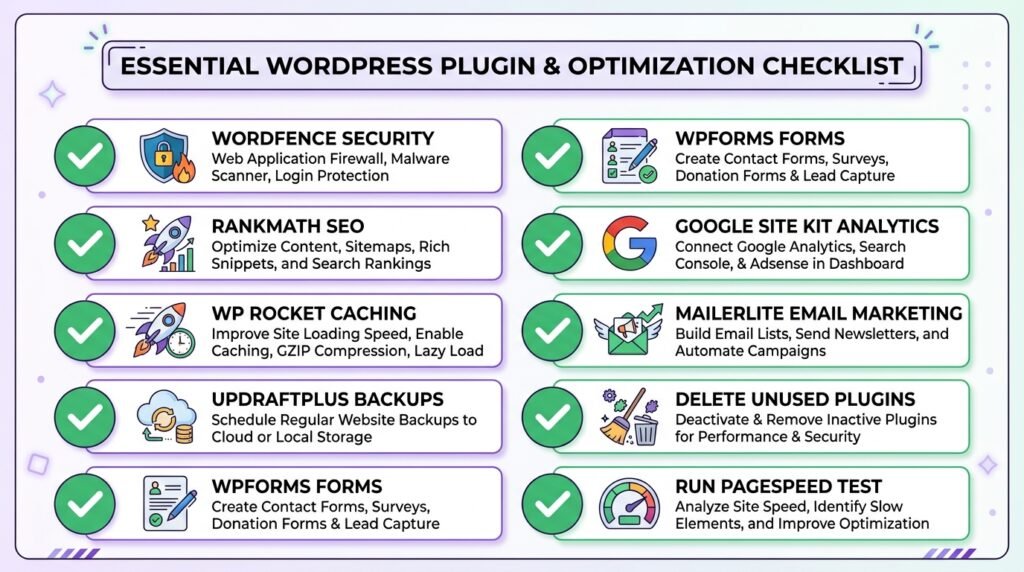
Plugin Checklist for a New Site
Run through this in order — each item takes 5–10 minutes:
- □ Install Wordfence → run first scan → enable 2FA
- □ Install RankMath → run setup wizard → connect Search Console
- □ Install WP Rocket (or LiteSpeed Cache) → enable caching
- □ Install UpdraftPlus → schedule weekly backups to Google Drive
- □ Install WPForms Lite → create a Contact page
- □ Install Site Kit by Google → connect GA4
- □ Install MailerLite → set up email signup form
- □ Deactivate and delete unused default plugins (Hello Dolly, Akismet if not used)
- □ Run a speed test at Google PageSpeed Insights
Update Strategy: When and How Often
First, plugins need updates — they fix security holes and add features. However, updating at the wrong time can break your site.
My update routine
| Frequency | What to do |
|---|---|
| Weekly | Check for plugin updates |
| Before updating | Run a manual backup in UpdraftPlus |
| For minor updates | Update immediately (e.g., 3.1.2 → 3.1.3) |
| For major updates | Wait 3–5 days after release (e.g., 3.1 → 4.0) |
| After updating | Test the frontend and admin |
How to update safely
- Go to Dashboard → Updates
- First, run a manual backup (UpdraftPlus → Backup Now)
- Check the plugin’s changelog — any breaking changes?
- Update one plugin at a time
- After each update, check:
- Homepage loads
- A blog post loads
- Admin dashboard works
- No PHP errors in error log (if you have one)
For example, I once updated WooCommerce directly on a live site without testing. It broke the checkout. As a result, I lost 3 sales that day. Now I always test on staging first.
If you don’t have a staging site: install WP Staging (free) — it clones your site in 2 minutes for safe testing.
Automatic updates — yes or no?
My recommendation:
- Minor updates: Enable auto-updates (e.g., security patches)
- Major updates: Do manually after testing
- Never enable auto-updates for WooCommerce or payment plugins
Frequently Asked Questions
Q1: Do I really need 6 plugins, or can I get away with fewer?
You can — but each of the 6 covers a category you can’t skip: security (Wordfence), SEO (RankMath), caching (WP Rocket), backups (UpdraftPlus), forms (WPForms), and analytics (Site Kit). However, some hosts include caching and backups natively — in that case, you can drop 2 plugins. Check your host’s dashboard first.
Q2: Are free plugins safe, or do I need premium versions?
Free plugins are safe if they’re actively maintained (updated in the last 6 months, 4+ star ratings, 10,000+ active installs). For example, Wordfence, RankMath, and UpdraftPlus all have generous free tiers that cover 90% of needs. However, for complex needs (advanced SEO schema, multi-site backups, WooCommerce-specific caching), premium is worth it.
Q3: How many plugins is “too many”?
Above 20 active plugins, you’ll start seeing performance issues on most hosts. However, the number matters less than the quality. As a result, 8 well-chosen plugins beat 25 mediocre ones every time. Review your plugin list quarterly and delete anything you haven’t used in 3 months.
Q4: Can two caching plugins make my site faster?
No — they will break your site. Two caching plugins conflict, produce corrupted cache files, and often make the site slower than no caching at all. First, pick one: WP Rocket, LiteSpeed Cache, or W3 Total Cache. Then, stick with it.
Q5: What if a plugin update breaks my site?
First, restore from your last backup (UpdraftPlus → Restore). Then, deactivate the plugin that caused the issue. Finally, report the problem to the plugin developer and wait for a fix. However, to avoid this entirely — test on a staging site first.
Q6: Do I need a security plugin if my host provides a firewall?
Yes — host firewalls aren’t enough. Host firewalls protect the server; a security plugin like Wordfence protects WordPress itself. For example, a host firewall won’t stop a compromised admin login or a malicious plugin upload. As a result, you need both layers.
Q7: Which plugin surprised you the most in terms of impact?
UpdraftPlus. It’s the least exciting plugin on this list — but it saved my site twice. For example, once when a plugin update broke my homepage, and once when my host’s server failed. As a result, I now consider backups non-negotiable. If you install only one plugin from this list, make it UpdraftPlus.
Key Takeaways
- Install only 6–8 plugins — security, SEO, caching, backups, forms, analytics
- Wordfence (free) — security is non-negotiable
- RankMath (free) — SEO without complexity
- WP Rocket ($59/year) or LiteSpeed Cache (free) — caching is foundational
- UpdraftPlus (free) — the plugin you hope you never need (but will)
- WPForms Lite (free) — contact forms that don’t invite spam
- Site Kit by Google (free) — analytics inside your dashboard
- Avoid: multiple caching plugins, all-in-ones, nulled plugins, and plugins you don’t use
- Update weekly — but back up first
- Test major updates on staging — never on live
What’s Next?
You now have a secure, fast, SEO-friendly WordPress site. However, the real work starts now: turning it into a business.
👉 Next in this series: How to Monetize Your WordPress Blog — realistic ways to earn your first $100 with affiliate marketing and digital products.
Which plugin surprised you the most? Any must-have I missed? Let me know in the comments.
First published: May 6, 2026
Last updated: September 19, 2026
Related Reading
- How to Get Your First 100 Readers — GA4 setup with Site Kit
- How to Build an Email List from Day One — the MailerLite setup from my stack
- How to Write Your First Blog Post — RankMath optimization in practice
- Choosing the Right Hosting — the infrastructure these plugins run on
- WooCommerce Security & Performance — deeper security setup for stores
- How to Monetize Your WordPress Blog — turning plugins into income