
You’ve installed WordPress. You’ve set up your theme and built a homepage. Now comes the fun part — writing your first blog post.
But where do you even start? What makes a good post? And how do you make sure people actually find it on Google?
When I wrote my first post (the Why I Built My Site article), I had no idea about SEO, categories, or meta descriptions. I just wrote what I felt. However, over time, I learned a few simple tricks that make a huge difference between a post nobody reads and a post that gets steady traffic.
In this guide, I’ll walk you through every step — with enough detail that you can follow along even if you’ve never written online before:
- Step 1: Create categories and understand the difference from tags
- Step 2: Write your post with proper structure (H2/H3, paragraphs, permalinks)
- Step 3: Add images the right way (featured image, in-post images, alt text)
- Step 4: Configure RankMath SEO (focus keyword, title, meta description, readability)
- Step 5: Assign categories and tags correctly
- Step 6: Publish, schedule, or save as draft
- Step 7: Promote your post after publishing
- Real numbers: what happened after my first post went live
- A 12-point pre-publish checklist you can copy
Let’s turn your ideas into a real, findable blog post.

Step 1: Create Categories Before You Write
Most beginners skip this step and end up with every post under “Uncategorized” — which looks unprofessional and hurts SEO. First, create your categories. Then, write.
Categories vs. Tags — the simple difference
| Type | Purpose | How many | Example |
|---|---|---|---|
| Category | Broad topic that groups posts | 1 per post (max 2) | “Hosting & Performance” |
| Tag | Specific keyword or detail | 3–5 per post | “shared hosting”, “SiteGround”, “page speed” |
For example, if I write about hosting, the category is “Hosting & Performance” and the tags might be: shared hosting, VPS, SiteGround, page speed.
How to create categories (exact steps)
- Log in to your WordPress dashboard at
yoursite.com/wp-admin - In the left sidebar, hover over Posts
- Click Categories in the submenu
- You’ll see a form on the left side:
- Name — type the category name (e.g., “WordPress Zero to Hero”)
- Slug — WordPress auto-generates this from the name. Leave it unless you need a custom URL slug
- Parent — leave as “None” unless you’re creating sub-categories
- Description — optional, but useful for SEO. Write 1–2 sentences about what this category covers
- Click Add New Category
- Repeat for each of your 3–5 main categories
For my blog, I created:
- WordPress Zero to Hero (beginner tutorials)
- Hosting & Performance (speed, servers, optimization)
- Plugins Deep Dive (plugin reviews and comparisons)
How to create tags
You don’t need to pre-create tags. In fact, you shouldn’t. Instead, add them while writing each post — WordPress creates them on the fly.
💡 Pro tip: Don’t create a tag called “WordPress” if you already have a whole category about WordPress. Tags should be more specific than categories. For example, instead of “WordPress”, use “Gutenberg blocks” or “WooCommerce checkout”.
Step 2: Write Your Post (Structure & Content)
Now that your categories exist, it’s time to write.
Open the editor
- Go to Posts → Add New in your WordPress dashboard
- You’ll see the block editor (Gutenberg) with an empty Title field at the top
Step 2.1: Choose a compelling title
The title appears in three places: your post page, Google search results, and social media previews. Therefore, it needs to be clear, specific, and contain your main keyword naturally.
For this post, my title is:
How to Write Your First Blog Post (And Get It Found)
Why it works:
- Contains the keyword
write first blog post - Has a benefit hook: “And Get It Found”
- Fits under 60 characters (so it won’t be cut off in Google)
Bad titles to avoid:
- ❌ “My First Post” — no keyword, no value
- ❌ “How to Write a Blog Post That Will Absolutely Blow Your Mind and Get Thousands of Readers” — too long, clickbait
- ✅ “How to Write Your First Blog Post (And Get It Found)” — specific, keyword-rich, honest
Step 2.2: Edit the permalink (URL)
First, the WordPress editor auto-generates a URL from your title. It looks like this in the sidebar under Post → Permalink:
text
yoursite.com/how-to-write-your-first-blog-post-and-get-it-found/
However, you should shorten it. Google prefers clean URLs, and shorter URLs are easier to share.
My edited permalink:
text
yoursite.com/how-to-write-first-wordpress-blog-post-seo/
Rules for a good permalink:
- Use hyphens (-), never underscores (_)
- Keep it under 60 characters
- Include your main keyword
- Remove stop words (and, the, a, for) when possible
How to edit it: Click the permalink URL in the sidebar → type the new slug → press Enter.
⚠️ Important: Change the permalink before you publish. If you change it after, the old URL breaks — and you’ll need a 301 redirect.
Step 2.3: Structure the body with headings
Use headings to break up your text. As a result, readers can scan quickly and search engines understand your content hierarchy.
The heading hierarchy:
| Heading | Purpose | Example |
|---|---|---|
| H1 | Post title (WordPress handles this automatically) | “Your First WordPress Blog Post: A Complete Walkthrough” |
| H2 | Main sections | “Step 1: Create Categories Before You Write” |
| H3 | Subsections | “Categories vs. Tags — the simple difference” |
| H4 | Rarely needed — sub-subsections | “How to add alt text to a featured image” |
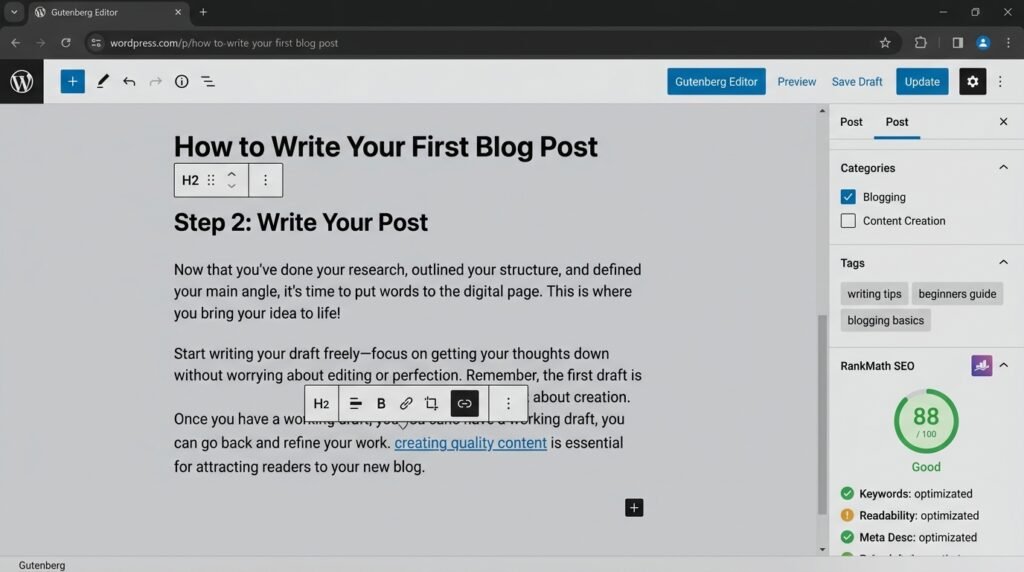
How to add a heading in Gutenberg:
- Click “+” in the editor
- Search for “Heading”
- Type your heading text
- In the right sidebar, under Block → Heading settings, choose H2 or H3 from the dropdown
Never use bold text as a fake heading. Search engines only recognize real H2/H3 tags.
Step 2.4: Write short paragraphs (2–4 sentences)
On mobile, long paragraphs are hard to read. Therefore, keep paragraphs short — 2 to 4 sentences max.
Bad example:
WordPress is a content management system that powers over 43% of the web and allows users to create websites without knowing how to code, and it comes with a block editor that lets you drag and drop elements, and it’s free and open source…
Good example:
WordPress powers over 43% of the web. It lets you create websites without knowing how to code. The block editor lets you drag and drop elements — no coding required.
As a result, the second version is easier to scan and reads faster.
Step 2.5: Add internal links
Link to your own existing articles. First, it keeps readers on your site longer. Then, Google sees that your content is interconnected — which signals topical authority.
For example, when I mentioned shared hosting earlier, I linked to my Choosing the Right Hosting guide. That single internal link serves two purposes: it helps readers who want more detail, and it tells Google that these two pages are related.
How to add an internal link in Gutenberg:
- Highlight the text you want to link
- Click the link icon (🔗) in the toolbar
- Start typing the post title — WordPress suggests matching posts
- Click the correct post
- Press Enter
Step 2.6: Add a table of contents (optional, for long posts)
If your post is over 1,500 words, add a table of contents (TOC). This helps readers jump to sections and improves UX.
In Kadence Blocks:
- Click “+” and search for “Table of Contents”
- Add it near the top of your post
- Configure which heading levels to include (usually H2 and H3)
💡 Pro tip: Google sometimes pulls TOC into featured snippets — extra visibility in search.
Step 2.7: End with a call to action
Every post should guide readers to the next step. However, don’t be pushy. Choose one simple action:
- Ask a question: “What’s your biggest blocker when starting a blog?”
- Suggest a related post: “Next, learn how to get your first 100 readers.”
- Invite a comment: “Drop your blog link in the comments — I’ll read it.”
Step 3: Add Images the Right Way
Images make your post engaging. However, they also affect your SEO — if you do it right.
Step 3.1: Set a featured image
The featured image is the thumbnail shown on your blog archive, social media shares, and sometimes in search results.
How to set it:
- In the post editor, look at the right sidebar
- Click the Post tab (not Block)
- Scroll down to Featured Image
- Click Set featured image
- Either upload a new image or select from your media library
- Click Set featured image
Where to find free images:
- Unsplash — high-quality photos, free for commercial use
- Pexels — similar quality, no attribution required
- Pixabay — mixed quality, but huge selection
Recommended size: 1200×628 pixels (this ratio displays well on social media).
Step 3.2: Add in-post images
Break up long text with images between sections. First, position your cursor where you want the image. Then:
- Click “+” and search for “Image”
- Upload a new image or choose from your library
- In the right sidebar, adjust the size — max 1200px width is plenty
- Optionally, add a caption below the image (helpful for context)
Step 3.3: Add alt text (critical for SEO)
Every image needs alt text — a short description of what the image shows. First, search engines read alt text to understand images. Then, screen readers use it for blind users. Finally, if an image fails to load, alt text is what visitors see instead.
How to add alt text in Gutenberg:
- Click on the image in the editor
- In the right sidebar, click the Block tab
- Find the Alt Text field
- Type a descriptive sentence
Examples:
| ❌ Bad alt text | ✅ Good alt text |
|---|---|
image123.jpg | Person writing a WordPress blog post on laptop |
screenshot | WordPress block editor showing H2 heading and paragraph blocks |
| (empty) | Kadence Theme customizer - global color palette settings |
💡 Pro tip: Describe what’s in the image, not what it is. “Person writing on laptop” beats “screenshot of editor”.
Step 4: Configure RankMath SEO (Free Plugin)
You don’t need to be an SEO expert. A free plugin like RankMath (or Yoast SEO) guides you through the essentials.
Step 4.1: Install RankMath
First, install the plugin:
- Go to Plugins → Add New
- Search for “RankMath SEO”
- Click Install Now, then Activate
- A setup wizard appears — click “Start Wizard”
- Choose “Easy” mode (you can switch to Advanced later)
- Connect your Google Search Console account (optional but recommended)
- Skip the sitemap setup for now — we’ll handle it later
- Choose “Skip” on the advanced options — defaults are fine
- Click “Finish Setup”
However, if you’re using another SEO plugin (like Yoast), the setup differs. For our full list of recommended plugins, see our Must-Have WordPress Plugins guide.
Step 4.2: Optimize your post
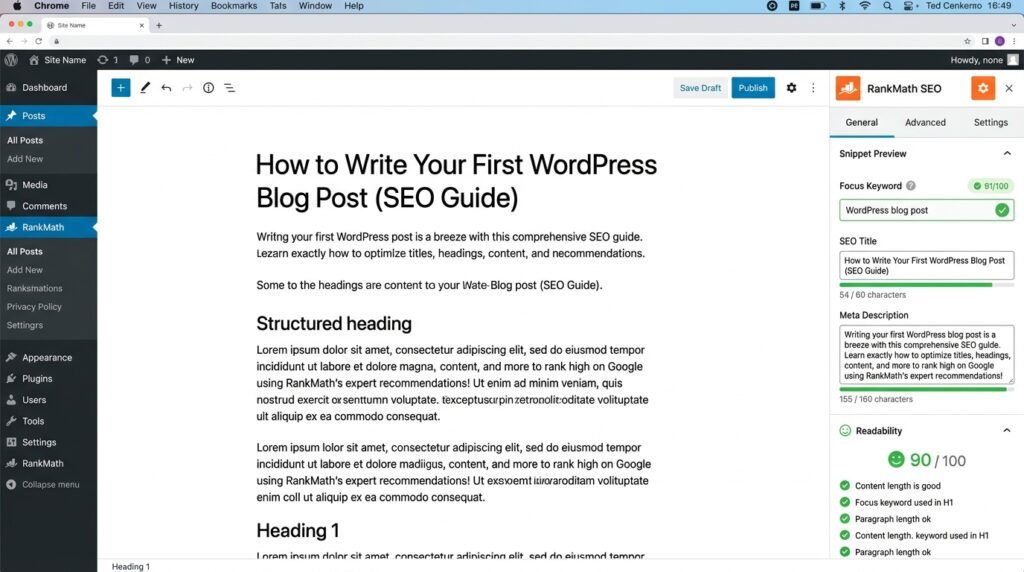
Once RankMath is installed, you’ll see a new RankMath SEO panel below the post editor. Here’s how to use it:
Focus on these four things:
1. Focus Keyword
Type the main keyword you want this post to rank for. For example: how to write first blog post.
However, don’t stuff it everywhere. Use it naturally in:
- The SEO title
- The first paragraph
- 1–2 subheadings
- The meta description
2. SEO Title
RankMath shows a preview of how your title appears in Google. First, keep it under 60 characters so it doesn’t get cut off. Then, include your focus keyword near the beginning.
Example:
How to Write Your First WordPress Blog Post (SEO Guide)— 54 characters ✅
3. Meta Description
The snippet below your title in Google results. However, Google doesn’t always use it — but when they do, it influences clicks.
Best practices:
- Under 160 characters
- Include your keyword
- Give a reason to click (benefit, number, or question)
Example:
Write your first WordPress blog post that ranks on Google. Step-by-step guide: categories, structure, images, alt text, RankMath SEO, and publishing.
4. Readability
RankMath checks if your paragraphs are short, headings are present, and content flows well. Aim for a green score — but don’t obsess.
💡 Don’t chase a perfect SEO score. Your first priority is writing for humans. If the content genuinely helps, search engines will follow.
Step 5: Assign Categories & Tags (Revisited)
Now that you’ve written the post, assign it correctly.
In the right sidebar
- Click the Post tab (not Block)
- Find the Categories panel
- Check the box next to your main category — for this post, “WordPress Zero to Hero”
- Find the Tags panel below
- Add 3–5 relevant tags:
writing blog postsSEO basicsWordPress tipsbeginner guide
However, don’t add 20 tags. Tags dilute their own value — a post with 20 tags has no topical focus. Aim for 3–5.
If your category doesn’t exist yet: Click + Add New Category, type the name, and click Add.
Step 6: Publish, Draft, or Schedule
You have four options for finishing a post:
| Option | What it does | When to use |
|---|---|---|
| Save Draft | Saves without publishing | Still writing, need a break |
| Preview | Shows the post as it will look live | Before publishing, check formatting |
| Publish | Makes the post live immediately | Ready to go |
| Schedule | Publishes at a future date/time | Batching content |
How to schedule a post (recommended for consistency)
- In the right sidebar under Post → Summary, find Publish
- Next to “Publish immediately”, click Edit
- Choose a date and time (e.g., next Tuesday at 9 AM)
- Click Schedule
Why schedule? Consistency builds an audience. For example, two posts per week for three months does more than ten posts in one weekend followed by silence.
⚠️ First post exception: For your very first post, just hit Publish — you need it live to test that everything works.
Once your post is live, the next step is getting readers. See our How to Get Your First 100 Readers guide for the exact tracking setup.
Step 7: Promote Your Post After Publishing
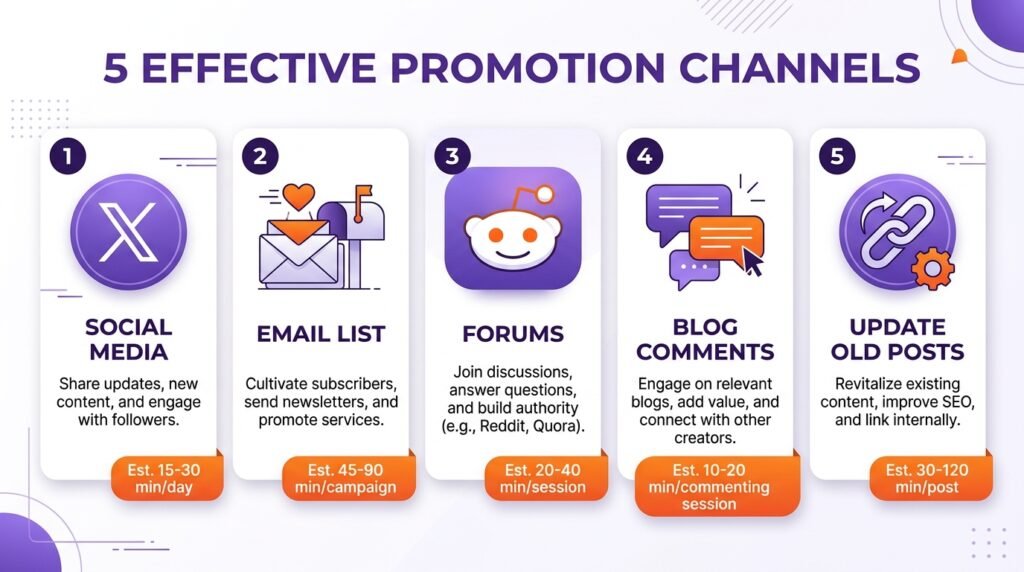
Writing is only half the job. First, publish. Then, promote.
Promotion checklist
| Channel | How to promote | Time investment |
|---|---|---|
| Social media | Share on Twitter/X, LinkedIn, Facebook, Threads | 5 min |
| Email list | Send to your subscribers with a personal note | 10 min |
| Reddit / forums | Share in relevant subreddits (read rules first) | 15 min |
| Comment on other blogs | Leave genuine comments with a link to your post | 20 min |
| Update old posts | Link to your new post from older related articles | 5 min per post |
However, don’t spam. For example, don’t drop a link in 50 Reddit threads — that gets you banned. Instead, find 2–3 threads where your post genuinely answers a question, and share it there.
Real Numbers: What Happened After My First Post
When I published the Why I Built My Site article, here’s what actually happened:
| Timeframe | Visitors | Source |
|---|---|---|
| Day 1 | 12 | Mostly me + friends |
| Week 1 | 87 | Direct + one Reddit share |
| Week 2 | 230 | After Twitter and Reddit shares |
| Month 2 | ~1,200 | Google long-tail keywords |
| Month 3 | ~3,400 | Google rankings stabilized |
It wasn’t viral. But it was a start. As a result, over time, Google began ranking it for long-tail keywords like “why build WordPress site from scratch”. Small traffic adds up.
Here’s the key insight: that first post took me 6 hours to write and another 3 hours to promote. It generated over 4,000 visitors in three months. That’s roughly 450 visitors per hour of work — and it’s still ranking today.
The 12-Point Pre-Publish Checklist
Before you hit Publish, run through this list:
- □ Title is clear and includes your keyword
- □ Permalink is short, uses hyphens, includes keyword
- □ At least one H2 heading (more if long post)
- □ Paragraphs are short (2–4 sentences max)
- □ Featured image is set
- □ Alt text is added to every image
- □ Internal link to at least one other post
- □ Category is selected (not “Uncategorized”)
- □ 3–5 relevant tags added
- □ RankMath SEO title filled (<60 chars)
- □ RankMath meta description filled (<160 chars)
- □ Call to action at the end (question, suggestion, or invite)
Save this list. Print it. Tape it to your monitor. Every post you publish should pass all 12.
Frequently Asked Questions
Q1: How long should my first blog post be?
Aim for 800–1,500 words. However, length matters less than usefulness. A 600-word post that solves a specific problem beats a 3,000-word post that rambles. For example, our WordPress Settings Checklist is under 1,500 words and ranks well because every section answers a real question.
Q2: Do I need to know SEO before writing my first post?
No. First, write for humans. Then, use RankMath (free) to catch basic issues. Finally, as you publish more, you’ll naturally learn SEO patterns. Nobody writes their first post with perfect optimization — including the blogs you admire.
Q3: What’s the difference between a draft and a scheduled post?
A draft is unpublished work-in-progress — not visible to visitors. A scheduled post is published automatically at a specific date and time. In practice, drafts are for unfinished writing; scheduled posts are for batching content so you maintain a consistent publishing rhythm.
Q4: Should I use categories or tags for SEO?
Categories help Google understand your site’s main topics — they’re structural. Tags are more granular and often don’t add SEO value beyond internal linking. However, both help readers navigate. Rule of thumb: 1 category per post, 3–5 tags.
Q5: How many images should I add to a blog post?
One featured image, plus one image every 300–500 words. As a result, a 1,200-word post typically has 3–4 images. Don’t add images just to fill space — each should add context or break up dense sections.
Q6: When should I use “Save Draft” vs “Publish”?
Save Draft when you’re not finished — you need more research, editing, or sleep. Publish when the post is ready for the world. However, don’t leave drafts sitting for months. A rough blog post published is worth more than a perfect draft never published.
Q7: What if my first post gets zero traffic?
That’s normal — nearly every blog’s first post gets under 50 visitors in month one. However, keep writing. Google takes 3–6 months to rank new sites. The goal of your first post isn’t traffic — it’s finishing. Publishing something is the entire win.
Key Takeaways
- Create categories first — 3–5 main topics for your site
- Structure every post with H2/H3 headings and short paragraphs (2–4 sentences)
- Edit the permalink before publishing — short, hyphenated, keyword-rich
- Add alt text to every image — good for SEO, essential for accessibility
- Install RankMath (free) and fill focus keyword, SEO title, and meta description
- Assign one category + 3–5 tags per post
- Schedule posts for consistency — don’t publish ten in one weekend
- Promote after publishing — share on social, email, and relevant forums
- Expect slow growth — first post rarely gets traffic; consistency compounds
What’s Next?
Now you have a published post. However, the next challenge is getting readers.
👉 Next in this series: How to Get Your First 100 Readers — traffic sources, Google Analytics setup, and the exact tracking that shows what’s working.
If you’ve published your first post, drop the link in the comments. I’ll read it and give you honest feedback.
Related Reading
- Why I Built My WordPress Site from Scratch — the honest beginner story
- WordPress Settings Checklist — 7 settings to configure before you write
- Build a WordPress Homepage with Kadence — your homepage, step-by-step
- Must-Have WordPress Plugins — the 4 plugins to install on day one
- How to Get Your First 100 Readers — traffic sources and tracking
- How to Build an Email List from Day One — turn readers into subscribers