
When I first installed WordPress, my site looked like nothing. A blank white page with “Hello world!” and a generic menu that led nowhere.
I knew I needed a proper homepage — something that would look professional, explain what my site is about, and encourage people to stick around. However, I didn’t want to learn code or pay for expensive page builders.
That’s when I found Kadence. In this guide, I’ll show you exactly how to build a WordPress homepage with Kadence — using only the free Kadence Theme and free Kadence Blocks. No coding required. Just drag, drop, and customize.
If you haven’t installed Kadence yet, see our Install WordPress in 10 Minutes guide first. Otherwise, let’s jump right in.
What this guide covers:
- Why Kadence beats other free themes (with real performance numbers)
- Step 1: Install Kadence Theme + Kadence Blocks
- Step 2: Set global colors and fonts (once, applied site-wide)
- Step 3: Create the homepage page and configure the template
- Step 4: Build 5 sections row-by-row (Hero, Social Proof, Blog Grid, Newsletter, CTA)
- Step 5: Make it mobile-friendly
- Step 6: Publish and set as your static front page
- Pro tips, FAQs, and troubleshooting
Let’s build something that actually looks good.
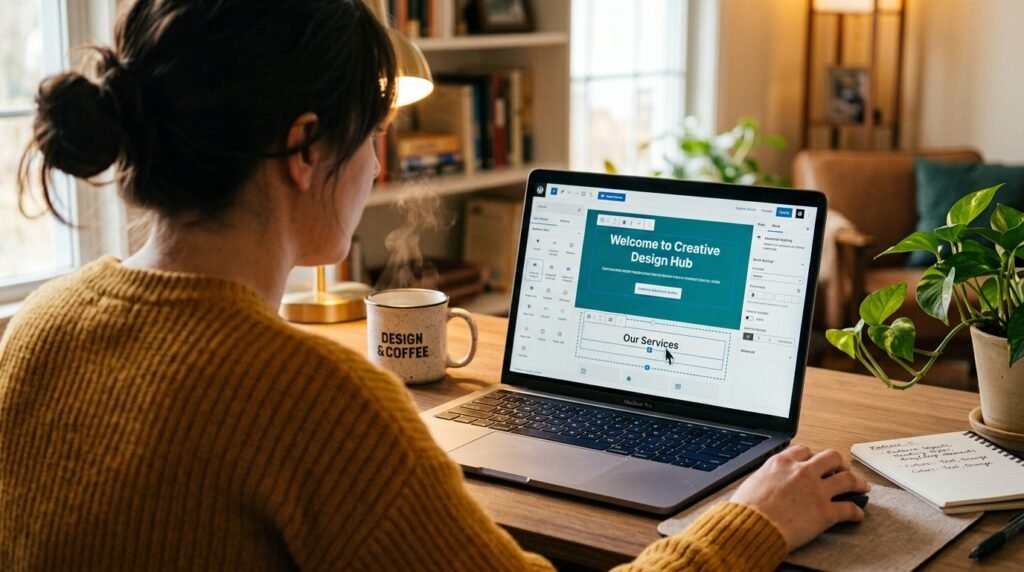
Why Kadence? (And Why It Beats Other Free Themes)
Before we start building, let me explain why I chose Kadence — and why it’s the right choice for most beginners.
Kadence is a lightweight, block-first WordPress theme built for speed and flexibility. Even the free version is surprisingly powerful:
- Global color palette system — set your brand colors once, apply them site-wide
- Full typography controls — including Google Fonts, no premium required
- Drag-and-drop header & footer builder — three rows (top, main, bottom), freely arrangeable
- WooCommerce integration — perfect if you ever plan to add a shop
- Multiple starter templates — one-click import of full-site designs
- Sticky & transparent headers — built-in, no plugin needed
Performance numbers (real, not marketing)
| Metric | Kadence Free | Typical premium theme |
|---|---|---|
| Performance score | 92/100 | 60–75/100 |
| Customization flexibility | 90/100 | 70–85/100 |
| Total transfer size | 120–180 KB | 300–500 KB |
| PageSpeed (Lighthouse mobile) | 90+ | 60–80 |
As a result, the free version alone is more capable than many premium themes. For most personal blogs and small business sites, you won’t need anything else.
For a broader comparison of themes and plugins, see our Must-Have WordPress Plugins guide.
Step 1: Install Kadence Theme & Kadence Blocks
If you haven’t already:
Install Kadence Theme:
- Go to Appearance → Themes → Add New
- Search for “Kadence”
- Click Install, then Activate
Install Kadence Blocks:
- Go to Plugins → Add New
- Search for “Kadence Blocks” (or “Gutenberg Blocks with AI by Kadence WP”)
- Click Install, then Activate
💡 Why both? Kadence Theme controls your site’s global design (header, footer, colors, fonts). Kadence Blocks gives you extra building blocks for creating custom page layouts — Row Layout, Advanced Button, Post Grid, and more. They work perfectly together.

Step 2: Set Your Global Brand Colors & Fonts
Before building your homepage, set your site’s visual identity. This ensures consistency across all pages — and saves you from manually styling each block later.
Colors
In your WordPress dashboard:
- Go to Appearance → Customize
- Look for “Colors” or “Global Palette” in the Kadence customizer panel
Kadence’s color system lets you define your brand colors once and reference them anywhere. You can set:
- Primary color — main brand color (buttons, links, accents)
- Secondary color — for additional accents
- Neutral colors — backgrounds, borders, text
For example, a tech blog might use deep blue as primary, teal as secondary, and light gray as background.
Typography
In the same customizer, find “Typography” settings:
- Base Font — clean, readable body text (Inter, Roboto, Open Sans)
- Heading Font — slightly bolder for titles (can match base)
However, don’t overthink font pairing. Two fonts are enough. Three becomes cluttered.
Save your settings
Click “Publish” at the top of the customizer. Your global colors and fonts are now applied site-wide.
For permalink and general site setup, see our WordPress Settings Checklist if you haven’t already.
Step 3: Create a New Page for Your Homepage
- Go to Pages → Add New
- Title the page “Home”
- In the right sidebar (Document settings), find “Page Attributes” and set Template to “Full Width” — this removes sidebars and gives you full control
- Do not click “Publish” yet — we need to build the content first
Step 4: Build Your Homepage Layout (5 Sections)
Here’s the exact structure I used. First, build the layout. Then, style each section.
Section 1: Hero Section
The hero section is the first thing visitors see. As a result, it needs a clear headline, a short description, and a button.
How to build it:
- Click “+” and search for “Row Layout” (from Kadence Blocks). Add it to your page.
- Set it to 1 column.
- Add an “Advanced Heading” block inside the column:
- Text: Build, Learn & Grow with WordPress
- Add a “Paragraph” block below:
- Text: Premium WordPress plugins and in-depth tutorials for developers and site owners. No fluff, just real advice.
- Add an “Advanced Button” block:
- Text: Browse Plugins →
- Link:
/plugins(create this page later)
Style the section:
- Select the Row Layout block → Styles tab
- Add a background color from your Global Palette
- Add padding (e.g., 80px top and bottom)
Section 2: Social Proof Section
This section builds trust by showing logos of publications or brands that featured you. However, if you don’t have such logos yet, you can skip this or use placeholder icons.
How to build it:
- Add a new Row Layout → 4 columns
- In each column, add an Image block with a gray scale logo
Pro tip: Keep logos small (max 100px height) and gray scale — color logos create visual clutter.
Section 3: Featured Blog Posts
This is your dynamic section — it pulls your latest articles automatically.
How to build it:
- Add a new Row Layout with 1 column
- Inside it, add an “Advanced Heading” block: Latest from the Blog
- Below it, add the “Post Grid” block (from Kadence Blocks)
Configure the Post Grid:
| Setting | Value |
|---|---|
| Source | Posts |
| Columns | 3 (or 2 on mobile) |
| Categories | Leave empty (pulls from all) |
| Number of Posts | 3 or 6 |
| Show Featured Image | Yes |
| Show Excerpt | Yes, limit to 15–20 words |
| Show Meta | Optional |
- Add a “View All” button below:
- Text: View All Tutorials →
- Link:
/blog(your blog archive page)
Section 4: Newsletter Sign up
This section encourages visitors to subscribe.
How to build it:
- Add a Row Layout with 1 column
- Give it a contrasting background (e.g., light gray or a lighter version of your primary color)
- Add heading and paragraph:
- Heading: Never Miss a Beat
- Paragraph: Join our newsletter and get the latest WordPress tips and plugin updates straight to your inbox. No spam, ever.
- Add your sign up form. You have three options:
| Option | Best for | How |
|---|---|---|
| Kadence Forms (Pro) | Kadence Pro users | Add “Form (Adv)” block → configure fields |
| WPForms Lite (free) | Most beginners | Build form in WPForms, add Shortcode block |
| Placeholder button (temporary) | If email marketing isn’t set up yet | Advanced Button → link to /contact |
💡 If you’re collecting emails, pair this with an email list setup — see our How to Build an Email List from Day One guide.
Section 5: Final Call-to-Action
End your homepage with a clear, simple CTA.
How to build it:
- Add a Row Layout with 1 column
- Add heading: Ready to Build Your WordPress Site?
- Add paragraph: Start with my beginner’s guide and join thousands of readers who learned WordPress the easy way.
- Add an Advanced Button:
- Text: Get Started Now →
- Link:
/wordpress-zero-to-hero(your category page)
Step 5: Make It Mobile-Friendly
Kadence Blocks are responsive by default. However, always check your work.
- Click “Preview” in the editor (top right)
- Switch between Desktop, Tablet, and Mobile views
- Adjust padding, margins, or column layouts if anything looks broken
For example, a 4-column Social Proof section should collapse to 2 columns on mobile. And your Hero padding of 80px might feel too cramped at 40px on smaller screens.
In practice, the free version of Kadence Blocks gives you responsive controls for each block — you can set different font sizes and spacing per device. This is unusual for a free theme.
Step 6: Publish & Set as Front Page
- Click Publish or Update on your homepage
- Go to Settings → Reading
- Under “Your homepage displays”, select “A static page”
- Set “Homepage” to your newly created “Home” page
- Set “Posts page” to your blog archive (create a “Blog” page if you don’t have one)
- Click Save Changes
Visit your site — you should now see your custom homepage as the front page.
⚠️ If you don’t see your homepage, clear your browser cache or view in incognito mode. WordPress caches aggressively on some hosts.
Pro Tips for a Better Homepage
Once your homepage is live, apply these principles:
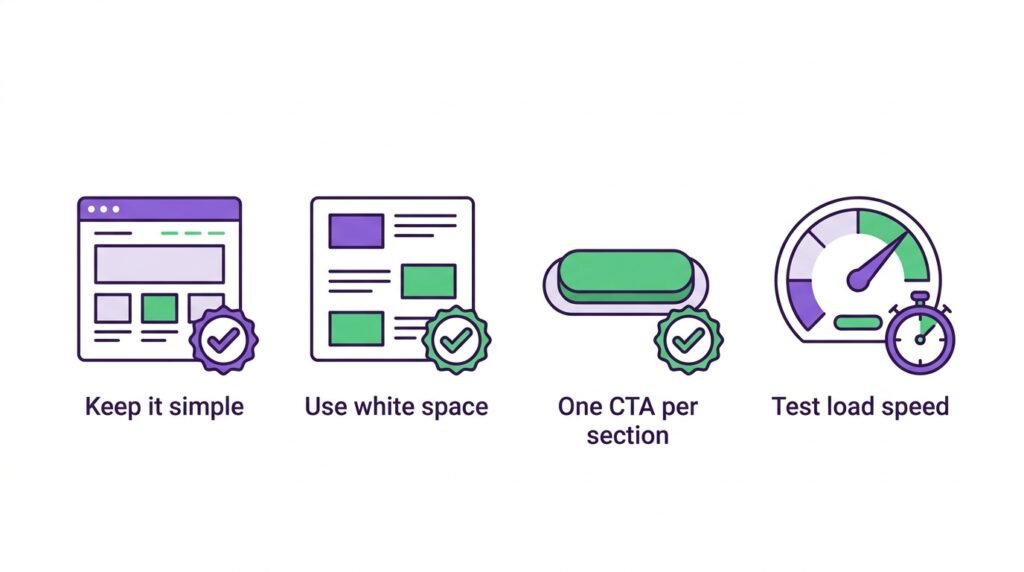
- Keep it simple. Don’t add too many sections. 4–5 sections are plenty for most sites.
- Use white space. Padding and margins are your friends — don’t cram everything together.
- One primary CTA per section. Each section should guide the visitor toward a single action.
- Test load speed. Use Google PageSpeed Insights after publishing. Kadence is fast by default, but large images slow you down.
- Compress images before upload. Use WebP format and tools like ShortPixel or Imagify.
As a result, your homepage will load in under 2 seconds on mobile — the threshold Google uses for Core Web Vitals.
Once your homepage is done, the next step is content. See our How to Write Your First Blog Post guide for SEO-friendly article structure.
Frequently Asked Questions
Q1: Do I need Kadence Pro to build a good homepage?
No. The free version of Kadence Theme plus free Kadence Blocks is more than enough for a professional, fast-loading homepage. Kadence Pro adds advanced features like conditional headers, mega menus, and dark mode — but you don’t need them to get started.
Q2: What’s the difference between Kadence Theme and Kadence Blocks?
Kadence Theme controls global design (header, footer, colors, fonts, layouts). Kadence Blocks adds extra content blocks (Row Layout, Post Grid, Advanced Button) for building custom pages inside the editor. However, they’re designed to work together — install both.
Q3: Can I use Kadence with Elementor or other page builders?
Yes — Kadence works with Elementor, Beaver Builder, and Gutenberg. In practice, I recommend sticking with Kadence Blocks — it’s lighter, integrates seamlessly with the theme, and doesn’t add the overhead Elementor does.
Q4: My homepage doesn’t look like the screenshots. What went wrong?
Check three things:
- Page Template is set to “Full Width” (in Document settings → Page Attributes)
- The page is published and set as the front page in Settings → Reading
- Browser cache is cleared (or view in incognito mode)
Q5: How do I add a background image to the hero section?
Select the Row Layout block → Styles tab → Background → Image. However, keep it subtle: use a dark overlay (30–50% opacity) so text stays readable. For example, a gradient overlay in your primary color works better than a plain photo.
Q6: Can I use Kadence for a WooCommerce store?
Yes. Kadence has built-in WooCommerce integration — product grids, cart, checkout, and shop pages all styled automatically. As a result, you can build a store on the same free theme. For setup, see our Installing WooCommerce guide.
Q7: What if I want to change my homepage design later?
You can — every section is a block you can edit, move, or delete. First, duplicate the page as a backup. Then, experiment freely. Finally, if something breaks, restore from your backup or from UpdraftPlus (see our Must-Have WordPress Plugins guide).
Troubleshooting Common Issues
| Problem | Likely cause | Fix |
|---|---|---|
| Homepage shows blog posts, not custom page | Reading Settings still on “Latest posts” | Settings → Reading → “A static page” |
| Sections look broken on mobile | Missing responsive controls | Edit each block → Responsive tab → adjust per device |
| Post Grid shows nothing | No published posts | Publish 3+ posts or use a placeholder image |
| Colors don’t match Global Palette | Manually set colors override palette | Reset block colors or update Global Palette |
| Slow load time after publishing | Large images, no compression | Compress to WebP, enable caching plugin |
For a full-speed audit after publishing, use Google PageSpeed Insights — it will tell you exactly what to fix.
Key Takeaways
- Install Kadence Theme + Kadence Blocks — both free, both essential
- Set global colors and fonts first — saves hours of per-block styling later
- Build your homepage in 5 sections: Hero → Social Proof → Blog Grid → Newsletter → Final CTA
- Use Row Layout blocks for structure and Post Grid to pull blog posts automatically
- Set your homepage as a static front page in Settings → Reading
- Kadence free is enough — no premium upgrade needed for most sites
- Test on mobile and check Core Web Vitals after publishing
- Compress images before upload — 500KB+ images kill your performance score
What’s Next?
You now have a beautiful homepage. However, the real work starts with content.
👉 Next in this series: How to Write Your First Blog Post — SEO-friendly structure, categories, and featured images.
If you have questions about building your homepage, drop a comment below. I’ve made every mistake possible so you don’t have to.
Related Reading
- Install WordPress in 10 Minutes — install before you build
- WordPress Settings Checklist — the 7 settings to configure first
- How to Write Your First Blog Post — SEO basics for your first article
- Must-Have WordPress Plugins — the 4 plugins to install on day one
- How to Build an Email List from Day One — turn homepage visitors into subscribers
- Why I Built My WordPress Site from Scratch — the honest beginner story