
When I built my first WordPress site, I assumed “install” meant writing code, editing databases, and probably breaking everything.
Turns out — it’s way easier than that. Most hosts install WordPress for you automatically. You click a button, wait 30 seconds, and it’s done.
However, what if your host doesn’t offer one-click installation? Or what if you want to understand what’s actually happening under the hood? That’s where this guide comes in.
Here’s what you’ll learn:
- Method 1: One-click installer — the easiest path (90% of beginners should use this)
- Method 2: Manual installation via cPanel — how it works, when it’s needed
- Method 3: Local installation — practice on your own computer for free
- Post-install setup — permalinks, sample content, first pages
- Troubleshooting — fixing the 3 most common install errors
By the end, you’ll have a working WordPress site — regardless of which method you choose.
What You Actually Need (Before You Start)
Before installing WordPress, you need three things:
- A domain name — like
mycoolblog.com(about $10–15/year) - Hosting — where your site lives (see our Choosing the Right Hosting guide)
- 10 minutes — the actual installation takes less than 2 minutes; setup takes the rest
If you don’t have hosting yet, that’s the first step — the entire process depends on it. For example, managed WordPress hosts like SiteGround install WordPress automatically the moment you create an account.
Now let’s look at the three installation methods.
Method 1: One-Click Installer (Recommended)
Almost every reputable host includes a one-click WordPress installer in their control panel. The most common ones are:
- Softaculous — used by Hostinger, SiteGround, Namecheap, and many others
- Fantastico — older, but similar
- Mojo Marketplace — used by Bluehost
Step 1: Log into your hosting dashboard
Open your hosting panel (cPanel or a custom dashboard). Look for a section called “WordPress”, “Website”, or “Auto Installer”.
Step 2: Find the WordPress icon
It usually has a big blue “W” logo. Click it.
Step 3: Fill in basic details
You’ll see a form. Don’t panic — you only need six fields:
| Field | What to enter |
|---|---|
| Choose domain | Select your domain from the dropdown |
| Directory | Leave empty (unless installing in a subfolder like /blog) |
| Site Name | Your future site title — can change later |
| Site Description | Optional — can change later |
| Admin username | Not “admin” — pick something unique like yourname_wp |
| Admin password | Strong password (your host may generate one) |
| Admin email | Your real email — password resets go here |
Step 4: Click “Install”
Wait 30–60 seconds. You’ll get a success message with your WordPress login URL — usually yoursite.com/wp-admin or yoursite.com/wp-login.php.
That’s it. WordPress is installed.
Time: 2 minutes. Difficulty: Very easy.
Method 2: Manual Installation via cPanel (Only If You Have To)
If your host doesn’t offer one-click installation (rare these days), you can install WordPress manually. It sounds scary, but it only takes 5–10 extra minutes.
However, if this looks overwhelming — stick with Method 1. There’s no badge for installing WordPress the hard way.
What you need
- Your hosting cPanel login
- A database name, username, and password (you’ll create these)
- An FTP client or the File Manager in cPanel
Step-by-step
1. Download WordPress
Go to wordpress.org/download and download the ZIP file.
2. Upload the ZIP to your server
Use cPanel File Manager or FTP. Extract the file in your root folder — usually public_html or htdocs.
3. Create a database
In cPanel, go to MySQL Databases and:
- Create a database (e.g.,
wp_database) - Create a database user (e.g.,
wp_user) - Add the user to the database with ALL PRIVILEGES
4. Run the WordPress installer
Visit your domain (e.g., yoursite.com). WordPress detects it isn’t installed and shows a setup form.
5. Enter database details
Database name, username, password, and host (localhost in most cases).
6. Set site details
Site title, admin username, password, and email — same as Method 1.
Time: 10 minutes. Difficulty: Moderate.
💡 Pro tip: If you get stuck at any point, WordPress.org has official documentation that covers every edge case. But honestly, just switch to Method 1 — it exists for a reason.
Method 3: Local Installation (Practice on Your Own Computer)
Want to learn WordPress without paying for hosting? Install it locally — on your laptop or PC. It’s like having a private WordPress sandbox.
As a result, you can test themes, plugins, and design changes without ever touching a live site. If you break something, you just delete the sandbox and start over.
Tools you can use (all free)
| Tool | Best for | Difficulty |
|---|---|---|
| Local WP (formerly Local by Flywheel) | Beginners — very friendly | Easy |
| XAMPP | Cross-platform, more technical | Moderate |
| MAMP | Mac/Windows users | Moderate |
Using Local WP (3 minutes)
- Download Local WP and install it
- Click “Create a new site”
- Give it a name (e.g.,
my-testsite) - Choose your environment (default works fine)
- Click “Create” — Local WP installs WordPress automatically
- Click “Admin” to open your local WordPress dashboard
Time: 3 minutes. Difficulty: Easy.
Why this matters: Local installation is perfect for testing theme changes before applying them to your live site. I broke my WordPress site three times in my first month — all three times, I tested the fix locally first.
Post-Install Setup: What to Do Next
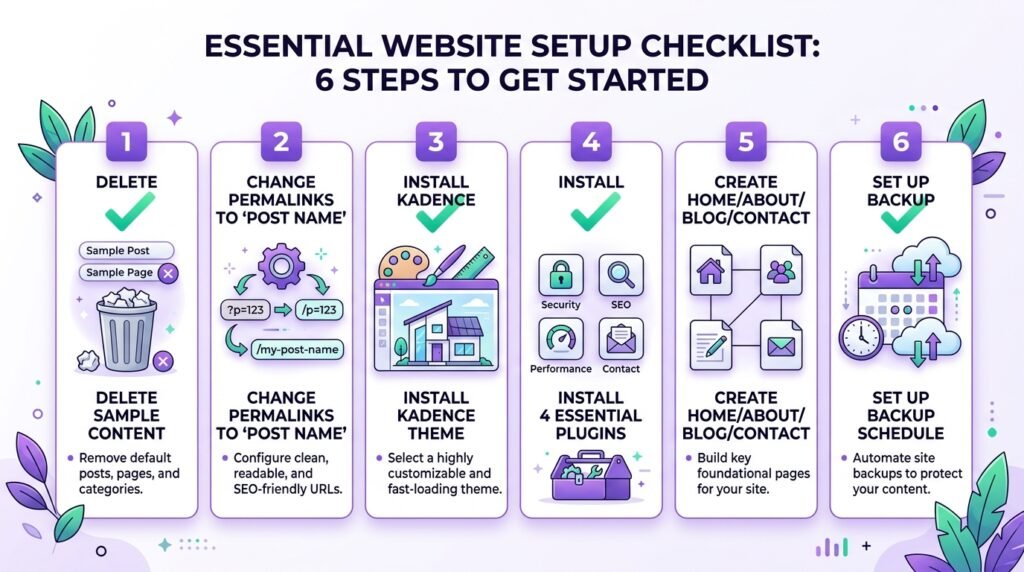
Once WordPress is live, you’ll see a default theme (usually Twenty Twenty-Four) and a sample post. Here’s the setup I ran on day one:
1. Log in to your dashboard
Go to yoursite.com/wp-admin.
2. Delete sample content
Delete the sample post (“Hello World”) and sample page (“Sample Page”). They serve no purpose and clutter your site.
3. Change your permalink structure
Go to Settings → Permalinks and choose “Post name”. This is critical for SEO — it makes URLs like yoursite.com/my-first-post/ instead of yoursite.com/?p=123.
For the full setup, see our WordPress General Settings & Permalinks guide.
4. Install a theme
I use Kadence — fast, customizable, free tier is powerful. See our Build a WordPress Homepage with Kadence guide for the full walkthrough.
5. Install essential plugins
Four plugins — no more:
- Wordfence (security, free)
- RankMath (SEO, free)
- UpdraftPlus (backups, free)
- WP Rocket (caching, ~$59/year)
See our Must-Have WordPress Plugins guide for the full list and reasoning.
6. Create your first pages
Home, About, Blog, Contact. That’s it. Don’t build 20 pages on day one.
Common Installation Problems (and How to Fix Them)
“Error establishing database connection”
What it means: WordPress can’t reach your database.
The fix:
- Check your database name, username, and password in
wp-config.php - Make sure the database user has ALL PRIVILEGES assigned in cPanel
- Verify the host is
localhost— some hosts use a different host name
White screen after installation
What it means: Usually a plugin or theme conflict, or insufficient PHP memory.
The fix:
- Clear your browser cache
- Rename the
pluginsfolder via FTP (this disables all plugins) - If the site comes back, enable plugins one by one to find the culprit
- If it doesn’t, check your PHP memory limit in cPanel (should be 256MB+)
Can’t find wp-admin after install
What it means: Your login URL is different, or you installed in a sub directory.
The fix:
- Try
yoursite.com/wp-login.phporyoursite.com/admin - If you installed in a sub-folder, the login is
yoursite.com/sub-folder/wp-admin - If still nothing, contact your host — they may have a different login URL
Which Method Should You Use?
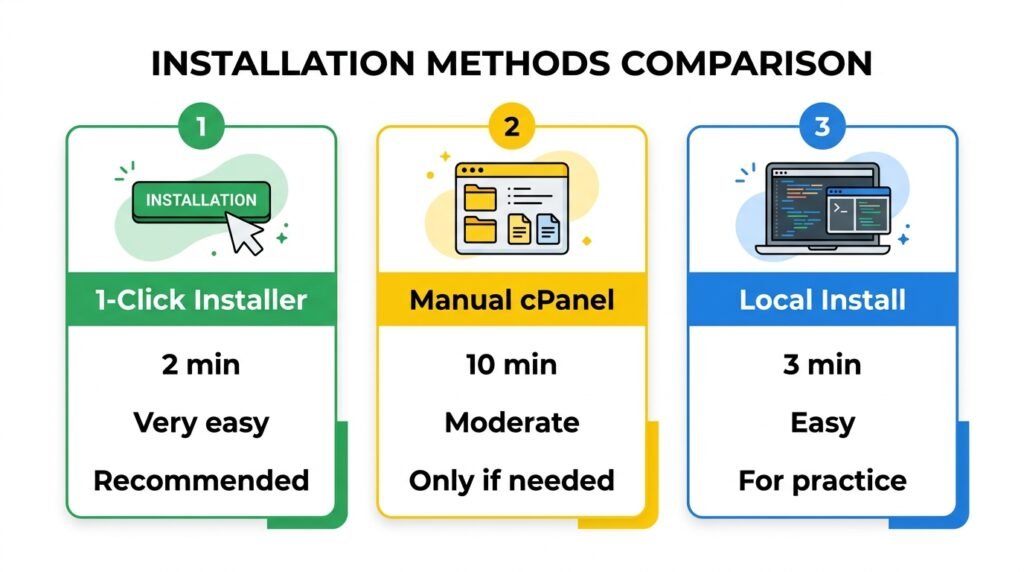
| Method | Difficulty | Time | Best for |
|---|---|---|---|
| One-click installer | Very easy | 2 min | Everyone (90% of beginners) |
| Manual cPanel | Moderate | 10 min | When one-click isn’t available |
| Local installation | Easy | 3 min | Practice, testing, learning |
My advice: Use the one-click installer. It’s what 99% of beginners — and many professionals — use.
Frequently Asked Questions
Q1: How long does it actually take to install WordPress?
2 minutes with a one-click installer. 10 minutes with manual cPanel. 3 minutes with Local WP. The “10 minutes” in most guides includes post-install setup (permalinks, theme, plugins) — not the installation itself.
Q2: Do I need a domain name before installing WordPress?
You need hosting — but you don’t strictly need a custom domain. However, every serious site should have one. Most hosts offer a free domain for the first year, so budget ~$10/year after that.
Q3: Can I install WordPress on my own computer without hosting?
Yes — that’s what Local WP is for. It’s free, takes 3 minutes, and lets you test everything without paying for hosting. Perfect for learning before you commit.
Q4: What’s the difference between WordPress.org and WordPress.com?
WordPress.org = self-hosted, full control, install any theme or plugin. WordPress.com = hosted service, limited free tier. This guide is about WordPress.org — what 99% of tutorials mean when they say “WordPress.”
Q5: What if my host doesn’t have a one-click installer?
First, check if your host offers it under a different name (“Auto Installer”, “Apps”, “Website Builder”). However, if it truly doesn’t, use manual installation via cPanel — it’s not as scary as it sounds. Or switch to a host that supports one-click (most do).
Q6: Which plugins should I install immediately after WordPress?
Four: Wordfence (security), RankMath (SEO), UpdraftPlus (backups), WP Rocket (caching). See our Must-Have WordPress Plugins guide for the reasoning and alternatives.
Q7: How do I make my WordPress site secure after installation?
Start with three things: change the admin username (never use “admin”), enable 2FA (Wordfence does this for free), and set up daily backups (UpdraftPlus). For a deeper dive, see our WooCommerce Security & Performance guide — the security principles apply to all WordPress sites.
Key Takeaways
- One-click installer is the easiest — use it if it’s available
- Manual installation is possible but rarely needed — takes 10 minutes
- Local WP lets you practice for free — perfect for testing before going live
- After installation: delete sample content, change permalinks, pick a theme
- Install only 4 plugins on day one — security, SEO, backup, caching
- The entire process takes 10 minutes — the “installation” itself is 2 minutes
- If you break something, restore from backup — this is why UpdraftPlus is non-negotiable
Ready for the Next Step?
You’ve just installed WordPress — congratulations. Now the real fun begins.
Once your site is live, the next step is getting WordPress set up correctly. See our WordPress General Settings & Permalinks guide — this covers the settings that matter most for SEO, and most beginners skip them.
If you got stuck at any step, leave a comment below. I read every one and I’ll help as honestly as I can.
Related Reading
- Why I Built My WordPress Site from Scratch — the honest beginner story
- Choosing the Right Hosting — pick a host before you install
- WordPress General Settings & Permalinks — the setup most beginners skip
- Build a WordPress Homepage with Kadence — your first page, no code
- Must-Have WordPress Plugins — the 4 plugins to install on day one
- How to Write Your First Blog Post — SEO basics for your first article