
So you’ve just installed WordPress — congratulations. If you followed our Install WordPress in 10 Minutes guide, you’re now looking at a fresh dashboard.
It probably looks something like this: a default theme (Twenty Twenty-Five or similar), a sample post called “Hello world!”, a sample page called “Sample Page”, and a bunch of default settings you’ve never touched.
However, this is the most important moment in your site’s life. The settings you configure in the next 20 minutes will affect your SEO, your security, and your workflow for years.
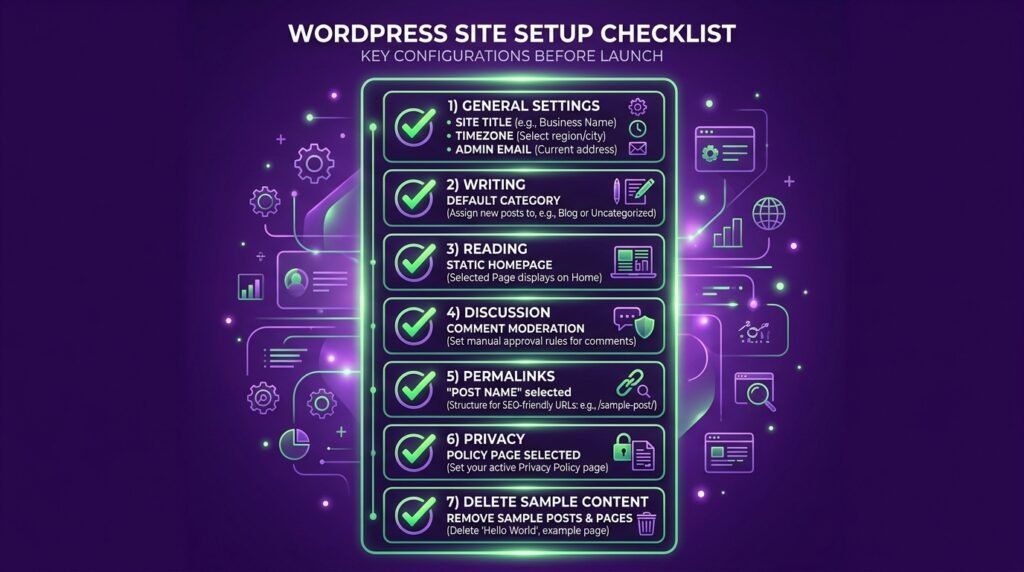
In this guide, I’ll walk through the 7 WordPress settings every new site should change immediately — the ones I wish I’d set correctly from day one. All of them live under Settings in your WordPress admin sidebar.
Here’s what we’ll cover:
- General Settings — identity, timezone, admin email
- Writing Settings — default categories, post formats
- Reading Settings — homepage, blog layout
- Discussion Settings — comment moderation without spam
- Permalinks — the single most important SEO setting
- Privacy Settings — GDPR compliance
- Sample content cleanup + first categories
Let’s get your foundation solid.
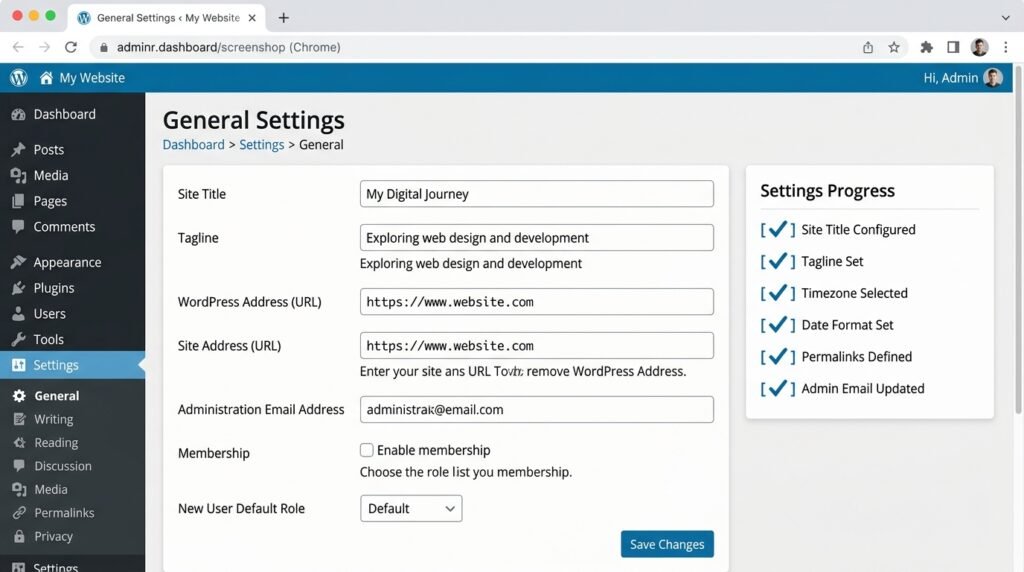
1. General Settings (Settings → General)
This is where your site’s basic identity lives. Go to Settings → General.
Site Title & Tagline
| Field | What it does | Example |
|---|---|---|
| Site Title | Your website’s name — appears in browser tabs, search results | “EasyWPKit” or your blog name |
| Tagline | Short description — appears in browser tabs and search results | “WordPress tutorials & plugins” |
💡 Tip: Don’t overthink it. You can change both later. For example, my first site was called “My Blog” for three weeks before I picked a real name.
WordPress Address (URL) & Site Address (URL)
These should already be correct from the installation. Usually both are your domain (e.g., https://yourdomain.com).
However, there’s a subtle difference:
- WordPress Address — where your WordPress files live
- Site Address — the URL visitors use to reach your site
If you installed WordPress in a subfolder (like yourdomain.com/wordpress), the first one includes the subfolder while the second stays at the root. Leave them as is unless you know exactly what you’re doing — changing these breaks sites.
Administrator Email
This is where WordPress sends notifications — password resets, comment alerts, update warnings. Make sure it’s a real email you check regularly, not a throwaway.
As a result, if your admin email is wrong, you won’t get security alerts when you need them most.
Membership & New User Default Role
| Setting | Recommendation |
|---|---|
| Membership (“Anyone can register”) | Leave unchecked unless you’re building a community, shop, or membership site |
| New User Default Role | If you enable registration, set to Subscriber — they can only manage their own profile, not your site |
Timezone, Date & Time Format
| Setting | What to pick |
|---|---|
| Timezone | Your city (e.g., “Los Angeles” or “London”) — affects scheduled posts and timestamps |
| Date format | F j, Y — e.g., April 19, 2026 |
| Time format | g:i a — e.g., 4:30 pm |
Week Starts On
Set to Monday if your audience is international, or Sunday if US-focused. I use Monday — most of my readers are outside the US.
⚠️ Don’t forget to click “Save Changes” at the bottom of every settings page. This is the #1 mistake beginners make.
2. Writing Settings (Settings → Writing)
This section controls how content creation works.
Default Post Category
By default, new posts go to “Uncategorized” — which looks unprofessional and hurts your SEO. First, create a real category (like “Blog” or your site’s theme), then select it here.
Default Post Format
Leave as “Standard” unless your theme supports other formats (galleries, quotes, videos). Most sites never need to change this.
Post via Email & Remote Publishing
Ignore these. 99% of users don’t need them. If you want to publish by email later, you can enable it then.
Update Services (Ping List)
WordPress pings search engines when you publish. The default http://rpc.pingomatic.com/ is fine. However, I recommend using an SEO plugin like RankMath for better control over indexing. See our Must-Have WordPress Plugins guide for the setup.
3. Reading Settings (Settings → Reading)
This determines what visitors see when they land on your site.
Your homepage displays
| Option | What it does | Best for |
|---|---|---|
| Latest posts (default) | Blog feed as the front page | Pure blogs, news sites |
| A static page | Choose a separate page as homepage and another for blog | Most sites — portfolios, businesses, membership sites |
My recommendation: Use a static page. You’ll need to create two pages first — “Home” and “Blog” — then select them here.
If you’re building a homepage from scratch, see our Build a WordPress Homepage with Kadence guide — no code required.
Blog pages show at most
How many posts appear per page. Start with 10. More than 20 slows page load; fewer than 5 frustrates readers.
Syndication feeds show the most recent
Leave at “Full text” unless you want only snippets. Full text is better for SEO — Google indexes your entire content, not just a teaser.
Search engine visibility
“Discourage search engines from indexing this site” — leave this unchecked.
⚠️ Critical: This is the setting that determines whether Google indexes your site at all. If checked, you’re invisible to search. Only check it during development on a live domain you don’t want indexed yet.
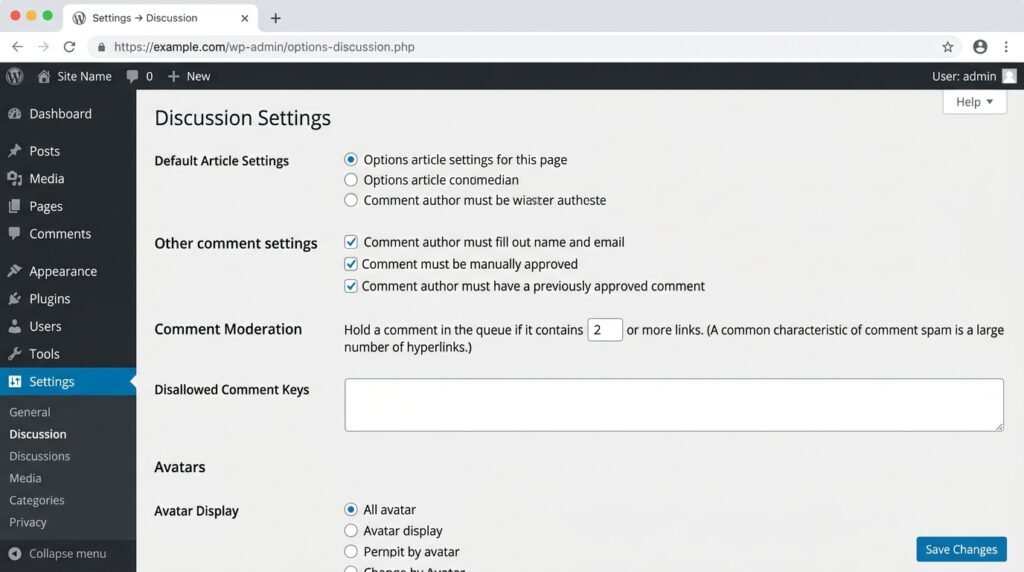
4. Discussion Settings (Settings → Discussion)
This controls comments. Here’s how I set mine to avoid spam without losing engagement.
Default post settings
- Uncheck “Attempt to notify any blogs linked to from the post” — ping backs attract spam
- Uncheck “Allow link notifications from other blogs (ping backs and track backs)” — same reason
- Keep “Allow people to submit comments on new posts” — unless you don’t want comments at all
Other comment settings
| Setting | Recommendation | Why |
|---|---|---|
| Comment author must fill out name and email | Check | Reduces anonymous spam |
| Users must be registered and logged in to comment | Leave unchecked | Registration barriers kill engagement |
| Automatically close comments on posts older than X days | 14 days | Old posts attract the most spam |
Before a comment appears
- Check “Comment must be manually approved” — prevents spam from appearing live
- Check “Comment author must have a previously approved comment” — trusts returning visitors
Comment Moderation
Set to hold any comment with more than 2 links. Spam comments almost always contain 3+ links.
Avatars
Keep them on (default). They add personality and improve engagement.
Click “Save Changes” at the bottom.
5. Permalinks (Settings → Permalinks) — Most Important for SEO
This is the single most important setting for your site’s URLs. Don’t leave it on the default.
The two URL structures
| Structure | Example | SEO impact |
|---|---|---|
| Default | yoursite.com/?p=123 | ❌ Bad — no keywords, no context |
| Post name | yoursite.com/sample-post/ | ✅ Good — readable, keyword-rich |
How to change it
- Go to Settings → Permalinks
- Select “Post name”
- Click “Save Changes”
Your server may need a few seconds to rewrite the rules — that’s normal.
Why it matters
First, search engines prefer readable URLs. A URL like /wordpress-settings-checklist/ tells Google what the page is about; /?p=123 tells it nothing.
Then, humans prefer readable URLs too. When someone shares your link on social media, yoursite.com/wordpress-settings-checklist/ looks professional. yoursite.com/?p=123 looks suspicious.
Finally, readable URLs are more clickable in search results — higher CTR = better rankings.
⚠️ Change this immediately after installation. If you wait until you have 50 published posts, changing permalinks requires 301 redirects for every URL — a hassle you can avoid.
For the full WordPress URL and permalink logic, see the official WordPress documentation.
6. Privacy Settings (Settings → Privacy)
WordPress requires you to choose a Privacy Policy page — this is for GDPR (EU), CCPA (California), and similar regulations.
If you haven’t created one yet, this screen lets you:
- Generate a suggested policy (WordPress auto-writes one based on your site type)
- Select an existing page (if you already wrote one)
My recommendation: Generate the suggested policy, then edit it to match your actual data practices. Don’t just leave the default — regulators check for this.
Once the page exists, select it here and save. WordPress will automatically link to it from your footer.
Bonus: Delete Sample Content
Before you start writing real content, clean up the defaults:
| Step | Where | What to delete |
|---|---|---|
| 1 | Posts → All Posts | “Hello world!” |
| 2 | Pages → All Pages | “Sample Page” |
| 3 | Comments | The default test comment |
This keeps your site clean and professional. Google may index sample content if you leave it, which hurts your SEO.
Create Your First Categories
Go to Posts → Categories. Delete “Uncategorized” and create your own:
- “WordPress Zero to Hero”
- “Hosting & Performance”
- “Plugins”
(Or anything relevant to your niche.)
Why this matters: Every post needs a category. If you leave “Uncategorized”, your URLs and archives look unprofessional — and Google has less context about your content.
Once you have categories, you can also add tags for more granular organization. See our How to Write Your First Blog Post guide for the SEO-friendly tagging strategy.
Frequently Asked Questions
Q1: What’s the most important WordPress setting for SEO?
Permalinks. The default ?p=123 structure gives Google zero information about your content. First, change it to “Post name” before publishing anything. However, the Site Title, Tagline, and Reading Settings (static homepage) also matter — but permalinks are non-negotiable.
Q2: Can I change permalinks after publishing posts?
Yes, but it’s risky. Changing permalinks breaks all existing URLs — links, shares, and Google’s index. As a result, you’ll need 301 redirects for every page. If you’ve already published 20+ posts, use a plugin like Redirection to handle the redirects automatically.
Q3: Should I use “Latest posts” or a “Static page” for my homepage?
For blogs with frequent updates: latest posts.
For businesses, portfolios, or WooCommerce stores: static page.
My recommendation: static page for 90% of sites — you control what visitors see first.
Q4: How strict should comment moderation be?
Start strict, then relax. First, approve manually and hold comments with 2+ links. Then, once you have a list of trusted commenters (people whose comments were previously approved), let them post without moderation. Finally, close comments on posts older than 14 days — old posts attract the most spam.
Q5: Do I need a Privacy Policy page if I don’t collect data?
Technically no — but almost every WordPress site collects data (analytics, comments, cookies). However, if you’re in the EU or have EU visitors, GDPR requires it. If you’re in California, CCPA applies. Just create one — it takes 5 minutes and prevents legal headaches.
Q6: What should I do immediately after these settings?
Four things: delete sample content, create your first categories, install essential plugins (see our Must-Have WordPress Plugins guide), and pick a theme. If you’re using Kadence, see our Build a WordPress Homepage with Kadence guide.
Q7: How often should I revisit these settings?
Once after install, then quarterly. For example, your timezone should be correct from day one, but your homepage layout might change as your site evolves. Set a calendar reminder every 3 months to review Permalinks, Reading, and Privacy.
Key Takeaways
- General Settings — Set Site Title, Tagline, Timezone, and a real Admin Email
- Writing Settings — Change default post category from “Uncategorized”
- Reading Settings — Use a static homepage for most sites (not latest posts)
- Discussion Settings — Moderate comments manually, hold anything with 2+ links
- Permalinks — Change to “Post name” immediately — the #1 SEO setting
- Privacy Settings — Select or generate a Privacy Policy page (GDPR/CCPA)
- Cleanup — Delete sample content, create real categories
What’s Next?
Now your WordPress foundation is solid. The next step is making it look good.
👉 Next: Build a WordPress Homepage with Kadence — no coding required.
If you have questions about any setting, leave a comment below. I’ve broken almost every default setting at some point — and learned from it.
Related Reading
- Install WordPress in 10 Minutes — the previous step before these settings
- Why I Built My WordPress Site from Scratch — the honest beginner story
- Build a WordPress Homepage with Kadence — your first page, no code
- Must-Have WordPress Plugins — 4 plugins to install after these settings
- How to Write Your First Blog Post — SEO basics for your first article
- Choosing the Right Hosting — pick a host before you install