
Build beautiful, complex layouts without touching a line of code.
First, text and media are essential — but design blocks are where Gutenberg truly shines. Then, these blocks let you create buttons, multi-column layouts, nested groups, flexible stacks, and visual separators. Finally, all of it happens with a few clicks.
What this guide covers:
- Block 1: Buttons — calls to action that stand out
- Block 2: Columns — multi-column layouts
- Block 3: Group — styled section containers
- Block 4: Row — horizontal flex arrangement
- Block 5: Stack — vertical rhythm with spacing
- Block 6: Spacer — manual empty space
- Block 7: Separator — horizontal lines and dots
- Block 8: Page Break — split content across pages
- Comparison table — which block to use when
- A complete page-building workflow — using all 8 blocks
By the end, you’ll build professional layouts entirely within the WordPress editor.
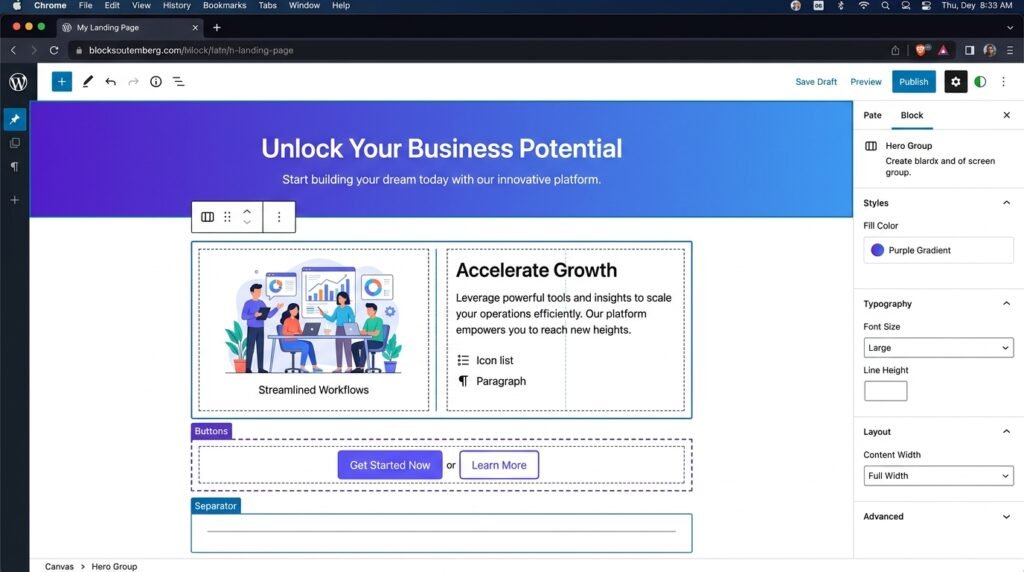
1. Buttons Block — Calls to Action That Stand Out
What it does
First, the Buttons block creates one or more buttons in a row (or stack). Then, each button has its own link, style, and settings. As a result, you can build CTA sections that guide visitors toward a specific action.
When to use it
Calls to action — “Buy Now”, “Read More”, “Subscribe”, “Download”, “Contact Us”.
Step-by-step: How to add a Buttons block
- Click the blue plus (+) button — or type
/buttonsand press Enter - A single button appears inside the block
- To add more buttons: click “Add Button” inside the block (they appear side-by-side)
- To change a button’s text: click it and type
- To add a link: click the button → toolbar → link icon → paste URL
- To style the whole block: use the right sidebar under “Block” tab
Key settings (for the whole Buttons block)
| Setting | Options | Best practice |
|---|---|---|
| Layout | Horizontal, Vertical | Horizontal for desktop, vertical for mobile (auto-responsive) |
| Alignment | Left, center, right | Center for hero CTAs, left for inline |
| Gap | Small, Medium, Large, Custom | Space between buttons. Medium is safe. |
Key settings (for each individual button)
| Setting | Options | Best practice |
|---|---|---|
| Text | Custom label | Action-oriented (“Get Started”, not “Click”) |
| Link | URL (internal or external) | Open external links in new tab |
| Style | Fill, Outline, Text | Fill = high emphasis, Outline = secondary |
| Size | Small, Medium, Large, Extra Large | Hero = Large, inline = Small/Medium |
| Border radius | Pixels (0–50px) | 4–8px looks modern and clickable |
| Width | Auto, Full, Custom | Auto for inline, Full for full-width buttons |
| Icon | Optional (SVG or Dashicon) | Adds visual hint (e.g., download arrow) |
Pro tips for buttons
- Use one primary button per section — don’t overwhelm with multiple prominent CTAs.
- Make text action-oriented — “Download PDF” beats “Click here”.
- Outline buttons are great for secondary actions (e.g., “Cancel” or “Learn More”).
- Open external links in a new tab — check the box in link settings. However, don’t do this for internal links — it breaks the back button.
Shortcut: Type /buttons.
For a real example, see our Build a WordPress Homepage with Kadence guide — it uses the Buttons block for CTAs.
2. Columns Block — Multi-Column Layouts
What it does
First, the Columns block splits content into 2–6 side-by-side columns. Then, each column is a container that can hold any blocks — text, images, buttons, groups. As a result, you can build pricing tables, feature lists, and side-by-side comparisons without CSS.
When to use it
Pricing tables, feature lists (icon + text), side-by-side comparisons, grids of testimonials.
Step-by-step: How to create a columns layout
- Click + → search for “Columns” — or type
/columns - Choose the number of columns (2–6) from the placeholder screen
- Each column appears as an empty container
- To add content: click inside a column and add any block
- To resize columns: drag the handles between columns in the toolbar
- To add/remove columns: click the Columns block → toolbar → “Change column count”
Key settings
| Setting | Options | Best practice |
|---|---|---|
| Number of columns | 2 to 6 | 2–4 for readability, 5–6 for data-dense |
| Column widths | Drag handles or exact percentages | Equal width (%) or specify (e.g., 33/66) |
| Vertical alignment | Top, Middle, Bottom | Useful when columns have different heights |
| Gap | Small, Medium, Large, Custom | Medium for most layouts |
| Stack on mobile | On/Off | On (default) — columns wrap vertically on phones |
Pro tips for columns
- Add a background color or border to columns to separate them visually. Click the individual column → Colors or Border in the sidebar.
- Use Group inside a column if you need multiple blocks in that column with consistent styling.
- Preview on mobile — always. For example, a 4-column layout becomes unreadable on a 375px screen. Reduce to 2 columns or enable “Stack on mobile.”
Shortcut: Type /columns.
3. Group Block — Styled Section Container
What it does
First, the Group block wraps several blocks into a single container. Then, you can apply background colors, padding, borders, and margins to the group as a whole. As a result, it’s the fastest way to create “cards” or “sections” without touching CSS.
When to use it
Section backgrounds, card designs, hero sections — any time you need to apply styling to a collection of blocks.
Step-by-step: How to create a Group
Method 1: From existing blocks
- Select multiple adjacent blocks (click the first, then shift-click the last)
- Click the “Group” icon in the block toolbar
- The blocks are now wrapped in a Group container
Method 2: From scratch
- Click + → search for “Group” — or type
/group - Add blocks inside it
- Style the group in the sidebar
Key settings
| Setting | Options | Best practice |
|---|---|---|
| Background | Color, Gradient, Image | Use sparingly — keep content readable |
| Padding | None, Small, Medium, Large, Custom | Essential for spacing inside group |
| Margin | None, Small, Medium, Large, Custom | Space outside the group |
| Border | Width, color, radius | Subtle borders for card effects |
| Text color | Override for all text inside | Ensure contrast with background |
| Layout | Flow, Flex, Grid | Usually leave as Flow |
Pro tips for groups
- Use Group instead of adding background to individual blocks — cleaner code, faster editing.
- Nested groups allow complex designs (e.g., Group inside a Column inside a Columns block).
- Set a background image on a group for section-wide banners.
Shortcut: Select blocks → click three dots → “Group”. Or type /group.
For a deeper walkthrough, see our Build a WordPress Homepage with Kadence guide — it uses Groups for every section.
4. Row Block — Horizontal Flex Layout
What it does
First, the Row block is similar to Columns but with more control. Then, it arranges blocks horizontally with adjustable alignment, wrap, and direction. As a result, it’s ideal for icon rows, tag lists, and inline meta info.
When to use it
Navigation bars, icon rows (social icons), inline meta info (author + date), any horizontal arrangement that isn’t a traditional grid.
Step-by-step: How to add a Row block
- Click + → search for “Row” — or type
/row - Set the number of columns for the row
- Add blocks inside each column
- Configure direction, alignment, and wrap in the sidebar
Key settings
| Setting | Options |
|---|---|
| Direction | Row (horizontal), Row reverse |
| Alignment | Space between, space around, space evenly, start, center, end |
| Wrap | On/Off — wrap to next line on mobile |
| Gap | Horizontal and vertical spacing |
| Item width | Auto or fixed |
Row vs Columns
| Block | Layout type | Best for |
|---|---|---|
| Columns | Grid with equal or predefined widths | Text-heavy content, pricing tables |
| Row | Flex-based, items shrink/grow naturally | Icons, badges, tags, meta info |
Shortcut: Type /row.
5. Stack Block — Vertical Rhythm
What it does
First, the Stack block arranges blocks vertically with consistent spacing. Then, it’s essentially a Group block specialized for vertical rhythm. As a result, you use it when you need uniform spacing between elements.
When to use it
Sections that need consistent spacing between elements — like a headline → paragraph → button stack.
Step-by-step: How to add a Stack block
- Click + → search for “Stack” — or type
/stack - Add blocks inside — they stack vertically
- Adjust gap and alignment in the sidebar
Key settings
| Setting | Options |
|---|---|
| Spacing | Custom gap between child blocks |
| Alignment | Left, center, right |
| Background, padding, border | Like Group block |
In practice, Stack is a Group block with vertical spacing preset. However, use Group when you need horizontal layout flexibility, and Stack when you need pure vertical rhythm.
Shortcut: Type /stack.
6. Spacer Block — Add Empty Space
What it does
First, the Spacer block inserts a custom amount of blank space between blocks. Then, you can set different heights per device. As a result, you can fine-tune spacing when theme defaults aren’t enough.
When to use it
When you need more space than the theme defaults provide — before a heading, after a section, separating elements.
Step-by-step: How to add a Spacer block
- Click + → search for “Spacer” — or type
/spacer - Drag the blue handle to resize — or set exact height in the sidebar
- To set responsive heights: use the Responsive tab to set different heights per device
Key settings
| Setting | Options |
|---|---|
| Height | Pixels (e.g., 20px, 50px, 100px) |
| Responsive | Different heights for desktop/tablet/mobile |
Pro tips for spacers
- Avoid overusing Spacer. Excessive empty space hurts usability. Trust the theme’s margin defaults first.
- Use Group margin/padding instead where possible — more semantic, cleaner code.
- Set height small (20–40px) for subtle separation.
Shortcut: Type /spacer.
7. Separator Block — Horizontal Line
What it does
First, the Separator block draws a horizontal line (HR) to visually separate content. Then, you can choose line styles, colors, and widths.
When to use it
Between sections, before a conclusion, to break up long articles.
Step-by-step: How to add a Separator block
- Click + → search for “Separator” — or type
/separator - Choose a style: Line (default), Dots, or Wide line
- Adjust color and width in the sidebar
Key settings
| Setting | Options |
|---|---|
| Style | Line (default), Dots (text dividers), Wide line |
| Color | Choose from palette |
| Width | Default, Full, Custom (percentage) |
| Height | Thickness in pixels |
Pro tips for separators
- Use dots style for light visual separation (e.g., between tips).
- Keep consistent — don’t mix multiple separator styles on the same site.
- Wide line with accent color makes a strong break.
Shortcut: Type /separator.
8. Page Break Block — Split Content Across Pages
What it does
First, the Page Break block inserts a pagination break inside a post or page. Then, it splits long content into multiple pages with next/previous navigation.
When to use it
Extremely long articles (10,000+ words) to reduce scrolling — or multi-page guides.
Step-by-step: How to add a Page Break block
- Click + → search for “Page Break” — or type
/page-break - Insert it where you want the first page to end
- That’s it — WordPress handles the pagination
How it works
- First, visitors see “Page 1 of 3” with next/previous navigation.
- Then, each page loads separately (new URL with
/2/,/3/). - As a result, long content becomes easier to navigate.
Pro tip
Use rarely. However, pagination can hurt mobile user experience. Instead, consider a Table of Contents block for long articles — see our Query Loop Block guide for how to build one.
Shortcut: Type /page-break.
Comparison Table: Which Design Block Should You Use?
First, here’s the quick reference. Then, use it whenever you’re unsure.
| Block | Best for | When to use |
|---|---|---|
| Buttons | Calls to action | One or multiple action links |
| Columns | Grid layouts, side-by-side text | Feature lists, pricing tables |
| Group | Styled section container | Adding background/padding to a group of blocks |
| Row | Horizontal arrangement, icons | Icon rows, tag lists, meta info |
| Stack | Vertical rhythm | Consistent spacing between vertical items |
| Spacer | Manual empty space | When theme margins aren’t enough |
| Separator | Visual division | Between long sections |
| Page Break | Pagination | Extremely long articles (rare) |
Common Mistakes to Avoid
First, here are the mistakes beginners make most often. Then, fix them before publishing.
| ❌ Mistake | ✅ Fix |
|---|---|
| Too many columns on mobile | Use 2–3 columns max, or enable “Stack on mobile” |
| No background contrast in Groups | Check with WebAIM contrast checker — aim for 4.5:1 |
| Overusing Spacers | Let margins do the work — use Spacer only when needed |
| Missing button link | Always test buttons before publishing |
| Ignoring responsive preview | Check columns, groups, and stacks on mobile view |
| Mixing separator styles | Pick one style (line or dots) and stick with it |
As a result, avoiding these mistakes keeps your layouts clean, accessible, and responsive.
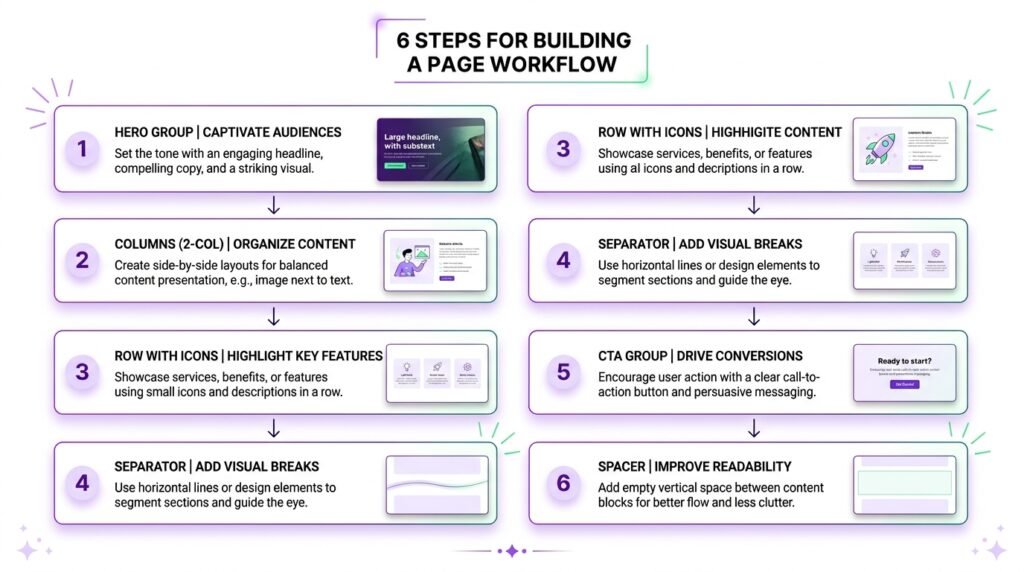
Pro Layout Workflow: Building a Page with Design Blocks
First, here’s how I build a typical page using all 8 blocks. Then, adapt it to your own content.
Step 1: Add a Group for the hero section
- Add a Group block
- Set background color from your palette
- Set padding to 60px top and bottom
- Add a Heading, Paragraph, and Buttons block inside
Step 2: Add a Columns section
- Below the Group, add a Columns block (2 columns)
- Left column: add a Heading + Paragraph
- Right column: add an Image block
- Set the group’s vertical alignment to Middle
Step 3: Add a Row for icons
- Add a Row block with 3 columns
- In each column, add an Image (small icon) + Heading + Paragraph
- Set alignment to Center
Step 4: Add a Separator
- Between sections, add a Separator block
- Choose Dots style for subtlety, or Wide line for emphasis
Step 5: Add a final CTA Group
- Add another Group with a contrasting background
- Add a Heading + Paragraph + Buttons block
Step 6: Fine-tune with Spacers (if needed)
- Add a Spacer between sections if the theme margins feel tight
- Set height to 40px
In practice, this workflow builds a complete landing page — no code, no page builder. As a result, you get a clean, fast, and responsive layout.
Frequently Asked Questions
Q1: What’s the difference between Columns, Row, and Stack?
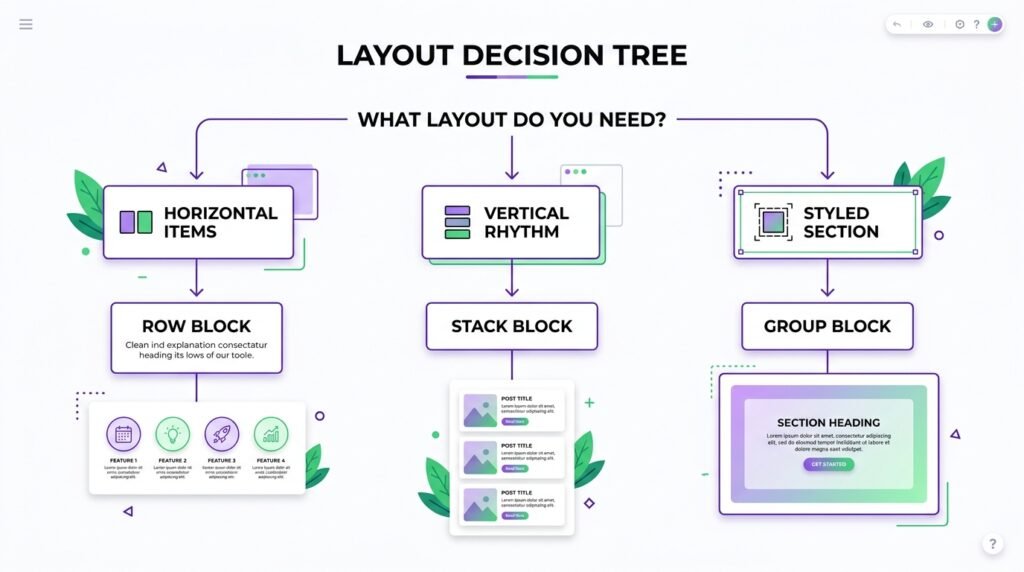
First, Columns = grid with equal or predefined widths (best for text-heavy content). Then, Row = flex-based, items shrink/grow naturally (best for icons and tags). Finally, Stack = vertical rhythm with consistent spacing (best for stacked CTAs). As a result, each block serves a different layout need.
Q2: When should I use Group vs Stack?
Group = when you need horizontal layout flexibility (columns inside, custom flex settings). Stack = when you just need vertical spacing between blocks. In practice, Stack is a simplified Group with vertical rhythm preset. However, if you later need horizontal control, switch to Group.
Q3: Can I nest Groups inside Columns?
Yes — and that’s a common pattern. First, create a Columns block with 2 columns. Then, inside each column, add a Group block for styling (background, padding, border). Finally, add content inside the Group. As a result, you get “cards” side-by-side with independent styling.
Q4: How many columns is too many?
Above 4 columns on desktop, readability drops. For example, a 5-column pricing table is fine, but 5 columns of body text becomes cramped. However, on mobile, anything above 2 columns should stack vertically. As a result, use 2–3 columns for text, 4–6 for data/features.
Q5: Do I need Spacer if I use Group padding?
Usually no. First, Group padding handles internal spacing. Then, theme margins handle spacing between blocks. However, if you need extra breathing room between two specific sections, a Spacer (20–40px) works fine. In practice, use Spacer sparingly.
Q6: Can I add custom CSS to design blocks?
Yes. First, select the block. Then, in the sidebar, go to Advanced and add a CSS class (e.g., my-cta-section). Finally, add the CSS in Appearance → Customize → Additional CSS. For a full walkthrough, see our Advanced Gutenberg Custom CSS guide.
Q7: What’s the best design block for building a pricing table?
First, use a Columns block with 3 columns. Then, inside each column, add a Group block for the “card” styling. Finally, add a Heading (plan name), Paragraph (features), and Buttons (CTA) inside each Group. As a result, you get a responsive pricing table without a plugin.
Key Takeaways
- 8 design blocks — Buttons, Columns, Group, Row, Stack, Spacer, Separator, Page Break
- Buttons = call to action. Use fill + outline styles, action text
- Columns = multi-column layouts. Always preview mobile stacking
- Group = container for several blocks (background, padding, border)
- Row = horizontal flex layout (icons, social links)
- Stack = vertical spacing container
- Spacer = manual empty space (use sparingly)
- Separator = horizontal line (dots style for subtle breaks)
- Page Break = pagination (use rarely)
- The Group + Columns + Group pattern is the foundation of most card layouts
- Shortcuts:
/buttons,/columns,/group,/row,/stack,/spacer,/separator,/page-break
What’s Next?
First, you now control layout and design. Then, it’s time for widget blocks — the dynamic content that keeps readers on your site.
👉 Next in this series: Gutenberg Widget Blocks Guide — Shortcode, Archives, Calendar, Categories, Latest Posts, Search, Social Icons.
Which design block surprised you most? Any questions about Columns vs Row vs Stack? Ask below.
Related Reading
- Gutenberg & Blocks: Complete Guide — the first article in this series
- Gutenberg Text Blocks Guide — Paragraph, Heading, List, Quote
- Gutenberg Media Blocks Guide — Image, Gallery, Cover, Video
- Gutenberg Widget Blocks Guide — Archives, Calendar, Latest Posts
- Advanced Gutenberg Custom CSS — block styles and developer tools
- Build a WordPress Homepage with Kadence — real-world use of design blocks