
Everything you need to know about adding and optimizing media in the WordPress editor.
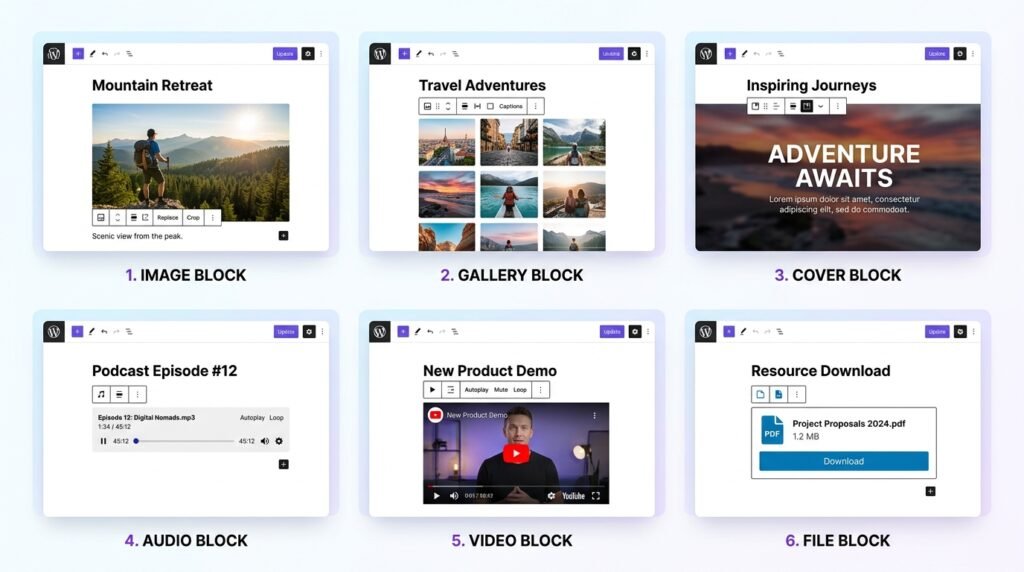
First, text is important — but media makes your content come alive. Then, images, galleries, videos, and audio break up long articles, explain complex ideas, and keep readers engaged. As a result, Gutenberg gives you 6 dedicated media blocks, each designed for a specific type of content.
What this guide covers:
- Block 1: Image — the essential media block
- Block 2: Gallery — multiple images in a grid
- Block 3: Cover — text over image or video
- Block 4: Audio — podcasts and music
- Block 5: Video — MP4 or YouTube/Vimeo embed
- Block 6: File — downloadable documents
- Comparison table — which block to use when
- Accessibility & SEO best practices — for every media type
- 5 common mistakes — and how to avoid them
By the end, you’ll know exactly how to add and optimize media — like a pro.
1. Image Block — The Essential Media Block
What it does
First, the Image block inserts a single image into your post or page. Then, you can style it, align it, and add alt text for SEO. Finally, it’s the most-used media block in WordPress.
When to use it
Any time you need one image — screenshots, photos, diagrams, illustrations, or product shots.
Step-by-step: How to add an Image block
- Click the blue plus (+) button — or type
/imageand press Enter - Choose one of three options:
- Upload — select a new file from your computer
- Media Library — pick an already-uploaded image
- Insert from URL — link to an external image
- Once inserted, click the image to select it
- In the right sidebar, configure settings (see table below)
Key settings
| Setting | Options | Best practice |
|---|---|---|
| Alt text | Text description | Describe the image for screen readers and SEO. Never leave empty. |
| Image size | Thumbnail, Medium, Large, Full, Custom | Full size only if needed. Custom max 1200px width. |
| Alignment | Left, center, right, wide, full | Left/right for text wrap. Wide/full for hero images. |
| Link to | None, Media file, Attachment page, Custom URL | Usually “None” or “Media file” (for lightbox plugins). |
| Caption | Text below image | Optional — add context or credit. |
| Crop / Zoom | Focal point picker | Set which part of image stays visible on different screen sizes. |
| Border & shadow | Radius, width, color, shadow | Add subtle polish. Avoid heavy borders. |
Pro tips for images
- Always add alt text. First, it’s critical for accessibility. Then, it helps SEO. For example, describe what’s in the image:
WordPress editor showing image block settings— notIMG_1234.jpg. - Compress images before uploading. Use tools like TinyPNG, ShortPixel, or Imagify. As a result, pages load faster.
- Set a focal point. Click the image, then the focal point icon (crosshair) in the toolbar. In practice, WordPress will keep that area visible when cropping thumbnails.
- Use descriptive file names.
gutenberg-image-settings.jpg— notphoto1.jpg.
Shortcut: Type /image.
For a broader look at the WordPress editor, see our Gutenberg & Blocks: Complete Guide.
2. Gallery Block — Multiple Images in a Grid
What it does
First, the Gallery block displays multiple images in a responsive grid. Then, you can arrange them, link them, and add captions. As a result, it’s perfect for portfolios, product photos, and event coverage.
When to use it
Portfolios, product sets, event coverage, before/after shots — any collection of 3 or more images.
Step-by-step: How to create a gallery
- Click + → search for “Gallery” — or type
/gallery - Click “Upload” or “Media Library”
- Select multiple images (hold Ctrl/Cmd to select several)
- Click “Create a new gallery”
- Arrange images by dragging thumbnails
- Click “Insert gallery”
- In the right sidebar, configure columns, image size, and linking
Key settings
| Setting | Options | Best practice |
|---|---|---|
| Number of columns | 1–8 (or flexible) | 2–4 columns for most galleries |
| Image size | Thumbnail, Medium, Large, Full | Medium or Large for balance |
| Crop images | Yes / No | Yes for uniform grids; No for original proportions |
| Link to | None, Media file, Attachment page | Media file for lightbox effect |
| Caption | Show/hide per image | Hide if captions are unnecessary |
Pro tips for galleries
- Use flexible columns (newer option) to make the gallery responsive without forcing equal heights.
- Limit to 10–12 images per gallery. However, more than that slows loading — split into multiple galleries instead.
- Click and drag to reorder images after insertion.
- For advanced galleries with masonry or light box, consider a plugin like Modula or Envira Gallery — but start with the built-in block.
Shortcut: Type /gallery.
3. Cover Block — Text Over Image or Video
What it does
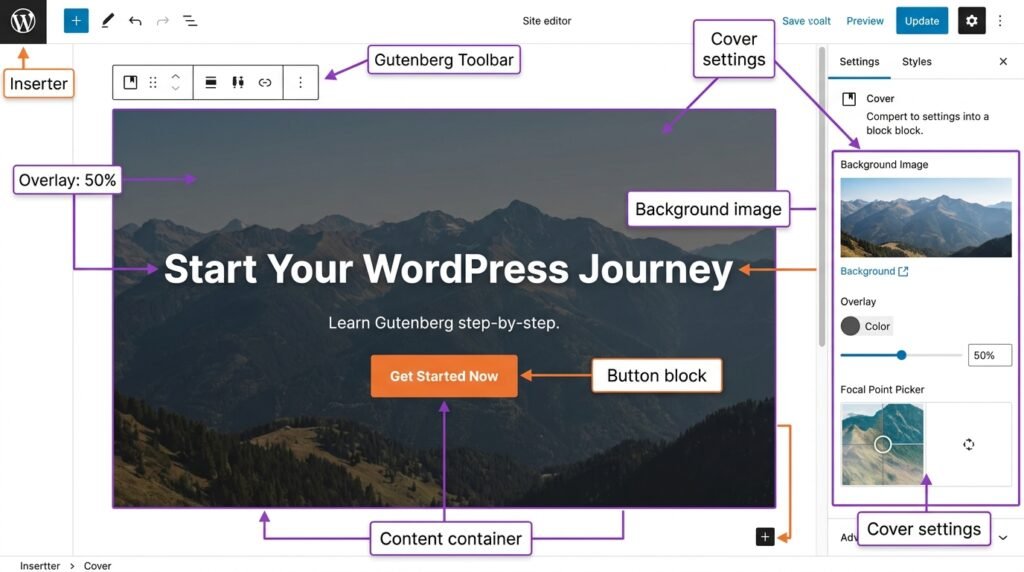
First, the Cover block places a full-width background (image or video) with text overlaid on top. Then, you can adjust overlay opacity, text color, and minimum height. As a result, it’s the go-to block for hero sections and banners.
When to use it
Page headers, call-to-action sections, podcast episode promos, or any time you need dramatic visual impact.
Step-by-step: How to add a Cover block
- Click + → search for “Cover” — or type
/cover - Click “Upload” or “Media Library” to select a background image
- Alternatively, click “Use video” to upload an MP4 (advanced)
- Inside the Cover block, add:
- A Heading block for the title
- A Paragraph block for the description
- An optional Button block for the CTA
- In the right sidebar, adjust overlay and text color
Key settings
| Setting | Options | Best practice |
|---|---|---|
| Media | Image or video | Video background is heavy — use sparingly |
| Fixed background | On/Off (parallax) | Creates subtle scroll effect — but can hurt performance |
| Overlay color | Choose color + opacity | Ensures text is readable. Default is black at 50% opacity. |
| Text color | Light or dark | Choose based on overlay |
| Min height | Pixels (e.g., 400px) or cover | Adjust for hero sections |
| Inner blocks | Any text/heading/button | Add multiple blocks inside cover |
| Alignment | Left, center, right | Usually center for hero sections |
Pro tips for the Cover block
- Always use an overlay. First, it guarantees text contrast. Then, even 10–20% overlay helps readability.
- Keep text short — one heading, one subheading, one button max.
- Compress background images. They’re often large. For example, aim for 1500px width and under 200KB.
- Test on mobile. Text size should be readable without zooming in.
Example Cover content
text
[Cover: mountain landscape background]
    <h1>Start Your WordPress Journey</h1>
    <p>Learn from real experience — no fluff, just action.</p>
    [Button: Start Here →]
Shortcut: Type /cover.
For a real-world example, see our Build a WordPress Homepage with Kadence guide — it uses Cover blocks for the hero section.
4. Audio Block — Embed Podcasts or Music
What it does
First, the Audio block inserts an audio player directly into your post. Then, it supports MP3, M4A, and OGG formats. As a result, you can host podcasts, music samples, or interview recordings without third-party embeds.
When to use it
Podcast episodes, music samples, interview recordings, or audio commentary.
Step-by-step: How to add an Audio block
- Click + → search for “Audio” — or type
/audio - Click “Upload” or “Media Library”
- Select your MP3/M4A/OGG file
- In the right sidebar, configure autoplay, loop, and preload
Key settings
| Setting | Options |
|---|---|
| Audio file | Upload or select from media library |
| Autoplay | On/Off (not recommended) |
| Loop | On/Off |
| Preload | Auto, Metadata, None |
| Caption | Optional text below player |
Pro tips for audio
- Do not autoplay. Users hate unexpected sound. Keep it off.
- Provide a transcript. First, it’s for accessibility. Then, it helps readers who prefer text. For example, add a collapsible section with the transcript below the player.
- Use Preload “Metadata.” It loads file size and duration without downloading the whole file. As a result, pages load faster.
Shortcut: Type /audio.
5. Video Block — Embed MP4 or YouTube/Vimeo
What it does
First, the Video block inserts a self-hosted video (MP4) or embeds from YouTube/Vimeo. Then, you can adjust playback controls, autoplay, and poster images.
When to use it
Tutorials, product demos, vlogs, event recordings — any video content.
Option A: Self-hosted video (.mp4)
Step-by-step:
- Click + → search for “Video” — or type
/video - Click “Upload” or “Media Library”
- Select your MP4 file
- In the right sidebar, configure settings
| Setting | Options |
|---|---|
| Video file | Upload from computer or media library |
| Autoplay | On/Off (avoid) |
| Loop | On/Off |
| Muted | Required if autoplay is on (browser policies) |
| Playback controls | Show/hide |
| Poster image | Thumbnail shown before playing |
| Preload | Auto, Metadata, None |
Option B: Embedded YouTube/Vimeo
First, simply paste the video URL into a Paragraph block. Then, Gutenberg auto-converts it to an Embed block. Finally, you can adjust aspect ratio and alignment.
Alternatively, use /youtube shortcut in the block inserter.
Pro tips for video
- Avoid self-hosted video for large files. First, video eats server bandwidth. Then, it slows down your site. As a result, upload to YouTube or Vimeo (free) and embed instead.
- Add a poster image. It looks professional and encourages clicks.
- Never autoplay with sound. Autoplay muted is acceptable for background loops.
- Enable “Playback controls” so users can pause, skip, and adjust volume.
Shortcut: Type /video or /youtube.
6. File Block — Downloadable Documents
What it does
First, the File block creates a download link for PDF, DOCX, ZIP, or any file. Then, you can customize the link text and show file size. As a result, it’s ideal for offering checklists, white papers, or software downloads.
When to use it
Offering PDF checklists, white papers, e-books, software downloads, or template files.
Step-by-step: How to add a File block
- Click + → search for “File” — or type
/file - Click “Upload” or “Media Library”
- Select your PDF, DOCX, ZIP, or other file
- In the right sidebar, configure link text and options
Key settings
| Setting | Options |
|---|---|
| File | Upload or select |
| Link text | Custom text (default is file name) |
| Download button style | Some themes add button styling |
| Show file size | On/Off (recommended on) |
Pro tips for files
- Use descriptive link text. For example, instead of “Click here” — write “Download WordPress Launch Checklist (PDF, 2MB)”.
- Show file size so users know what to expect.
- Compress PDFs before uploading — use iLovePDF or Adobe compression.
Shortcut: Type /file.
Comparison Table: Which Media Block Should You Use?
First, here’s the quick reference. Then, use it whenever you’re unsure.
| Block | Best for | Example use |
|---|---|---|
| Image | Single photo, screenshot, diagram | Blog post header |
| Gallery | Multiple images in a grid | Portfolio, product gallery |
| Cover | Hero sections, banners — text over image/video | Homepage hero |
| Audio | Podcast episodes, music clips | Podcast episode page |
| Video | Tutorials, demos (embed from YouTube/Vimeo recommended) | Course lesson |
| File | Downloadable documents (PDF checklists, e-books) | Free lead magnet |
Accessibility & SEO Best Practices for Media
First, media has a direct impact on SEO and accessibility. Then, every media block has its own best practice.
| Block | Critical best practice |
|---|---|
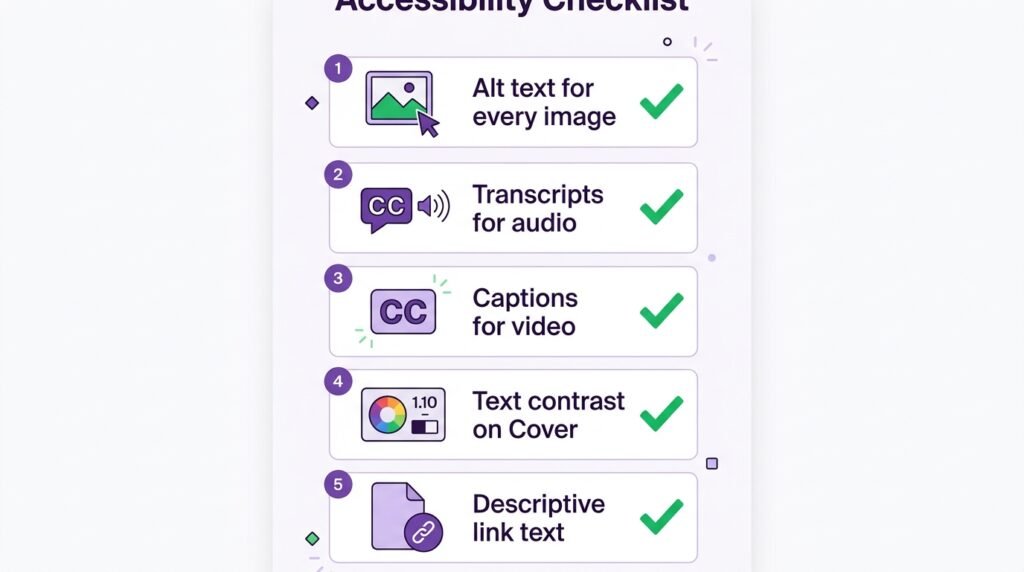
| Image | Always fill Alt text — describe the image meaningfully |
| Gallery | Add Alt text to each image (click individual images inside the gallery) |
| Cover | Ensure text contrast — use overlay, test with contrast checker |
| Audio | Provide a transcript for spoken content |
| Video | Add captions/subtitles for accessibility (YouTube auto-captions available) |
| File | Use descriptive link text including file type + size |
Why this matters: First, Google uses alt text to understand images. Then, screen readers rely on alt text and transcripts for accessibility. As a result, well-optimized media helps both rankings and user experience.
For a broader look at SEO-friendly content, see our How to Write Your First Blog Post guide.
5 Common Mistakes to Avoid
First, here are the mistakes beginners make most often. Then, fix them before publishing.
| ❌ Mistake | ✅ Fix |
|---|---|
| Missing alt text | Always add descriptive alt text for every image |
| Uncompressed images | Compress to under 200KB before uploading (TinyPNG, ShortPixel) |
| Cover overlays too light | Use at least 30% overlay for text readability |
| Self-hosted large videos | Upload to YouTube/Vimeo, then embed |
| Autoplay audio/video | Keep autoplay off — users leave immediately |
As a result, avoiding these mistakes keeps your site fast, accessible, and user-friendly.
Frequently Asked Questions
Q1: What’s the difference between the Image and Gallery blocks?
Image = a single image. Gallery = multiple images in a grid. First, use Image for blog post headers and screenshots. Then, use Gallery for portfolios, product sets, and event coverage. As a result, you get the right layout for each context.
Q2: Do I really need to add alt text to every image?
Yes — 100% of the time. First, alt text is critical for accessibility (screen readers read it aloud). Then, Google uses it to understand image content. As a result, skipping alt text hurts both SEO and accessibility compliance. It takes 5 seconds per image.
Q3: Should I self-host videos or embed from YouTube?
Embed from YouTube or Vimeo. First, self-hosted video eats server bandwidth. Then, it slows down your site significantly. However, if you need privacy or full control, self-host — but compress aggressively and use a video CDN like Bunny Stream.
Q4: How many images should a blog post have?
1 featured image + 1 image every 300–500 words. For example, a 1,200-word post typically has 3–4 images. However, don’t add images just to fill space — each should add context or break up dense sections.
Q5: What size should I upload images at?
Max 1200px wide for most blog images. Then, use WordPress’s built-in sizes (Medium, Large) — don’t serve full-size images. As a result, pages load faster and Core Web Vitals improve.
Q6: Can I add custom CSS to media blocks?
Yes. First, select the block. Then, in the sidebar, go to Advanced and add a CSS class (e.g., my-image-style). Finally, add the CSS in Appearance → Customize → Additional CSS. For a full walkthrough, see our Advanced Gutenberg Custom CSS guide.
Q7: What’s the best file format for images?
WebP — it’s smaller than JPEG and PNG with better quality. First, most caching plugins (WP Rocket, LiteSpeed Cache) auto-convert to WebP. Then, if yours doesn’t, use a plugin like Imagify or ShortPixel. As a result, pages load 30–50% faster.
Key Takeaways
- 6 media blocks: Image, Gallery, Cover, Audio, Video, File
- Alt text is non-negotiable for accessibility and SEO — add it to every image
- Compress all images before uploading (TinyPNG, ShortPixel, Imagify)
- Cover block = text over image/video. Always use an overlay for contrast
- Avoid self-hosted videos — embed from YouTube/Vimeo instead
- File block = downloadable PDFs. Use descriptive link text + file size
- Never autoplay audio/video — users will leave immediately
- Shortcuts:
/image,/gallery,/cover,/audio,/video,/file
What’s Next?
First, you’ve mastered media blocks. Then, it’s time for design blocks — the building blocks of layouts.
👉 Next in this series: Gutenberg Design Blocks Guide — Buttons, Columns, Group, Row, Stack, Spacer, Separator.
Which media block do you use most? Any questions about image optimization or Cover block settings? Ask below.
Related Reading
- Gutenberg & Blocks: Complete Guide — the first article in this series
- Gutenberg Text Blocks Guide — Paragraph, Heading, List, Quote
- Gutenberg Design Blocks Guide — Columns, Group, Row, Buttons
- Gutenberg Widget Blocks Guide — Archives, Calendar, Latest Posts
- Advanced Gutenberg Custom CSS — block styles and developer tools
- Build a WordPress Homepage with Kadence — real-world use of Cover block