
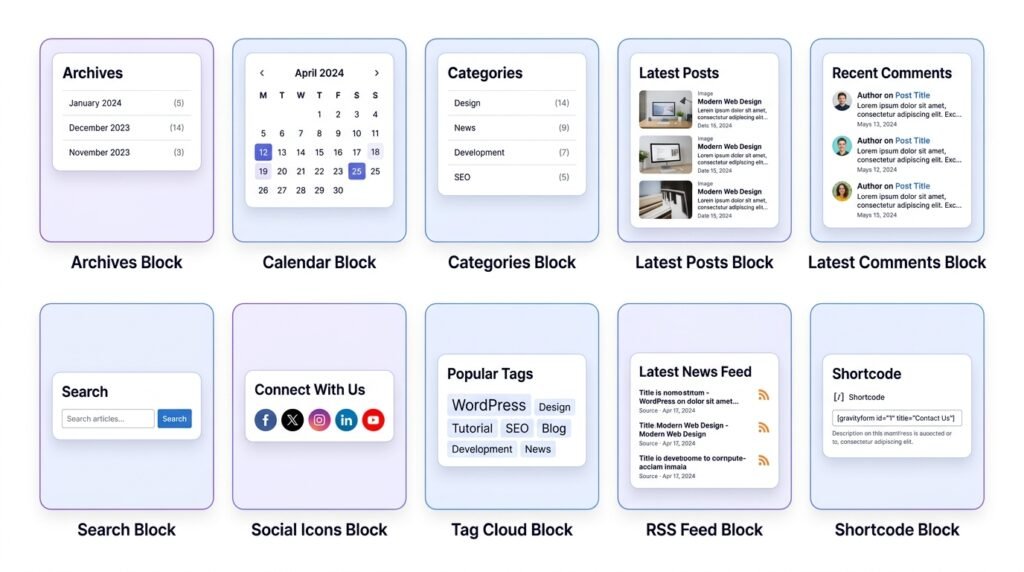
Traditional WordPress widgets have been around for years. However, in the block era, almost all classic widgets have been reimagined as widget blocks. As a result, you can now use them anywhere — not just sidebars.
First, widget blocks add dynamic content to your site: recent posts, category lists, search forms, and social icons. Then, they update automatically as your site grows. Finally, they require zero coding.
What this guide covers:
- Block 1: Archives — monthly post links
- Block 2: Calendar — date navigation
- Block 3: Categories — list of topics
- Block 4: Latest Posts — recent articles with images
- Block 5: Latest Comments — recent reader feedback
- Block 6: Search — essential site search
- Block 7: Social Icons — link to your profiles
- Block 8: Tag Cloud — popular keywords
- Block 9: RSS — display feeds from other sites
- Block 10: Shortcode — compatibility with old plugins
- Where to place them — beyond sidebars
- Common mistakes — 5 errors to avoid
By the end, you’ll know how to add dynamic lists, calendars, search forms, and social links — all without touching code.
1. Archives Block — Monthly Post Links
What it does
First, the Archives block displays a list of months, each linking to posts published that month. Then, it helps readers browse your content by date. As a result, it’s a useful navigation tool for older blogs.
When to use it
Sidebars on blogs with years of content. However, only useful if you have many posts (50+). For newer blogs, skip it — an empty archive looks unprofessional.
Step-by-step: How to add an Archives block
- Click the blue plus (+) button — or type
/archivesand press Enter - In the right sidebar, configure the display options (see table below)
- Save or continue writing
Key settings
| Setting | Options | Best practice |
|---|---|---|
| Dropdown | Yes / No | Dropdown saves space; list is more visible |
| Post count | Show / Hide | Shows number of posts per month in parentheses |
| Display as | List, Dropdown | List for clarity, dropdown for minimalism |
Pro tip
Only add this block if your blog has 50+ published posts. For example, a blog with 20 posts won’t fill a single archive year — it looks empty.
Shortcut: Type /archives.
For the official reference, see WordPress.org documentation on the Archives block.
2. Calendar Block — Date Navigation
What it does
First, the Calendar block shows a monthly calendar grid. Then, clicking a date shows posts from that day. As a result, it’s a visual way to browse content by date.
When to use it
Very niche. However, it works for news sites, event blogs, or daily journals where content is time-sensitive.
Step-by-step: How to add a Calendar block
- Click + → search for “Calendar” — or type
/calendar - That’s it — the calendar renders automatically
- No settings required
Key settings
None. Just add it — WordPress handles the rest.
Pro tip
Most modern sites don’t use the Calendar block. First, readers prefer search or categories for navigation. Then, a calendar with no posts on most days looks sparse. As a result, use it only if your content is published daily and time-sensitive.
Shortcut: Type /calendar.
3. Categories Block — List of Topics
What it does
First, the Categories block shows all post categories as links. Then, clicking a category displays all posts in that category. As a result, it’s essential navigation for almost every blog.
When to use it
Essential for blogs. First, it helps navigation. Then, it creates category pages that Google indexes for SEO. Finally, it lets readers self-select their interests.
Step-by-step: How to add a Categories block
- Click + → search for “Categories” — or type
/categories - In the right sidebar, configure display options:
- Display as: List or Dropdown
- Show hierarchy: Yes/No (shows parent/child indentation)
- Show post count: Yes/No
- Only show top level: Yes/No (hides sub-categories)
Key settings
| Setting | Options | Best practice |
|---|---|---|
| Display as | List, Dropdown | List is clearer for readers |
| Show hierarchy | Yes / No | Shows parent/child indentation |
| Show post count | Yes / No | Signals category activity |
| Only show top level | Yes / No | Hides sub-categories |
Pro tips
- Show post count — it signals category activity. For example, a category with “5” posts looks more active than one without numbers.
- Use hierarchy if you have sub-categories (e.g., “WordPress → Gutenberg”).
Shortcut: Type /categories.
For a deeper dive into category structure, see our How to Write Your First Blog Post guide — it covers category setup.
4. Latest Posts Block — Recent Articles List
What it does
First, the Latest Posts block displays your most recent blog posts. Then, it’s highly customizable — you can show images, excerpts, dates, author, and categories. As a result, it’s the most-used widget block on most sites.
When to use it
Sidebars, homepage sections, footers — anywhere you want to promote fresh content. However, don’t add it if you already have a Post Grid on the homepage — that’s duplication.
Step-by-step: How to add a Latest Posts block
- Click + → search for “Latest Posts” — or type
/latest-posts - In the right sidebar, configure:
- Number of posts: 5–10 (1 is too few; 20 is too many)
- Display featured image: Toggle ON if your posts have consistent images
- Image size: Thumbnail (150px) for sidebars, Medium/Large for main content
- Show excerpt: ON, with 10–20 word limit
- Show date: ON (readers scan dates)
- Show author: Optional (ON for multi-author blogs)
- Order by: Date (default), Title, or Random
Key settings
| Setting | Options | Best practice |
|---|---|---|
| Number of posts | 1–100 | 5–10 is typical |
| Display featured image | Yes / No | Yes — images catch attention |
| Image size | Thumbnail, Medium, Large | Thumbnail (150px) for sidebars |
| Show excerpt | Yes / No | Yes for longer summaries |
| Excerpt length | Words (e.g., 15) | Keep short (10–20 words) |
| Show author | Yes / No | Optional |
| Show date | Yes / No | Usually yes |
| Show categories | Yes / No | Helps readers see topic |
| Order by | Date, Title, Random | Date is default |
| Order | Descending (newest first), Ascending | Descending |
Pro tips
- Add to footer for site-wide recent posts — it promotes content on every page.
- Show featured image only if images are consistent. For example, if your posts have different aspect ratios, thumbnails look messy. In that case, use list-only.
- Don’t duplicate content. If your homepage already has a Post Grid, a Latest Posts block in the sidebar creates overlap.
Shortcut: Type /latest-posts.
For the official reference, see WordPress.org documentation on the Latest Posts block.
5. Latest Comments Block — Recent Reader Feedback
What it does
First, the Latest Comments block shows the most recent comments left on your site. Then, it highlights engagement and social proof. As a result, it can increase interaction — especially on community-driven blogs.
When to use it
Community-driven blogs, to highlight engagement. However, it’s less common now than in the classic widget era.
Step-by-step: How to add a Latest Comments block
- Click + → search for “Latest Comments” — or type
/latest-comments - Configure in the right sidebar:
- Number of comments: 1–100 (start with 5)
- Show avatar: Yes/No
- Show date: Yes/No
- Show excerpt: Yes/No (comment text snippet)
Key settings
| Setting | Options |
|---|---|
| Number of comments | 1–100 |
| Show avatar | Yes / No |
| Show date | Yes / No |
| Show excerpt | Yes / No (comment text snippet) |
Pro tip
Use only when you have active commenters. First, an empty Latest Comments block shows “No comments” — which looks bad. Then, with 5+ active commenters, it becomes social proof that your blog is alive. As a result, it can attract more comments.
Shortcut: Type /latest-comments.
6. Search Block — Site Search Form
What it does
First, the Search block places a search bar on your page. Then, visitors type keywords to find content. As a result, it’s the most essential widget block — every site needs search.
When to use it
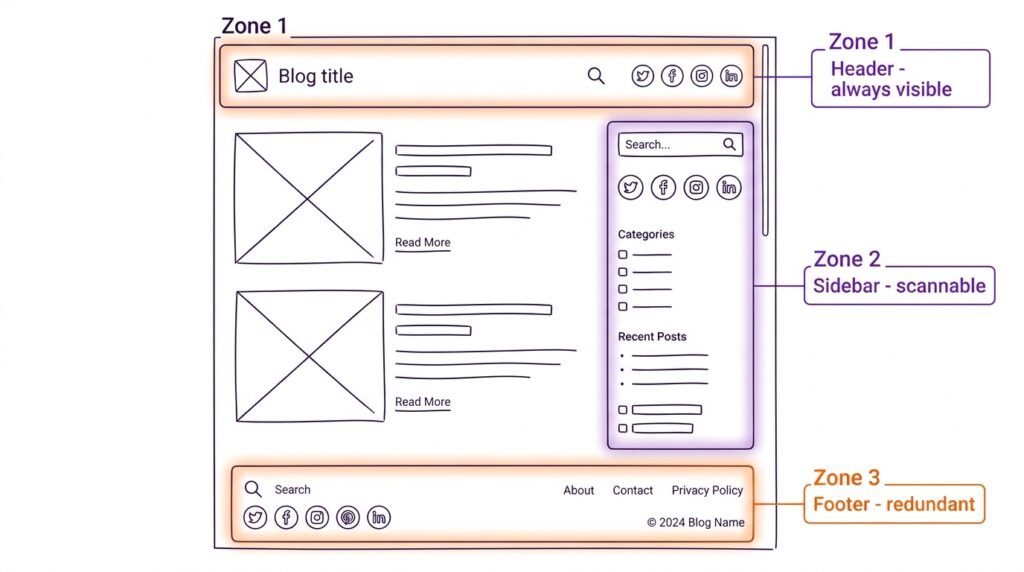
Every site. First, put it in the header for maximum visibility. Then, add a second one in the footer for redundancy. Finally, mobile menus almost always need a search block.
Step-by-step: How to add a Search block
- Click + → search for “Search” — or type
/search - In the right sidebar, configure:
- Button position: Inside (icon) or Outside (button text)
- Button text: Custom (e.g., “Search”)
- Placeholder: Hint text (e.g., “Type and press enter”)
- Label: Show/hide “Search” label
Key settings
| Setting | Options | Best practice |
|---|---|---|
| Button position | Inside (icon), Outside (button text) | Inside saves space |
| Button text | Custom text (e.g., “Search”) | Default “Search” is fine |
| Placeholder | Hint text (“Type and press enter”) | Useful for clarity |
| Label | Show/hide “Search” label | Hide for minimalism |
Pro tip
Always include a Search block somewhere. First, the sidebar and mobile menu are the two most common placements. Then, use the wide button style for better touch targets on mobile. As a result, users actually use it.
Shortcut: Type /search.
7. Social Icons Block — Link to Your Profiles
What it does
First, the Social Icons block displays clickable icons for your social media profiles — X, Facebook, Instagram, LinkedIn, YouTube, GitHub, and more. Then, each icon links to a specific profile. As a result, you build your following on other platforms.
When to use it
Header (top bar), footer, sidebar, contact page — anywhere you want to direct visitors to follow you.
Step-by-step: How to add Social Icons
- Click + → search for “Social Icons” — or type
/social-icons - Click “Add social” and choose a platform from the dropdown
- Paste your profile URL
- Repeat for each platform
- In the right sidebar, configure:
- Icon size: Small, Medium, Large
- Icon color: Use brand colors or custom
- Background: None, Circle, Square
- Alignment: Left, center, right
- Open in new tab: Per link (recommended ON)
Key settings
| Setting | Options |
|---|---|
| Icon size | Small, Medium, Large |
| Icon color | Use brand colors or custom (recommend brand colors) |
| Background | None, Circle, Square |
| Alignment | Left, center, right |
| Open in new tab | Per link (recommended ON) |
Pro tips
- Don’t add platforms you never post on. For example, a dead Instagram link hurts trust. As a result, only show 3–5 platforms you actively use.
- Use brand colors — blue for X, red for YouTube, etc. Then, readers recognize them instantly. However, check contrast with WebAIM contrast checker if you use a light background.
- Place in footer and header — both work well.
Shortcut: Type /social-icons.
For the official reference, see WordPress.org documentation on the Social Icons block.
8. Tag Cloud Block — Popular Keywords
What it does
First, the Tag Cloud block displays your post tags in a “cloud” where larger size = more posts with that tag. Then, it helps readers discover topics by popularity. As a result, it’s a visual way to explore your content.
When to use it
Blogs with many tags (100+ posts across many tags). However, if you tag inconsistently, the cloud looks sparse and confusing.
Step-by-step: How to add a Tag Cloud block
- Click + → search for “Tag Cloud” — or type
/tag-cloud - In the right sidebar, configure:
- Show post count: Yes/No
- Taxonomy: Tags (default) or Categories
Key settings
| Setting | Options |
|---|---|
| Show post count | Yes / No |
| Taxonomy | Tags (default) or Categories |
Pro tip
Use Categories block instead if you’re unsure. First, categories are structured. Then, tags are unstructured and often inconsistent. As a result, Categories block is cleaner for most blogs. However, if you tag consistently and have 20+ tags, Tag Cloud works well.
Shortcut: Type /tag-cloud.
9. RSS Block — Display Feeds from Other Sites
What it does
First, the RSS block pulls and displays posts from any RSS feed. Then, you can show content from another site — including your own second blog. As a result, you aggregate content without manual updates.
When to use it
Aggregating content (e.g., “Industry news”), or cross-promoting your own posts from a different site.
Step-by-step: How to add an RSS block
- Click + → search for “RSS” — or type
/rss - In the right sidebar, enter the Feed URL (e.g.,
https://example.com/feed) - Configure:
- Number of items: 1–20 (start with 5)
- Show summary: Yes/No
- Show author: Yes/No
- Show date: Yes/No
- Display as: List or Grid
Key settings
| Setting | Options |
|---|---|
| Feed URL | Paste RSS feed address (e.g., https://example.com/feed) |
| Number of items | 1–20 |
| Show summary | Yes / No |
| Show author | Yes / No |
| Show date | Yes / No |
| Display as | List, Grid |
Pro tip
Be careful with copyright. First, use other sites’ feeds only if their terms allow it. Then, a safer option is to use your own feed — for example, cross-promote a second blog you run. As a result, you stay compliant while still adding value.
Shortcut: Type /rss.
10. Shortcode Block — Compatibility with Old Plugins
What it does
First, the Shortcode block executes any classic WordPress shortcode inside a block. Then, it acts as a bridge for plugins that haven’t yet built native blocks. As a result, you can use older plugins without them breaking your layout.
When to use it
When a plugin still uses shortcodes and doesn’t have a native block — e.g., [contact-form-7 id="123"].
Step-by-step: How to add a Shortcode block
- Click + → search for “Shortcode” — or type
/shortcode - Paste the shortcode into the block (e.g.,
[contact-form-7 id="123"]) - That’s it — the block passes it to the shortcode handler
Key settings
None — the block passes anything inside to the shortcode handler.
Pro tip
Try to find a native block version. First, shortcodes work but blocks are visually editable. Then, most modern plugins (Contact Form 7, WooCommerce, etc.) now offer native blocks. As a result, only use Shortcode block when there’s no alternative.
Shortcut: Type /shortcode.
Where to Place Widget Blocks (Beyond Sidebars)
First, widget blocks are no longer limited to sidebars. Then, you can place them anywhere in your site — as long as you have a block-compatible area.
| Location | How to add | Best blocks |
|---|---|---|
| Header | Header builder in Kadence or block-theme header | Search, Social Icons |
| Footer | Footer widget area or Footer Builder | Latest Posts, Search, Social Icons, Categories |
| Homepage | Add blocks directly to the page or use a Row Layout | Latest Posts (as featured content) |
| Single post (after content) | Kadence hooks or “Insert After Post” plugin | Related Posts (via Latest Posts block filtered by category) |
| Sidebar | Appearance → Widgets → Sidebar area | Categories, Latest Posts, Search, Tag Cloud |
| Any page | Insert blocks anywhere | Search, Categories, Tag Cloud |
In practice, the footer is the most underused location. For example, a Latest Posts block in the footer turns every page into a discovery opportunity. As a result, visitors who finish reading a post see 3–5 other options without scrolling.
For full-page layout workflows, see our Gutenberg Design Blocks guide.
Comparison Table: Which Widget Block Should You Use?
First, here’s the quick reference. Then, use it whenever you’re unsure.
| Block | Best for | Frequency of use |
|---|---|---|
| Archives | Old blogs with years of content | Rare |
| Calendar | Date-specific sites (news, events) | Very rare |
| Categories | Blog navigation | Often |
| Latest Posts | Promoting recent content | Very often |
| Latest Comments | Community engagement | Sometimes |
| Search | Essential for all sites | Always |
| Social Icons | Building following | Always |
| Tag Cloud | Topic discovery (heavy tag users) | Sometimes |
| RSS | Aggregating external feeds | Rare |
| Shortcode | Legacy plugin compatibility | As needed |
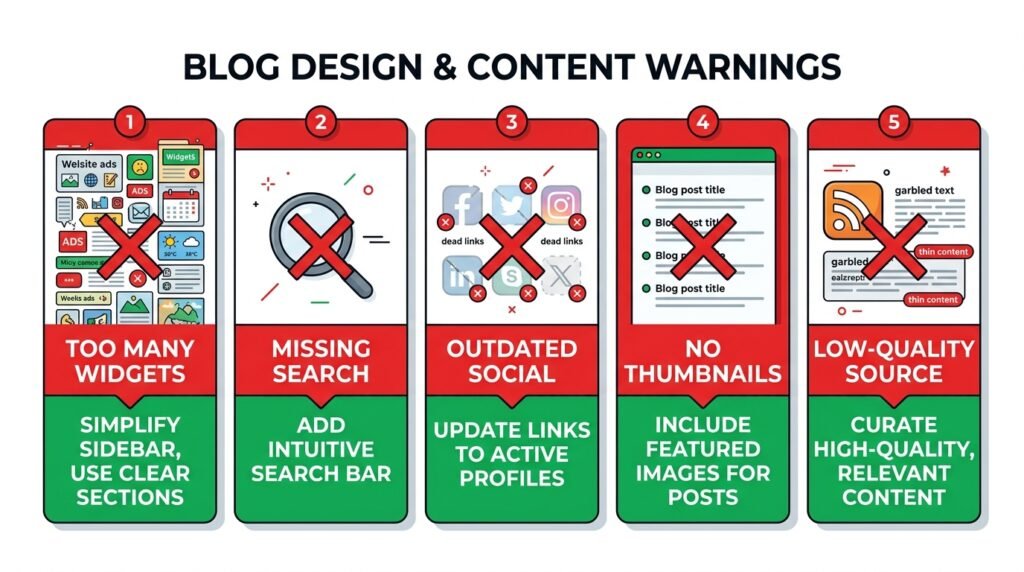
5 Common Mistakes to Avoid
First, here are the mistakes beginners make most often:
| ❌ Mistake | ✅ Fix |
|---|---|
| Too many widget blocks | Clutters sidebar. Pick 3–4 max. |
| Missing Search block | Every site needs search — add one in header or footer. |
| Outdated social links | Remove platforms you abandoned. |
| Latest Posts without thumbnails | If posts have images, show them (150px thumbnails). |
| RSS from low-quality sources | Damages your site’s credibility. Stick to trusted feeds. |
As a result, avoiding these mistakes keeps your site clean, useful, and trustworthy.
Frequently Asked Questions
Q1: What’s the difference between widget blocks and classic widgets?
Classic widgets (pre-2018) were limited to sidebar and footer areas. Widget blocks (Gutenberg) can be placed anywhere — including inside posts, pages, and templates. As a result, widget blocks give you far more layout flexibility.
Q2: Should I use Categories or Tag Cloud for navigation?
Categories — almost always. First, categories are structured (one primary category per post). Then, tags are unstructured (any number per post). As a result, Categories block gives readers a clearer navigation path. However, if you tag consistently and have 20+ tags, Tag Cloud works as a secondary option.
Q3: Can I place the same widget block in multiple locations?
Yes. First, add it to the sidebar, then add the same block to the footer. Then, each instance is independent — you can configure them differently. As a result, you can show different numbers of posts in different locations (e.g., 3 in sidebar, 6 in footer).
Q4: Do widget blocks affect SEO?
Yes — positively, when used well. First, Latest Posts and Categories blocks create internal links that distribute SEO authority. Then, Search and Social Icons improve user experience (lower bounce rate). However, too many widget blocks slow page speed. As a result, keep it to 3–4 per sidebar.
Q5: How do I add a widget block to a classic theme’s sidebar?
First, go to Appearance → Widgets. Then, click “+” in the sidebar area and search for the block you want. Finally, click “Update”. As a result, the block appears in your sidebar — even on classic themes.
Q6: What’s the best place to add a Search block?
First, the header (top-right corner) for maximum visibility. Then, a secondary one in the footer for redundancy. However, if your theme’s header doesn’t support blocks, the sidebar is the next best option. As a result, mobile menu + footer covers most use cases.
Q7: Can I customize widget block styling with CSS?
Yes. First, select the block. Then, in the sidebar, go to Advanced and add a CSS class (e.g., my-custom-search). Finally, add the CSS in Appearance → Customize → Additional CSS. For a full walkthrough, see our Advanced Gutenberg Custom CSS guide.
Key Takeaways
- 10 widget blocks — Archives, Calendar, Categories, Latest Posts, Latest Comments, Search, Social Icons, Tag Cloud, RSS, Shortcode
- Search and Social Icons — essential for almost every site
- Latest Posts — highly customizable (images, excerpts, date)
- Categories helps navigation and SEO
- Shortcode block for legacy plugins without native blocks
- Place widgets in footer or sidebar — not everywhere
- 3–4 widget blocks per sidebar is the maximum before clutter
- Shortcuts:
/archives,/calendar,/categories,/latest-posts,/latest-comments,/search,/social-icons,/tag-cloud,/rss,/shortcode
What’s Next?
First, you’ve mastered widget blocks. Then, it’s time for the most powerful dynamic block in Gutenberg: Query Loop. As a result, you can build custom post grids, portfolios, and anywhere you need to display posts on demand.
👉 Next in this series: Gutenberg Query Loop Block Guide — build custom post grids, portfolios, and archives.
Which widget block do you use most? Any questions about RSS or Shortcode? Ask below.
Related Reading
- Gutenberg & Blocks: Complete Guide — the first article in this series
- Gutenberg Text Blocks Guide — Paragraph, Heading, List, Quote
- Gutenberg Media Blocks Guide — Image, Gallery, Cover, Video
- Gutenberg Design Blocks Guide — Columns, Group, Row, Buttons
- Query Loop Block Guide — the most powerful block
- Build a WordPress Homepage with Kadence — real-world widget placement