
The most powerful block in Gutenberg — and the one that replaces dozens of plugins.
I remember spending hours searching for a plugin that could display my latest blog posts in a nice grid. Then another plugin for related posts. Then another for a portfolio grid. Then another for testimonials.
As a result, my site became slow, my dashboard cluttered, and I was constantly worried about plugin conflicts.
However, everything changed when I discovered the Query Loop block. This single, native WordPress block does all of that — and more — without any plugins. No coding. No performance bloat.
What this guide covers:
- What the Query Loop block is — how it thinks (query → loop → output)
- Step 1: Build a basic blog grid in 2 minutes
- Step 2: Customize Post Template (image, title, date, excerpt)
- Step 3: Filter posts by category, tag, author, custom post type
- Step 4: Add pagination (page numbers, Load More, infinite scroll)
- Step 5: Handle empty results with the No Results block
- 5 real-world examples — blog grid, portfolio, related posts, testimonials, featured content
- 5 advanced tips — hover effects, aspect ratio, inheriting queries
- 5 common mistakes — and how to avoid them
- Query Loop vs plugins — why native wins
By the end, you’ll never install a “post grid” plugin again.
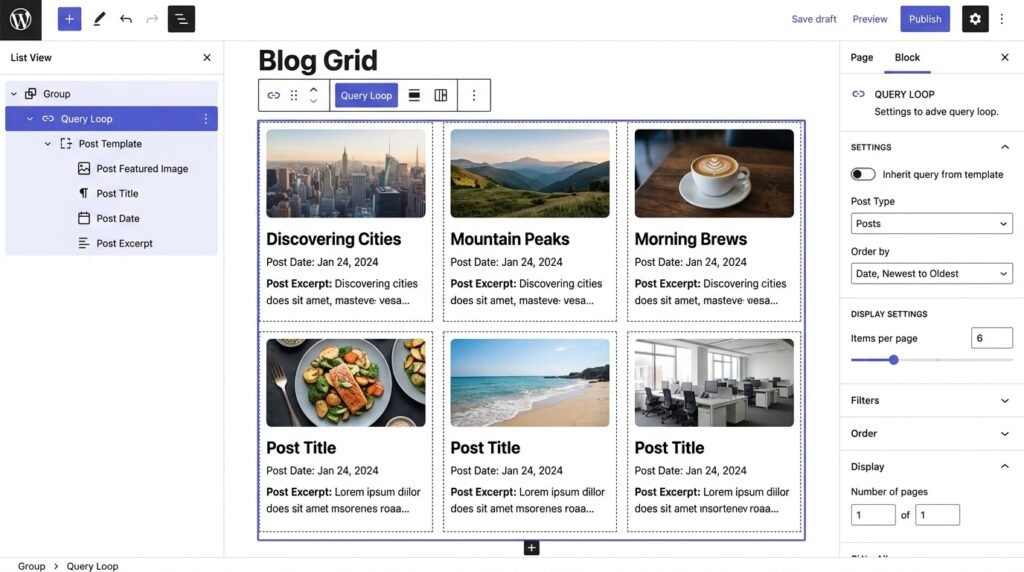
What Is the Query Loop Block? (Understanding the Logic)
First, before Gutenberg, displaying dynamic posts meant writing PHP or using widgets with limited placement. However, the Query Loop block changed that — you can now place any post listing anywhere on your site, visually.
What it actually does
The Query Loop block does three things:
| Step | What happens |
|---|---|
| Query | “Ask the WordPress database: give me posts that match these rules” |
| Loop | “For each post, repeat this design template” |
| Output | “Render them as HTML, styled exactly how I want” |
In practice, this is the same logic your blog archive page uses. However, now you can put it anywhere — homepage, inside a post, in a sidebar, in your footer — and customize everything visually.
Key concept: Parent and Children blocks
First, understand the hierarchy. Then, the Query Loop becomes intuitive:
| Block | Type | What it defines |
|---|---|---|
| Query Loop | Parent | Which posts to get (filters, order, number) |
| Post Template | Child | How each post looks (image, title, date, excerpt) |
| Pagination | Child | Navigation below the grid |
| No Results | Child | Message when no posts match |
As a result, the Query Loop is a smart container that automatically fills itself with content. You build the “card” once, and WordPress repeats it for every post that matches your filters.
For a broader look at how blocks work in WordPress, see our Gutenberg & Blocks: Complete Guide.
Step 1: Adding a Basic Query Loop (2 Minutes)
First, let’s build your first grid — the 6 most recent posts, 3 columns.
Step-by-step
- Open any page or post in the WordPress editor
- Click the blue plus (+) button and search for “Query Loop” — or type
/query - WordPress offers starter patterns. Choose “Grid” or “List” — I recommend Grid
- By default, it shows 10 posts. Change that to 6 in the right sidebar under “Number of items”
- In the sidebar, confirm these settings:
- Order by: Date
- Sort order: Descending (newest first)
- Click “Update” or “Publish”
That’s it — you now have a working post grid. No plugin, no code.
Quick settings reference
| Setting | Options | What it does |
|---|---|---|
| Number of items | 1–100 | How many posts to show (default 10) |
| Offset | Number | Skip first N posts (e.g., offset 1 skips the latest post) |
| Order by | Date, Title, Random, Comment count, etc. | Sorting criteria |
| Sort order | Descending (newest first), Ascending | Newest first is standard for blogs |
Step 2: Customizing How Each Post Looks (Post Template)
First, the default grid looks fine — but you can make it yours. Then, the real magic happens inside the Post Template block.
Step-by-step
- Inside the Query Loop block, click on any post card
- You’re now editing the Post Template block — every change applies to all posts
- Add blocks by clicking “+” inside the Post Template
- Remove blocks by selecting them and pressing Delete
- Reorder blocks by dragging the six-dots handle
Recommended Post Template structure
For example, here’s the structure I use on this site:
text
[Group block] ← optional card styling (background, border, shadow, hover)
   ├── [Post Featured Image] (with link to post)
   ├── [Group block] ← text container
        ├── [Post Title] (H3, linked)
        ├── [Post Date] (with calendar icon)
        ├── [Post Terms] (categories as badges)
        ├── [Post Excerpt] (limited to 15–20 words)
        └── [Post Read More] (button or text link)
Key settings for each inner block
| Inner block | Key settings I recommend |
|---|---|
| Post Featured Image | Aspect ratio: 16:9 or 4:3 (for consistency), link to post = yes |
| Post Title | Heading level: H3, link = yes, color = your theme’s primary |
| Post Date | Format: “F j, Y” (e.g., April 20, 2026), add icon (calendar) |
| Post Terms | Taxonomy: categories, separator: “, ” (or make them badges with CSS) |
| Post Excerpt | Max words: 15–20, preserve default or manual excerpt |
| Post Read More | Text: “Read more →”, style: link or outline button |
Pro tip: Make cards look like cards
First, wrap everything inside a Group block. Then, give the group:
- Background color: white
- Border radius: 8px
- Border: 1px solid light gray
- Padding: 20px
- Shadow: subtle (via CSS)
As a result, each post looks like a professional card. However, for hover effects, you’ll need custom CSS — see our Advanced Gutenberg Custom CSS guide.
Step 3: Filtering Posts (The Real Power)
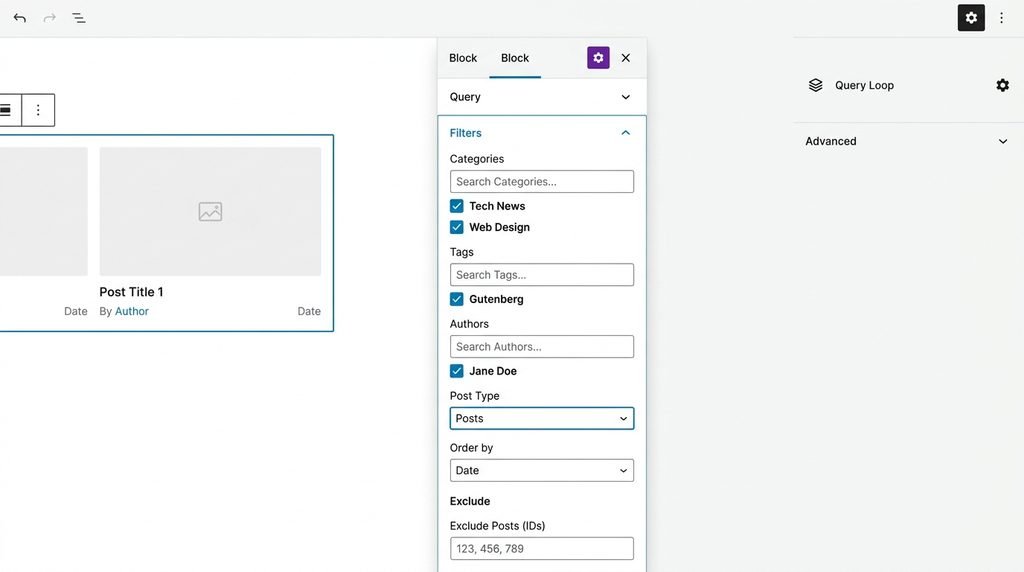
First, without filters, Query Loop shows all posts. Then, it becomes boring. Finally, let’s narrow it down.
In the right sidebar, find the Filters section. You can combine multiple conditions.
By Category (most common)
| Filter | What it does |
|---|---|
| Include | Only posts from specific categories |
| Exclude | Hide posts from specific categories |
For example, your homepage might have a “Latest News” section — filter by category “News”. Or a “WordPress Tutorials” section — filter by category “WordPress”.
How to set it up:
- In the sidebar, click “Filters”
- Under “Categories”, click “Add”
- Type the category name and select it
- Choose “Include” or “Exclude”
- Update the page
By Tag
Same logic as categories. However, tags are more granular — good for topic-specific lists. For example, filter by tag “Gutenberg” to show only Gutenberg-related posts.
By Author
First, show posts only from specific authors. Then, useful for multi-author blogs. As a result, each author can have their own listing page.
By Post Type
First, the default is “Posts”. Then, change to:
- “Pages” — for a list of your static pages
- “Products” — for WooCommerce products
- Any custom post type — like “Portfolio Items” or “Testimonials”
For example, a portfolio grid: set Post Type = “Portfolio Items” — see Example 2 below.
By Keyword / Search
First, enter a search term. Then, the block shows posts containing that word in title or content. However, this is rarely used — mostly for advanced templates.
By Custom Field (Advanced)
First, if you use Advanced Custom Fields (ACF) or Pods, you can filter by meta values. Then, for example, show only posts where the “featured” custom field equals “yes”. However, this requires knowing the meta key.
Exclude current post
First, for related posts, you often want to exclude the post the reader is currently viewing. Then, in Filters, under “Post In/Exclude”, you can manually enter post IDs. Alternatively, if your theme supports dynamic data (Kadence does), use [post_id] to exclude the current post automatically.
Step 4: Pagination — Don’t Show 100 Posts on One Page
First, if you set Number of items = 20, all 20 will load at once. Then, that’s slow and overwhelming. Finally, add pagination.
Step-by-step
- Below the Post Template, click “+”
- Search for “Pagination” and add it
- In the sidebar, choose the pagination type:
| Type | Best for |
|---|---|
| Standard (page numbers) | Archives, blog homepages |
| Load More button | Infinite scroll effect (requires JavaScript, works in modern themes) |
| Previous / Next links | Minimalist, good for sidebars |
Pro tip
Always show total pages (“Page 1 of 5”) so readers know how much content exists. For example, a “Load More” button without a total count feels endless — readers give up.
Step 5: No Results Block — Handle Empty Queries
First, when no posts match your filters, you don’t want a blank space. Then, edit the No Results block to show something helpful.
Step-by-step
- Click on the No Results block (inside the Query Loop)
- Change the default text to something helpful, like:”No posts found in this category. Check back soon or browse the blog homepage.”
- Better yet, add a Search block inside No Results — see our Gutenberg Widget Blocks guide for the Search block setup.
As a result, visitors who land on an empty category find their way back — instead of bouncing.
5 Real-World Examples (Copy-Paste Ready)
Example 1: Blog Homepage with 3-Column Grid
Goal: Display 9 latest posts from all categories, in a responsive 3×3 grid.
Steps:
- Add a Query Loop block, choose Grid starter
- Set Number of items = 9
- Set Order by = Date, Order = Descending (newest first)
- Inside Post Template, build:
- Group (white background, border radius 8px, padding 20px)
- Post Featured Image (aspect ratio 16:9, link to post)
- Post Title (H3, link)
- Post Date (format “F j, Y”)
- Post Excerpt (20 words)
- Post Read More (“Read more →” as text link)
- Add Pagination block below (Standard type)
Result: A professional blog homepage without any page builder.
Example 2: Portfolio Grid (Custom Post Type)
First, let’s say you added a custom post type “Portfolio” using a plugin like CPT UI or ACF.
Goal: Display 6 portfolio items in a 3-column grid.
Steps:
- Add a Query Loop block
- In Filters → Post type, select “Portfolio Items”
- Set Number of items = 6
- Inside Post Template:
- Group (card styling)
- Post Featured Image (aspect ratio 1:1 for square)
- Post Title (H3, link)
- Post Terms (taxonomy = portfolio categories, displayed as badges)
- Optional pagination (if you have more than 6 items)
Result: A portfolio page that automatically updates when you add new projects.
Example 3: Related Posts on Single Post
First, this one is trickier but completely doable. However, it requires a block theme like Kadence.
Goal: On each blog post, show 3 related posts from the same category, excluding the current post.
Steps:
- Edit your Single Post template (Appearance → Editor → Templates → Single Post)
- Below the post content, add a Query Loop block
- In Filters → Categories, choose “Same as current post” (Kadence supports this)
- In Exclude, add
[post_id]to exclude the current post - Set Number of items = 3
- Set Order by = Random (so related posts change each visit)
- Design the Post Template simply — title only, or title + date
Alternative: If your theme doesn’t support dynamic data, manually select a category and exclude post IDs. However, it’s less dynamic.
Example 4: Testimonials as Posts
First, instead of a separate testimonial plugin, write each testimonial as a regular post under category “Testimonials”.
Goal: Display 4 testimonials in a 2-column grid.
Steps:
- Create category “Testimonials”
- Write posts in that category — Title = customer name, Content = testimonial text
- Add a Query Loop block
- In Filters → Categories, select “Testimonials”
- Set Number of items = 4
- Inside Post Template:
- Remove Post Featured Image (unless you have customer photos)
- Post Title (H4, no link)
- Post Excerpt (increase length to 100 words for full testimonial)
- Remove Post Date
- No pagination needed
Result: A testimonial grid that’s easy to manage.
Example 5: Featured Posts on Homepage
First, mark your best posts with a “featured” tag. Then, display them dynamically.
Goal: Display 3 featured posts on your homepage.
Steps:
- Create a tag “featured” (or category)
- Apply that tag to posts you want to highlight
- Add a Query Loop block on your homepage
- In Filters → Tags, select “featured”
- Set Number of items = 3
- Set Order by = Random (or Date)
- Design Post Template larger — wider images, longer excerpts
- No pagination needed
Result: A dynamic “Editor’s Picks” section that updates automatically.
5 Advanced Tips I Wish I Knew Earlier
Tip 1: Aspect ratio is your friend
First, in Post Featured Image settings, set a fixed aspect ratio (16:9, 4:3, 1:1). Then, this prevents images from breaking your grid layout when they have different sizes. As a result, every card in the grid has a uniform height.
Tip 2: Use Group for card hover effects
First, wrap Post Template contents in a Group. Then, give it a transition and subtle box-shadow. Finally, on hover, change shadow or slightly lift the card.
Example CSS (added to Appearance → Customize → Additional CSS):
css
.wp-block-group.post-card:hover {
    transform: translateY(-4px);
    box-shadow: 0 10px 20px rgba(0,0,0,0.1);
    transition: all 0.2s ease;
}
Tip 3: Limit excerpt length globally
First, instead of manually setting excerpt length per Query Loop, install a small plugin. Alternatively, add code to functions.php. However, per-block is fine for most stores.
Tip 4: Combine Query Loop with Columns
First, put a Query Loop inside a Columns block. Then, add intro text in the left column and the Query Loop in the right. As a result, you get a beautiful two-column homepage section.
Tip 5: Use “Inherit query from template” when editing archives
First, if you’re editing your blog archive template (Appearance → Editor → Templates → Blog), turn ON “Inherit query from template” in the Query Loop block. Then, the block respects the main WordPress query (including search, pagination, etc.). As a result, your custom design works with WordPress’s native archive logic.
5 Common Mistakes (And How to Avoid Them)
First, here are the mistakes beginners make most often.
| ❌ Mistake | ✅ Fix |
|---|---|
| No pagination on long lists | If you show 50 posts without pagination, the page becomes huge. Always add pagination for more than 12 posts. |
| Ignoring mobile | A 4-column grid looks great on desktop but becomes unreadable on a phone. Stick to 2 or 3 columns max. |
| Forgetting “No Results” | Replace the default message with something helpful. Readers won’t know why nothing appears. |
| Over-filtering | Combining 5 filters (category + tag + author + custom field + search) slows the database query. 1–2 filters is enough. |
| Not linking the title | Every post in the grid should link to the single post. If you remove the link, add a “Read More” button or make the featured image link. |
As a result, avoiding these mistakes keeps your grids fast, mobile-friendly, and user-friendly.
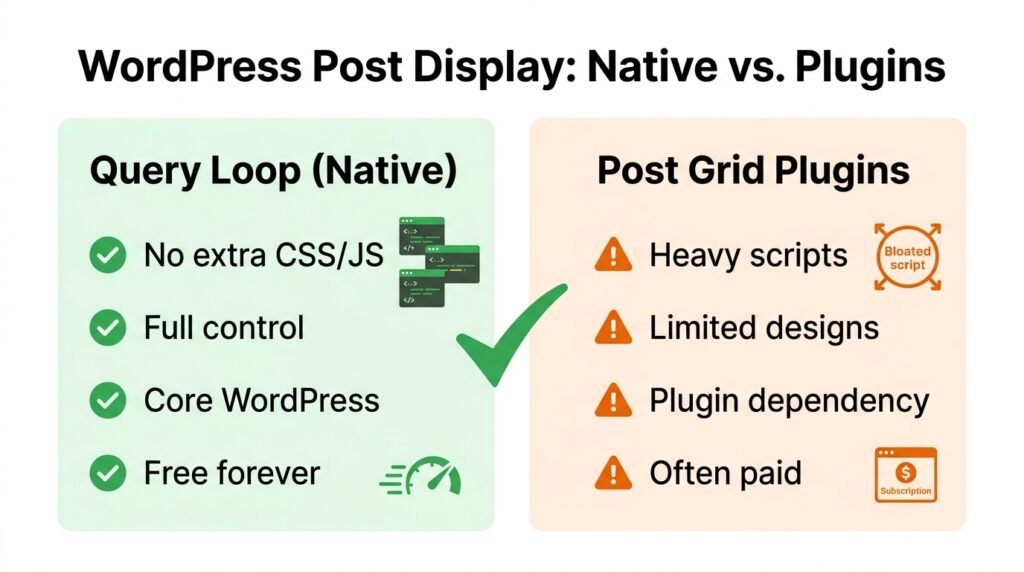
Query Loop vs Post Grid Plugins — Why Native Wins
First, here’s the honest comparison:
| Aspect | Query Loop (native) | Post Grid plugins (e.g., Post Grid, Content Views) |
|---|---|---|
| Performance | No extra CSS/JS bloat | Often adds heavy scripts |
| Customization | Full control via Post Template | Limited to plugin’s design options |
| Filters | Categories, tags, authors, custom post types, custom fields | Usually only basic |
| Pagination | Built-in | Sometimes limited |
| Support for custom post types | Yes | Often paid feature |
| Learning curve | Requires 20 minutes to learn | Easier initially |
| Future-proof | Part of WordPress core | Depends on plugin updates |
My verdict: Invest the 20 minutes to learn Query Loop. As a result, you’ll never need a post grid plugin again.
For real-world applications of the Query Loop block, see our WooCommerce Case Studies guide — several stores use it to build product showcases.
Frequently Asked Questions
Q1: What’s the difference between Query Loop and Latest Posts block?
First, the Latest Posts block is a simplified Query Loop — it only shows recent posts. Then, the Query Loop block offers full filtering (categories, tags, authors, custom post types, custom fields) and a customizable Post Template. As a result, use Latest Posts for sidebars and simple listings, and Query Loop for complex grids.
Q2: Can I use Query Loop with WooCommerce products?
Yes. First, set Post Type = “Products” in the Filters section. Then, customize the Post Template with WooCommerce-specific blocks like Product Image, Product Title, and Product Price. As a result, you can build a custom product grid without WooCommerce’s default shortcodes. For deeper WooCommerce setup, see our Installing WooCommerce & Setup Wizard guide.
Q3: Why does my Query Loop show nothing?
Three common causes:
- Filters are too strict — you filtered by a category with no posts
- Post Type is wrong — you selected “Pages” instead of “Posts”
- Pagination offset — you set an offset higher than the number of posts
As a result, check the Filters section first — that’s where 90% of empty Query Loops come from.
Q4: How do I exclude the current post from a Query Loop?
First, in the Filters section, click “Post In/Exclude”. Then, enter [post_id] if your theme supports dynamic data (Kadence does). Alternatively, manually enter the specific post ID to exclude it. As a result, related posts sections don’t show the post the reader is currently viewing.
Q5: What’s the difference between “Inherit query from template” and custom filters?
First, “Inherit query from template” means the Query Loop uses WordPress’s main query — including category archives, search results, and pagination. Then, custom filters override the main query with your own rules. For example, use “Inherit” when editing your blog archive template; use custom filters when building a specific homepage section.
Q6: Can I add a Query Loop inside another Query Loop?
Technically yes, but don’t. First, nested Query Loops cause serious performance issues (N×N database queries). Then, they confuse the editor and often break the layout. Instead, use a single Query Loop and customize the Post Template.
Q7: Does Query Loop slow down my site?
No — the opposite. First, Query Loop uses WordPress’s native query system — no extra plugins, no additional CSS/JS. Then, the queries are optimized by WordPress core. However, complex filters (5+ conditions) can slow the database. As a result, keep filters to 1–2 conditions per Query Loop.
Key Takeaways
- Query Loop replaces dozens of post-listing plugins — it’s native, fast, and flexible
- Parent + children structure: Query Loop defines which posts; Post Template defines how they look
- Filters let you show posts by category, tag, author, custom post type, even custom fields
- Post Template controls each post’s design — image, title, date, excerpt, categories, read more
- Always add Pagination when showing more than 12 posts
- No Results block prevents empty sections
- 5 real-world uses: blog grids, portfolios, related posts, testimonials, featured content
- Avoid over-filtering (1–2 filters max), ignoring mobile (2–3 columns max)
- Shortcuts:
/query
What’s Next in This Series?
First, you’ve mastered dynamic post listings. Then, it’s time for the rest of the block ecosystem.
👉 Next in this series: Full Site Editing Guide — editing your header, footer, and templates visually.
What will you build with Query Loop? A portfolio? A testimonials section? A related posts area? Let me know in the comments — I’d love to see your examples.
Related Reading
- Gutenberg & Blocks: Complete Guide — the first article in this series
- Gutenberg Design Blocks Guide — Columns, Group, Row for Query Loop layouts
- Gutenberg Widget Blocks Guide — Latest Posts block comparison
- Full Site Editing Guide — edit templates with Query Loop
- Advanced Gutenberg Custom CSS — hover effects and card styling
- Build a WordPress Homepage with Kadence — real-world Query Loop use