
WordPress has evolved. You can now edit your entire site — header, footer, every template — right in the block editor.
When I started with WordPress, editing the header meant digging into header.php. Then changing the footer required editing a theme file. Finally, if you wanted a custom homepage layout, you needed a page builder.
However, not anymore. Full Site Editing (FSE) brings the block editor to your entire site. Every part — header, footer, sidebar, archive pages, single post templates — becomes a collection of blocks that you can edit visually.
What this guide covers:
- What Full Site Editing is — and which themes support it
- 10 theme blocks — Navigation, Site Logo, Post Content, Query Loop, and more
- The Site Editor (Appearance → Editor) — replacing the Customizer
- Global Styles — design your whole site from one panel
- Template Parts — reusable sections like header and footer
- A complete workflow — building a blog from scratch with FSE
- Kadence users — what works and what doesn’t in hybrid themes
By the end, you’ll understand how to build a complete WordPress site using only blocks — no coding, no child themes, no Customizer.
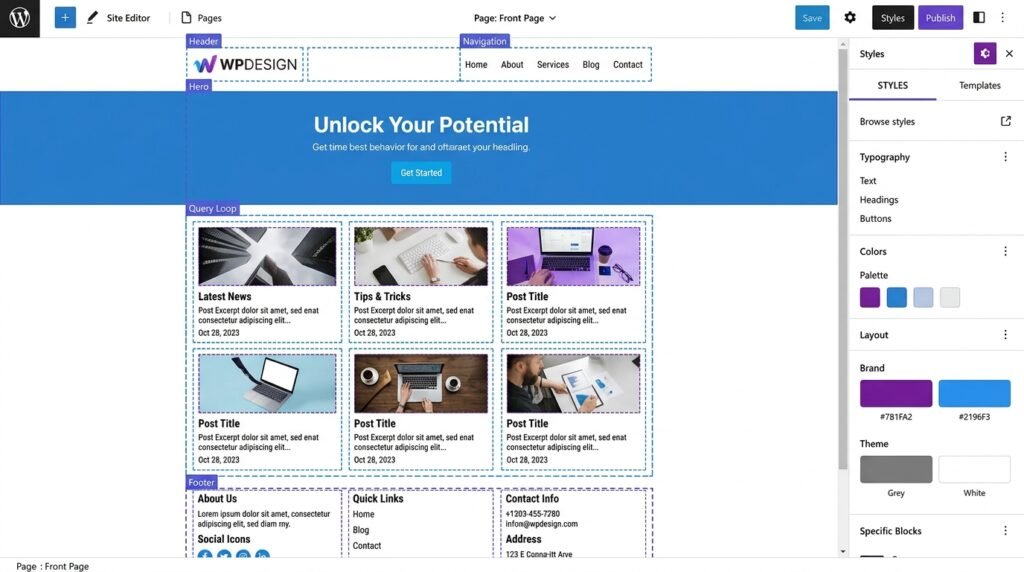
Part 1: What Is Full Site Editing (FSE)?
First, Full Site Editing is a set of features introduced in WordPress 5.9 (2022) and continuously improved. Then, it allows you to edit every part of your site using blocks. As a result, you no longer need PHP, child themes, or the Customizer.
Traditional WordPress vs. FSE
| Aspect | Classic Theme + Customizer | Block Theme + FSE |
|---|---|---|
| Header | Widget areas or theme options | Editable with blocks |
| Footer | Widget areas | Editable with blocks |
| Homepage | Set as static page + page builder | Built directly in Site Editor |
| Archive page | archive.php (PHP) | Visual template with Query Loop |
| Single post | single.php (PHP) | Visual template with Post Content block |
| Global styles | Customizer (limited) | Global Styles panel (full control) |
| Customization | Requires CSS or Customizer options | Built-in typography, colors, spacing |
Which themes support Full Site Editing?
First, only block themes support full FSE. Then, here are the main options:
- Twenty Twenty-Five — the default WordPress block theme (free)
- Twenty Twenty-Four — the previous default (free)
- Blockbase, Frost, Ollie — lightweight block themes (free)
- GeneratePress — hybrid theme with partial FSE support (free + Pro)
However, some popular themes are hybrid — they support FSE concepts but use custom builders for specific parts. For example, Kadence uses its own Header Builder (not the Site Editor) but supports Global Styles and Template editing. For this guide, I’ll explain FSE concepts as they apply to true block themes — but the principles carry over.
For a broader look at themes and plugins, see our Must-Have WordPress Plugins guide.
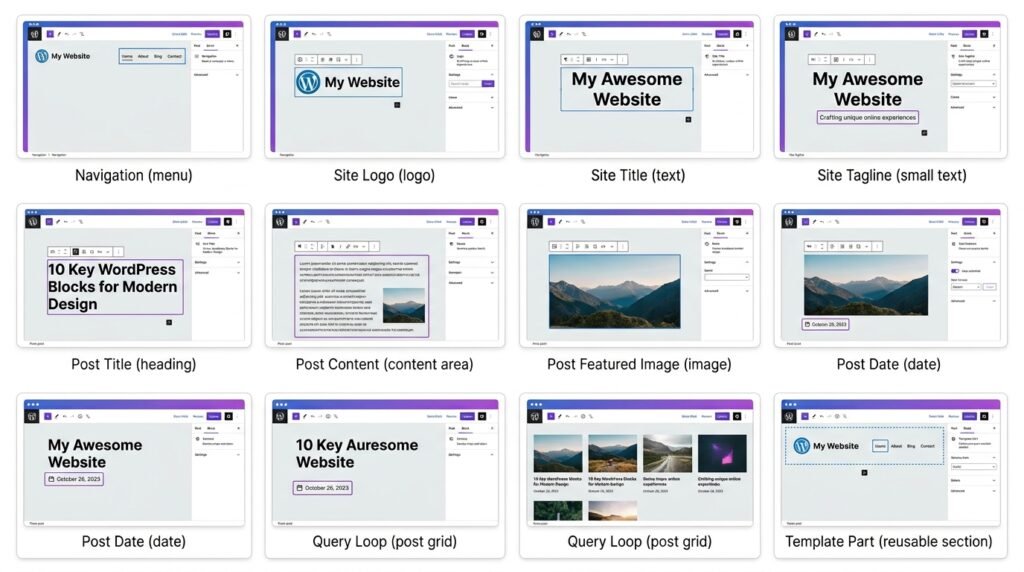
Part 2: Theme Blocks — The Building Blocks of Site Structure
First, theme blocks are special blocks designed for site-level elements. Then, you’ll find them in the inserter under the “Theme” category. As a result, you can build headers, footers, and templates entirely with blocks.
Here are the 10 theme blocks you need to know:
1. Navigation Block
What it does: Creates a responsive menu with dropdowns, all editable visually.
Why it matters: No more going to Appearance → Menus. You build menus directly inside the editor.
Step-by-step:
- Click “+” → search for “Navigation” — or type
/navigation - Click “Select menu” or “Create new menu”
- Add items by typing (e.g.,
Home,About,Blog) or pasting URLs - To create a submenu: indent items with the toolbar’s indentation button
- To reorder: drag and drop items
- In the sidebar, configure:
- Alignment: Left, center, right
- Background color: From your palette
- Font size: Match your site’s typography
- Submenu appearance: Light dropdown or overlay
- Hamburger breakpoint: When the menu collapses to a mobile icon
Key features:
- Add pages, custom links, categories, or post types
- Insert social icons, search, or buttons inside the nav bar
- Responsive mobile menu with breakpoint control
Shortcut: Type /navigation.
2. Site Logo Block
What it does: Displays your site’s custom logo (if set). You can upload and crop directly in the block.
Step-by-step:
- Click “+” → search for “Site Logo” — or type
/site-logo - Click “Set media” to upload a logo or choose from the media library
- In the sidebar, configure:
- Width: In pixels (typically 120–200px for header logos)
- Link to home: Toggle ON (recommended)
Shortcut: Type /site-logo.
3. Site Title Block
What it does: Shows your site title (from Settings → General). First, it’s a text block that automatically pulls the title. Then, you can style it with typography controls.
Step-by-step:
- Click “+” → search for “Site Title” — or type
/site-title - In the sidebar, configure:
- Level: H1 on homepage, H2 or P on interior pages
- Link to homepage: Toggle ON (recommended)
- Typography: Font, weight, color (from your Global Styles)
Shortcut: Type /site-title.
4. Site Tagline Block
What it does: Shows the tagline (description) from Settings → General.
However, not every site needs this block. For example, if your tagline is only used for SEO, skip the block — Google reads it from Settings without needing it visible.
Shortcut: Type /site-tagline.
5. Post Title Block
What it does: First, it’s used inside the Single Post template. Then, it displays the title of the current post dynamically. As a result, every post shows its own title without manual editing.
Step-by-step:
- Open your Single Post template (Appearance → Editor → Templates → Single Posts)
- Click “+” → search for “Post Title” — or type
/post-title - In the sidebar, configure:
- Level: H1 for single posts (SEO best practice)
- Link: Usually no link (the post is already displayed)
Shortcut: Type /post-title.
6. Post Content Block
What it does: First, it’s the most important block for templates. Then, it outputs the actual content of the post — the block editor content you wrote. As a result, without it, your post body won’t appear.
Step-by-step:
- In your Single Post template, click “+” → search for “Post Content”
- Place it where you want the post body to appear
- No settings — just place it
⚠️ Critical: If you edit a single post template and forget the Post Content block, your article won’t show. This is the #1 mistake in FSE.
Shortcut: Type /post-content.
7. Post Featured Image Block
What it does: Shows the featured image of the current post. First, it’s used in single post templates. Then, it’s also used inside Query Loop for archives and blog grids.
Step-by-step:
- Click “+” → search for “Post Featured Image”
- In the sidebar, configure:
- Image size: Medium, Large, or Full
- Aspect ratio: 16:9 or 4:3 for consistency
- Link to post: Toggle ON
Shortcut: Type /post-featured-image.
8. Post Date, Post Author, Post Terms, Post Comments Blocks
First, these blocks output metadata for the current post. Then, use them inside single post templates or within Query Loop.
| Block | What it displays | Settings |
|---|---|---|
| Post Date | Publication date | Format (F j, Y), link to archive |
| Post Author | Author name and optional avatar | Show avatar, link to author archive |
| Post Terms | Categories or tags | Taxonomy (categories/tags), separator |
| Post Comments | Comment count | Link to comments section |
Shortcut: Type /post-date, /post-author, /post-terms, /post-comments.
9. Query Loop Block
First, the Query Loop is a theme block — but it deserves its own deep dive. Then, it displays lists of posts with filters, custom Post Template, and pagination. As a result, it powers blog archives, portfolios, and related posts.
For the complete walkthrough, see our Query Loop Block Guide.
10. Template Part Block
What it does: First, it inserts a reusable Template Part (e.g., header, footer) into a template. Then, it maintains consistency across all templates automatically. As a result, updating the header once updates it everywhere.
Step-by-step:
- Create a Template Part (see Part 5 below)
- In any template (Single Post, Page, Archive), click “+”
- Search for “Template Part” — or type
/template-part - Select the Template Part from the dropdown (e.g., “Site Header”)
Shortcut: Type /template-part.
Part 3: The Site Editor (Appearance → Editor)
First, the Site Editor is where FSE happens. Then, to access it, you need a block theme activated (or a hybrid theme with block template support). Finally, you go to Appearance → Editor — not the Customizer.
What you’ll see
The Site Editor has three main sections:
| Section | What it contains |
|---|---|
| Templates | List of all templates (Index, Single Post, Page, Archive, Search, 404, Front Page) |
| Template Parts | Reusable pieces (Header, Footer, Sidebar) |
| Styles | Global design controls (colors, typography, layout) |
Step-by-step: Editing a Template
First, let’s edit the Single Post template — the layout every blog post uses.
- Go to Appearance → Editor
- Click “Templates” in the left sidebar
- Click “Single Posts” — the editor opens like a normal post editor, but now you’re editing the template
- The default template includes:
- Post Title block
- Post Meta (date + author)
- Post Featured Image block
- Post Content block
- Post Comments block
- To add a block around the content: click “+” between Post Featured Image and Post Content
- For example, add a Call-to-Action Group after Post Content
- Or add a Related Posts Query Loop below
- Click “Save” — changes apply to all posts
Power tip: Different templates per category
First, some block themes let you create custom templates for specific categories. Then, you could have a “Video Post” template that looks different from a “Tutorial Post” template. However, this requires theme-specific settings — check your theme’s documentation.
Shortcut: No keyboard shortcut for the Site Editor — it’s always accessed via Appearance → Editor.
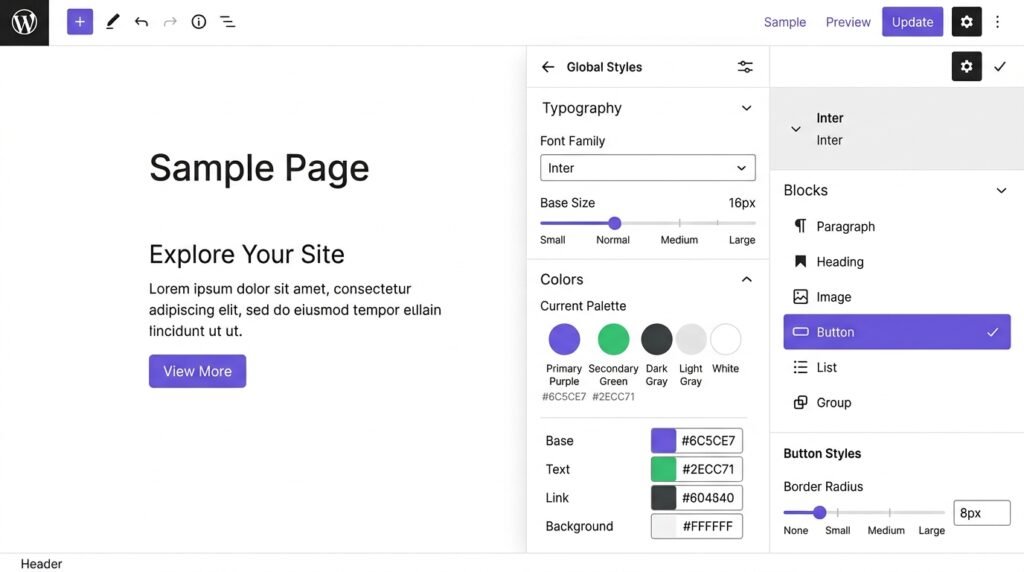
Part 4: Global Styles — Design Your Whole Site from One Place
First, Global Styles is the FSE equivalent of the Customizer — but more powerful. Then, it controls the design of your entire site from one panel. As a result, you style once, and it applies everywhere.
How to access Global Styles
- Go to Appearance → Editor
- Click the Styles icon (half-filled circle) in the top-right corner — this opens the Styles panel
What you can control
| Category | Settings |
|---|---|
| Typography | Default font for text, headings, links (font family, weight, size, line height) |
| Colors | Primary, secondary, background, text, links, plus custom palettes |
| Layout | Content width, wide width (for full-width blocks) |
| Blocks | Click any block type (Button, Heading, Image) and set its default styles |
Global Styles per block (the killer feature)
First, you can set default styles for every block. Then, these defaults apply everywhere — but you can still override them on individual blocks. As a result, your site stays consistent without manual tweaking.
For example:
- Set all Button blocks to have rounded corners (border radius 8px), background = primary color, text = white
- Set all Heading blocks (H2) to have letter spacing 0.5px and margin-bottom 20px
- Set all Image blocks to have a subtle border radius (4px)
Step-by-step:
- Open Appearance → Editor → Styles
- Click “Blocks” in the Styles sidebar
- Select “Button” from the block list
- Configure:
- Border radius: 8px
- Background: Primary color
- Text color: White
- Click “Save” — every button site-wide now uses these defaults
Saving and exporting styles
First, you can export your Global Styles as a JSON file. Then, you can import them to another site. As a result, designers can build a style system once and reuse it on client sites.
How to export:
- Go to Appearance → Editor → Styles
- Click the three dots (⋮) in the top-right
- Choose “Export” — a JSON file downloads
For advanced CSS customization, see our Advanced Gutenberg Custom CSS guide.
Part 5: Template Parts — Reusable Sections
First, Template Parts are pieces of a template that you can reuse across multiple templates. Then, they eliminate duplication. Finally, editing one template part updates it everywhere it appears.
Common Template Parts
- Header — site logo + navigation
- Footer — widget-like content, social icons, copyright
- Sidebar — optional, for sites with sidebars
- Post Meta — author, date, categories
Step-by-step: Creating a Template Part
- Go to Appearance → Editor → Template Parts
- Click “Add New Template Part”
- Name it (e.g., “Site Header”)
- Choose the area (Header, Footer, or General)
- Click “Create”
- Build the Template Part with blocks:
- Add Site Logo block
- Add Navigation block with your menu
- Add Group block for styling (background, padding)
- Click “Save”
Inserting a Template Part into a template
- Open any template (Single Post, Page, Archive)
- Place your cursor where the header should appear
- Click “+” → search for “Template Part” — or type
/template-part - Select “Site Header” from the dropdown
- Save the template
As a result, when you edit “Site Header” once, it updates on every template.
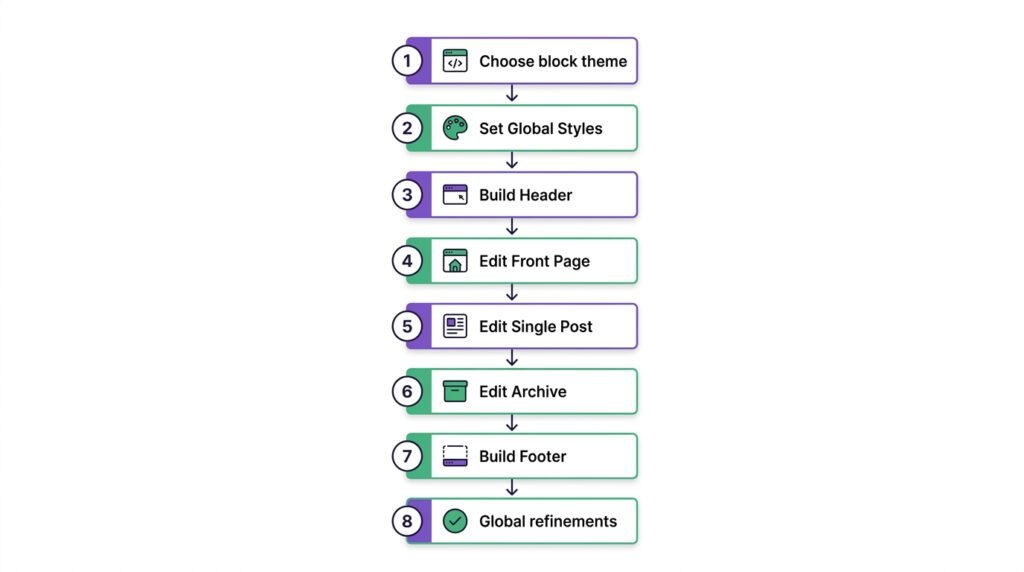
Part 6: Real Workflow — Building a Site from Scratch with FSE
First, let me walk you through building a simple blog using FSE. Then, each step takes 5–15 minutes.
Step 1: Choose a block theme
First, activate a block theme:
- Go to Appearance → Themes → Add New
- Search for “Twenty Twenty-Five” or a lightweight option like “Blockbase” or “Frost”
- Click Install, then Activate
Step 2: Set Global Styles
- Go to Appearance → Editor → Styles
- Set brand colors:
- Primary: your brand color (e.g., deep blue)
- Secondary: accent color
- Choose fonts:
- Headings: Inter, Poppins, or another sans-serif
- Body: Lora, Georgia, or another readable serif
- Set layout:
- Content width: 800px
- Wide width: 1200px
- Save
Step 3: Build the Header (Template Part)
- Go to Appearance → Editor → Template Parts → Add New
- Name it “Site Header”
- Add blocks:
- Site Logo (upload your logo, set width 150px)
- Navigation (create menu: Home, About, Blog, Contact)
- Group wrapper (background: white, padding: 20px, sticky: ON)
- Save
Step 4: Edit the Homepage template
- Go to Templates → Front Page
- Add a Query Loop block to display latest posts (see our Query Loop guide)
- Or build a custom front page with a Cover block, Columns, and Buttons
- Insert the “Site Header” Template Part at the top
- Save
Step 5: Edit the Single Post template
- Go to Templates → Single Posts
- Add structure:
- Post Title (H1)
- Post Meta (date + author)
- Post Featured Image (aspect ratio 16:9)
- Post Content
- Post Comments
- Below Post Content, add a Query Loop for related posts (filter by same categories, exclude current post)
- Insert the same “Site Header” Template Part
- Save
Step 6: Edit the Archive (blog) template
- Go to Templates → Archive
- Add or edit the Query Loop — design the Post Template (grid, list)
- Add Pagination below
- Insert the “Site Header” Template Part
- Save
Step 7: Build the Footer (Template Part)
- Create a new Template Part called “Site Footer”
- Add Columns block with 3 columns:
- Column 1: About text
- Column 2: Recent posts (via Latest Posts block)
- Column 3: Social Icons
- Below columns, add a Paragraph with copyright text
- Save
- Insert the Footer Template Part into all templates
Step 8: Global refinements
- Go to Styles → Blocks → Button — make all buttons rounded (8px radius)
- Set default spacing for Group and Columns blocks
- Save
Result: A complete, custom blog theme without touching code or child themes.
For a real-world example, see our Build a WordPress Homepage with Kadence guide — the same principles apply.
Part 7: Kadence Users — What You Can Do (and What You Can’t)
First, Kadence is a hybrid theme. Then, it supports many block features but not full Site Editor for header/footer.
| Feature | Kadence support | Alternative |
|---|---|---|
| Global Styles | Partial (via Customizer) | Use Kadence’s built-in color/typography settings |
| Template editing (Single Post, Archive) | Yes (via Kadence > Elements or editing templates) | You can use Site Editor for these if you enable block template editing |
| Header editing | No (use Kadence Header Builder) | That’s fine — Kadence’s builder is powerful |
| Footer editing | No (use Kadence Footer Builder) | Same |
| Query Loop | Yes | Works anywhere |
| Theme Blocks (Navigation, Site Logo) | Yes | Works in content areas, but not in header (use Kadence’s nav menu instead) |
For Kadence users: the concepts of templates and template parts are still relevant. First, you can use the Site Editor to modify your Single Post template. Then, your header and footer stay managed by Kadence’s custom builders — and that’s okay. As a result, you get the best of both worlds: Kadence’s design flexibility plus FSE template control.
5 Common Mistakes in Full Site Editing
First, here are the mistakes beginners make most often. Then, fix them before publishing.
| ❌ Mistake | ✅ Fix |
|---|---|
| Missing Post Content block | If you edit a single post template and forget the Post Content block, your article won’t show. Always include it. |
| Overriding Global Styles inconsistently | If you change button style globally but also change it on individual pages, future updates may conflict. Set global styles once and override only where necessary. |
| Not using Template Parts | Editing the same header in 5 templates manually is a waste. Create one Template Part and insert it everywhere. |
| Breaking responsive design | Test your navigation menu on mobile. The hamburger icon should appear at the right breakpoint. |
| Forgetting to set a fallback | In Query Loop, always include a No Results block. Otherwise, empty categories show a blank space. |
As a result, avoiding these mistakes keeps your FSE site clean, consistent, and maintainable.
Frequently Asked Questions
Q1: Do I need a block theme to use Full Site Editing?
Yes — for full FSE, you need a block theme. However, hybrid themes like Kadence or GeneratePress support parts of FSE (Global Styles, template editing) without the full Site Editor. As a result, you can experiment with FSE concepts on a hybrid theme first, then switch to a block theme if you want the complete experience.
Q2: What’s the difference between Templates and Template Parts?
Templates are full page layouts (Single Post, Archive, Page, 404). Template Parts are reusable sections (Header, Footer, Sidebar) inserted into templates. First, you build a Template Part once. Then, you insert it into multiple templates. As a result, changing the Template Part updates every template that uses it.
Q3: Can I still use the Customizer with a block theme?
Mostly no. First, block themes replace the Customizer with the Site Editor and Global Styles. However, some third-party plugins still add Customizer panels — but the WordPress core Customizer is minimized. As a result, you should get comfortable with the Site Editor if you’re using a block theme.
Q4: How do I switch from a classic theme to a block theme?
First, install and activate the block theme. Then, your content (posts, pages, images) stays the same. Finally, you rebuild your header, footer, and templates in the Site Editor. However, some customizations (widgets, Customizer settings) don’t transfer. As a result, switching is easy but requires reconfiguring the design.
Q5: Can I edit templates without FSE — like on a classic theme?
Not natively. First, classic themes use PHP template files (single.php, archive.php). Then, editing them requires code or a plugin like Elementor Theme Builder. However, if you’re on Kadence or another hybrid theme, you can edit some templates via its own builder without switching to FSE. As a result, hybrid themes are a middle ground.
Q6: Do I need to know PHP to use Full Site Editing?
No. First, FSE is entirely visual — you build everything with blocks. Then, the Site Editor handles the templating logic. However, if you want to add custom PHP logic (e.g., conditional templates based on user role), you’ll need code. For 95% of sites, no PHP is required.
Q7: How do I back up my FSE customizations?
First, export your Global Styles as a JSON file (Styles → three dots → Export). Then, back up your theme and database via UpdraftPlus (see our Must-Have WordPress Plugins guide). As a result, if something breaks, you can restore both the design system and your templates.
Key Takeaways
- Full Site Editing (FSE) lets you edit headers, footers, and templates visually using blocks
- 10 theme blocks — Navigation, Site Logo, Site Title, Post Title, Post Content, Post Featured Image, Post Date, Query Loop, Template Part
- Site Editor (Appearance → Editor) replaces Customizer for block themes
- Global Styles control colors, typography, and layout site-wide — including per-block defaults
- Template Parts = reusable sections (header, footer) inserted into multiple templates
- Templates to edit: Single Post, Page, Archive, Search, 404, Front Page
- Kadence is a hybrid theme — supports many FSE features but uses its own header/footer builders
- The #1 mistake: forgetting the Post Content block in a Single Post template
- Shortcuts:
/navigation,/site-logo,/post-content,/template-part,/query
What’s Next?
First, you now understand Full Site Editing — the future of WordPress design. Then, it’s time to save time by reusing your layouts.
👉 Next in this series: Block Patterns & Reusable Blocks Guide — how to save layouts, share them across your site, and export them.
Are you using Full Site Editing yet? What’s holding you back? Let me know in the comments.
First published: May 24, 2026
Last updated: September 19, 2026
Related Reading
- Gutenberg & Blocks: Complete Guide — the first article in this series
- Gutenberg Design Blocks Guide — Columns, Group, Row for layouts
- Query Loop Block Guide — the most powerful block
- Block Patterns & Reusable Blocks — save and reuse layouts
- Advanced Gutenberg Custom CSS — block styles for developers
- Build a WordPress Homepage with Kadence — hybrid theme workflow