
Tax is the part of running a European store that quietly trips up the most owners — especially anyone migrating from Shopify, where tax often felt like a setting you switched on once and forgot. Get it wrong and you either overcharge customers or end up owing tax you never collected.
In this guide, I’ll walk you through everything you need to know about EU VAT for your WooCommerce store:
- The €10,000 OSS threshold — when you need to start caring
- How the One Stop Shop (OSS) scheme simplifies cross‑border VAT
- B2B reverse charge — when to charge 0% VAT
- Setting up country‑specific VAT rates in WooCommerce for digital products
- 2026 tax changes you need to know about
- Plugins that automate the whole thing
- Practical step‑by‑step configuration
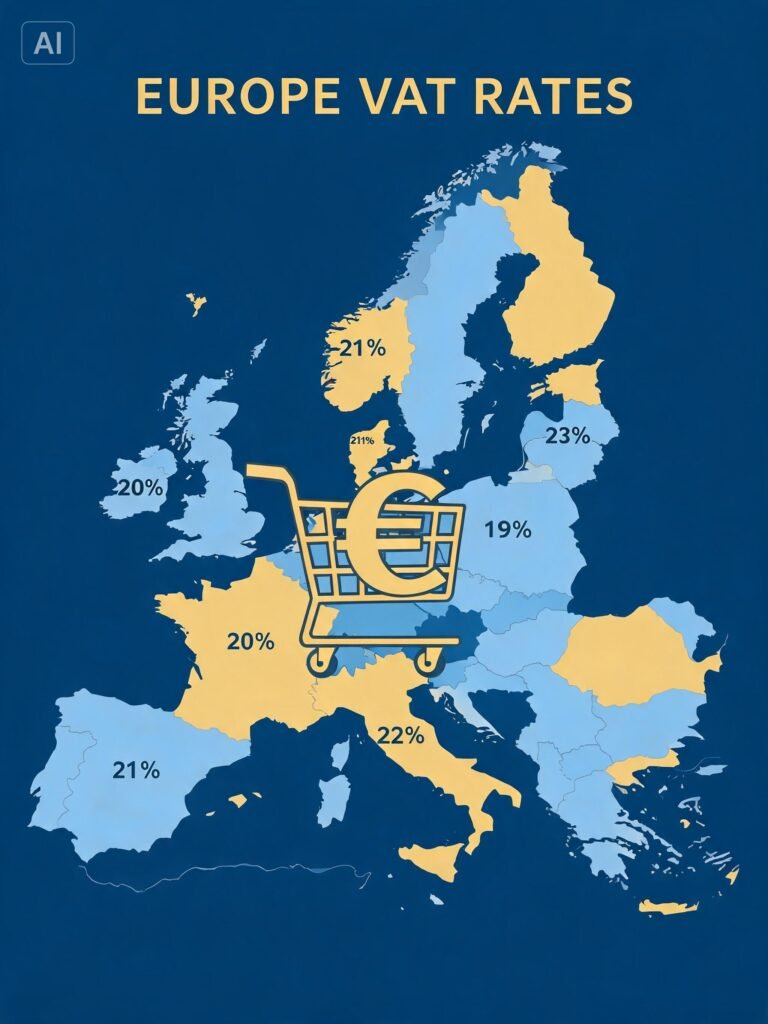
Part 1: Do You Even Need to Worry About EU VAT? The €10,000 Threshold
Here’s the good news: if you’re a small store, you might not need to worry about EU VAT at all. The €10,000 threshold is your friend.
The rule in plain English
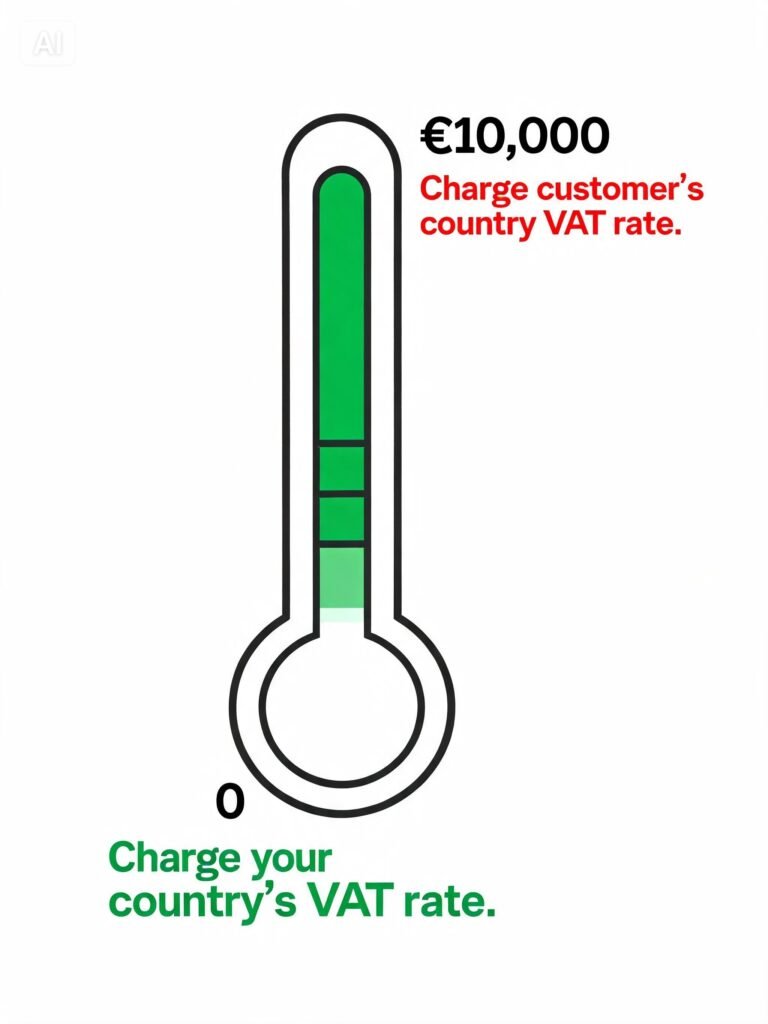
If your total cross‑border B2C (business‑to‑consumer) sales to other EU countries stay under €10,000 per calendar year, you simply charge your own country’s VAT rate on every order.
That’s it. No complicated destination‑based rates. No multiple registrations.
💡 This threshold was introduced on 1 July 2021 to give small stores a break: a Dutch shop selling a few hundred euros a year to German and Belgian customers shouldn’t have to juggle three VAT systems.
Important exceptions
This threshold only helps businesses established in the EU. If you’re based outside the EU and sell digital services, or you hold stock in multiple EU countries (for example via Amazon FBA), different rules apply — you may need to register for VAT from your very first sale.
What happens when you cross the threshold
The threshold is a single combined figure for all your cross‑border EU sales — not €10,000 per country. It covers both physical goods and digital products.
The moment your running total for the year crosses it, destination‑rate rules kick in for the rest of that year and the next. You’ll need to charge each customer their own country’s VAT rate.
Part 2: The OSS (One Stop Shop) Scheme – Your Best Friend for Cross‑Border Sales
Once you pass €10,000 in cross‑border EU sales, you need to charge VAT at the rate of each customer’s country. This sounds like a nightmare — but the OSS scheme makes it manageable.
What OSS does
OSS lets you:
- Charge each customer their own country’s VAT rate at checkout
- Report and pay all of it through a single quarterly return filed in your home country
- Avoid registering for VAT separately in every country you sell to
💡 Before OSS, a store selling across the EU could in theory have to register for VAT in a dozen member states. The One Stop Shop replaced that with one registration and one return covering all of them.
How to register for OSS
You register once for OSS through your national tax authority’s portal. The process varies by country:
- UK businesses (selling to EU): register via HMRC
- EU businesses: register via your local tax authority
- Non‑EU businesses: may need to register in an EU member state (often Cyprus, Germany, or the UK)
What your WooCommerce store needs to do
Practically, your WooCommerce store needs to do two things correctly:
- Apply the right destination VAT rate at checkout
- Produce a report you can use to file your OSS return
This is where the right plugin becomes essential. We’ll cover that in Part 5.
Non‑Union OSS and IOSS
There are other schemes you might encounter:
| Scheme | What it covers | Who it’s for |
|---|---|---|
| Union OSS | B2C sales within the EU | EU‑based businesses |
| Non‑Union OSS | B2C sales from non‑EU to EU | Non‑EU businesses selling digital services to EU consumers |
| IOSS (Import One Stop Shop) | B2C sales of goods imported from outside the EU | Stores shipping physical goods from outside the EU |
The €150 customs duty exemption disappears from 1 July 2026, folding every imported parcel into duties — so if you’re shipping physical goods from outside the EU, you need to be aware of IOSS.
Part 3: B2B Reverse Charge – When to Charge 0% VAT
If you sell to VAT‑registered businesses in other EU countries, the rules are different.
How the reverse charge works
- You sell to a VAT‑registered business in another EU country
- You don’t charge VAT on the invoice (0%)
- The buyer accounts for the VAT in their own country (they “self‑assess”)
What you need to validate
To apply the reverse charge, you must validate the customer’s VAT number. You can do this through the VIES (VAT Information Exchange System) — a free EU service that checks if a VAT number is valid.
How to handle this in WooCommerce
A dedicated EU VAT plugin (covered in Part 5) will:
- Validate VAT numbers automatically at checkout
- Apply 0% VAT for valid B2B customers
- Store the validation evidence for your records
⚠️ If you don’t validate the VAT number and the customer turns out not to be VAT‑registered, you could be liable for the VAT. Always validate.
Part 4: Setting Up EU VAT Rates for Digital Products in WooCommerce
If you sell digital products (plugins, e‑books, software, SaaS), you’re selling digital services — and the VAT rules are strict.
The EU digital goods rule
EU VAT laws for digital goods changed on 1 January 2015, affecting B2C transactions only. VAT on digital goods must be calculated based on customer location, and you’re required to collect evidence of this via an IP address and/or billing address.
Step‑by‑step: Setting up EU VAT rates manually
If you want to do this without a plugin (not recommended for large stores), here’s how.
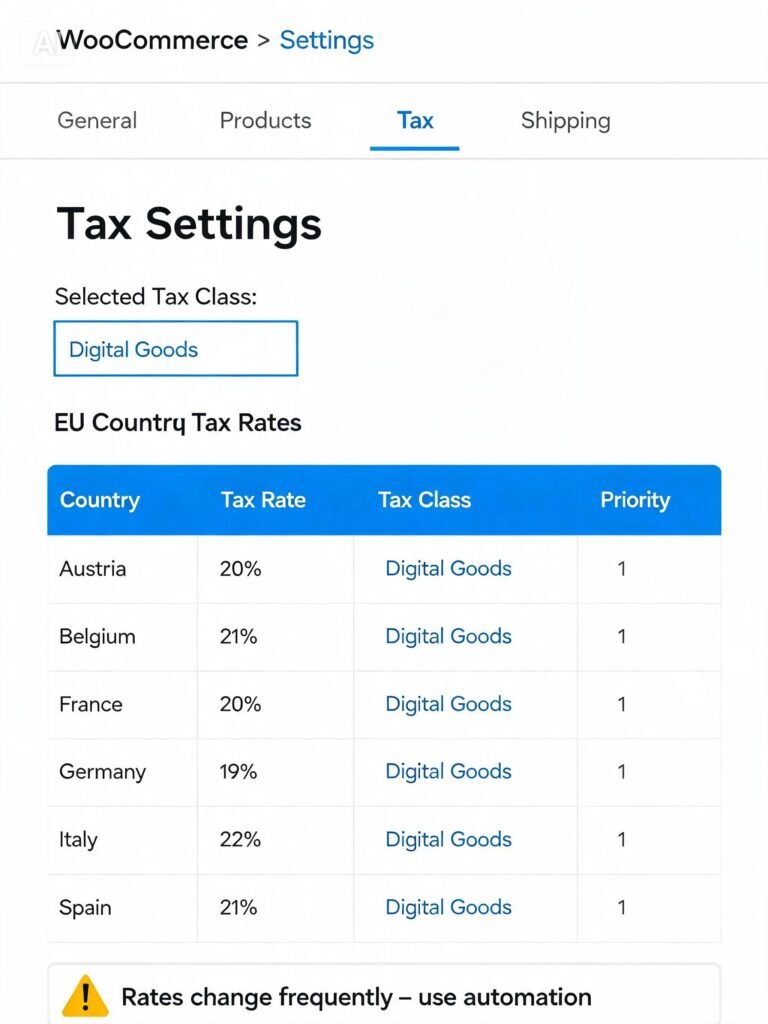
Step 1: Create a tax class for digital goods
- Go to WooCommerce → Settings → Tax
- Under Additional tax classes, add a new class:
Digital Goods - Click Save changes
Step 2: Add VAT rates for all EU countries
The latest VAT rates can be found at the Europa website.
| Country | Standard VAT rate (2026) | For digital products |
|---|---|---|
| Germany | 19% | 19% |
| France | 20% | 20% |
| Italy | 22% | 22% |
| Spain | 21% | 21% |
| Netherlands | 21% | 21% |
| UK (non-EU) | 20% | 20% |
| …and 22 more countries | varies | varies |
⚠️ Several European countries are updating their tax rules in 2026. Lithuania, the Netherlands, Slovakia, Finland, Germany, and Austria have VAT‑related changes taking effect from January 1. Spain is requiring businesses to follow VERIFACTU standards for invoice tracking by 2027. Keep your rates updated!*
The problem with manual rates
The manual approach has a major problem: rates change. Countries update their VAT rates regularly, and if you miss an update, you’re either overcharging customers (bad for business) or undercharging (bad for compliance).
This is why most EU stores use a dedicated VAT plugin.
Part 5: Best VAT Plugins for WooCommerce in 2026
Manual tax tables are error‑prone. Dedicated VAT plugins handle destination rates, VIES validation, and OSS reporting far better.
Here are the best options in 2026.
1. WooCommerce EU VAT Number (Free)
| Aspect | Details |
|---|---|
| What it does | Validates EU VAT numbers via VIES, applies reverse charge (0% VAT) for B2B customers |
| Best for | Stores that sell to VAT‑registered businesses |
| Limitations | Doesn’t handle destination‑based VAT rates for consumers (B2C) |
2. TaxJar (Paid – starts ~$19/month)
| Aspect | Details |
|---|---|
| What it does | Automated sales tax calculation, reporting, and filing for US and EU |
| Best for | Multi‑country stores wanting full automation |
| Limitations | Monthly fee, US‑centric but supports EU |
3. Avalara (Paid – custom pricing)
| Aspect | Details |
|---|---|
| What it does | Enterprise‑grade tax calculation and compliance |
| Best for | Large stores with complex tax needs |
| Limitations | Expensive, overkill for small stores |
4. EU VAT Assistant for WooCommerce (Paid – ~€79/year)
| Aspect | Details |
|---|---|
| What it does | Full EU VAT management: destination rates, VIES validation, OSS reports, multi‑currency support |
| Best for | EU‑based stores selling digital and physical goods |
| Limitations | Premium plugin, but one‑time annual fee |
5. WooCommerce Tax (Free – built‑in)
| Aspect | Details |
|---|---|
| What it does | Automatically calculates sales tax in the US and EU |
| Best for | New stores that want basic automation |
| Limitations | Limited to certain countries; not as feature‑rich as premium options |
My recommendation
| Store type | Recommended plugin |
|---|---|
| Small EU store (<€10,000 threshold) | Manual rates (for now) or WooCommerce Tax |
| Growing EU store (cross‑border sales) | EU VAT Assistant or TaxJar |
| B2B‑focused store | WooCommerce EU VAT Number (free) |
| Enterprise / multi‑channel | Avalara |
Part 6: Practical Configuration Steps (Using EU VAT Assistant as an Example)
Here’s how I’d set up a typical EU store using a dedicated VAT plugin.
Step 1: Install and activate the plugin
- Purchase and download your chosen VAT plugin
- Go to Plugins → Add New → Upload Plugin
- Upload and activate
Step 2: Configure general settings
| Setting | Recommended value |
|---|---|
| Default customer VAT rate | Your home country rate |
| VAT validation | Enabled (VIES check) |
| B2B reverse charge | Enabled |
| OSS reporting | Enabled (generates reports for filing) |
| IP address evidence | Enabled (collects customer location evidence) |
Step 3: Enter your OSS registration details
- Your OSS registration number
- Your home country
- Your tax authority details
Step 4: Test the flow
- Create a test product (digital goods)
- Add it to cart from different EU countries (use a VPN or test addresses)
- Check that the correct VAT rate is applied
- For B2B: test with a valid EU VAT number → 0% VAT should apply
- For B2C: test without VAT number → destination country rate should apply
Step 5: Generate OSS reports
Most VAT plugins generate quarterly reports you can use to file your OSS return. These reports show:
- Sales to each EU country
- VAT collected at each rate
- Total VAT owed
💡 Keep these reports for at least 7‑10 years, depending on your country’s requirements.
Part 7: 2026 Tax Changes You Need to Know
Several European countries are updating their tax rules in 2026:
| Country | Change | Effective |
|---|---|---|
| Lithuania | VAT rate changes | January 1, 2026 |
| Netherlands | VAT rate changes | January 1, 2026 |
| Slovakia | VAT rate changes | January 1, 2026 |
| Finland | VAT rate changes | January 1, 2026 |
| Germany | VAT rate changes | January 1, 2026 |
| Austria | VAT rate changes | January 1, 2026 |
| Spain | VERI*FACTU invoice tracking standards | 2027 (prepare now) |
If you’re using a manual tax table, update your rates now. If you’re using a VAT plugin, check that it has the latest rates.
For the full list of changes, see the official WooCommerce blog post on 2026 EU tax changes.
❓ Frequently Asked Questions
Q1: Do I need to charge VAT if I’m a non‑EU business selling digital products to EU customers?
Yes. If you’re based outside the EU and sell digital services to EU consumers, you may need to register for VAT in an EU member state (often Cyprus, Germany, or the UK) and charge VAT at the customer’s country rate. The €10,000 threshold does not apply to non‑EU businesses.
Q2: How do I know if a customer is a business (B2B) or consumer (B2C)?
A customer can provide a valid EU VAT number to prove they’re a business. Your VAT plugin should validate this number via VIES and apply the reverse charge (0% VAT). Without a valid VAT number, they’re treated as a consumer (B2C).
Q3: What evidence do I need to collect for digital products?
You’re required to collect evidence of the customer’s location via IP address and/or billing address. Most VAT plugins capture this automatically. Keep this evidence for at least 7‑10 years.
Q4: Do I need to register for VAT in each EU country?
No. If you’re using the OSS scheme, you register once through your home country’s tax authority. This covers all EU countries.
Q5: What happens if I forget to update VAT rates?
You’ll either overcharge customers (annoying, but you can refund) or undercharge (you’ll owe the tax anyway). Automate your rates with a VAT plugin to avoid this.
Q6: How do I handle VAT for B2B sales outside the EU?
For sales outside the EU, VAT generally doesn’t apply (zero‑rated). However, customs duties and import taxes may apply in the destination country — these are usually the customer’s responsibility.
Q7: What is VERI*FACTU and do I need to worry about it?
VERI*FACTU is Spain’s new invoice verification system, being implemented by 2027. If you sell to Spanish customers, you may need to comply with additional invoice tracking requirements. Check with your tax advisor if this applies to your store.
Q8: How do I set up different VAT rates for different products?
Use tax classes. Create separate tax classes for different product types (e.g., “Standard”, “Digital Goods”, “Zero‑rated”) in WooCommerce → Settings → Tax → Additional tax classes. Assign each product to its appropriate class.
What’s Next?
VAT is covered. Now let’s tackle the next big challenge: selling in multiple languages.
👉 Next article in this series: WooCommerce Multilingual – WPML vs Polylang (Complete 2026 Guide)
We’ll compare the two leading multilingual plugins, walk through setup for each, and cover currency switching, SEO, and performance.
Do you sell digital products to EU customers? Have you registered for OSS yet? Let me know in the comments.
📌 Key Takeaways (for skimmers)
- €10,000 threshold: Under this, charge your country’s VAT. Over it, charge customer’s country VAT.
- OSS (One Stop Shop): Register once, file one quarterly return for all EU cross‑border sales.
- B2B reverse charge: 0% VAT for VAT‑registered businesses in other EU countries (validate their VAT number via VIES).
- Digital products: VAT is based on customer location — you must collect IP address/billing address evidence.
- Manual tax rates are error‑prone: Use a dedicated VAT plugin (EU VAT Assistant, TaxJar, or Avalara).
- 2026 changes: Several EU countries are updating rates from January 1. Spain is implementing VERI*FACTU by 2027.
- Keep evidence: Store customer location data for 7‑10 years for audit purposes.
🔗 Internal Links
- Article #2 – Installing WooCommerce & Setup Wizard
- Article #3 – Adding Your First Product (Digital Products)
- Article #4 – License Keys for WooCommerce