
Stop building the same layout over and over. Create it once, reuse it everywhere.
First, when I started using the block editor, I built every page from scratch — hero section → columns → text → image → button. Every time. It took forever.
Then I discovered two features that changed everything:
- Block Patterns — pre-designed layouts you can insert with one click
- Reusable Blocks — your own custom blocks that sync across your entire site
As a result, my page-building time dropped from 2 hours to 15 minutes. However, most WordPress users never use these features — which means they’re wasting hours every week.
What this guide covers:
- Block Patterns — your instant layout library
- Reusable Blocks — your own custom block library
- Synced Patterns (WordPress 6.3+) — the best of both worlds
- Creating custom patterns — via plugin or code
- 4 real-world examples — newsletter, product grid, author bio, table of contents
- A complete workflow — building a landing page in 5 minutes
- Common mistakes — 5 errors to avoid
By the end, you’ll never manually rebuild the same section twice.
Part 1: Block Patterns — Your Instant Layout Library
What are Block Patterns?
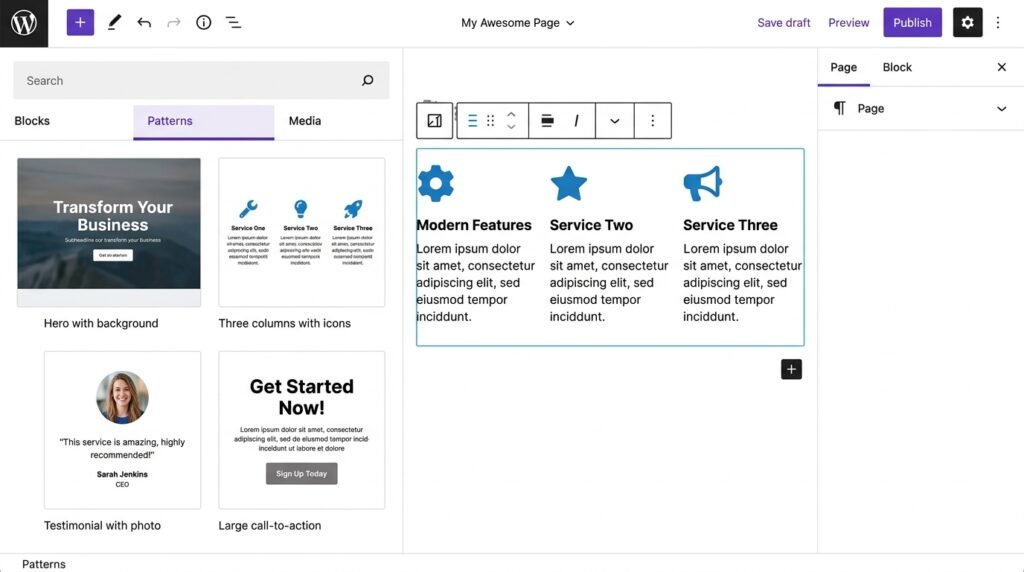
First, Block Patterns are pre-designed collections of blocks that you can insert with one click. Then, think of them as templates for sections of a page — hero sections, call-to-action rows, testimonial grids, pricing tables. As a result, you get a complete section in 3 seconds instead of 30 minutes.
However, unlike Reusable Blocks, Patterns are independent copies. For example, if you insert a “Hero” pattern on 5 pages, editing one hero doesn’t affect the others. This is ideal for one-off layouts.
Where to find patterns
First, WordPress ships with dozens of built-in patterns. Then, many themes and plugins add their own. Finally, the WordPress community contributes thousands more.
Step-by-step to find patterns:
- In the block editor, click the blue plus (+) button
- Click the Patterns tab (next to “Blocks”)
- Browse categories: Featured, Text, Gallery, Buttons, Columns, Banner, Footer
- Hover over any pattern — WordPress shows a live preview (don’t guess what it looks like)
- Click the pattern to insert it
How to insert a pattern
First, find a pattern you like. Then, follow these steps:
- Open the Patterns tab (see above)
- Find a pattern (e.g., “Hero with background image and button”)
- Hover over it to see a preview
- Click it — it instantly appears on your page
- Replace the placeholder content (text, images) with your own
- Update the page
As a result, you have a complete section in under 30 seconds.
Built-in pattern categories (WordPress core)
First, here’s what you’ll find in each category:
| Category | Examples |
|---|---|
| Featured | Hero headers, large call-to-action sections |
| Text | Testimonials, quote sections, numbered steps |
| Gallery | Image grids, masonry layouts |
| Buttons | Double buttons, button groups |
| Columns | Two-column layouts (text + image, features grid) |
| Banner | Centered call-to-action, newsletter signup |
| Footer | Simple footer with copyright, social links |
Theme-specific patterns
First, most modern themes add their own patterns. Then, you’ll find them in the Patterns tab under a theme-specific category.
| Theme | How to access patterns |
|---|---|
| Kadence | Install the Kadence Patterns plugin — adds 100+ patterns |
| Twenty Twenty-Five | Rich set of modern patterns built-in |
| Blocksy, GeneratePress | Custom pattern libraries included |
| Ollie, Frost | Modern block theme patterns |
For Kadence users: the theme also supports the Query Loop block — patterns + dynamic content is a powerful combination.
How to find more free patterns
First, here are the two main sources beyond your theme:
WordPress.org Pattern Directory
- Go to wordpress.org/patterns
- Browse thousands of free patterns from the community
- Copy any pattern and paste it directly into your editor
Gutenberg Hub (built-in)
- From the Patterns tab, click “Explore” at the bottom
- You’ll see community-contributed patterns
- Install with one click (if supported by your theme)
💡 Pro tip: Preview patterns before inserting. However, hover previews don’t always show the exact styling — some patterns inherit your theme’s colors and fonts. As a result, the inserted pattern may look slightly different from the preview.
For a broader look at Gutenberg’s block system, see our Gutenberg & Blocks Complete Guide.
Part 2: Reusable Blocks — Your Own Custom Blocks
What are Reusable Blocks?
First, Reusable Blocks are any block (or group of blocks) that you save and reuse across your site. Then, when you edit a reusable block, it updates everywhere it appears. As a result, you maintain consistency without manual updates.
For example, think of them as your own custom block library. Build a complex call-to-action once, save it, and drop it into any post or page. Change the button link in one place — every instance updates automatically.
Difference between Patterns and Reusable Blocks
First, here’s the core distinction:
| Feature | Block Patterns | Reusable Blocks |
|---|---|---|
| Source | Built-in, theme, plugin, or community | You create them |
| Sync | No (each copy is independent) | Yes (edit once, updates everywhere) |
| Best for | One-off layouts, starting points | Repeated elements (email signup, disclaimer, author box) |
| Content | Placeholders | Your actual content (or placeholders) |
In practice, use Patterns when you want a starting point you’ll customize differently on each page. Use Reusable Blocks when the content must stay identical across pages.
When to use Reusable Blocks
First, here are the five most common use cases:
- Email signup form — appears on multiple posts, update the form link once
- Author bio box — same blurb at the end of every post
- Legal disclaimer — “Affiliate disclosure” or “Terms apply” that must be identical
- Custom header for a post series — same intro section on 10 related posts
- Call-to-action that changes seasonally — change in one place, updates everywhere
💡 Pro tip: if a block contains dynamic content (latest posts, current date, user-specific data), don’t use Reusable Blocks. Instead, use the Query Loop block — it handles dynamic content natively.
Part 3: Creating and Managing Reusable Blocks
First, here’s the exact workflow — click by click.
How to create a Reusable Block
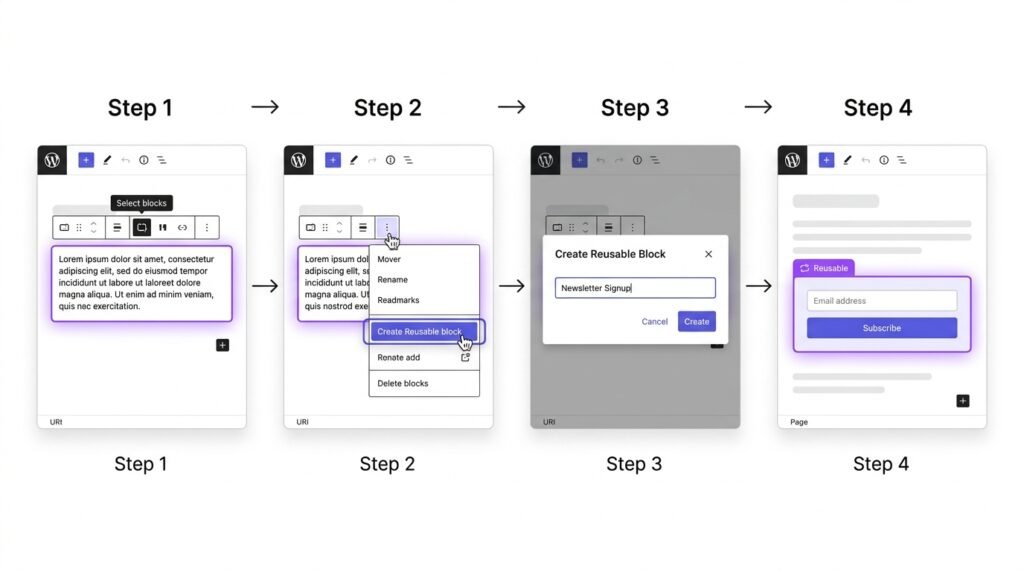
First, build the content you want to save:
- Build your block(s) in the editor — for example, a Group containing a Heading, Paragraph, Button, and Image
- Select all blocks you want to save — click and drag, or click “Select parent block” if inside a Group
- Click the three dots (⋮) in the block toolbar
- Choose “Create Reusable block” (or “Create pattern” in WordPress 6.3+)
- Give it a name (e.g., “Newsletter Signup — Green”)
- Click “Save”
As a result, your reusable block appears in the inserter under the Reusable tab.
How to insert a Reusable Block
- Click the plus (+) button
- Click the Reusable tab (or Patterns → My Patterns in newer versions)
- Choose your saved block
- Click to insert it
How to edit a Reusable Block (and sync changes)
First, there are three ways to edit a reusable block. Then, choose the one that fits your workflow.
Method 1: From the editor
- Click on the reusable block in the editor
- Click the “Edit” pencil icon in the toolbar
- Make changes (add, remove, edit content)
- Click “Save”
- All instances of that block across your site update automatically
Method 2: From the Site Editor
- Go to Appearance → Editor → Patterns
- Click on the pattern you want to edit
- Make changes
- Click “Save”
Method 3: From the Manage Reusable Blocks screen (WordPress 5.9 and earlier)
- Go to Appearance → Manage Reusable Blocks
- Find the block you want to edit
- Click “Edit”
- Save changes
How to convert a Reusable Block back to regular blocks
First, sometimes you want to edit an instance without affecting others. Then, detach it:
- Click the reusable block
- Click the three dots (⋮) in the toolbar
- Choose “Detach” or “Convert to regular blocks”
- The block becomes independent — you can now edit it without affecting other instances
Managing Reusable Blocks
First, all your reusable blocks live in one place. Then, you can edit, delete, rename, or export them.
Step-by-step:
- Go to Appearance → Editor → Patterns (WordPress 6.0+)
- Or Appearance → Manage Reusable Blocks (earlier versions)
- From there, you can:
- Edit — click any pattern to open it
- Delete — three dots → Delete
- Rename — three dots → Rename
- Export — three dots → Export (JSON file)
Export and import Reusable Blocks
First, you can export a reusable block as JSON and import it to another WordPress site. Then, this is useful for migrating sites or sharing layouts with clients.
Export:
- In Manage Reusable Blocks, click “Export”
- A JSON file downloads
Import:
- Use the Site Editor’s import function
- Or install a plugin like “Reusable Blocks Extras”
- Upload the JSON file — the block appears in your library
Part 4: Creating Your Own Block Patterns (Advanced)
First, you can create custom patterns that appear in the Patterns tab for all users on your site. Then, you have three options, from easiest to most technical.
Option A: Using a plugin (easiest)
First, install one of these plugins:
| Plugin | What it does | Best for |
|---|---|---|
| Create Block Theme | Register custom patterns via UI | Theme developers |
| Patterns by WP Engine | Create and manage patterns visually | Non-coders |
| Block Pattern Creator | Simple pattern builder | Quick custom patterns |
Step-by-step with “Patterns” plugin:
- Install and activate the plugin
- Go to Appearance → Patterns → Add New
- Build your pattern with blocks
- Give it a name and category
- Click “Publish”
- Your pattern appears in the Patterns tab
Option B: Code (for developers)
First, add this to your theme’s functions.php or a custom plugin:
php
register_block_pattern(
    'mytheme/custom-hero',
    array(
        'title'       => 'My Custom Hero',
        'description' => 'A hero with dark background and button.',
        'content'     => '<!-- wp:group {"backgroundColor":"black"} -->...<!-- /wp:group -->',
        'categories'  => array('featured'),
    )
);
Then, the content field is the HTML/block markup of your pattern. Finally, you can copy it from the editor by switching to Code Editor mode (three dots → Code editor).
Option C: Using the WordPress Pattern Directory
First, you can submit your pattern to wordpress.org/patterns for the whole community to use. Then, submitted patterns go through a review process. As a result, your pattern can be installed by thousands of WordPress users.
Part 5: Synced Patterns (WordPress 6.3+)
First, WordPress 6.3 introduced Synced Patterns — a hybrid between regular patterns and reusable blocks. Then, they behave like a reusable block (edit one instance, all update) but appear in the Patterns tab (not just Reusable).
Why Synced Patterns are better
First, here’s how they compare:
| Feature | Reusable Block (legacy) | Synced Pattern (6.3+) |
|---|---|---|
| Sync | Yes | Yes |
| Where to find | Reusable tab only | Patterns tab (all categories) |
| Naming | “Reusable block” | “Pattern” |
| Discoverability | Hidden in a separate tab | Browsable with all patterns |
| Future-proof | Legacy feature | Current standard |
How to create a Synced Pattern
- Build your block(s) in the editor
- Select all blocks
- Click the three dots (⋮) in the toolbar
- Choose “Create pattern” (not “Create Reusable block”)
- Check the box “Synced” in the dialog
- Give it a name
- Click “Save”
As a result, your synced pattern appears in the Patterns tab and stays in sync across your site.
💡 Pro tip: if you’re on WordPress 6.3 or later, always use Synced Patterns instead of Reusable Blocks. However, if you’re on an older version, Reusable Blocks work fine — they’re just harder to find.
Part 6: Real-World Examples
First, here are four examples you can copy today.
Example 1: Newsletter Signup as a Reusable Block
First, build it once:
- Add a Group block with light gray background and 40px padding
- Inside, add:
- Heading: “Join the Newsletter”
- Paragraph: “Get weekly tips on WordPress, delivered to your inbox.”
- Button: “Subscribe” (link to your newsletter page)
- Save as a Reusable Block called “Newsletter Signup”
Then, insert it at the bottom of every post. As a result, when you change the button text or link, all posts update automatically.
Example 2: Product Grid Pattern
First, create the pattern:
- Add a Heading: “Best Sellers”
- Add a Columns block with 3 columns
- Inside each column, add:
- Image (product photo)
- Heading (product name)
- Paragraph (short description)
- Button (“Buy Now”)
- Save as a Pattern (not Reusable)
Then, insert it on any page and replace the placeholder products with real ones. However, if you use the same products on 10 pages, you might want a Synced Pattern instead — see Part 5.
Example 3: Author Bio Box (Reusable)
First, create the box:
- Add a Group block with a Columns layout (2 columns)
- Left column: Image (your photo, circle crop)
- Right column: Heading (your name), Paragraph (short bio), Social Icons (your links)
- Save as a Reusable Block called “Author Bio”
Then, insert after every post (manually or via Kadence hooks). As a result, when you update your social links, all posts update.
Example 4: Table of Contents Pattern
First, create the pattern:
- Add a Heading: “Table of Contents”
- Add a List block (empty)
- Add a Separator block below
- Save as a Pattern called “Table of Contents”
Then, insert it at the start of long articles and fill the list manually. As a result, you skip the repetitive setup on every long post.
Comparison Table: Which to Use When
First, here’s the quick reference. Then, use it whenever you’re unsure.
| Scenario | Use |
|---|---|
| You need a quick, one-time hero section | Built-in Pattern |
| You want to reuse a section but each copy should be independent | Pattern (unsynced) |
| You want every instance to update when you edit | Synced Pattern / Reusable Block |
| You’re building a layout for other editors to use | Pattern |
| You have a dynamic element (e.g., latest posts) | Don’t use either — use Query Loop instead |
| You want it discoverable in the Patterns tab AND synced | Synced Pattern (WordPress 6.3+) |
5 Common Mistakes to Avoid
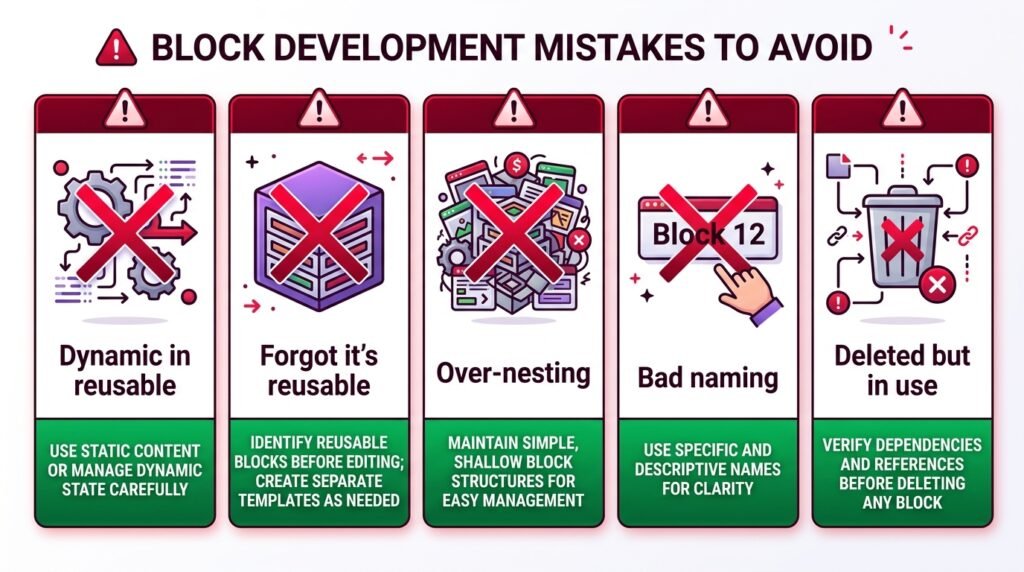
First, here are the mistakes beginners make most often:
| ❌ Mistake | ✅ Fix |
|---|---|
| Using Reusable Blocks for dynamic content | If a block displays latest posts or current date, it won’t update per page when reused. Use Query Loop instead. |
| Forgetting you used a Reusable Block | Then you edit a page wondering why changes aren’t sticking. Check if it has a purple outline and “Reusable” label. |
| Over-nesting | Don’t put 20 blocks inside a reusable block. Keep it focused (5–8 blocks max). |
| Not naming clearly | Name your reusable blocks something obvious (“Footer Contact Info” — not “Block 12”). |
| Deleting a reusable block still in use | If you delete it, all instances vanish. Convert to regular blocks first. |
As a result, avoiding these mistakes keeps your workflow fast and frustration-free.
Pro Workflow: Build a Page in 5 Minutes
First, here’s my actual workflow for building a new landing page. Then, each step takes 15–45 seconds.
Step-by-step
- Hero section — insert the “Hero with centered content” pattern. Swap text and image. (30 seconds)
- Features — insert “Three columns with icons” pattern. Edit icon, title, description. (45 seconds)
- Testimonial — insert “Testimonial with photo” pattern. Replace quote and name. (20 seconds)
- CTA — insert “Large call-to-action” pattern. Change button text. (15 seconds)
- Footer — insert my custom Reusable Block “Footer with newsletter”. (5 seconds)
Total time: ~2 minutes for a professional page. As a result, the rest of your time goes into writing content, not wrestling with blocks.
For example, a blog post with 5 sections, 3 images, and a newsletter signup used to take 90 minutes to build. However, with patterns and reusable blocks, it takes 20 minutes — and most of that is writing, not layout.
Frequently Asked Questions
Q1: What’s the difference between Block Patterns and Reusable Blocks?
First, Block Patterns are pre-designed layouts that insert as independent copies — editing one doesn’t affect others. Then, Reusable Blocks are your own saved blocks that stay in sync — editing one updates all instances. As a result, use Patterns for one-off sections and Reusable Blocks for repeated content like email signups.
Q2: Are Reusable Blocks deprecated in WordPress 6.3+?
Not deprecated — renamed. First, WordPress 6.3 introduced Synced Patterns, which do the same thing as Reusable Blocks but appear in the Patterns tab. Then, existing Reusable Blocks still work — they’re just hidden under a separate tab. As a result, for new content, use Synced Patterns.
Q3: Can I use Reusable Blocks for dynamic content like latest posts?
No. First, Reusable Blocks render the same content everywhere. Then, if you include a Query Loop block showing latest posts, it will show the same posts on every page (from the initial save). Instead, use the Query Loop block directly — it updates dynamically on each page.
Q4: How do I edit a Reusable Block without affecting other instances?
First, click the reusable block in the editor. Then, click the three dots (⋮) in the toolbar. Finally, choose “Detach” or “Convert to regular blocks”. As a result, the block becomes independent — you can edit it freely.
Q5: Can I export Reusable Blocks to another WordPress site?
Yes. First, go to Appearance → Editor → Patterns → Manage all patterns. Then, click the three dots next to the pattern and choose “Export”. Finally, import the JSON file on the new site via the Site Editor or a plugin like “Reusable Blocks Extras”. As a result, you can migrate patterns between sites or share them with clients.
Q6: Where can I find more free patterns?
First, the official WordPress Pattern Directory has thousands of free patterns. Then, themes like Kadence, Blocksy, and GeneratePress add their own. Finally, you can create custom patterns via plugin or code. As a result, you’ll never run out of starting points.
Q7: Do patterns hurt site performance?
No — the opposite. First, patterns are just static block markup — no additional CSS or JavaScript. Then, reusable blocks add only a single database reference. As a result, using patterns and reusable blocks improves performance because you’re not rebuilding layouts with heavy page builders. For a deeper performance look, see our Must-Have WordPress Plugins guide.
Key Takeaways
- Block Patterns = pre-designed layouts. Insert in one click, edit independently
- Reusable Blocks = your own custom blocks. Edit once, update everywhere
- Synced Patterns (WordPress 6.3+) = patterns that behave like reusable blocks — the best of both
- Use Patterns for one-off sections; Reusable Blocks for content that repeats (signup forms, author boxes, disclaimers)
- Create custom patterns via plugins (easiest), code (developers), or WordPress Pattern Directory (community)
- Never use Reusable Blocks for dynamic content — use Query Loop instead
- Build a page in under 5 minutes using patterns + reusable blocks
- Export patterns as JSON to reuse them on other sites or share with clients
- Shortcuts: Patterns tab (plus button → Patterns), Reusable tab (plus button → Reusable)
What’s Next?
First, you now have a complete toolkit for building WordPress sites faster. Then, it’s time to go beyond visual editing — to custom CSS and block styles.
👉 Next in this series: Advanced Gutenberg Custom CSS Guide — custom CSS, block styles, and when to reach for code.
Do you use Reusable Blocks or Patterns? Which one saves you the most time? Share in the comments.
Related Reading
- Gutenberg & Blocks: Complete Guide — the first article in this series
- Query Loop Block Guide — for dynamic content (not reusable blocks)
- Full Site Editing Guide — templates and template parts
- Gutenberg Design Blocks Guide — the blocks patterns are built from
- Advanced Gutenberg Custom CSS — custom styles for patterns
- Build a WordPress Homepage with Kadence — patterns in real-world use