
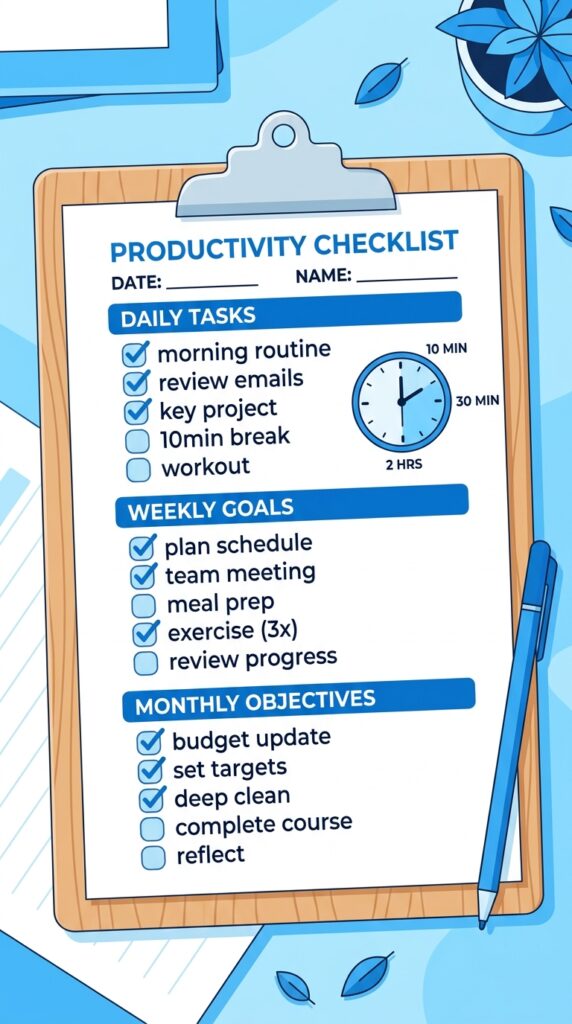
WooCommerce maintenance is a 10-minute daily routine, a 30-minute weekly check, and a 1–2 hour monthly audit. Skip it, and your store slowly breaks: slow queries, plugin conflicts, checkout failures — each one costs sales you never see.
WooCommerce maintenance is the ongoing process of keeping your store secure, fast, stable, and fully functional after it has been launched. Without regular maintenance, small issues stack up: slower load times, broken links, plugin conflicts, or even checkout failures. Left unchecked, these problems impact your store’s performance, customer experience, and revenue.
The full routine:
- Daily (10 min): failed orders, stock alerts, uptime, security logs
- Weekly (30 min): updates, malware scan, backup verification, plugin audit
- Monthly (1–2 hr): test checkout, restore a backup, optimize database, review analytics
- Quarterly (half day): performance audit, security audit, hosting review, growth planning
This guide also covers:
- Scaling — when and how to grow without breaking your store
- Traffic spikes — what breaks under load and how to survive them
- Monitoring tools — WPRobo Mission Control (54+ automated checks)
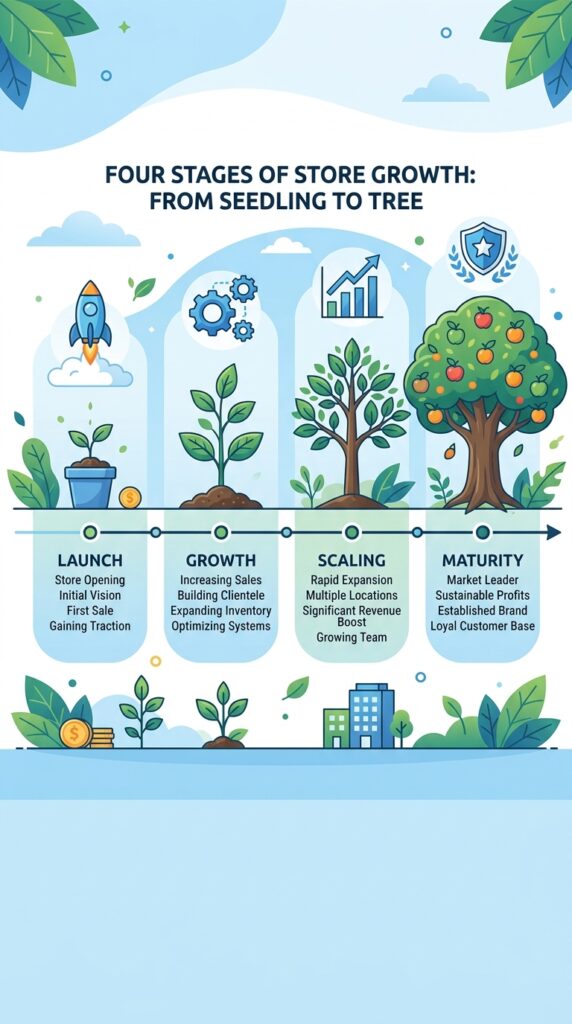
- Long-term growth stages — what changes at $5k, $50k, $150k/month
Let’s make sure your store stays healthy as it grows.
Part 1: Why Maintenance Matters — The “Set It and Forget It” Trap
WooCommerce stores are not static. They rely on multiple moving parts: WordPress core, plugins, themes, hosting, and integrations. When one piece falls out of sync, the entire system can be affected.
What happens without regular maintenance
The cost of neglect
According to Google research, even as page load time increases from 1 to 3 seconds, the probability of a visitor bouncing increases by 32%. A one‑second delay in page load time can significantly reduce conversion rates.
The difference between online stores that grow continuously and those that plateau or fall off usually comes down to monitoring and preventative maintenance.
💡 The most successful WooCommerce stores don’t wait for problems to appear. They proactively maintain their stores so problems never reach their customers.
Part 2: Daily Maintenance Checks (10 Minutes)
These are the quick, essential checks that keep your store running smoothly day to day.
Daily checklist
| Task | What to check | Why it matters |
|---|---|---|
| Review failed orders | WooCommerce → Orders → Filter by “Failed” | Failed orders may indicate payment gateway issues or customer problems |
| Check stock alerts | WooCommerce → Analytics → Inventory | Running out of stock means lost sales |
| Review support tickets | Any open customer issues | Quick responses build trust |
| Check site uptime | Uptime monitoring tool (e.g., UptimeRobot) | Your store must be available 24/7 |
| Review security logs | Wordfence → Live Traffic | Detect suspicious activity early |
| Monitor checkout | Quick test order (or monitoring tool) | Checkout is the most critical page |
💡 Many store owners use automated monitoring tools for daily checks — but a quick visual scan of orders and support tickets takes only a few minutes and catches issues early.
Part 3: Weekly Maintenance Checks (30 Minutes)
Weekly maintenance prevents small issues from becoming big problems.
Weekly checklist
Software update best practices
Never run updates directly on your live site without testing. A staging site allows you to catch conflicts with just a few clicks. If you don’t have a staging environment, most managed WordPress hosts provide one.
For WooCommerce Marketplace vendors, the official recommendation is to update products at minimum every six months to maintain compatibility with the latest WooCommerce and WordPress releases. Major releases should be aligned with the WooCommerce core release calendar at least quarterly.
💡 Consider using the Quality Insights Toolkit (QIT) to automatically detect potential issues before updates are deployed.
Part 4: Monthly Maintenance Checks (1-2 Hours)
Monthly maintenance is where you catch the issues that weekly checks might miss.
Monthly checklist
Performance optimisation checklist
Performance is one of the few areas where small issues can have an outsize d impact. Monthly performance checks should include:
- Page load times for product pages, homepage, cart, and checkout
- Time to First Byte (TTFB) — should be under 600ms
- Database query efficiency
- Plugin contribution to site speed
- Core Web Vitals (LCP, FID, CLS)
Part 5: Quarterly Maintenance Checks (Half Day)
Quarterly maintenance is strategic. It’s where you plan for growth and prevent problems before they emerge.
Quarterly checklist
The scaling priority order
Most stores scale in the wrong order, which is why scaling efforts often fail to produce measurable results.
Fix your foundation before adding traffic — if your store converts at 1% and loads in 5 seconds, paid traffic won’t change those numbers. It will amplify the problem at additional cost.
Before investing in any traffic acquisition channel, verify:
- Mobile page load time is under three seconds
- Checkout completes without errors on all major browsers
- Cart abandonment rate is below 70% (industry average is around 70%)
- Server does not degrade under 50‑100 simultaneous visitors
💡 This verification takes hours, not weeks. Run your store through Google PageSpeed Insights before spending money on ads.
Part 6: Scaling Your WooCommerce Store
Scaling a WooCommerce store means growing traffic, orders, products, and revenue without creating performance issues, operational bottlenecks, or rising costs that outpace growth.
Signs your store needs to scale right now
Scale your infrastructure when:
- Page load times exceed three seconds on mobile
- Server CPU usage consistently exceeds 80%
- Store goes down or slows dramatically during promotional events
- Admin pages (especially the Orders screen) take more than five seconds to load
- Time to First Byte (TTFB) consistently exceeds 600ms
Scale your operations when:
- You spend more than three hours per day on order fulfilment and customer communications
- You are manually sending follow‑up emails
- Inventory errors and overselling are happening regularly
- Your team cannot maintain order volume during high‑traffic periods
Scale your revenue when:
- Your store conversion rate is below 2% with healthy traffic
- Average order value has not increased in six months
- Less than 20% of customers make a second purchase
- You have no automated email flows running
The three areas of successful scaling
| Area | Focus | Priority |
|---|---|---|
| Technical performance | Handle increased demand | First |
| Operational efficiency | Automation and streamlined workflows | Second |
| Revenue optimisation | Conversion rates, AOV, CLV | Third |
The most successful WooCommerce stores strengthen their technical foundation first, automate operations second, and optimise revenue generation third.
Part 7: Handling Traffic Spikes Without Breaking
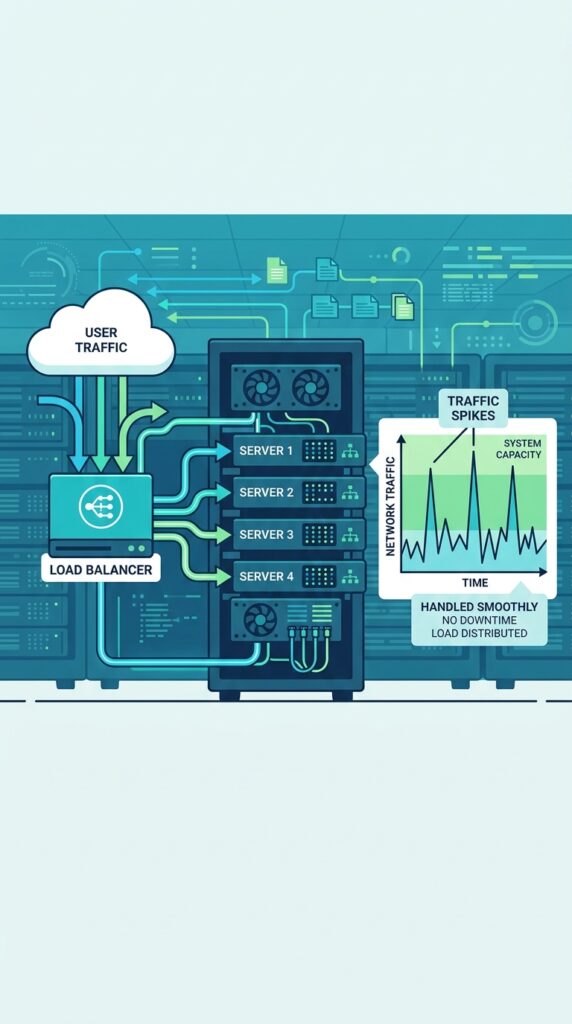
Campaign traffic breaks e‑commerce sites in predictable ways. The problem isn’t just volume — campaign traffic concentrates users into narrow time windows with completely different behaviour patterns.
What happens during a traffic spike
| Metric | Normal | Campaign peak |
|---|---|---|
| Daily visitors | 1,000 across 24 hours | 2,000 in 30 minutes |
| Query time | 50‑200ms | 500ms+ due to lock contention |
| Memory usage | Baseline | Spikes to 80‑95% |
| Page load | 1‑2 seconds | 5‑6 seconds |
| Cache hit ratio | 70‑80% | 30‑40% |
The result? Database connections saturate, memory spikes, CPU jumps from 20% to 95%. Your checkout flow becomes especially vulnerable right when conversion rates should be highest.
Scaling strategies that actually work
Vertical scaling (easier): Upgrade RAM and CPU cores. Pros: zero code changes, immediate. Cons: single point of failure, eventual limits.
Horizontal scaling (better): Multiple servers with load balancer. Requires Redis sessions and shared storage. Bottleneck: database becomes limiting factor.
Caching optimisation (highest ROI): Redis object caching, page caching, CDN. Results: database load reduction of 60‑80%, PHP processing eliminated for anonymous visitors, static assets offloaded.
Campaign‑specific cache strategies
For flash sales and campaigns, use inventory‑aware cache keys and shorter TTLs:
php
// Inventory-aware cache keys
$cache_key = "product_{$id}_stock_{$stock_level}";

// Time-based invalidation for high-change periods
$ttl = $is_campaign ? 300 : 3600; // 5min vs 1hr
What breaks under load
If you’re running a WooCommerce high‑traffic site “the right way” and it still feels fragile, you’re not imagining it. Under pressure, independent configurations (caching, CDN, firewall, hosting) may not align properly.
The most common failure points during spikes:
- Database connections saturate
- PHP memory limits exceeded
- Web server process limits reached
- Cache invalidation fails for cart/checkout pages
- Firewall misidentifies legitimate traffic as attacks
💡 The unsettling irony: you can lose a sale while all your tools technically operated correctly. The solution is integrated, rather than siloed, performance management.
Part 8: Monitoring Store Health – Tools and Metrics
Proactive monitoring captures issues before they reach your customers. A structured monitoring routine (weekly, monthly, and quarterly) keeps your WooCommerce site stable, fast, and scalable.
Key metrics to track
Monitoring tools for 2026
| Tool | What it does | Best for |
|---|---|---|
| WPRobo Mission Control | 54+ automated checks across performance, security, SEO, environment, store integrity, and orders/payments | All‑in‑one health dashboard |
| Checkout Watch | Spot checkout warning signs before customers report them | Checkout reliability |
| CashFlowCanary | Continuous checkout monitoring | Stores that cannot afford silent failures |
| Query Monitor | Database query debugging | Performance troubleshooting |
| Google PageSpeed Insights | Core Web Vitals and performance scores | Ongoing performance monitoring |
| Store AI Health Monitor | AI‑powered diagnostics with 11 built‑in health checks | Automated issue detection and recovery |
WPRobo Mission Control – recommended for most stores
WPRobo Mission Control is a health dashboard for WooCommerce stores. It runs more than 54 automated checks across six categories and presents the results on a single dashboard inside the WordPress admin.
Each check returns a plain‑language result with a status (passing, warning, or issue) and the specific products, pages, or settings behind that result. Intensive checks run once a day in the background using WordPress Cron.
Setup: After activation, go to WooCommerce → Mission Control. Select “Run first health check” on the welcome screen. From that point on, checks run automatically once every 24 hours.
💡 For Core Web Vitals monitoring, you’ll need a free Google PageSpeed Insights API key.
Part 9: Long‑Term Growth Planning
Scaling a WooCommerce store means different things at different stages.
Growth stages
| Revenue stage | Focus |
|---|---|
| $5,000/month | Fix performance bottlenecks before they cost you sales |
| $50,000/month | Automate operations before they require additional headcount |
| $150,000/month | Infrastructure that holds under sustained load without developer intervention |
Long‑term checklist
| Area | Action | Frequency |
|---|---|---|
| Technology | Evaluate hosting needs, upgrade as traffic grows | Quarterly |
| Operations | Automate manual processes (email, inventory, fulfilment) | As needed |
| Team | Consider hiring or outsourcing when you hit capacity | As needed |
| Revenue | Optimise conversion rates, AOV, CLV | Monthly |
| Compliance | Review tax, privacy, and legal requirements | Annually |
| Competition | Analyse competitors and market trends | Quarterly |
When to consider a dedicated team or agency
- When you spend more than 3 hours/day on operational tasks
- When you miss orders during high‑traffic periods
- When your skills plateau — you need expertise you don’t have
- When you’re making decisions based on guesswork rather than data
What’s Next?
You now have a complete maintenance and growth system for your WooCommerce store. Your store is healthy, monitored, and ready to scale.
👉 Next article in this series: WooCommerce Case Studies & Real‑World Examples
We’ll look at successful WooCommerce stores, what they did right, and lessons you can apply to your own store.
What’s your biggest maintenance challenge? Are you using any monitoring tools? Let me know in the comments.
First published: July 2026
Last updated: July 2026
📌 Key Takeaways (for skimmers)
- Maintenance is ongoing — “set it and forget it” doesn’t work for WooCommerce stores
- Daily checks (10 min): orders, stock, support, uptime, security logs
- Weekly checks (30 min): updates, malware scan, backups, plugin audit
- Monthly checks (1-2 hours): test checkout, test backup restore, optimise database, performance scores
- Quarterly checks (half day): full performance audit, security audit, plugin stack review, growth planning
- Scale in the right order: technical foundation → automation → revenue optimisation
- Handle traffic spikes with caching, object caching, and vertical/horizontal scaling
- Monitor proactively: WPRobo Mission Control runs 54+ automated checks daily
- Growth stages require different focus areas as revenue increases
🔗 Internal Links
- Article #1 – WooCommerce in 2026 – Market Share & Trends
- Article #2 – Installing WooCommerce & Setup Wizard
- Article #7 – Managing Orders & Customers with HPOS
- Article #12 – WooCommerce Security & Performance
- Article #13 – WooCommerce Analytics & Reporting
- You are here – WooCommerce Maintenance & Growth
- Article #16 – WooCommerce Case Studies (coming soon)