Your store is open. Now let’s bring customers in and keep them coming back.
So far in this series, you’ve built your WooCommerce store, added products, set up license keys, optimised checkout, and mastered order management. But a store without customers is just a beautiful display.
Marketing is what turns your WooCommerce installation into a revenue-generating machine.
In this guide, I’ll cover:
- The built-in WooCommerce Marketing Hub
- Creating and managing coupons (percentage, fixed, free shipping)
- Advanced coupon restrictions and usage limits
- Email marketing integration (Mailchimp, Brevo, Retainful, AutomateWoo)
- Upsells and cross‑sells – increasing average order value
- BOGO (Buy One Get One) and dynamic discount rules
- Smart discounting strategies (protecting your margins)
- Kadence theme’s WooCommerce marketing features
- Building recurring revenue with subscriptions
Let’s turn your store into a growth engine.
Part 1: The WooCommerce Marketing Hub (Built-in)
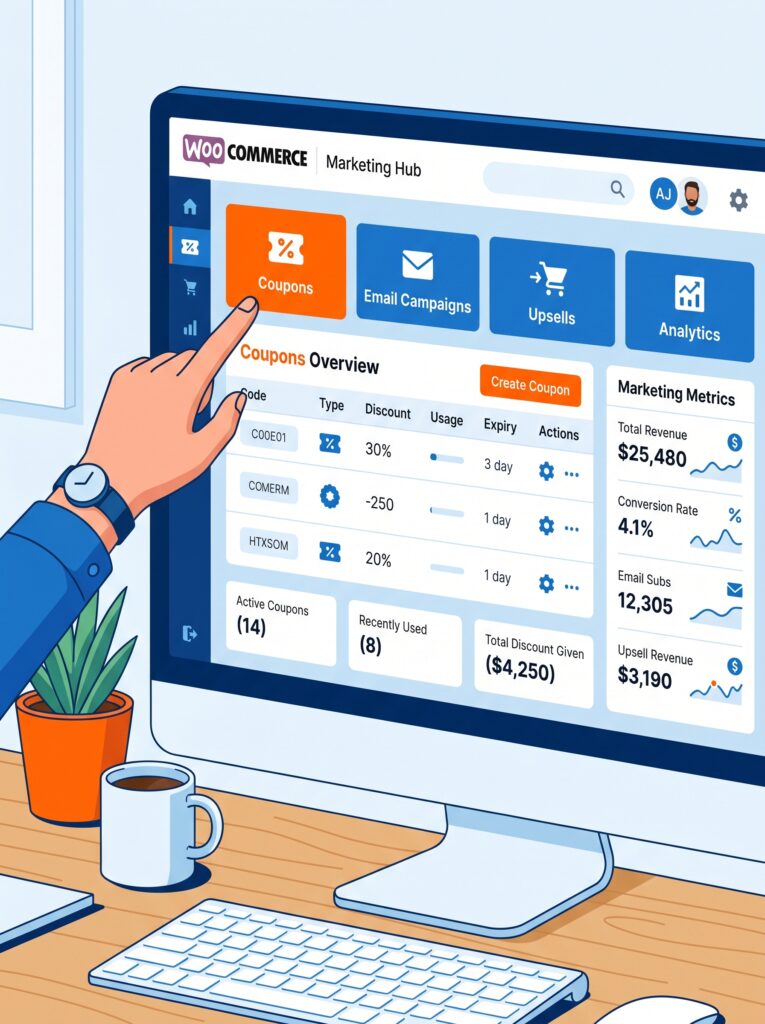
WooCommerce includes a centralised Marketing Hub that consolidates all your promotional tools. You can find it at WooCommerce → Marketing in your WordPress admin dashboard.
Inside the Marketing Hub, you’ll see:
- Coupons – create and manage discount codes
- Overview – marketing tips and fresh ideas directly from Woo
- Built-in tools that help you manage business operations efficiently, with many services free to add via a single click
The Marketing Hub also suggests extensions for email marketing, social commerce, and Google listings – many of which are completely free to start with. As you grow, you can add more advanced tools from the Extension Store.
💡 The Marketing Hub organises extensions into three tiers: Essential (payments, shipping, tax), Growth (analytics, search, CRM), and Marketing (email, social, ads). Start with the free Marketing extensions – they’re more than enough for most new stores.
Part 2: Creating Coupons – The Built-in System
WooCommerce’s native coupon system is surprisingly powerful for a built-in feature. You can create discount codes without any additional plugins.
Enabling coupons (first time)
Before creating your first coupon, ensure coupons are enabled:
- Go to WooCommerce → Settings → General.
- Scroll down to the Enable Coupons section.
- Check the box next to “Enable the use of coupon codes.”
- Optionally check “Calculate coupon discounts sequentially” (recommended if you offer multiple coupons per order).
- Click Save changes.
Creating a coupon (step by step)
- Navigate to WooCommerce → Marketing → Coupons (or directly WooCommerce → Coupons in some versions).
- Click Add coupon at the top.
- Enter a coupon code name – keep it simple and relevant to your campaign (e.g., “SPRING2026” or “WELCOME10”).
- Add an optional description for internal reference (customers won’t see it).
- Configure the three tabs: General, Usage Restriction, and Usage Limits.
General tab settings
Usage Restriction tab – control who can use it
Usage Limits tab – prevent abuse
Coupon types explained
| Type | Example | Best for |
|---|---|---|
| Percentage discount | “20% off” | Broad promotions, clearing seasonal inventory |
| Fixed cart discount | “$10 off” | Threshold-based promotions (e.g., spend $50, get $10 off) |
| Fixed product discount | “$5 off specific plugin” | Specific product promotions |
| Free shipping | No shipping cost | Encouraging larger orders |
Pro tips for effective coupons
- Set expiration dates – Limited-time offers create urgency (FOMO) and drive faster conversions.
- Use strategic naming – “SPRING2026” is more memorable than “XYZ123ABC”.
- Test different discount types – Some audiences respond better to percentage discounts, others prefer fixed amounts.
- Add a description – Internal notes help you remember what each coupon was for.
- Test your coupon – Before publicising it, test it yourself to ensure it applies correctly.
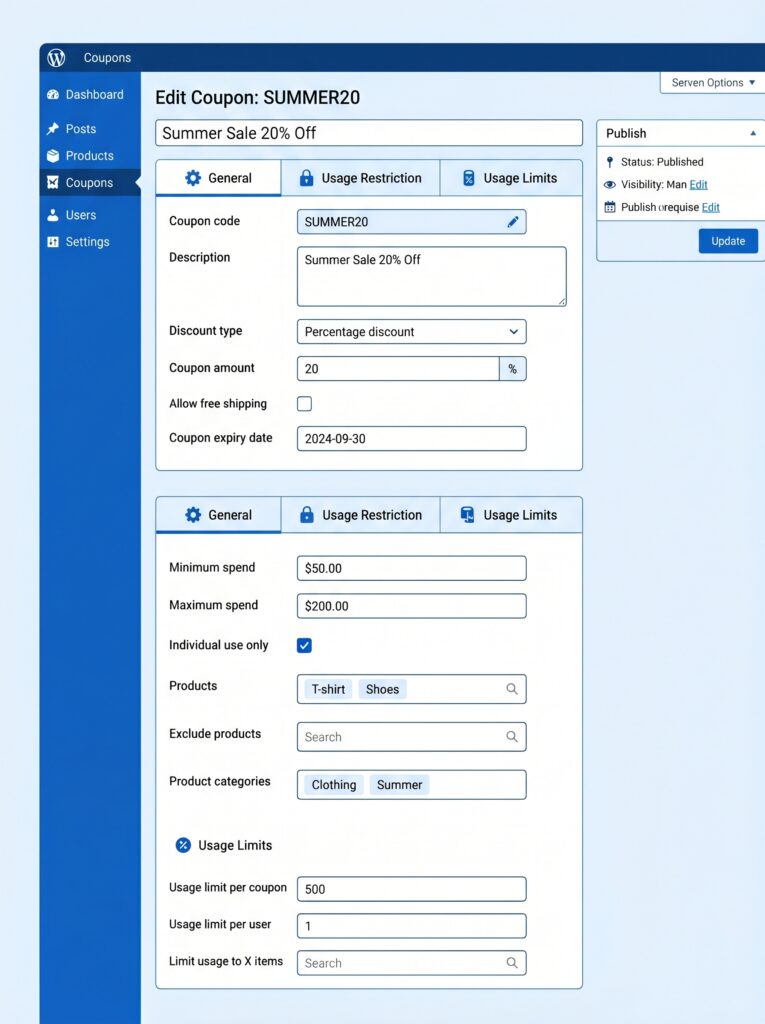
💡 WooCommerce’s coupon system is excellent for one-off promotions. But if you need advanced features like auto-applied coupons (no code entry required), BOGO deals, or tiered pricing, you’ll need additional plugins – which I’ll cover later in this guide.
Part 3: Email Marketing Integration – Turning Customers into Repeat Buyers
Email marketing delivers the highest ROI of any digital channel – and for WooCommerce stores, it’s where customer retention really happens. Automated behavioural emails (abandoned cart, post‑purchase follow‑ups) routinely hit 40–60% open rates, compared to roughly 20% for broadcast newsletters.
Best email marketing plugins for WooCommerce
| Plugin | Free tier | Key features |
|---|---|---|
| Mailchimp for WooCommerce | Yes (free) | Syncs customer and purchase data automatically; abandoned cart, win‑back, post‑purchase automations; product recommendations; pop‑up forms |
| Retainful | Yes (free) | Abandoned cart recovery, browse abandonment, welcome series, post‑purchase thank you, win‑back campaigns – pre‑built workflows |
| Brevo (formerly Sendinblue) | Yes (free) | Handles transactional AND marketing emails; includes automation, SMS, and CRM |
| AutomateWoo | Paid (starts $10/mo) | Deep WooCommerce integration; behavioural triggers; SMS via Twilio; referral programs; advanced analytics |
My recommendation
For most new stores, start with Mailchimp for WooCommerce – it’s free, well‑supported, and covers all the essential automations. As you grow, consider Retainful for more advanced cart recovery features (we covered this in Article 6). If you need SMS marketing and CRM in one platform, Brevo is an excellent free alternative.
Setting up Mailchimp for WooCommerce
- Install Mailchimp for WooCommerce from Plugins → Add New.
- Connect your Mailchimp account (or create a free one).
- Select your audience list and enable automatic e‑commerce data syncing.
- Set up your automations:
The plugin automatically syncs customer names, email addresses, and order history to your Mailchimp audience. Customers who opt in to marketing emails are added to your audience; those who don’t appear in the Transactional section and cannot be exported.
Email sequences that convert
A three‑email abandoned cart sequence significantly outperforms a single recovery email:
Email 1 recovers customers who were genuinely distracted. Save the discount for Email 3, and only if needed.
💡 Automated emails generate significantly more revenue per send than non‑automated emails. Abandoned cart recovery alone can add thousands of dollars in monthly revenue from a well‑configured sequence.
Part 4: Upsells, Cross‑sells & BOGO – Increasing Average Order Value
Built-in upsells and cross‑sells
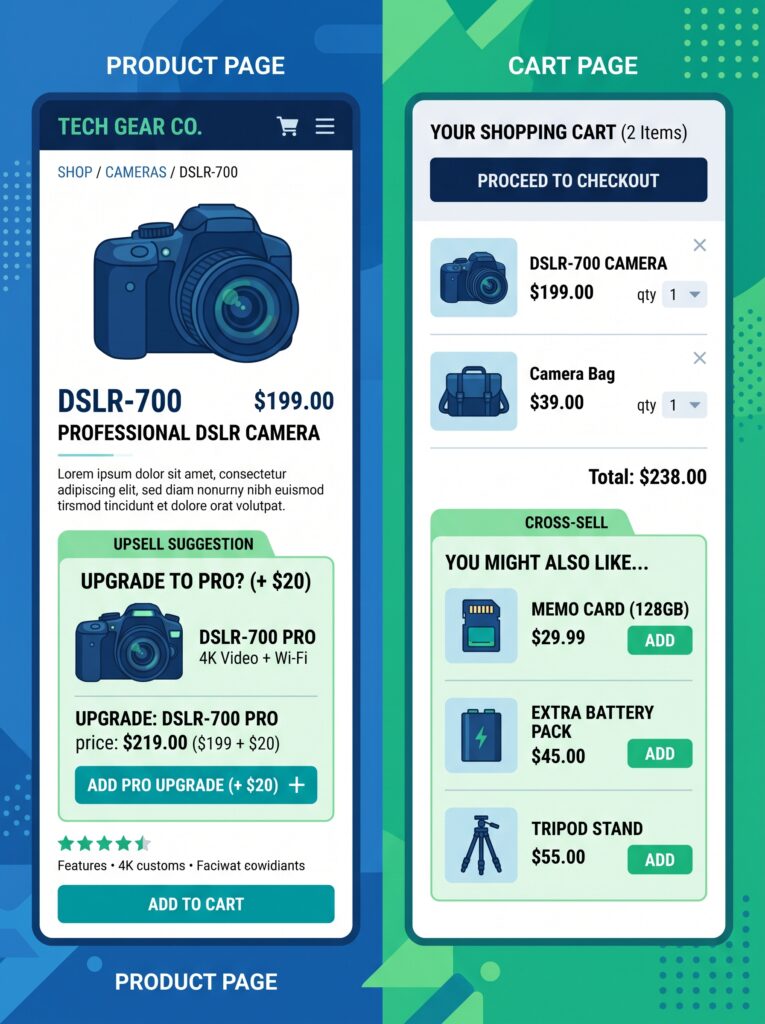
WooCommerce includes native upsell and cross‑sell functionality for every product.
Setting up upsells and cross‑sells
- Go to Products → All Products and edit a product.
- Scroll to the Product Data meta box.
- Click the Linked Products tab.
- For upsells, search for and select premium alternatives to display under “You may also like”.
- For cross‑sells, search for and select complementary products to display on the cart page when this product is in the cart.
BOGO (Buy One Get One) deals
WooCommerce doesn’t support BOGO deals natively – you need a plugin. A BOGO coupon applies conditional logic: “If the cart contains product A, then apply 100% discount to product B”.
Best free BOGO plugins:
- CartMagic (free) – BOGO in Pro version; free version covers percentage, fixed amount, and free shipping rules.
- Disco – Dynamic Pricing & Discount Rules – unlimited smart campaigns with advanced conditions.
- Discount Rules for WooCommerce by Flycart – handles every BOGO variation: same‑product deals, cross‑product deals, category‑based offers.
When BOGO works well:
- Products with healthy margins (ideally 50%+)
- Introducing new products (pair with best‑sellers)
- Moving slow‑moving inventory
When BOGO is the wrong move:
Dynamic pricing without coupon codes
Instead of asking customers to enter a code, some plugins apply discounts automatically based on rules. This reduces friction at checkout and works seamlessly in the background.
CartMagic (free) automatically evaluates discounts at cart and checkout for every customer. It supports percentage discounts (with optional cap), fixed amounts, free shipping thresholds, cart total conditions, and item count rules. The free version covers standard cart‑level discounting; advanced features like BOGO and tiered pricing are available in the Pro add‑on.
Extended Coupon Features for WooCommerce adds auto‑applied coupons (no code entry needed) and URL‑based coupon application (e.g., ?apply_coupon=SAVE20). It also adds restrictions by shipping method, payment method, customer role, and product combinations.
💡 Auto‑applied coupons are particularly effective for cart abandonment campaigns – the customer doesn’t have to remember or enter a code; the discount appears automatically when conditions are met.
Part 5: Smart Discounting Strategies – Protecting Your Margins
Discounts drive sales, but without a strategy, they can damage profit margins, reduce customer lifetime value, and train shoppers to buy only during sales.
The real cost of discounting
Consider a product sold for $80 with a cost of goods of $40 (50% gross margin). A 25% off promotion drops the selling price to $60. Your cost remains $40, so profit per unit falls from $40 to $20. You’ve just cut your margin by 50% and need to sell twice as many units to make the same profit.
Smarter discounting practices
When NOT to discount
- New product launches – build demand at full price first
- High‑demand products – why discount what’s already selling?
- Loyal customers – reward them with exclusives, not blanket discounts
💡 86% of online shoppers are more likely to try a new brand just because a coupon is available. Use that to acquire customers – then retain them through product quality and service, not discounts.
Part 6: Kadence Theme’s WooCommerce Marketing Features
The Kadence theme (which you’re using) includes the most advanced WooCommerce integration of any free theme.
What Kadence gives you out of the box
Using Kadence for product promotions
In Appearance → Customize → WooCommerce, you can:
- Style sale badges (choose colours, position, text)
- Customise add‑to‑cart buttons for better visibility
- Control product archive layout (grid vs list, number of columns)
- Enable/disable product ratings and reviews
These customisations help your promotions stand out without additional coding.
💡 The free version of Kadence already includes robust WooCommerce styling. If you need advanced features like conditional product display or membership‑based pricing, consider Kadence Pro’s Shop Kit module.
Part 7: Measuring Marketing Performance
You can’t improve what you don’t measure. WooCommerce provides built‑in analytics, but for marketing campaigns, you’ll want to track:
Key marketing metrics
Free marketing analytics extensions
- Google Analytics for WooCommerce – tracks store activity, customer behaviour, and conversion funnels
- Jetpack CRM – manages customers, leads, and sales activity
- Google Listings & Ads – syncs products with Google for product listing ads
Regular audit routine
- Weekly: Check coupon usage, abandoned cart recovery rates
- Monthly: Review AOV, CLV, email campaign performance
- Quarterly: Audit discounting ROI (revenue lift vs margin loss)
What’s Next?
You now have a full marketing toolkit – coupons, email automation, upsells, cross‑sells, and smart discounting strategies. Your store is ready to attract customers and keep them coming back.
👉 Next article in this series: Recurring Revenue & Subscriptions for WooCommerce – Turn One‑Time Buyers into Steady Income
We’ll cover setting up subscription products, managing recurring payments, handling failed renewals, and building a predictable revenue stream (essential for plugin sellers).
What marketing tactic are you most excited to try? Coupons? Email automation? BOGO deals? Let me know in the comments.
📌 Key Takeaways (for skimmers)
- WooCommerce Marketing Hub (WooCommerce → Marketing) centralises all promotional tools.
- Built‑in coupon system supports percentage, fixed cart, fixed product, and free shipping discounts – with usage restrictions and limits.
- Email marketing is essential – Mailchimp (free), Retainful (free), Brevo (free), or AutomateWoo (paid) integrate with WooCommerce for abandoned cart, win‑back, and post‑purchase flows.
- Abandoned cart email sequence: 1 hour (gentle reminder) → 24 hours (social proof) → 72 hours (optional discount). Open rates reach 40–60%.
- Upsells (product page) and cross‑sells (cart page) are built into WooCommerce – no plugin required.
- BOGO deals require a plugin (CartMagic free, Discount Rules by Flycart, Disco). Use only on products with healthy margins (40%+).
- Smart discounting > blanket discounts. Use targeting, minimum thresholds, store credits, and regular auditing to protect margins.
- Kadence theme adds flyout cart, cart icon, product page customisations – free version is plenty for most marketing needs.
- Track your metrics – coupon usage, AOV, recovery rate, CLV, and email performance to optimise campaigns.
🔗 Internal Links
- Article #1 – WooCommerce in 2026 – Market Share & Trends
- Article #2 – Installing WooCommerce & Setup Wizard
- Article #3 – Adding Your First Product
- Article #4 – License Keys for WooCommerce
- Article #5 – Optimising Checkout for Digital Products
- Article #6 – Abandoned Cart Recovery
- Article #7 – Managing Orders & Customers with HPOS
- You are here – Marketing & Promotions
- Article #9 – Recurring Revenue & Subscriptions (coming soon)