
Set Up Advanced Shipping Rules in WooCommerce (2026)
WooCommerce advanced shipping rules replace flat rate guessing with accurate, condition-based pricing. Instead of charging everyone $5, you charge based on weight, cart total, destination, product class, or real-time carrier rates.
The difference matters: a store doing 500 orders/month typically loses $800–$1,500/month on flat rate shipping — either overcharging customers (lost sales) or undercharging (lost margin). Advanced rules fix both.
That’s when you need advanced shipping.
In this guide, I’ll cover:
- Shipping zones — how to order them so WooCommerce picks the right one
- Table rate shipping — weight/price/quantity rules with real examples
- Real-time carrier rates — connecting UPS, FedEx, DHL, USPS via ShipStation
- Conditional rules — hide express for heavy items, restrict free shipping by product
- Best plugins for 2026 — Table Rate Shipping (free), Flexible Shipping, ShipStation, Advanced Shipping
- Complete setup walkthrough — a real store with UK, EU, and North America zones

Let’s build a shipping system that’s accurate, profitable, and scalable.
Part 1: WooCommerce Shipping Fundamentals – What You Need to Know
Before diving into advanced features, let’s ensure you understand the basics of how WooCommerce shipping works. These concepts are the foundation of everything that follows.
The core shipping components
| Component | What it does |
|---|---|
| Shipping zones | Geographic regions you ship to (e.g., “UK”, “EU”, “Rest of World”) |
| Shipping methods | The specific shipping options within each zone (e.g., “Flat Rate”, “Free Shipping”) |
| Shipping classes | Product groupings that can have different shipping costs (e.g., “Heavy Items”, “Small Items”) |
| Shipping calculators | How WooCommerce calculates the total shipping cost based on cart contents |
How WooCommerce shipping works (the logic)
- Determine customer location — WooCommerce uses the shipping address entered at checkout to determine which zone applies
- Match zone — The customer’s country is checked against your shipping zones (which can be specific countries, regions, or “Rest of World”)
- Apply shipping methods — All shipping methods assigned to that zone are presented to the customer
- Calculate cost — The cart’s contents are evaluated against shipping class rules, weight calculations, or any conditional logic
- Present options — Customer chooses a shipping method at checkout
When you need to move beyond flat rate
| Sign | Why flat rate is failing |
|---|---|
| Losing money on international orders | Shipping costs vary dramatically by country, but flat rate doesn’t account for this |
| Customer complaints about shipping costs | Some customers are overcharged, others are surprised by high rates at checkout |
| Different products have different shipping needs | Heavy items cost more to ship than small ones, but flat rate treats them the same |
| You want to offer multiple shipping speeds | Standard vs express shipping requires different rates |
| You’re not offering free shipping strategically | Free shipping thresholds vary by region |
How much money flat rate shipping actually costs you
Most store owners don’t realize how much flat rate shipping costs until they run the numbers. Here’s the math for a typical store:
| Scenario | Flat Rate | Actual Cost | Loss per Order |
|---|---|---|---|
| 1kg book to UK | £4.99 | £3.20 | +£1.79 profit |
| 5kg furniture to UK | £4.99 | £12.40 | −£7.41 loss |
| 1kg book to Germany | £4.99 | £8.60 | −£3.61 loss |
| 5kg furniture to US | £4.99 | £32.00 | −£27.01 loss |
With 500 orders/month, if 30% are international or heavy, you’re losing £3,000–£5,000/month — invisibly. Flat rate works for one product type. It fails the moment your catalog diversifies.
💡 Quick self-check: Open last month’s orders. Find 5 international ones. Compare what you charged for shipping vs. what the carrier actually billed you. The gap is your hidden loss.
💡 Advanced shipping isn’t about making shipping more expensive for customers. It’s about charging accurately and fairly based on the real cost of fulfilling each order.
Part 2: Shipping Zones – Creating Region‑Based Shipping
Shipping zones are the foundation of any advanced shipping setup. They define where you ship and what methods are available.
How shipping zones work in WooCommerce
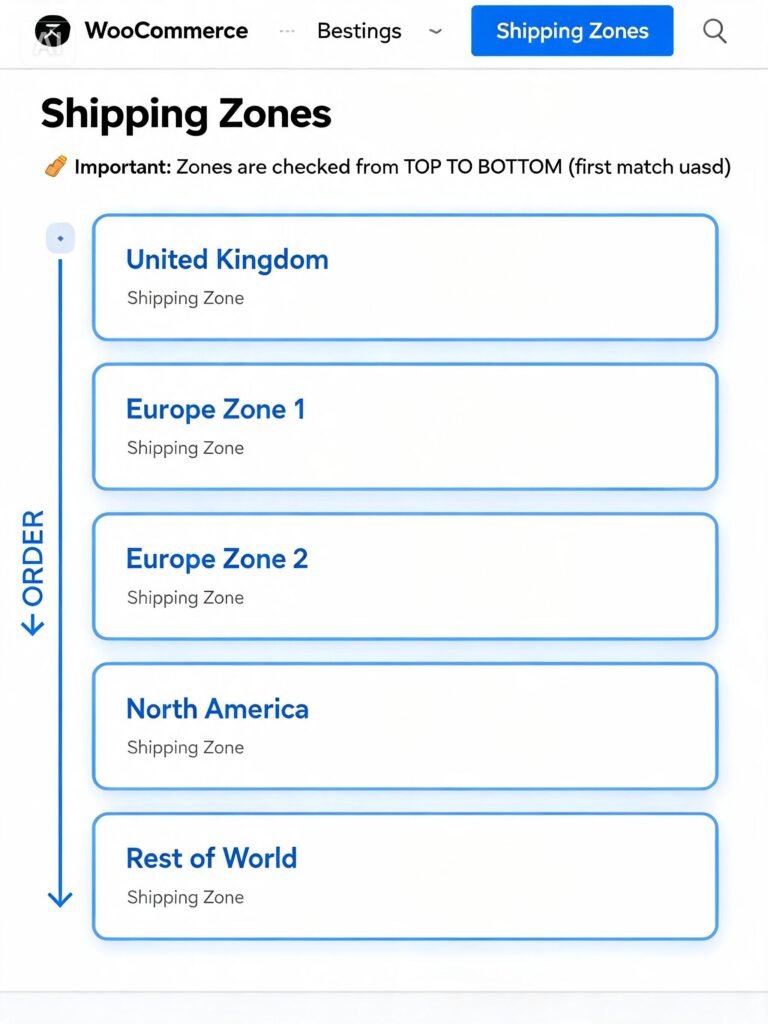
Shipping zones are ordered top to bottom in the list. WooCommerce checks each zone in order and applies the first match it finds. This means order matters — your most specific zones should be at the top, and “Rest of World” at the bottom.
Step‑by‑step: Creating a shipping zone
- Go to WooCommerce → Settings → Shipping
- Click “Add shipping zone”
- Enter the Zone name (e.g., “United Kingdom”, “European Union”, “Australia”)
- Under Zone regions, select the countries or regions that belong to this zone
- Click “Add shipping method” to add shipping methods for this zone (covered in Part 3)
- Click “Save changes”
Zone region options
| Option | What it covers | When to use |
|---|---|---|
| Specific countries | Individual countries (e.g., UK, US) | When you have unique shipping rates for specific countries |
| Regions | Geographic regions (e.g., Western Europe, Scandinavia) | When rates are similar within a region |
| Continent | Entire continent (e.g., Europe, Asia) | Broad coverage with similar shipping costs |
| Rest of World | Any country not covered by other zones | Catch‑all zone for remaining countries |
Practical zone examples
Simple store (domestic + international):
| Zone | Countries | Methods |
|---|---|---|
| UK | United Kingdom | Flat Rate: £3.99; Free Shipping over £50 |
| Rest of World | All other countries | Flat Rate: £15.00 |
Medium store (regional approach):
| Zone | Countries | Methods |
|---|---|---|
| United Kingdom | UK | Flat Rate: £3.99; Free Shipping over £50; Express: £6.99 |
| Europe (Zone 1) | France, Germany, Netherlands, Belgium, Luxembourg, Italy, Spain, Portugal, Austria, Switzerland | Flat Rate: £12.00; Express: £24.00 |
| Europe (Zone 2) | Poland, Czech Republic, Hungary, Romania, Bulgaria, Greece | Flat Rate: £18.00; Express: £35.00 |
| North America | USA, Canada | Flat Rate: £25.00; Express: £45.00 |
| Rest of World | All other countries | Flat Rate: £35.00 |
Using “Rest of World” as your fallback
Always include a “Rest of World” zone at the bottom of your list. This ensures customers from any country can complete checkout, even if you don’t have a specific zone for them. You can set a higher flat rate for these orders to cover your costs.
Shipping zone performance improvements in WooCommerce 10.8
If you’re running a later version of WooCommerce, you’ll benefit from shipping‑related performance improvements. In WooCommerce 10.8 and later, new indexes have been added on the woocommerce_shipping_zone_methods table, reducing overhead when loading shipping methods. This means faster cart and checkout calculations — especially important if you have many zones and methods.
💡 Performance matters. A slow‑loading checkout due to shipping method calculations can cost you sales. The 10.8 improvements help, but you should also regularly review your shipping zones to remove unused or redundant entries.
Shipping zone best practices
| Practice | Why |
|---|---|
| Order zones from most to least specific | WooCommerce uses the first matching zone — specific zones must be at the top |
| Keep zone names clear | “UK” not “Zone A” — you’ll thank yourself when reviewing later |
| Review zones quarterly | Shipping costs change, new carriers offer better rates |
| Test each zone | Place a test order for each zone to verify correct methods appear |
| Add a “Rest of World” catch‑all | Don’t accidentally exclude customers from unsupported countries |
Part 3: Shipping Methods – Your Options Explained
Within each shipping zone, you can add one or more shipping methods. WooCommerce includes several built‑in methods, and table rate plugins add more.
Built‑in shipping methods
| Method | When to use |
|---|---|
| Flat Rate | A fixed cost per order or per item (e.g., £4.99 per order) |
| Free Shipping | Free shipping, often with a minimum order amount (e.g., “Free over £50”) |
| Local Pickup | Customer picks up from your physical location |
| Flexible Shipping (plugin) | Weight‑based and price‑based table rates |
| Table Rate Shipping (plugin) | Complex rules based on weight, price, quantity, or product class |
Flat Rate – simple but flexible
The Flat Rate method is the most common shipping method. It can be configured to charge:
| Cost option | Example | Best for |
|---|---|---|
| Per order | £4.99 per order | Simple stores, one‑size‑fits‑all shipping |
| Per item | £1.50 per item | Products where shipping cost scales with quantity |
| Per weight | £2.00 per kg | Stores with weight‑based shipping |
| Per shipping class | Different rates per product class | Mixed product types (e.g., books vs. furniture) |
Step‑by‑step: Adding Flat Rate to a zone
- Go to WooCommerce → Settings → Shipping
- Click on the zone you want to edit
- Click “Add shipping method”
- Select Flat Rate and click “Add shipping method”
- Configure the settings:
- Method title — what customers see (e.g., “Standard Shipping”)
- Tax status — taxable or not
- Cost — the cost per order
- Shipping class costs — per‑class rates (advanced)
- Click “Save changes”
Free Shipping – a powerful marketing tool
Free Shipping is a proven conversion booster. But it needs to be offered strategically to protect your margins.
Setting a minimum order threshold:
- When adding the Free Shipping method, click it to edit
- Under “Free shipping requires”, choose “A minimum order amount”
- Set the Minimum order amount (e.g., £50)
- Save
Free shipping thresholds by zone:
| Zone | Free shipping threshold | Why |
|---|---|---|
| UK | £50 | Domestic shipping is cheaper, so threshold can be lower |
| Europe | £100 | International shipping costs more, so higher threshold needed |
| North America | £150 | Further distance, higher shipping costs |
| Rest of World | £200 | Highest shipping costs, highest threshold |
💡 The free shipping threshold should be carefully calculated to ensure you don’t lose money. Consider your average order value and shipping cost when setting thresholds.
Local Pickup – for local customers
If you have a physical location, Local Pickup lets customers collect their order in person.
Best practices for Local Pickup:
- Add pickup hours and location details
- Consider offering a discount for pickup (saves you shipping costs)
- Make it clear when the order is ready for collection
Multiple methods per zone
Each zone can have multiple shipping methods. For example, a zone might offer:
- Free Shipping — for orders over £50
- Flat Rate (Standard) — £3.99
- Flat Rate (Express) — £6.99
Customers then choose their preferred method at checkout.
Part 4: Table Rate Shipping – The Most Flexible Method
Flat rates are simple, but they aren’t always accurate. Table rates allow you to set shipping costs based on multiple factors: weight, cart total, item count, and more.
What table rate shipping can do
Table rates let you create rules like these:
| Rule | Result |
|---|---|
| Cart total ≤ £20 | Shipping £4.99 |
| Cart total £20.01 – £50 | Shipping £6.99 |
| Cart total > £50 | Free Shipping |
| Weight ≤ 2kg | Shipping £3.99 |
| Weight 2.01 – 5kg | Shipping £7.99 |
| Weight > 5kg | Shipping £12.99 |
How table rates work
Table rates work by evaluating the cart against a set of rules, in order. The first matching rule determines the shipping cost.
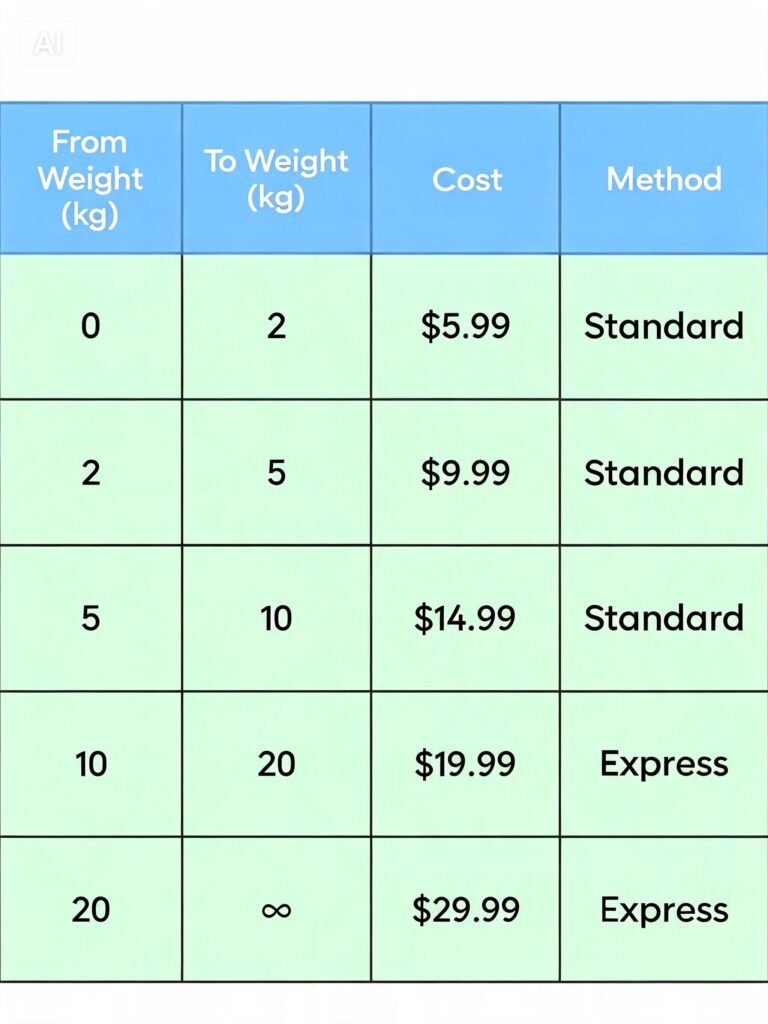
Example table rates (by weight):
| From weight (kg) | To weight (kg) | Cost | Method |
|---|---|---|---|
| 0 | 1 | £3.99 | Standard |
| 1.01 | 3 | £5.99 | Standard |
| 3.01 | 5 | £8.99 | Standard |
| 5.01 | 100 | £15.99 | Standard |
Table rate shipping plugins
WooCommerce doesn’t include Table Rate Shipping by default. You need a plugin:
| Plugin | Price | Best for | Key features |
|---|---|---|---|
| Table Rate Shipping for WooCommerce (WooCommerce.com) | $99/year | Most stores | Free extension, multiple calculation types, shipping classes, HPOS support |
| Flexible Shipping (by WP Desk) | Free / Premium | Budget‑conscious stores | Free version supports weight‑based rules, premium adds price‑based rules, shipping classes |
| Advanced Shipping (by GPlanner) | Free / Premium | Conditional rules | Product, category, postcode, user role, shipping class conditions |
| Table Rate Shipping (by Table Rate Shipping) | Paid | Complex shipping | Multi‑rule sets, country‑specific tables |
💡 The WooCommerce‑officially supported Table Rate Shipping extension is now free to download from WooCommerce.com and is a solid choice for most stores.
Step‑by‑step: Setting up Table Rate Shipping
Using the WooCommerce Table Rate Shipping extension as our example:
- Install and activate the Table Rate Shipping extension
- Go to WooCommerce → Settings → Shipping
- Click on a shipping zone and Add Shipping Method
- Select Table Rate and configure the settings
Configuration options (depending on your plugin):
| Setting | What it does |
|---|---|
| Method title | What customers see (e.g., “Weight‑Based Shipping”) |
| Tax status | Taxable or not |
| Calculation type | Per order, per item, or per weight |
| Destination | Shipping to all or specific countries |
| Rate rules | The actual table of rates |
Example configuration (per weight):
- Set Calculation type to “Per weight”
- Add rate rules:
- 0‑1kg: £3.99
- 1‑3kg: £5.99
- 3‑5kg: £8.99
- 5‑10kg: £12.99
- 10‑20kg: £19.99
- Save and test with different cart weights
Using shipping classes with table rates
Shipping classes let you group products and assign different shipping costs to each group. This is essential if you sell products with very different shipping requirements.
Example:
- Class: “Heavy Items” — items over 5kg
- Class: “Standard Items” — items under 5kg
With shipping classes, you can set different table rates for each class, or even combine them in complex calculations.
Example rules with shipping classes:
| Condition | Cost |
|---|---|
| 2 “Standard” items | £4.99 |
| 1 “Heavy” item | £9.99 |
| 2 “Standard” + 1 “Heavy” | £12.99 |
Part 5: Real‑Time Carrier Rates – Integration with UPS, FedEx, DHL, and More
Table rates are powerful, but they require manual maintenance. If your shipping costs change, you need to update your tables. Real‑time carrier rates automatically fetch the current rates from carriers like UPS, FedEx, DHL, and USPS.
How real‑time rates work
- Customer adds products to cart
- WooCommerce calculates weight and dimensions of the cart
- A real‑time shipping plugin sends this data to the carrier’s API
- The carrier returns the exact shipping cost
- WooCommerce displays this cost to the customer
Benefits of real‑time rates
| Benefit | Why it matters |
|---|---|
| Always accurate | Rates update automatically when carriers change prices |
| Accurate for international | Different rates for different countries, automatically |
| Multiple service options | Standard, express, overnight — all available |
| Reduces manual work | No need to update tables when rates change |
Best real‑time shipping plugins for 2026
| Plugin | Supported carriers | Price | Best for |
|---|---|---|---|
| ShipStation | UPS, FedEx, DHL, USPS, Canada Post, Australia Post, +30 more | Starts $9/month | Most stores — all‑in‑one solution with order management |
| WooCommerce Shipping | USPS, DHL (US only) | Free | US‑based stores (built‑in) |
| Flexible Shipping (with PRO) | UPS, FedEx, DHL, USPS, Canada Post | Premium | Stores that want to combine real‑time rates with table rates |
| Table Rate Shipping (WooCommerce) | USPS, DHL | Free / Premium | Integration with WooCommerce Shipping |
Setting up ShipStation (recommended)
ShipStation is the most comprehensive shipping solution for WooCommerce, and an officially integrated option is available. It’s not just a rates plugin — it’s a full order and shipment management system.
Step‑by‑step:
- Install ShipStation from WordPress.org or WooCommerce.com
- Create a ShipStation account and enter your API key in WooCommerce → Settings → Shipping → ShipStation
- Configure your shipping methods:
- Enable carriers you use (UPS, FedEx, DHL, USPS, etc.)
- Set default services (e.g., “Standard”, “Express”)
- Configure packaging settings (box sizes, weight limits)
- The integration automatically presents the best shipping rates at checkout
Real‑time rates are displayed directly in the shipping options at checkout — no manual rates needed.
💡 ShipStation also handles label printing and order tracking, making it a complete shipping solution, not just a rates plugin.
Setting up WooCommerce Shipping (US only)
WooCommerce Shipping is built into WooCommerce and offers discounted USPS and DHL rates for US‑based merchants.
Step‑by‑step:
- Go to WooCommerce → Settings → Shipping → WooCommerce Shipping
- Connect your account (or create one)
- Configure your default shipping settings
- Enable real‑time rates for USPS and DHL
This integration uses your store’s postcode to calculate domestic rates accurately, so ensure it’s set correctly.
Part 6: Conditional Shipping Rules – Based on Weight, Price, Product, or Category
Sometimes you need shipping rules that go beyond simple cost calculations. Conditional shipping rules let you hide, restrict, or modify shipping methods based on specific conditions.
What conditional shipping can do
| Condition | Example rule |
|---|---|
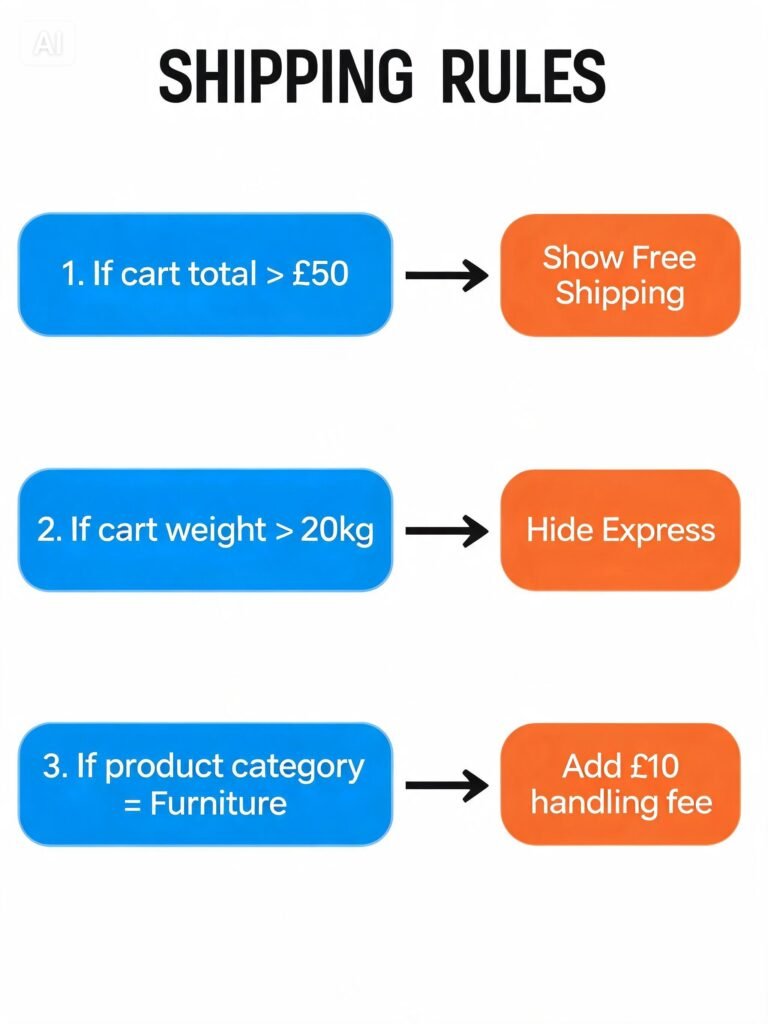
| Weight | Hide express shipping for orders over 20kg |
| Cart total | Hide free shipping for orders under £50 |
| Product | Hide certain shipping methods for specific products |
| Category | Restrict shipping methods for product categories |
| Shipping class | Apply different shipping costs per product class |
| User role | Offer free shipping to wholesale customers |
| Postcode | Restrict shipping to specific postcode areas |
Best conditional shipping plugins
| Plugin | Best for | Key features |
|---|---|---|
| Advanced Shipping | Complex conditional logic | Multiple conditions (product, category, postcode, user role, shipping class) |
| Conditional Shipping for WooCommerce | Simple conditional rules | Hide/restrict shipping methods based on cart contents |
| Flexible Shipping Pro | Shipping method visibility | Show/hide shipping methods based on conditions |
| Table Rate Shipping (WooCommerce) | Rules with conditions | Conditions supported in some table rate setups |
Using Advanced Shipping (free) for conditional rules
Setup steps:
- Install and activate Advanced Shipping from WordPress.org
- Go to WooCommerce → Settings → Shipping → Advanced Shipping
- Create a new shipping rule:
- Name — identify the rule (e.g., “Hide Express for heavy items”)
- Conditions — set the conditions (e.g., “Weight > 20kg”)
- Actions — choose what happens (e.g., “Hide shipping method: Express”)
- Save and test
Example rule:
| Condition | Action |
|---|---|
| Cart total < £30 | Hide Free Shipping |
| Weight > 20kg | Hide Express Shipping |
| Product contains “Furniture” | Apply additional £10 handling fee |
Conditional shipping for digital products
If you sell digital products (like plugins) alongside physical items, you might want to:
- Hide shipping entirely when the cart contains only digital products
- Apply shipping when the cart contains physical items
How to implement:
- Mark digital products as “Virtual” in the product settings
- Use Advanced Shipping to conditionally hide shipping methods when the cart is virtual (empty weight, no physical dimensions)
- If a cart contains both virtual and physical items, apply shipping methods as normal
💡 WooCommerce automatically hides shipping for orders containing only virtual products. If your customers are purchasing only plugins, you don’t need any additional shipping rules.
Part 7: 2026 Shipping Updates – What’s Changed
WooCommerce 10.8 – Performance improvements
If you’re running WooCommerce 10.8 or later, your store benefits from significant shipping‑related performance improvements:
- New indexes on the
woocommerce_shipping_zone_methodstable reduce overhead when loading shipping methods - Faster cart and checkout calculations
- HYPOS improvements that reduce query counts in shipping‑related operations
💡 These improvements are automatic once you update. No configuration needed.
Carrier API changes (2026)
Major carriers update their APIs regularly. As of 2026, look out for:
- UPS — new service codes for improved rate calculation
- FedEx — enhanced retail and home delivery rates
- DHL — new “green shipping” options with carbon offset calculations
- USPS — new rates and services
💡 Check your shipping plugin settings when carriers announce rate changes. Some plugins update automatically, but others require manual adjustment to the carrier rate tables.
Alternative delivery options
The rise of alternative delivery options is reshaping shipping strategies:
- Locker delivery — Amazon Locker, InPost, and similar services are gaining popularity
- Local pickup — Increasingly popular for both physical stores and click‑and‑collect
- Eco‑friendly shipping — Carbon‑neutral shipping options are becoming standard
Part 8: Step‑by‑Step – Setting Up a Complete Advanced Shipping System
Let’s walk through setting up a complete shipping system for a typical store.
Example store profile
- Products: Mix of small/light items (books, apparel) and heavy items (furniture)
- Domestic market: UK
- International markets: Europe, North America, Rest of World
- Shipping strategy: Free shipping over £50 (UK only), table rates for international orders
Step 1: Create shipping classes
- Go to WooCommerce → Settings → Shipping → Shipping classes
- Add two classes:
- “Standard” — for small/light items (books, apparel)
- “Heavy” — for large/heavy items (furniture)
- Assign each product to the appropriate class
Step 2: Create shipping zones
- United Kingdom
- Regions: GB (United Kingdom)
- Methods: Flat Rate (£3.99), Free Shipping (over £50)
- Europe Zone 1
- Regions: France, Germany, Netherlands, Belgium, Luxembourg, Italy, Spain, Portugal, Austria, Switzerland
- Methods: Table Rate (weight‑based)
- Europe Zone 2
- Regions: Poland, Czech Republic, Hungary, Romania, Bulgaria, Greece
- Methods: Table Rate (weight‑based)
- North America
- Regions: United States, Canada
- Methods: Table Rate (weight‑based)
- Rest of World
- Regions: All other countries
- Methods: Table Rate (weight‑based, higher rates)
Step 3: Set up table rates for each international zone
Using the WooCommerce Table Rate Shipping extension:
Europe Zone 1 (weight‑based):
| Weight | Cost |
|---|---|
| 0‑1kg | £12.00 |
| 1‑2kg | £15.00 |
| 2‑3kg | £18.00 |
| 3‑5kg | £24.00 |
| 5‑10kg | £35.00 |
| 10‑20kg | £50.00 |
Europe Zone 2 (weight‑based):
| Weight | Cost |
|---|---|
| 0‑1kg | £18.00 |
| 1‑2kg | £22.00 |
| 2‑3kg | £26.00 |
| 3‑5kg | £35.00 |
| 5‑10kg | £50.00 |
| 10‑20kg | £70.00 |
North America (weight‑based):
| Weight | Cost |
|---|---|
| 0‑1kg | £25.00 |
| 1‑2kg | £30.00 |
| 2‑3kg | £35.00 |
| 3‑5kg | £45.00 |
| 5‑10kg | £65.00 |
| 10‑20kg | £90.00 |
Rest of World (weight‑based):
| Weight | Cost |
|---|---|
| 0‑1kg | £35.00 |
| 1‑2kg | £40.00 |
| 2‑3kg | £45.00 |
| 3‑5kg | £55.00 |
| 5‑10kg | £80.00 |
| 10‑20kg | £110.00 |
Step 4: Configure free shipping thresholds
For the UK zone, set Free Shipping to require a minimum order of £50. For other zones, decide whether to offer free shipping at all. For high‑shipping‑cost zones, consider a higher threshold (e.g., £150 for North America) or skip free shipping entirely.
Step 5: Test the configuration
- Add a Standard product to cart (weight under 1kg)
- Proceed to checkout with a UK address
- Verify: Flat Rate (£3.99) and Free Shipping (if over £50) appear
- Switch to a German address
- Verify: Table Rate (£12.00) appears
- Switch to a US address
- Verify: Table Rate (£25.00) appears
Step 6: Monitor and adjust
- Review shipping costs quarterly
- Adjust table rates if carriers change prices
- Test free shipping thresholds to ensure they’re profitable
- Monitor for orders that cost more to ship than you’re charging
❓ Frequently Asked Questions
Q1: What’s the difference between Flat Rate and Table Rate shipping?
Flat Rate: A fixed cost per order or per item. Simple but inflexible.
Table Rate: Shipping cost is calculated based on rules (weight, price, quantity, etc.). More accurate but requires setup.
Q2: Can I use both Flat Rate and Table Rate in the same store?
Yes. You can use different methods in different zones. For example, use Flat Rate for domestic orders and Table Rate for international orders.
Q3: Do I need a plugin for Table Rate shipping?
Yes. WooCommerce doesn’t include Table Rate by default. Use the WooCommerce Table Rate Shipping extension (free) or Flexible Shipping.
Q4: Can I charge different shipping for different products?
Yes. Use shipping classes. Assign products to classes (e.g., “Heavy”, “Standard”) and set different rates for each class.
Q5: How do I handle free shipping on some products but not others?
Use Conditional Shipping or Advanced Shipping plugins. You can create rules like: “Hide Free Shipping for products in the ‘Heavy’ class” or “Hide Free Shipping when category = Furniture”.
Q6: Can I set different shipping costs for different countries?
Yes. Use shipping zones. Each zone can have its own methods and rates. You can also use Table Rate with country‑specific rules.
Q7: What are shipping zones and why do I need them?
Shipping zones define geographic regions with their own shipping methods and rates. They’re essential for accurate international shipping.
Q8: How do I offer multiple delivery speeds (e.g., Standard, Express)?
Add multiple shipping methods to the same zone. For example, add a Flat Rate method for Standard delivery and a second Flat Rate method for Express delivery with a higher cost.
Q9: Can I use real‑time carrier rates with WooCommerce?
Yes. Use ShipStation, WooCommerce Shipping, or other real‑time shipping plugins. They fetch current rates from UPS, FedEx, DHL, USPS, and more.
Q10: How do I handle shipping for digital products?
Mark digital products as “Virtual” in the product settings. WooCommerce will automatically hide shipping methods for orders containing only virtual products.
Q11: What if I need to ship to a country that isn’t in my zones?
Always include a “Rest of World” zone at the bottom of your shipping zones. This ensures customers from any country can complete checkout.
Q12: How often should I review my shipping configuration?
At least quarterly. Shipping costs change, new carriers offer better rates, and your product range may expand. Reviewing your shipping setup ensures you’re not losing money on shipping or overcharging customers.
Q13: Can I use shipping classes with table rates?
Yes. The WooCommerce Table Rate Shipping extension supports shipping classes. You can set different table rates for each class.
Q14: What happens if a product has no shipping class?
Products without a shipping class use the default “No shipping class” rate. Set this rate in the shipping method’s settings.
Q15: Can I offer free shipping based on product count instead of total amount?
Yes. Use a table rate or conditional shipping plugin. Set a rule like “If quantity ≥ 3, shipping = £0”.
Q16: What’s the best way to handle shipping for heavy or oversized items?
Use shipping classes and table rates. Assign these items a “Heavy” shipping class and set higher rates for that class in your table rates.
Q17: Can I charge handling fees on top of shipping rates?
Yes. Most shipping methods (Flat Rate, Table Rate) allow you to add handling fees. In Table Rate Shipping, add handling fees per rule. In Flat Rate, add a handling fee to the base cost.
Q18: How do I know if my shipping rates are competitive?
Research your competitors’ shipping costs. Use free shipping calculators to compare rates. Monitor checkout abandonment rates — if customers leave after seeing shipping costs, your rates may be too high.
Q19: Do shipping plugins work with HYPOS?
Yes. Many shipping plugins are compatible with HYPOS. Check the plugin’s documentation. The WooCommerce Table Rate Shipping extension and ShipStation both support HYPOS.
Q20: How can I automate shipping label printing?
Use ShipStation, WooCommerce Shipping, or other shipping plugins that integrate with label printing services. These plugins automatically generate shipping labels when an order is placed, saving time on fulfilment.
Q21: What if I need to ship from multiple locations?
If you fulfil orders from multiple warehouses, you need to handle this at the plugin level. ShipStation lets you set warehouse locations in its settings — it then selects the best location based on the customer’s address and stock availability. Some advanced shipping plugins also support multiple locations, but they’re more limited than dedicated fulfilment tools like ShipStation.
Q22: What’s the difference between ShipStation, ShippingEasy, and WooCommerce Shipping?
| Platform | Best for | Key difference |
|---|---|---|
| ShipStation | Most stores | Full‑featured with 30+ carrier integrations, automation rules, branding options |
| ShippingEasy | US‑based stores | Simpler, lower cost, fewer carriers |
| WooCommerce Shipping | US stores, basic needs | Built‑in, free, limited to USPS and DHL |
What’s Next?
You now have a complete WooCommerce shipping system — zones, methods, table rates, real‑time rates, conditional rules, and performance optimisation. Your store can accurately and profitably ship to customers anywhere in the world.
👉 Next article in this series: WooCommerce Multivendor – Building a Marketplace
We’ll cover setting up a multivendor marketplace where multiple sellers can list their products, manage their own inventory, and receive their own payouts.
What’s your biggest shipping challenge? Are you using table rates or real‑time carrier rates? Let me know in the comments.
📌 Key Takeaways (for skimmers)
- Shipping zones define geographic regions with their own shipping methods and rates. Order matters — specific zones first, “Rest of World” last.
- Shipping methods include Flat Rate, Free Shipping, and Local Pickup. Each zone can have multiple methods.
- Table Rate Shipping is the most flexible method, allowing rules based on weight, price, quantity, or shipping class. Requires a plugin.
- Real‑time carrier rates (UPS, FedEx, DHL, USPS) provide accurate, up‑to‑date shipping costs automatically. Use ShipStation or WooCommerce Shipping.
- Conditional shipping lets you show/hide shipping methods based on weight, price, product, or category.
- WooCommerce 10.8 includes performance improvements for shipping — faster cart and checkout calculations.
- Best plugins: Table Rate Shipping (free), Flexible Shipping (free/premium), ShipStation (for real‑time rates), Advanced Shipping (for conditional rules).
🔗 Internal Links
- Article #1 – WooCommerce in 2026 – Market Share & Trends
- Article #2 – Installing WooCommerce & Setup Wizard
- Article #3 – Adding Your First Product
- Article #5 – Optimising Checkout for Digital Products
- Article #12 – WooCommerce Security & Performance
- You are here – Advanced Shipping
- Article #6 – Multivendor Marketplaces (coming soon)