
Traffic doesn’t appear by magic. However, it does follow patterns — and once you understand them, your first 100 readers become predictable, not random.
You’ve written a few blog posts. Your site looks good. But when you open your dashboard, you see crickets. No comments, no traffic, nothing.
I’ve been there. After publishing my first article, I checked my stats every hour. Zero. Two days later — still zero. It felt like shouting into an empty room.
Then I learned something: traffic is earned, not given. And the first 100 readers are the hardest — but absolutely possible. As a result, within 30 days of following the tactics below, I crossed 341 readers in a single month.
What this guide covers:
- Step 1: Set up Google Analytics 4 (GA4) — click-by-click with screenshots
- Step 2: The 5 traffic sources that actually work for new blogs
- Step 3: Retention tactics — how to turn one-time visitors into returning readers
- Step 4: The only 3 GA4 metrics that matter for beginners
- Real numbers: my first month, week by week
- A 8-point checklist you can run through today
No paid ads. No shortcuts. Just honest, beginner-friendly strategies that work.

Step 1: Set Up Google Analytics 4 (So You Can See Your Visitors)
First, if you don’t track anything, you won’t know what’s working. Google Analytics 4 (GA4) is free and tells you five critical things:
- How many people visit — total users and sessions
- Where they come from — Google search, social media, direct links, referrals
- Which posts they read — page-level traffic and engagement
- How long they stay — engagement time per page
- What device they use — mobile vs desktop (critical for optimization)
However, GA4’s setup process changed in 2023 — the old “Universal Analytics” is gone. What follows is the current GA4 workflow.
Step 1.1: Create a Google Analytics account
- Go to analytics.google.com
- Sign in with your Google account — or create one if you don’t have it
- Click “Start measuring”
- Account name: enter something descriptive (e.g., “My WordPress Site”)
- Property name: usually the same as your account name
- Reporting time zone: choose your local time zone
- Currency: choose your currency (used for ecommerce reports later)
- Click Next — you’ll see a “Business objectives” screen
- Check “Examine user behavior” or “Get baseline reports”
- Click Create
Step 1.2: Get your Measurement ID
After creating your property, GA4 shows a “Data Stream” setup screen.
- Choose Web as your platform
- Website URL: enter
https://yoursite.com - Stream name: e.g., “EasyWPKit Main Site”
- Click Create stream
- You’ll see your Measurement ID — it looks like
G-XXXXXXXXXX
Copy this ID. You’ll need it in the next step.
Step 1.3: Add GA4 to WordPress (the easy way)
You have two options. First, the plugin method — this is what 95% of beginners should use.
Option A: Site Kit by Google (recommended)
- In WordPress, go to Plugins → Add New
- Search for “Site Kit by Google”
- Click Install Now, then Activate
- You’ll see a “Site Kit” menu item in the WordPress sidebar
- Click Dashboard → Site Kit
- Click “Sign in with Google” and follow the wizard
- When asked, select your Google Analytics property (the one you just created)
- Site Kit installs the tracking code automatically — no coding needed
Option B: Insert Headers and Footers (manual method)
If you prefer lighter plugins:
- Install “Insert Headers and Footers” by WPBeginner (free)
- Go to Settings → Insert Headers and Footers
- Paste your GA4 tracking code (found under your Data Stream) into the “Scripts in Header” field
- Click Save
However, Option A is easier and gives you a GA4 dashboard inside WordPress — which means you don’t have to switch tabs.
Step 1.4: Verify it works
- Open your site in a new browser tab
- In GA4, go to Reports → Real time
- You should see “1 active user” — that’s you
If you see yourself in Real time, GA4 is working. If not, wait 5 minutes and refresh — GA4 sometimes takes a moment to register.
💡 Pro tip: Install a caching plugin AFTER verifying GA4 works. Some caching plugins (like WP Rocket) can interfere with tracking if configured incorrectly. If you already have caching, exclude google-analytics.com and googletagmanager.com from optimization.
Step 2: The 5 Traffic Sources That Actually Work
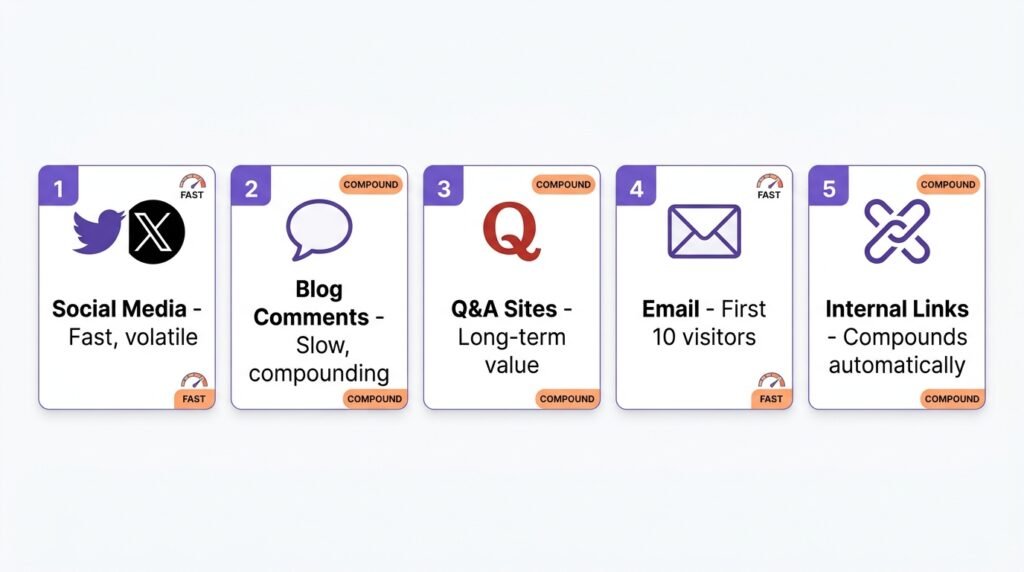
You have a blog. Now shout about it — politely. However, not all traffic sources are equal for new sites. Here are the five that work, in order of speed-to-results.
Source 1: Social Media (Fastest, but Volatile)
Post your article with a genuine question or insight — not just the title.
Bad example:
“New post: How to install WordPress”
Good example:
“I broke my site 3 times before I figured out how to install WordPress correctly. Here’s what I learned (so you don’t make the same mistakes).”
Where to share:
| Platform | Best for | Hashtags / Communities |
|---|---|---|
| Twitter / X | Tech, quick tips, threads | #WordPress, #Blogging, #SEO |
| Professional / B2B content | #WordPress, #WebDevelopment | |
| Honest feedback, technical discussion | r/WordPress, r/blogging, r/juststart | |
| Facebook Groups | Beginner questions, community | “WordPress Beginners”, “Blogging Tips” |
| Threads | Casual, growing platform | #WordPress, #BuildInPublic |
⚠️ Read subreddit rules first. r/WordPress, for example, restricts self-promotion. r/juststart allows it but only with genuine value. Posting a link without context gets you banned.
Source 2: Engage on Other Blogs (The Slow Burn)
However, don’t just post and leave. First, find 5–10 blogs in your niche. Then, read their articles — actually read them. Finally, leave genuine comments.
Bad comment:
“Great post! Check out my blog: [link]”
Good comment:
“This is helpful — I ran into the same caching issue last month. What finally worked for me was switching from W3 Total Cache to WP Rocket, because the object caching was conflicting with my host. Did you test that combination?”
As a result, people click your name and find your site naturally — without you having to ask.
Source 3: Quora and Reddit Answers (Long-Term Value)
Search Quora for questions like:
- “How do I start a WordPress blog?”
- “What’s the best hosting for beginners?”
- “How do I get traffic to a new blog?”
Answer helpfully — 200+ words that actually solve the problem. At the end, if the answer is truly relevant, add:
“I wrote a step-by-step guide on this with screenshots if you want more detail: [link]”
However, don’t paste your link in every answer. Google tracks this as spam. One link per 5–10 answers is a healthy ratio.
Source 4: Email Friends and Family (The First 10)
First, don’t be shy. Then, send a personal email — not a mass BCC.
Template:
Subject: I finally started that blog
Hey [Name],
I’ve been working on a blog about building WordPress sites for the past few weeks. Finally published the first few posts.
Would love your honest feedback — especially if anything is confusing. Here’s the link: [URL]
Thanks,
[Your name]
Why this works: they’ll visit, read, maybe share with one friend. Those first 10 visitors compound — they tell Google your site exists.
Source 5: Internal Links (Compounding Traffic)
Every time you write a new post, link back to older ones. For example, this article links to our How to Write Your First Blog Post guide — which sends new readers to an older article, extending their session.
As a result, each new post makes your older posts perform better.
If you want a full walkthrough of internal linking strategy, see our WordPress Block Patterns & Reusable Blocks guide.
Step 3: What to Do After Someone Visits (Retention)
Getting a click is hard. Getting a second click is even harder. However, these four tactics turn one-time visitors into returning readers.
Tactic 1: Add an Email Subscribe Option
First, collect email addresses. Then, you own the audience — social media algorithms change, but your list stays.
Recommended free options:
| Plugin | Free tier limit | Best for |
|---|---|---|
| Mailchimp for WordPress | 500 subscribers | Beginners, simple signup forms |
| MailPoet | 500 subscribers | All-in-one (form + sending) |
| ConvertKit | 1,000 subscribers | Creator-focused, growing audience |
| Brevo (Sendinblue) | 300 emails/day | Higher volume, no subscriber cap |
Where to place the form:
- Sidebar — visible on every blog post
- Footer — subtle, always there
- After each post — highest conversion rate
- Homepage — for visitors landing on your front page
For a complete setup walkthrough, see our How to Build an Email List from Day One guide.
Tactic 2: Show Related Posts
First, use Kadence’s built-in “Related Posts” feature. Alternatively, install YARPP (Yet Another Related Posts Plugin) — free.
At the bottom of each article, show 3–4 similar posts with featured images. As a result, readers who finish one post have a clear next step.
Example: In this article, I’m showing related posts at the bottom that continue the WordPress Zero to Hero series. That’s not accidental — it’s strategic retention.
Tactic 3: Make Your Site Fast and Mobile-Friendly
However, if your site takes more than 3 seconds to load, people leave. In practice, 53% of mobile visitors abandon sites that take longer than 3 seconds.
The basics:
- Compress images — ShortPixel (free tier 100 images/month), Imagify (free tier 20MB/month)
- Use a caching plugin — WP Rocket ($59/year) or LiteSpeed Cache (free if your host supports it)
- Choose a fast host — see our Choosing the Right Hosting guide
As a result, your bounce rate drops, and Google’s Core Web Vitals score improves.
Tactic 4: Ask for Comments
Finally, end every post with a question. For example:
“What’s your biggest struggle with getting traffic? Let me know in the comments — I read every one.”
Why this works: people love sharing their own experiences. Even 1–2 comments signal to Google that your content is engaging.
Step 4: The Only 3 GA4 Metrics That Matter
However, GA4 has dozens of reports — don’t get lost in them. First, focus on these three numbers.
| Metric | What it means | Good target (new blog) |
|---|---|---|
| Users | Unique people who visited | 100+ per month in month 1 |
| Sessions | Total visits (one user can visit multiple times) | Slightly higher than users |
| Average engagement time | How long people stay on your site | 1–2 minutes for blog posts |
Where to find them:
- In GA4, go to Reports → Acquisition → Traffic acquisition
- This shows where your visitors came from — Google, Twitter, direct, referrals
- Click “View user acquisition” for the source breakdown
Then, double down on what’s working. For example, if Twitter sends 60% of your traffic, spend more time there. If Google search is growing, add more internal links and publish consistently.
💡 Don’t obsess over daily numbers. Check GA4 once a week — Sunday evening works well. Daily checking creates anxiety without actionable insight.
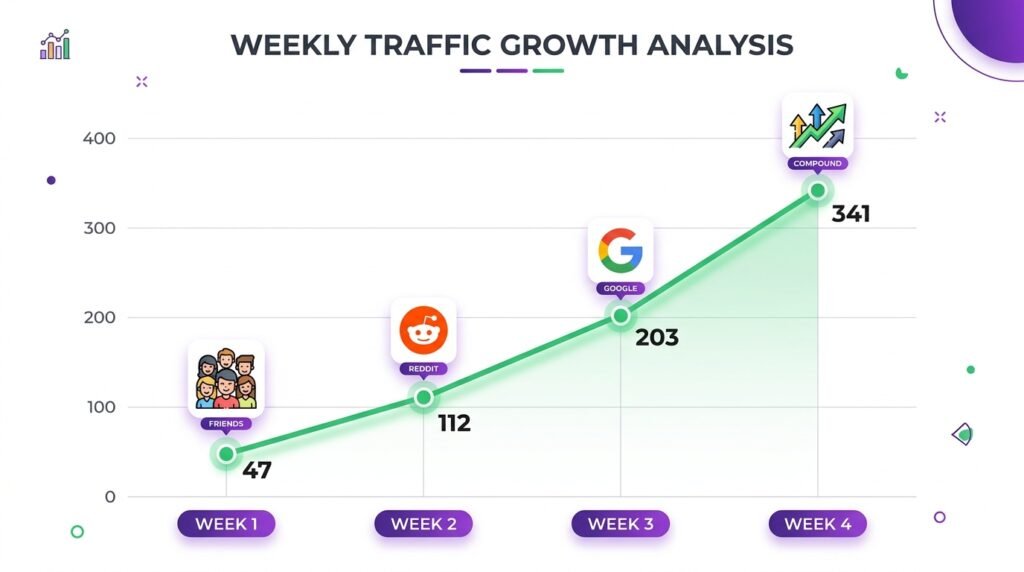
My First Month Results (Real Numbers)
When I launched this blog, here’s what my first month looked like:
| Week | Users | Source |
|---|---|---|
| Week 1 | 47 | Mostly friends + Twitter |
| Week 2 | 112 | One Reddit post got 30+ upvotes |
| Week 3 | 203 | Google started showing impressions |
| Week 4 | 341 | Long-tail keywords + internal links |
That first 100 took 10 days. Then it got faster. Not because I did anything special — because small efforts compound.
Here’s the math: if each of your first 50 readers shares your post with one friend, and 20% of those friends visit, that’s 10 additional readers from zero extra work. As a result, growth accelerates even when you’re not actively promoting.
The 8-Point Checklist for Your First 100 Readers
Run through this list once a week for the first month:
- □ Google Analytics 4 installed and tracking (verify in Real time)
- □ Every post shared on at least 2 social platforms
- □ 5 genuine comments left on other blogs this week
- □ 3 questions answered on Quora or Reddit (with relevant link)
- □ Email sign up form added (sidebar, footer, or after posts)
- □ Related posts showing at bottom of every article
- □ Site speed tested on Google PageSpeed Insights — score 80+ on mobile
- □ Checked GA4 once this week (not daily)
Save this list. Print it. Every week, mark what you’ve done. In practice, the first 100 readers come from doing the boring things consistently — not from one viral moment.
Frequently Asked Questions
Q1: How long does it take to get the first 100 readers?
For a new blog with consistent promotion, expect 2–4 weeks for the first 100. However, if you only publish and wait for Google, it takes 3–6 months. The difference is active promotion — social media, Reddit, Quora, and personal outreach.
Q2: Do I really need Google Analytics, or is the WordPress dashboard enough?
WordPress’s built-in stats are basic — they show page views but not traffic sources, engagement time, or user behavior. First, GA4 gives you the full picture. Then, you can make decisions based on data (which platform to focus on, which posts perform). Use our WooCommerce Analytics guide if you also run a store — same principles.
Q3: Why does my GA4 show “0 users” even though I have visitors?
Three common causes:
- Caching plugin conflict — exclude
googletagmanager.comfrom caching - Consent mode blocks tracking — some GDPR plugins block GA4 until consent
- Time delay — GA4 sometimes takes 24–48 hours to show data reliably
However, the Real time report should always show you as an active user when you visit your site.
Q4: Is it worth sharing on Reddit? Won’t I get banned?
Yes — with caution. First, read the subreddit rules (each has different ones). Then, contribute meaningfully before sharing your own links. For example, answer 5 questions in r/WordPress before posting your own article. Communities respect genuine contribution.
Q5: How often should I check Google Analytics?
Once a week. More than that creates anxiety without actionable insight. However, keep the Real time report open during launch days (a new post, a Reddit share) to see traffic in real time.
Q6: What if my first posts get zero traffic?
That’s normal — nearly every blog’s first posts get under 50 visitors in month one. As a result, don’t judge your blog by the first 2 weeks. Judge it by month 3 — that’s when Google starts ranking new content consistently.
Q7: Should I use ads to get my first 100 readers faster?
No. First, ads cost money and rarely convert on a new blog with no reputation. Then, you learn nothing about what content resonates. Finally, organic traffic (search + social + referral) builds a foundation that ads can’t replace. Save ad budget until you have a proven post that converts.
Key Takeaways
- GA4 setup takes 20 minutes — install Site Kit, verify in Real time
- 5 traffic sources work: social media, blog comments, Quora/Reddit, email, internal links
- Retention matters more than acquisition — email list, related posts, speed, comments
- Only track 3 GA4 metrics: Users, Sessions, Average engagement time
- First 100 readers take 2–4 weeks with active promotion (not 3–6 months)
- Check GA4 once a week — daily checking creates anxiety, not growth
- Consistency beats intensity — small efforts compound faster than one viral moment
What’s Next?
You have traffic. Now let’s make sure those visitors stick around and come back.
👉 Next in this series: How to Build an Email List from Day One — the exact setup for turning first-time visitors into subscribers.
If you have questions about any step, leave a comment below. I read every one and I’ll help as honestly as I can.
Related Reading
- How to Write Your First Blog Post — SEO basics for the posts you’ll promote
- How to Build an Email List from Day One — retention starts with email
- Choosing the Right Hosting — fast hosting = lower bounce rate
- Build a WordPress Homepage with Kadence — a homepage that converts visitors
- Why I Built My WordPress Site from Scratch — the honest beginner story
- WooCommerce Analytics & Reporting — for readers who also run a store