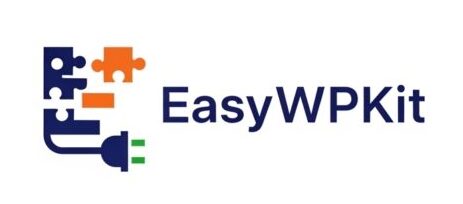
Google Listings & Ads is the official free plugin that connects WooCommerce to Google Merchant Center. Once installed, your products appear on Google Search, Shopping, YouTube, Gmail, and Discover — as free listings or through paid Performance Max campaigns.
It replaces three manual tasks: building CSV feeds, pasting tracking pixels, and reconciling conversions. Product data syncs automatically via API — title, price, image, stock — every time you update WooCommerce.
This guide covers:
- Requirements — what Google needs before you can list (HTTPS, refund policies, GTIN)
- Setup walkthrough — install, connect Merchant Center, first sync approval
- Product feed management — attribute mapping, GTIN, excluding products
- Performance Max campaigns — Google’s AI-powered ads across 7 channels
- YouTube Shopping (new in v3.6) — tag products in videos and Shorts
- AI-generated ad assets — headlines and images created inside the plugin
- Troubleshooting — 8 common issues and how to fix them
Let’s get your products in front of the shoppers who are already searching for them.
Part 1: What Is Google Listings & Ads?
Google Listings & Ads is the official plugin maintained by WooCommerce and Google. It connects your WooCommerce store to Google Merchant Center (GMC) — Google’s platform for managing product data — and enables you to showcase your products across Google Search, Shopping, Gmail, YouTube, and the Display Network.
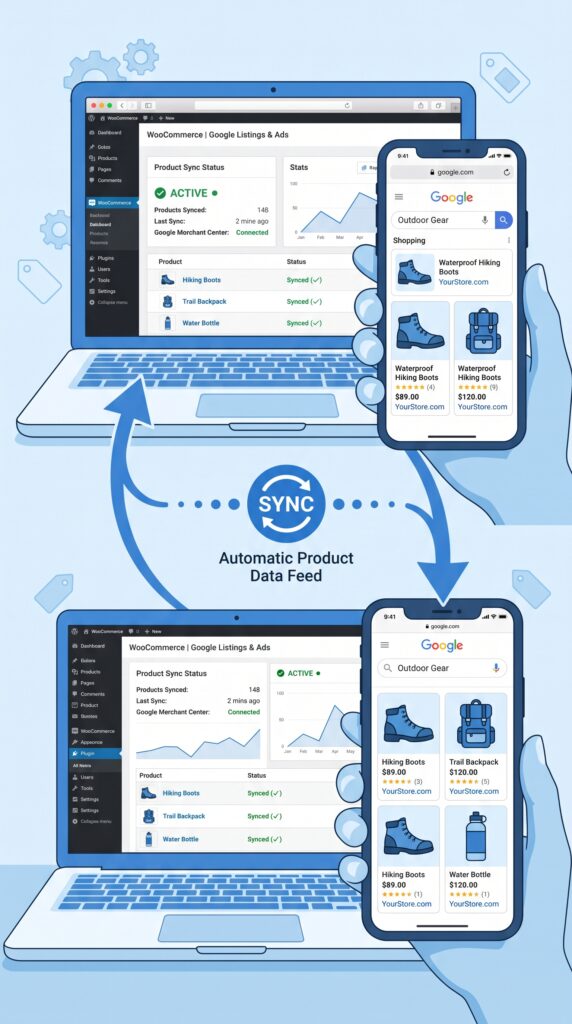
The plugin replaces three time‑consuming manual tasks:
- Hand‑built CSV feed exports – no more manually generating product feeds.
- Pixel code pasted into theme files – the plugin handles tracking code installation.
- Manual conversion reconciliation – sales data flows automatically between platforms.
What you can do with it
The trade‑off
The plugin is free to install and use. But there’s a catch: Google’s advertising costs are separate from the plugin itself, and maintaining the integration requires some attention. A theme update or caching plugin can break tracking overnight. The integration is free, but the maintenance cost is yours. That’s why understanding how it works — and how to keep it healthy — is essential.
💡 The Google Listings & Ads plugin replaced the older Google Product Feed extension. If you’re running an older store, make sure you’re using the current plugin, not the legacy version.
Part 2: Requirements Before You Start
Before installing the plugin, your store must meet Google’s eligibility requirements. According to the official documentation, your WooCommerce store must have:
| Requirement | What it means |
|---|---|
| Live website | A valid, verified domain with no broken links |
| Secure checkout | HTTPS/SSL enabled on your entire site (especially checkout) |
| Valid payment provider | WooPayments, Stripe, PayPal, or another accepted gateway |
| Visible refund/return policies | Clear policies that customers can find |
| Customer contact method | At least one way for customers to reach you |
For YouTube Shopping specifically, your YouTube channel must meet additional criteria:
- Channel is in the YouTube Partner Program (YPP)
- Meets the subscriber threshold for YPP (or is an Official Artist Channel)
- Audience is not set as “Made for Kids”
- No active Hate Speech Community Guideline Strikes
If your channel doesn’t yet qualify for YPP, you can review YouTube’s resources for growing your channel and return to the setup once eligible.
What about GTINs?
Google for WooCommerce now supports the built‑in GTIN (Global Trade Item Number) field in WooCommerce, which was launched in WooCommerce 9.2. Using WooCommerce’s built‑in global unique ID field is the recommended path forward for GTIN data during product syncing to Google Merchant Center.
If you’re selling physical products with barcodes, adding GTINs to your products significantly improves your chances of approval and better ad performance.
Part 3: Installing and Connecting Google for WooCommerce
Step 1: Install the plugin
- In your WordPress admin, go to Plugins → Add New.
- Search for “Google Listings & Ads”.
- Look for the plugin maintained by WooCommerce and Google.
- Click “Install Now”, then “Activate”.
After activation, the plugin appears in your WordPress admin sidebar alongside your other installed plugins.
Step 2: Connect your Google account
- Go to Marketing → Google for WooCommerce.
- Click the connect button to start the setup process.
- Connect your Google account (the same one you’ll use for Google Merchant Center and Google Ads).
- Agree to the terms and conditions.
Step 3: Set up Google Merchant Center
If you don’t already have a Google Merchant Center account, the plugin can help you create one. If you have an existing account, you can link it directly.
⚠️ Google for WooCommerce does not support multi‑client Merchant Center accounts (MCA). If you manage multiple stores through a single MCA, you’ll need to follow the plugin’s guidance for alternative setup.
Step 4: Sync your products
Once connected, your product catalogue syncs automatically through Google Merchant Center. You can also add or edit products individually or in bulk. The plugin uses API‑integrated Product Sync with seamless server‑to‑server connection.
For each product, you can control Channel Visibility on the product edit page. To exclude a product from the feed, choose “Don’t Sync and Show” under the Channel Visibility box. This is useful for excluding test products, out‑of‑stock items, or products that don’t meet Google’s requirements.
Step 5: Review and submit for approval
After the initial sync, Google reviews your products. Approval on the first sync typically takes 24 to 72 hours. You can monitor the status in your Google Merchant Center dashboard or within the plugin’s interface.
Part 4: Managing Your Product Feed
The product feed is the heart of your Google integration. It’s the data that Google uses to show your products in search results and ads.
What’s automatically synced
Google for WooCommerce automatically syncs your WooCommerce product data, including:
- Product titles
- Prices
- Images
- Stock levels
- Descriptions
What you might need to add
To ensure products are approved by Google, your product feed must include complete and accurate information. Google provides detailed product data specifications that you should review.
Key fields that often cause issues:
Attribute mapping
Google for WooCommerce includes attribute mapping functionality designed to map existing WooCommerce product attributes to Google Merchant Center feed data. It allows you to create attribute rules at the category level and systematically apply them to Google Merchant Center product data that has no attribute values defined.
This is especially useful if you have many products and want to apply consistent attribute rules without editing each product individually.
Excluding products from the feed
Not every product belongs on Google. The plugin allows you to exclude individual products from the feed. On the product edit page, under the Channel Visibility box, select “Don’t Sync and Show”.
Common reasons to exclude:
- Out‑of‑stock or discontinued products
- Test products
- Products that don’t meet Google’s requirements (e.g., digital products with no physical attributes)
- Products you don’t want to advertise yet
💡 The plugin does not currently offer a feature to exclude entire categories from the product feed. To exclude multiple products, you’ll need to edit them individually.
Part 5: Performance Max Campaigns – Google’s AI‑Powered Ads
Performance Max is Google’s latest automation technology, using machine learning to serve ads across all Google properties: Search, Shopping, YouTube, Display, and Discover. It’s the recommended campaign type for most WooCommerce stores.
What Performance Max does
Once you connect your Google Ads account, you can create a campaign to promote your products across:
- Google Search
- Google Maps
- Google Shopping
- YouTube
- Gmail
- Display Network
- Discover feed
Performance Max will not only create additional copy and images based on the creative you upload, but also mix and match them for the best performing ad combinations.
How to set up a Performance Max campaign
- In the Google for WooCommerce settings, click “Get started with Google Ads”.
- Connect your Google Ads account (or create a new one).
- Choose your campaign budget.
- Set your target return on ad spend (ROAS) or conversion goals.
- Upload creative assets (images, logos, headlines, descriptions).
- Launch your campaign straight from your WooCommerce dashboard.
Performance Max for service businesses
New in version 3.6: Google Performance Max campaigns are now available for service‑based businesses. Whether you offer bookings, appointments, or consultations, you can now run Google campaigns to reach new customers — even without a traditional product catalogue.
Performance Max limitations
While the official Google Listings & Ads plugin serves basic needs, it lacks sophisticated controls required for Performance Max optimisation. For stores with complex requirements — like custom feed structures, advanced rules, or multi‑channel optimisation — dedicated product feed plugins (like Product Feed Manager or WPMR Google Feed Manager) provide enterprise‑level capabilities.
For most new stores, however, the built‑in Performance Max setup is more than sufficient to get started.
Campaign analytics
The plugin includes campaign analytics to track impressions, clicks, and conversions. An impression is counted each time your paid ad or free listing is shown. For analytics data to be sent to Google Ads or Google Analytics, your consent mode integration must update the consent states after visitors grant consent.
💡 The plugin model gives WooCommerce merchants more control than hosted platforms. The trade‑off is hygiene — a theme update or caching plugin can break tracking overnight. Always test your tracking after making changes to your site.
Part 6: YouTube Shopping – Sell Directly on YouTube
YouTube is the second‑largest search engine in the world, and shoppers watched more than 35 billion hours of shopping‑related content there last year. The YouTube Shopping integration, new in Google for WooCommerce version 3.6.0 (released April 30, 2026), lets you tap into this massive audience.
What YouTube Shopping does
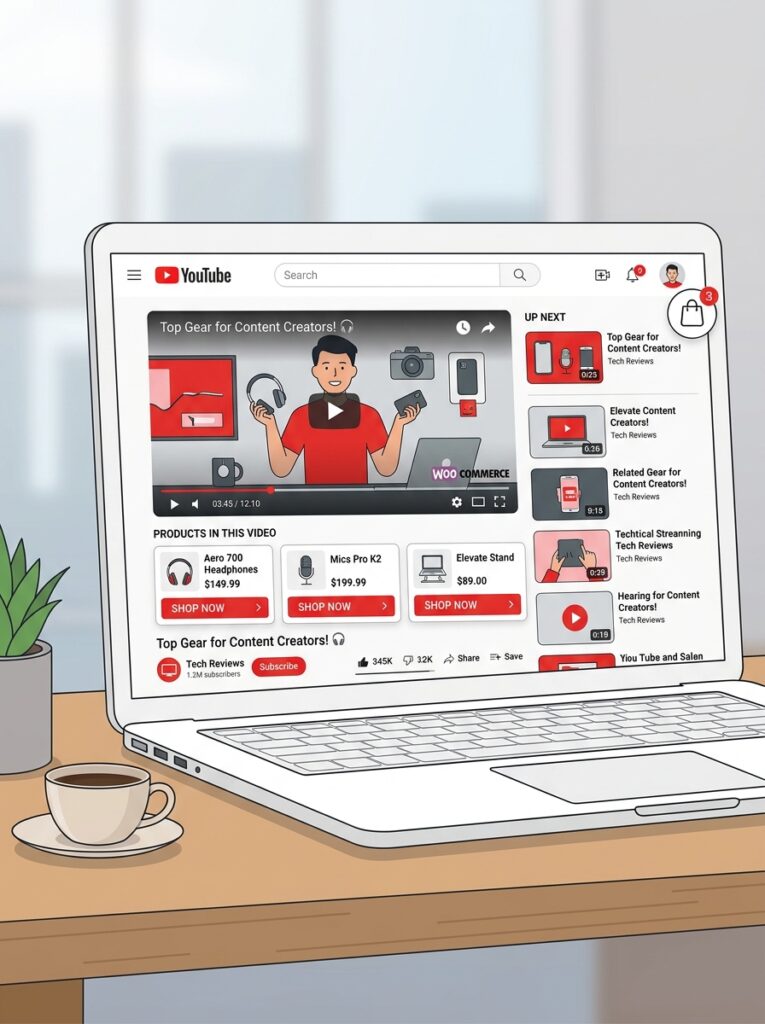
- Tag products directly in your YouTube videos, Shorts, live streams, and channel page
- Customers can browse and buy without ever leaving YouTube
- Orders automatically flow back into WooCommerce
- Any change to a title, price, image, or stock level in WooCommerce is automatically reflected on YouTube
How to set up YouTube Shopping
- Update the plugin – ensure Google for WooCommerce version 3.6.0 or later is installed.
- Open the Google for WooCommerce settings – go to Marketing → Google for WooCommerce → Settings.
- Connect your YouTube channel.
- If your YouTube channel is eligible (YouTube Partner Program, meeting subscriber thresholds, etc.), the integration will activate.
⚠️ You’ll need a WordPress.com account to authenticate the extension with Google services.
How to tag products on YouTube
Once connected, you can tag products in:
- Videos – add product tags during or after upload
- Shorts – tag products in short‑form videos
- Live streams – tag products while streaming
- Channel page – showcase products on your channel’s Shopping tab
The integration is designed to meet shoppers where they already spend time and give them a way to buy in the moment.
Part 7: AI‑Generated Ad Assets – Create Ads Faster
Building effective Google Ads used to mean sourcing images and writing copy from scratch. Version 3.6 of Google for WooCommerce changes that.
What AI‑generated assets can do
- Create ad copy – AI generates headlines, descriptions, and call‑to‑action text based on your product data
- Generate product images – AI creates product images directly within the extension
- Launch campaigns faster – spend less time on creative and more time on strategy
How it works
When you set up a Performance Max campaign, the extension can automatically generate multiple ad variations. The AI mixes and matches them for the best performing combinations. This means you can test different creative approaches without manually creating dozens of ad variations.
💡 AI‑generated assets are a starting point, not a replacement for professional creative. Use them to accelerate your testing, then refine based on performance data.
Part 8: Optimising Your Product Feed for Better Performance
Your product feed quality directly impacts both free listing visibility and ad performance. Here are strategies to improve it.
1. Complete all required fields
Google’s product data specifications exist for a reason. Missing fields lead to disapprovals. Common gaps:
- GTIN – use the built‑in WooCommerce field introduced in 9.2
- Brand – add as a product attribute
- Description – ensure it’s unique and descriptive (not just a copy‑paste from the manufacturer)
- Images – high‑quality, multiple angles, white backgrounds
2. Use attribute mapping
If you have many products with missing attributes, set up category‑level rules. This systematically applies Google product attributes to products that have no attribute values defined.
3. Monitor product approval status
After setting up Google for WooCommerce, regularly review product approval status. Disapproved products won’t show in free listings or ads. Common disapproval reasons:
- Missing or invalid GTIN
- Inaccurate pricing (price shown must match checkout price)
- Poor image quality
- Incomplete product descriptions
4. Use the right filters
Quality product feeds use filters for:
- Product availability – only show in‑stock items
- Pricing – ensure accurate and competitive prices
- Categories – use Google’s taxonomy for better matching
- Attributes – include all relevant product attributes
- Visibility settings – control which products appear where
5. Consider a dedicated feed plugin
For stores with complex requirements, the official Google Listings & Ads plugin may lack sophisticated controls. Dedicated product feed plugins (like WebToffee WooCommerce Product Feeds or Simprosys Product Feed) provide enterprise‑level capabilities that transform feed management from a maintenance task into a competitive advantage.
These tools generate optimized product feeds in XML, CSV, XLSX, TXT formats and integrate with popular sales channels.
💡 If you have a large catalogue (50+ products) or sell across multiple channels, a dedicated feed plugin is worth the investment.
Part 9: Troubleshooting Common Issues
What’s Next?
You now have a complete Google advertising system for your WooCommerce store. Your products can be discovered by millions of shoppers across Google Search, Shopping, YouTube, and beyond — for free or with ads.
👉 Next article in this series: Customer Retention & Loyalty Programs – Turning One‑Time Buyers into Repeat Customers
We’ll cover setting up loyalty programmes, referral schemes, customer reviews, and other strategies to keep your customers coming back.
Have you started using Google for WooCommerce? Which part of the integration excites you most — free listings, Performance Max, or YouTube Shopping? Let me know in the comments.
📌 Key Takeaways (for skimmers)
- Google Listings & Ads is the official plugin connecting WooCommerce to Google Merchant Center — free to install and use.
- Requirements before installing: live domain, HTTPS/SSL, valid payment provider, visible refund policies, customer contact method.
- YouTube Shopping (new in version 3.6) lets you tag products in videos, Shorts, and live streams — orders flow back to WooCommerce automatically.
- Performance Max campaigns use AI to serve ads across Search, Shopping, YouTube, Display, and Discover.
- AI‑generated ad assets create ad copy and product images directly within the extension.
- Product feed syncs automatically; use attribute mapping for consistent data; exclude individual products via Channel Visibility.
- GTIN support uses WooCommerce’s built‑in field (launched in 9.2) — the recommended path forward.
- Common issues: disapproved products (check GMC dashboard), broken tracking (theme/caching conflicts), EU compliance (update plugin for new regulations).
🔗 Internal Links
- Article #1 – WooCommerce in 2026 – Market Share & Trends
- Article #2 – Installing WooCommerce & Setup Wizard
- Article #3 – Adding Your First Product
- Article #4 – License Keys for WooCommerce
- Article #5 – Optimising Checkout for Digital Products
- Article #6 – Abandoned Cart Recovery
- Article #7 – Managing Orders & Customers with HPOS
- Article #8 – Marketing & Promotions
- Article #9 – Recurring Revenue & Subscriptions
- You are here – Google Listings & Ads
- Article #11 – Customer Retention & Loyalty Programs (coming soon)