
WooCommerce security comes down to 12 steps — and the single most important one is keeping everything updated. Over 43% of hacked WordPress sites are WooCommerce stores, and most attacks exploit known vulnerabilities that patches already fixed.
But here’s the good news: you don’t need a security team or a big budget to protect your store. You need a clear checklist and the discipline to work through it. And performance? The latest WooCommerce versions have delivered some of the most significant query reduction work in recent memory, with one order management page cutting database queries in half.
The 12-step checklist covers:
- Hosting — server-level firewalls + daily off-site backups
- SSL + HTTPS — enforced across the entire site, not just checkout
- Security plugin — Wordfence (free) for most stores
- 2FA + CAPTCHA — stops brute force and carding attacks
- WAF — endpoint (Wordfence) or DNS-level (Sucuri)
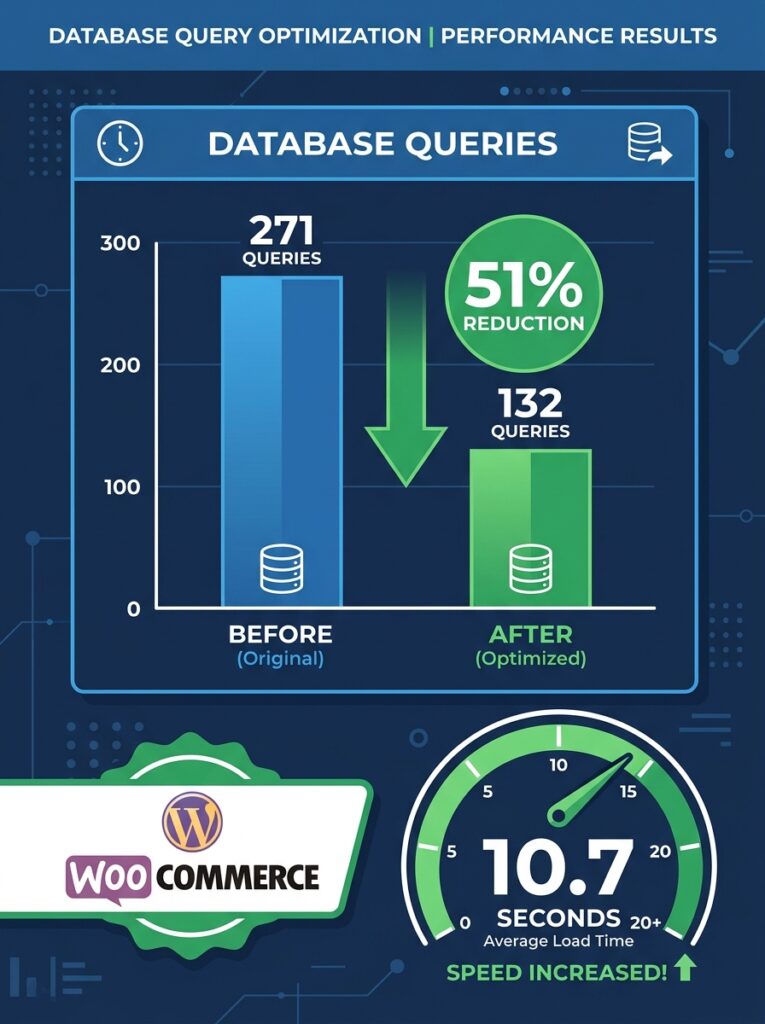
Plus performance: WooCommerce 10.7 cut database queries by 51% on order screens (271 → 132). Update to get it — no configuration needed.
This guide covers threats, the 12-step checklist, best plugins, performance optimization, and monitoring routines.
Let’s secure your store and make it fly.
Part 1: Understanding the Threats – How Attackers Target WooCommerce
Before you can defend your store, you need to understand how attackers operate. Here are the most common attack vectors in 2026.
Brute force attacks
Hackers use automated bots to try thousands or even millions of username and password combinations on your WooCommerce login page. These bots cycle through common passwords and variations of passwords from past data breaches, hoping you’ve reused credentials across multiple sites.
Exploiting outdated plugins or themes
When a plugin or theme is updated to address a security flaw, the patch notes often detail what was fixed. While helpful for site owners, this also provides valuable information to hackers, who monitor these updates closely and look for sites that haven’t updated yet.
SQL injection
Attackers can manipulate your database by injecting malicious code into form fields. For example, a hacker could type ' OR 1=1 -- into a username field, tricking your database into returning all user records instead of checking for a valid password.
Cross-Site Request Forgery (CSRF)
CSRF attacks trick administrators into performing unintended actions — like changing a password or creating a new admin user — by clicking a malicious link while logged in.
API-based carding attacks
Attackers can target endpoints like /wp-json/wc/store/cart to test stolen credit card details at scale, bypassing standard security measures. These attacks can result in hundreds of fraudulent swipe fees per day.
Malicious file uploads
Some WooCommerce setups allow customer file uploads. Without strict validation, attackers can upload disguised scripts that execute harmful code once they’re on the server.
💡 The single most important thing you can do: keep everything updated. WordPress core, WooCommerce, PHP, plugins, and themes. Running old versions means running with known, public vulnerabilities.
woocomerce security statistics 2026 (why this matters)
The numbers behind WooCommerce security threats:
| Statistic | Source |
|---|---|
| 43% of hacked WordPress sites are WooCommerce stores | Sucuri 2026 |
| 90,000+ brute force attacks per day on average WordPress site | Wordfence Live |
| 30,000+ new malware variants detected monthly | Wordfence |
| $4.45M average cost of a data breach (all industries) | IBM 2026 |
| 204 days average time to identify a breach | IBM 2026 |
| $200–$2,000/day lost revenue from a carding attack | WooCommerce merchants |
| 72 hours from vulnerability disclosure to mass exploitation | Sucuri Threat Lab |
What this means for a WooCommerce store doing $30,000/month:
- One successful attack = 3–7 days of downtime = $3,000–$7,000 lost revenue
- Plus cleanup costs: $2,000–$5,000 (malware removal, security audit)
- Plus reputation: 40–60% traffic loss from Google blacklist for 2–4 weeks
- Plus legal: GDPR fines up to €20M if customer data is leaked
💡 The math is simple: $0/month on security plugins vs $10,000+ per incident. The cheapest insurance you’ll ever buy.
Part 2: Security Checklist – 12 Practical Steps to Protect Your Store
1. Choose a WooCommerce‑optimised host
Your hosting provider sets the standard for everything that follows. Look for server‑level firewalls, automated malware scanning, and daily off‑site backups. A host that understands WooCommerce’s specific requirements will provide better protection than a generic shared hosting plan.
2. Install SSL and enforce HTTPS across your entire store
SSL encrypts data between your site and your visitors. A common mistake is applying HTTPS only to the checkout page and leaving everything else unprotected. Most reputable hosts offer free SSL. After installation, force HTTPS across your entire domain with a 301 redirect and verify every page shows the padlock.
3. Keep everything updated
WordPress core, WooCommerce, and PHP updates include security patches. When a patch is released, the vulnerability becomes public knowledge. Hackers move fast — so should you. Enable automatic updates for minor versions and schedule weekly checks for major updates.
4. Install a security plugin
A dedicated security plugin provides the layers of protection your store needs. We’ll cover the best options in Part 3.
5. Enforce strong passwords
Require strong passwords for all user accounts. Consider using a password manager and never use default usernames like “admin”.
6. Enable two-factor authentication (2FA)
Two-factor authentication adds a critical layer of protection. Even if a password is compromised, the attacker can’t log in without the second factor. Wordfence and other security plugins include 2FA functionality.
7. Implement CAPTCHA on checkout
Protect your store from API-based carding attacks by implementing CAPTCHA on your checkout process. Options include reCaptcha for WooCommerce, Google reCaptcha, or Cloudflare Turnstile (a lightweight, privacy-focused alternative).
8. Limit login attempts
Brute force attacks rely on unlimited login attempts. Most security plugins allow you to limit the number of failed login attempts before temporarily blocking an IP address.
9. Use a Web Application Firewall (WAF)
A WAF filters malicious traffic before it reaches your site. Wordfence runs as an endpoint firewall within PHP, while Sucuri operates at the DNS level, filtering traffic before it hits your server. Both approaches are effective — choose based on your needs.
10. Monitor for fraud
Implement fraud detection tools that allow you to set up complex rules that, when triggered, block offending transactions. Enable AVS and CVV checks, require 3DS2 authentication, and build a manual review process for high‑risk transactions.
11. Regularly audit plugins and users
Remove inactive and duplicate plugins quickly. Review privileged access regularly and remove accounts that no longer need elevated permissions.
12. Back up your store regularly
Backup jobs exist, but restore drills are often missing. Test your backups regularly so you know they work when you need them.
Part 3: Best Security Plugins for WooCommerce in 2026
| Plugin | Best for | Real‑time protection | Starting price |
|---|---|---|---|
| Wordfence Security | All‑round protection for high‑traffic stores | ✅ (free) | Free / $119/yr |
| Sucuri Security | Advanced WAF + malware cleanup | ✅ (paid) | Free / $199/yr |
| iThemes Security (SolidWP) | Login and user‑level protection | ❌ | Free / $99/yr |
| MalCare | Offsite scans and auto‑cleanup | ✅ | $99/yr |
| Jetpack Security | Easy backup + malware scan | ✅ | $4.95/mo |
| All‑In‑One WP Security | Full basic security coverage | ❌ | Free |
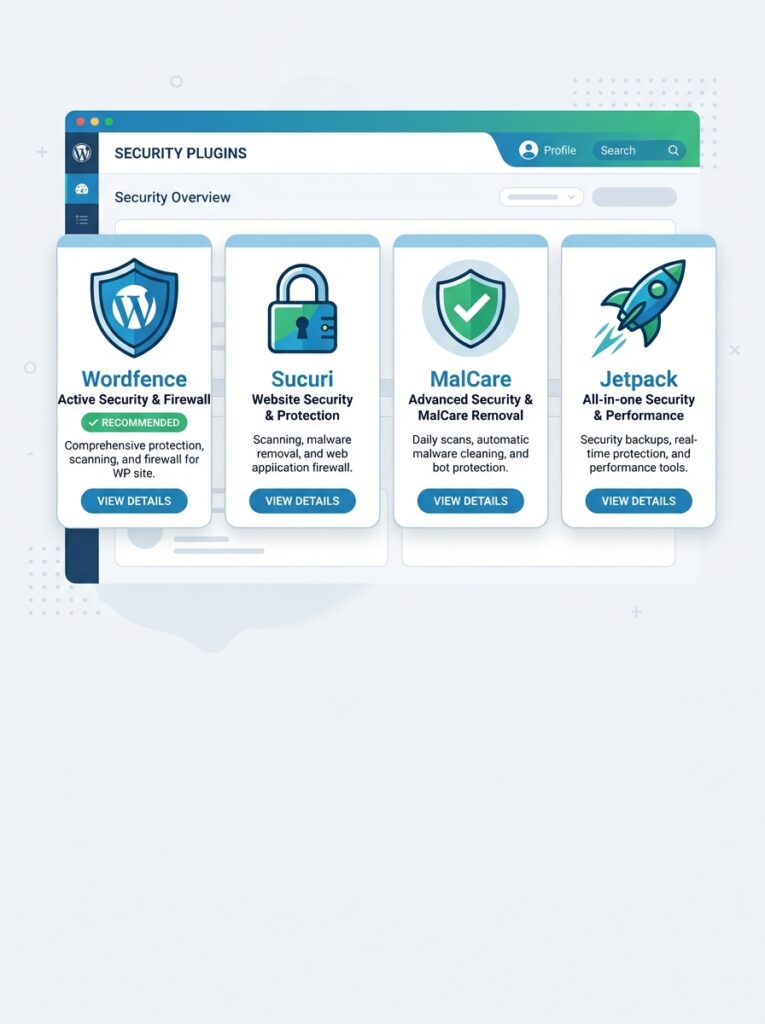
Wordfence Security – Recommended for most stores
Wordfence is one of the most trusted names in WordPress security. It brings enterprise‑level protection to WooCommerce stores with its real‑time firewall that blocks malicious traffic before it reaches your site. Its malware scanner checks all core files, themes, and plugins. The free version includes core protections — the premium version ($119/year) adds real‑time threat intelligence.
Key features: real‑time threat defence firewall, malware scanning and file integrity checks, login security with 2FA and CAPTCHA, live traffic and user monitoring, country blocking and rate limiting.
Sucuri Security – Best for advanced WAF
Sucuri focuses on website firewall and monitoring with minimal performance impact. Its DNS‑level firewall filters traffic before it reaches your server, protecting against attacks even when your site is vulnerable. Plans start at $199/year.
Which one should you choose?
For most WooCommerce store owners, Wordfence is the better choice. It offers a full endpoint firewall, malware scanner, and login security in one free plugin — and the premium version delivers enterprise‑level threat intelligence at a fraction of Sucuri’s cost.
wordfence vs sucuri: which one actually protects you better?
Both are excellent, but they work differently. Here’s the honest comparison:
| Wordfence | Sucuri | |
|---|---|---|
| WAF location | Endpoint (PHP) | DNS-level (before server) |
| Free tier | ✅ Full protection | ⚠️ Limited |
| Paid price | $119/year | $199/year |
| Malware scan | ✅ Included free | ✅ Included paid |
| Real-time firewall | ✅ Free | ❌ Paid only |
| Performance impact | 5–15% overhead | Minimal (DNS-level) |
| Cleanup service | Extra ($499+) | Included in $199 |
| Best for | Most stores, budget-conscious | Stores with frequent attacks |
Which should you choose?
Choose Wordfence if:
- Budget under $150/year
- You want free protection that actually works
- Your host doesn’t have a built-in WAF
- You’re comfortable with a 5–15% performance hit
Choose Sucuri if:
- Your host already has good performance (Sucuri won’t slow it down)
- You’ve been attacked before (Sucuri includes cleanup)
- You want DNS-level blocking (attacks never reach your server)
- Budget allows $199/year
My recommendation for most stores: Start with Wordfence free. If you get attacked despite it (rare), upgrade to Sucuri — the DNS-level WAF is worth the extra cost for high-traffic stores.
💡 Don’t run both. They overlap, slow your site, and conflict. Pick one.
Part 4: Performance Optimisation – Making Your Store Fast
A slow store loses sales. According to industry data, a one‑second delay in page load time can reduce conversions by 7–20%. Here’s how to keep your WooCommerce store fast.
Why WooCommerce stores slow down at scale
At smaller scale, many issues don’t surface. At larger scale, they compound quickly:
- Caching strategy is too basic for dynamic commerce workloads
- Plugin stack grows without governance
- Database queries become heavy as product, order, and customer records increase
- Media and scripts bloat key templates
- Infrastructure is sized for average traffic, not campaign spikes
1. Use a caching plugin that understands WooCommerce
Page caching is essential, but you must exclude dynamic pages from the cache. Critical configuration: exclude /cart/, /checkout/, /my-account/, and any page that uses a [woocommerce_*] shortcode from the page cache.
Recommended caching plugins for 2026:
- WP Rocket – paid, user‑friendly, excellent WooCommerce support
- LiteSpeed Cache – free, powerful (if on LiteSpeed server)
- RabbitLoader – AI‑powered performance optimisation, caching, and CDN
- FastPixel Cache – object caching stores database query results in memory
2. Enable object caching
Object caching stores the results of database queries in memory, so WordPress skips repetitive work on every page load. This means faster pages and less load on your server. Redis Object Cache is a popular solution.
3. Use a Content Delivery Network (CDN)
A CDN serves static files from servers closer to your users, reducing global load times. Popular options include Cloudflare (free tier available) and BunnyCDN. WooCommerce hosting plans increasingly include enterprise‑level CDN like Cloudflare Enterprise.
4. Optimise images
Compress images before uploading. Use WebP format for better compression. Plugins like ShortPixel, Imagify, or the image optimisation features in caching plugins can automate this process.
5. Keep your plugin stack lean
More plugins mean more database queries and more potential conflicts. Maintain an approved plugin list with clear business purpose. Remove inactive and duplicate plugins quickly.
6. Optimise your database
- Monitor slow queries continuously
- Maintain index hygiene for key WooCommerce tables
- Clean expired transients and unused data patterns
- Archive or optimise historical operational data where needed
7. Use managed WooCommerce hosting
Production‑grade hosting sized for sustained load, not just average daily traffic. Separate environments for development, staging, and production. Tune PHP workers and memory limits based on measured concurrency.
Part 5: Recent Performance Wins – WooCommerce 10.7 and 10.8
The latest versions of WooCommerce have delivered some of the most significant performance improvements in recent memory.
WooCommerce 10.7 (April 2026) – 51% fewer queries
Version 10.7.0, released on April 14, 2026, included major performance enhancements:
- HPOS orders: The
/wc/v4/ordersendpoint previously triggered 271 database queries per request. Cache priming now reduces this to 132 queries — a 51% reduction. - Checkout: Reduces the number of SQL queries required to persist a draft order during checkout.
- Shipping: New indexes added on
woocommerce_shipping_zone_methodsfor faster cart and checkout performance. - Store API:
Last-Modifiedtimestamp gets cached on products endpoint, skipping database query on cache hit.
“If you’ve watched that screen crawl on a server that should be fast, the query numbers explain why”. The update is automatic — you don’t configure anything. Update and it’s done.
WooCommerce 10.8 (May 2026) – Continued improvements
Version 10.8 continued the performance work:
- Cache priming for HPOS order queries eliminates N+1 queries in REST API serialization
- Shipping table indexes improve cart and checkout performance
- Multiple batch‑loading improvements reduce SQL queries across the code base
- Stock reservation handles peak traffic better
- Coupon loading is faster for stores with high‑usage coupons
Part 6: Monitoring and Maintenance – Keeping Your Store Healthy
Security and performance aren’t one‑time tasks. They require ongoing attention.
Daily checks
- Review failed login attempts (security plugin logs)
- Check for plugin and theme updates
- Monitor order processing for anomalies
Weekly checks
- Run a full malware scan
- Review user accounts and remove inactive ones
- Check backup completion status
- Review slow query logs
Monthly checks
- Audit plugin list — remove unused plugins
- Review security plugin reports
- Test your backup restore process
- Check SSL certificate expiry date
Campaign readiness
If you run promotions or flash sales, prepare your infrastructure:
- Plan for campaign bursts with headroom targets
- Test checkout under simulated load
- Ensure caching is properly configured for the campaign
- Have a rollback plan ready
When things go wrong
Have an incident response plan:
- Identify – detect the issue (monitoring alerts, customer reports)
- Contain – isolate the affected system, take the store offline if needed
- Eradicate – remove the cause (malware, compromised plugin, etc.)
- Recover – restore from a clean backup
- Learn – document what happened and how to prevent it
What’s Next?
You now have a complete security and performance system for your WooCommerce store. Your store is protected, fast, and ready to scale.
👉 Next article in this series: WooCommerce Analytics & Reporting – Tracking What Matters
We’ll cover understanding WooCommerce analytics dashboards, tracking key metrics, setting up custom reports, and using data to grow your store.
What’s your biggest security or performance concern? Have you migrated to HPOS yet? Let me know in the comments.
📌 Key Takeaways (for skimmers)
- WooCommerce stores are prime targets — over 43% of hacked WordPress sites are WooCommerce stores.
- Security checklist: choose a WooCommerce‑optimised host, enforce HTTPS, keep everything updated, install a security plugin (Wordfence recommended), enable 2FA, implement CAPTCHA, and use a WAF.
- Wordfence is the best all‑round security plugin for most stores — powerful free version, premium at $119/year.
- Performance: use a caching plugin that excludes cart/checkout pages, enable object caching, use a CDN, optimise images, and keep your plugin stack lean.
- WooCommerce 10.7 cut database queries on order management pages by 51% (271 → 132).
- WooCommerce 10.8 continued improvements: HPOS cache priming, shipping indexes, faster coupon loading.
- Monitor regularly — daily checks for updates, weekly malware scans, monthly backup tests.
🔗 Internal Links
- Article #1 – WooCommerce in 2026 – Market Share & Trends
- Article #2 – Installing WooCommerce & Setup Wizard
- Article #3 – Adding Your First Product
- Article #4 – License Keys for WooCommerce
- Article #5 – Optimising Checkout for Digital Products
- Article #6 – Abandoned Cart Recovery
- Article #7 – Managing Orders & Customers with HPOS
- Article #8 – Marketing & Promotions
- Article #9 – Recurring Revenue & Subscriptions
- Article #10 – Google Listings & Ads for WooCommerce
- Article #11 – Customer Retention & Loyalty Programs
- You are here – WooCommerce Security & Performance
- Article #13 – WooCommerce Analytics & Reporting (coming soon)