
Everything you need to know about every text block in the WordPress editor.
In the first article of this series, I explained what Gutenberg is and why blocks are the new standard. Now it’s time to get hands-on.
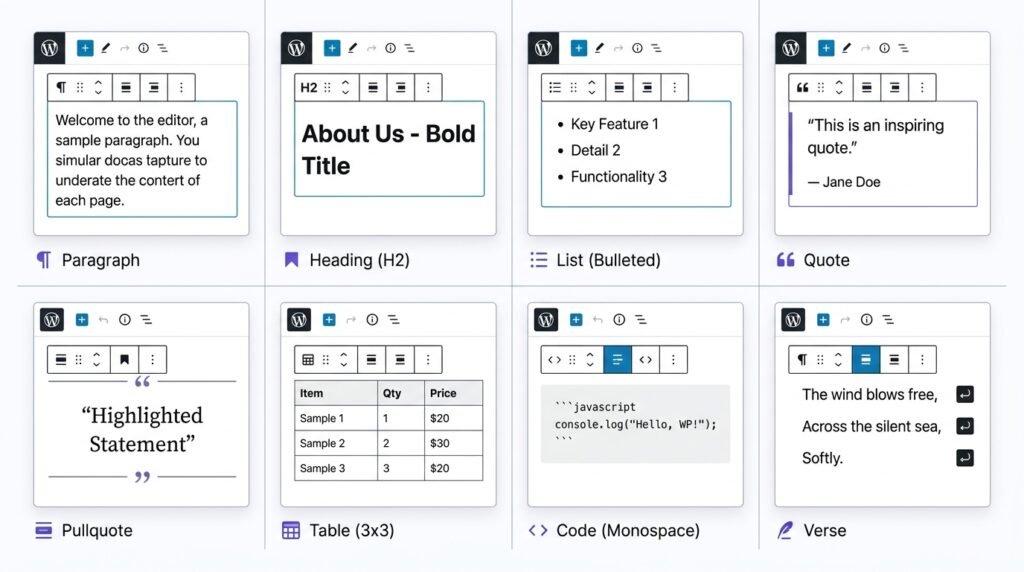
First, text is the foundation of almost every website. Then, blog posts, landing pages, about pages — they all rely on well-formatted text. As a result, Gutenberg gives you 8 dedicated text blocks, each designed for a specific purpose.
What this guide covers:
- Block 1: Paragraph — the workhorse for body text
- Block 2: Heading — H1–H6 with hierarchy rules
- Block 3: List — bulleted, numbered, and nested
- Block 4: Quote — external citations
- Block 5: Pullquote — internal emphasis
- Block 6: Table — structured data
- Block 7: Code — developer snippets
- Block 8: Verse — poetry and creative writing
- Comparison table — which block to use when
- Common mistakes — 5 errors to avoid
By the end, you’ll know exactly which block to use — and how to customize it like a pro.
1. Paragraph Block — The Workhorse
What it does
The Paragraph block is the default block for standard text. First, you’ll use this more than any other block. Then, every paragraph you write in WordPress is wrapped in a Paragraph block.
When to use it
Everywhere. Body text, descriptions, intros, conclusions — any regular content that doesn’t need special formatting.
Key settings (right sidebar)
| Setting | Options | When to use |
|---|---|---|
| Font size | Small, Normal, Medium, Large, Huge, Custom | Set hierarchy — normal for body, larger for emphasis |
| Drop cap | On / Off | Adds large first letter (good for article introductions) |
| Color | Text color, Background color | Highlight important paragraphs |
| Typography | Letter spacing, line height, decoration | Fine-tune design (use sparingly) |
| Advanced | HTML anchor, CSS classes | For developers linking to specific sections |
Step-by-step: How to add a Paragraph block
- In the editor, click the blue plus (+) button — or type
/paragraphand press Enter - Type your text — new blocks default to Paragraph
- To change font size: click the block → right sidebar → Typography → choose a preset or custom size
- To add a drop cap: click the block → right sidebar → toggle “Drop cap” to ON
- To change text color: click the block → right sidebar → Color → pick from palette or custom
Pro tips
- Use custom font size (18px) for better readability on mobile — the default 16px is slightly small
- Drop caps look great on long-form articles, but avoid them on short paragraphs
- Never change text color to something low-contrast (check accessibility — 4.5:1 ratio minimum)
- Shortcut: Type
/paragraphor just start typing — new blocks default to Paragraph
2. Heading Block — Structure Your Content
What it does
The Heading block creates section titles (H1–H6). First, it helps readers scan. Then, it helps search engines understand your content hierarchy.
When to use it
Each page/post should have one H1 (usually the title — WordPress sets this automatically). Then, use:
- H2 for main sections
- H3 for subsections
- H4–H6 rarely (only for deeply nested content)
Key settings
| Setting | Options | Notes |
|---|---|---|
| Level | H1 to H6 | Each page should only have one H1 |
| Text alignment | Left, center, right | Usually left for body; center for hero sections |
| Font size | Presets + custom | Often larger than paragraphs |
| Color | Text, background | Keep consistent with brand palette |
Step-by-step: How to add a Heading block
- Click + → search for “Heading” — or type
/headingand press Enter - Type your heading text
- In the right sidebar under “Heading settings”, choose your level (H2 for main sections, H3 for subsections)
- In the Typography panel, set font size and weight
- Save or continue writing
Best practices
| ✅ Do | ❌ Don’t |
|---|---|
| Use one H1 per page (usually the title) | Use multiple H1s (confuses SEO) |
| Keep hierarchy: H1 → H2 → H3 | Skip levels (H1 → H3 misses H2) |
| Keep headings descriptive: “How to install WordPress” | Use vague headings: “Click here” |
| Use Headings to structure content | Use Headings just to make text bold — use Bold formatting instead |
Why hierarchy matters: screen readers use headings to navigate. As a result, skipping levels breaks accessibility. Google also uses heading hierarchy to understand content — a clear structure ranks better.
Shortcut: Type /heading → press Enter → type your level (e.g., /heading 2).
For more on SEO-friendly heading structure, see our How to Write Your First Blog Post guide.
3. List Block — Organize Information
What it does
The List block creates bullet or numbered lists. First, it organizes information. Then, it makes content scannable.
When to use it
- Numbered lists for steps, rankings, or sequences
- Bulleted lists for features, pros/cons, or unrelated items
Key settings
| Setting | Options |
|---|---|
| List type | Bulleted (•), Numbered (1., 2., 3.) |
| Reversed | On/Off (counts down) — for numbered lists |
| Starting value | Set custom start number (e.g., start at 5) |
Inside the block toolbar (when you select a list item):
- Indent / Outdent — create nested lists (sub-bullets)
- Convert to text — turn list back into plain paragraphs
Step-by-step: How to add a List block
- Click + → search for “List” — or type
/list - Choose Bulleted or Numbered from the block toolbar
- Type your first item, press Enter for the next
- To nest an item: press Tab to indent, Shift+Tab to outdent
- To reverse a numbered list: right sidebar → toggle “Reversed” to ON
Pro tips
- Use numbered lists for steps or rankings
- Use bulleted lists for features or unrelated items
- Nest lists up to 3 levels deep — beyond that, readability drops
- Shortcut: Type
/listor start a line with-(dash + space) for bullet,1.for numbered
4. Quote Block — Highlight Someone Else’s Words
What it does
The Quote block displays quoted text with a distinct style — usually italic with a left border.
When to use it
First, use Quote for external content: customer testimonials, book excerpts, expert opinions. Then, any text that isn’t yours.
Key settings
| Setting | Options | Notes |
|---|---|---|
| Citation | Text field below quote | Add author name, source, or link |
| Alignment | Left, center, right | Center looks nice on short quotes |
| Font size | Custom | Usually larger than body text |
Step-by-step: How to add a Quote block
- Click + → search for “Quote” — or type
/quote - Type or paste the quote
- Press Enter — this creates a Citation field below
- Type the source (e.g., “— Mark Twain”)
- In the right sidebar, adjust alignment and font size
Example
“The secret of getting ahead is getting started.”
— Mark Twain
Styling tip: Most themes style Quote blocks automatically. However, if you want a different look, you can add custom CSS — see our Advanced Gutenberg Custom CSS guide.
Shortcut: Type /quote.
5. Pullquote Block — Make a Statement
What it does
First, the Pullquote block is similar to Quote — but designed to stand out. Then, it uses larger text, often spanning full width or set against a background. Finally, it pulls a key sentence from your article for emphasis.
When to use it
Highlighting a surprising statistic, a key argument, or a memorable line from your own article.
Key settings
| Setting | Options | Notes |
|---|---|---|
| Text alignment | Left, center, right | Center is most common |
| Border color | Pick from palette | Adds visual separation |
| Citation | Optional author | Smaller text below pullquote |
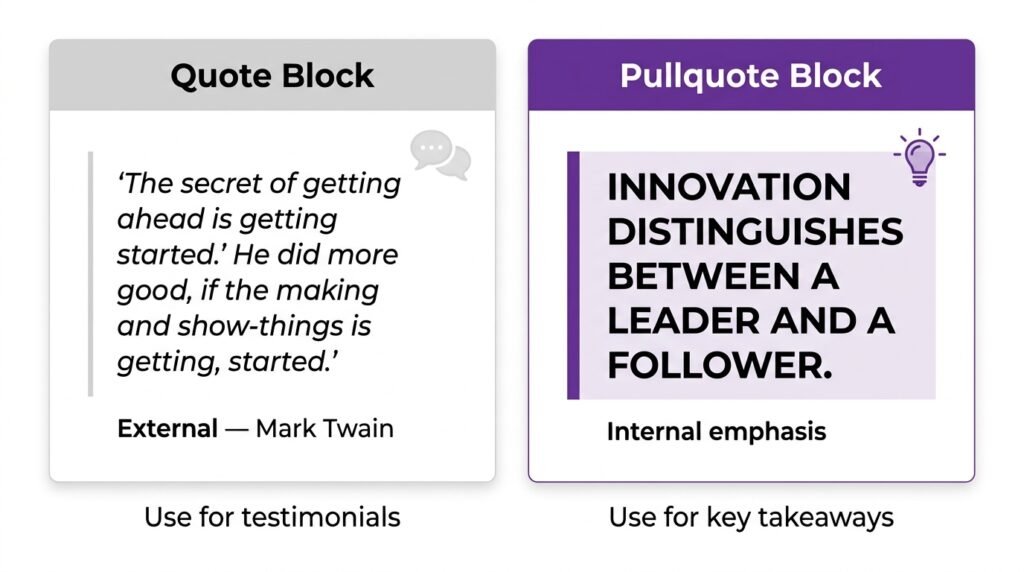
Difference from Quote block
| Block | Purpose | Style |
|---|---|---|
| Quote | External citations, testimonials | Subtle, left border |
| Pullquote | Internal emphasis, key takeaways | Bold, larger, often centered |
Example (Pullquote)
“Speed is not a feature. It’s a requirement.”
Shortcut: Type /pullquote.
6. Table Block — Display Data in Rows and Columns
What it does
The Table block creates HTML tables directly in the editor. First, no external plugin needed. Then, you can add or remove rows and columns with one click.
When to use it
Pricing comparisons, schedules, product specs, and any structured data that belongs in rows and columns.
Key settings
| Setting | Options |
|---|---|
| Rows | Add or remove |
| Columns | Add or remove |
| Header | Optional first row as header |
| Footer | Optional last row as footer |
| Caption | Table title above the table |
| Cell styles | Bold, italic, alignment inside each cell |
| Striped rows | Some themes support this |
Step-by-step: How to add a Table block
- Click + → search for “Table” — or type
/table - Choose your starting size (e.g., 3×3)
- Type your data into each cell
- To add a row: click the block, then use the toolbar icons to add above/below
- To add a column: click inside any cell, then use toolbar icons to add left/right
- To make the first row a header: click the block → toggle “Header section” ON
- To add a caption: click the block → toggle “Caption” ON → type below the table
Pro tips
| ✅ Do | ❌ Don’t |
|---|---|
| Keep tables simple (max 5 columns) | Use 8+ columns — unreadable on mobile |
| Add a caption to explain the table | Leave tables without context |
| Use the Header row | Skip headers — screen readers rely on them |
| Preview on mobile | Assume desktop layout works everywhere |
| Use Columns block for layout | Use Table for page layout (it’s for data) |
Shortcut: Type /table.
For a broader look at design blocks, see our Gutenberg Design Blocks guide.
7. Code Block — Show Snippets
What it does
First, the Code block displays code in a monospaced font with preserved spacing. However, it does not execute the code — it just shows it.
When to use it
Tutorials, developer articles, and any time you need to show HTML, CSS, PHP, or JavaScript.
Key settings
| Setting | Options |
|---|---|
| Content | Paste code manually |
| Preformatted | Preserves spaces and line breaks |
Step-by-step: How to add a Code block
- Click + → search for “Code” — or type
/code - Paste your code snippet — indentation and line breaks stay intact
- In the right sidebar, adjust font size if needed
Pro tips
- Do not use the Code block for inline code (e.g.,
wp_query). Use the “Inline code” formatting instead — found in the Paragraph toolbar under More (⋮) - For longer code snippets, consider a plugin like SyntaxHighlighter or Code Syntax Block for color highlighting
- Never paste sensitive information (API keys, passwords) into a Code block — it’s visible to readers
Example
php
add_action( 'init', function() {
    register_post_status( 'wc-license-pending', [
        'label' => 'License Pending',
        'public' => false,
    ]);
});
Shortcut: Type /code.
8. Verse Block — Poetry or Prose with Preserved Spacing
What it does
First, the Verse block preserves every space and line break exactly as typed. Then, it uses a monospaced font — similar to Code block, but designed for creative writing.
When to use it
Poems, song lyrics, addresses, or any text where every space and line break must stay exactly as typed.
Key settings
Very few — just write. The block handles spacing automatically.
Difference from Code block
| Block | Font | Purpose |
|---|---|---|
| Code | Monospaced | Code snippets (no wrapping) |
| Verse | Monospaced | Poetry, lyrics, creative writing (respects formatting) |
Step-by-step: How to add a Verse block
- Click + → search for “Verse” — or type
/verse - Type or paste your text
- Line breaks and spaces are preserved automatically
Example
text
Roses are red,
Violets are blue,
Gutenberg has blocks,
And so do you.
Shortcut: Type /verse.
Comparison Table: Which Text Block Should You Use?
First, here’s the quick reference. Then, use it whenever you’re unsure.
| Block | Best for | Example use |
|---|---|---|
| Paragraph | Regular body text | Blog post content |
| Heading | Section titles, hierarchy | H2 section headers |
| List | Bullet points, numbered steps | Feature lists, recipes |
| Quote | External citations, testimonials | “According to X…” |
| Pullquote | Key takeaway from your own article | Highlighting a key stat |
| Table | Structured data, comparisons | Pricing tiers, specs |
| Code | Code snippets (display only) | PHP, CSS, HTML examples |
| Verse | Poetry, lyrics, addresses | Song lyrics, poems |
Quick Reference: Common Settings Across All Text Blocks
First, most text blocks share these settings in the right sidebar:
| Section | What it controls |
|---|---|
| Typography | Font size, line height, letter spacing, appearance (bold, italic) |
| Color | Text color, background color |
| Spacing | Margin, padding |
| Dimensions | Block width |
| Advanced | HTML anchor, CSS classes |
💡 Pro tip: Don’t over-customize every block. First, use your theme’s global styles for consistency. Then, override only when necessary. As a result, your site stays visually coherent — and easier to update later.
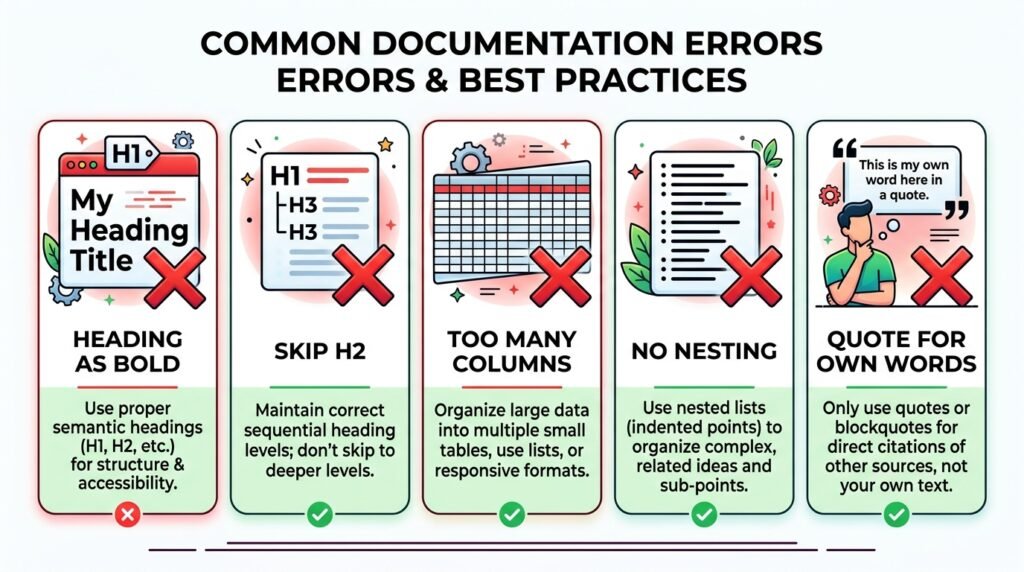
5 Common Mistakes to Avoid
First, here are the mistakes beginners make most often:
| ❌ Mistake | ✅ Fix |
|---|---|
| Using Heading to make text larger | Use Paragraph + custom font size |
| Skipping heading levels (H1 → H3) | Keep hierarchy: H1 → H2 → H3 |
| Tables with too many columns | Max 5 columns; test on mobile |
| Flat lists without nesting | Nest items up to 3 levels with Tab |
| Using Quote for your own words | Use Pullquote for internal emphasis |
As a result, avoiding these mistakes keeps your content accessible, SEO-friendly, and easier to maintain.
Frequently Asked Questions
Q1: What’s the difference between Quote and Pullquote?
Quote = external citations (someone else’s words). Pullquote = internal emphasis (your own words pulled out for emphasis). For example, use Quote for a customer testimonial; use Pullquote to highlight a key statistic from your own article.
Q2: Can I use multiple H1 headings on one page?
No. First, each page or post should have exactly one H1 — usually the title. Then, use H2 for sections and H3 for subsections. As a result, both Google and screen readers understand your content hierarchy correctly.
Q3: How do I add inline code (not a Code block)?
First, highlight the text you want as inline code. Then, click the More options (⋮) in the paragraph toolbar. Finally, select “Inline code”. As a result, the text appears in a monospace font without breaking the paragraph flow.
Q4: Are Tables bad for SEO?
No — Tables are good for SEO when used correctly. First, Google reads tabular data well. Then, you can win featured snippets with comparison tables. However, keep tables simple: max 5 columns, always use a Header row, and add a caption.
Q5: What’s the difference between Code and Verse blocks?
Both use monospaced fonts. However:
- Code — for programming code. No line wrapping.
- Verse — for poetry, lyrics, or creative writing. Preserves line breaks but allows wrapping.
As a result, Verse is better for creative writing; Code is better for technical content.
Q6: Can I add custom CSS to specific text blocks?
Yes. First, select the block. Then, in the sidebar, go to Advanced and add a CSS class (e.g., my-highlight). Finally, add the CSS in Appearance → Customize → Additional CSS — for example, .my-highlight { background: yellow; }. For a full walkthrough, see our Advanced Gutenberg Custom CSS guide.
Q7: Which text block should I use for a callout box?
First, use a Group or Cover block as the container. Then, add a Paragraph and optional Heading inside. Finally, style the Group block with a background color and padding. As a result, you get a visual callout that’s easy to reuse — or save it as a Block Pattern for repeated use.
Key Takeaways
- 8 text blocks in Gutenberg: Paragraph, Heading, List, Quote, Pullquote, Table, Code, Verse
- Paragraph — the workhorse for body text; use custom font size (18px) for readability
- Heading — one H1 per page; keep hierarchy (H1 → H2 → H3)
- List — bulleted for features; numbered for steps; can be nested with Tab
- Quote = external citations; Pullquote = internal emphasis
- Table — max 5 columns; use Header row + caption
- Code — for programming; Verse — for creative writing
- Shortcuts:
/paragraph,/heading,/list,/quote,/pullquote,/table,/code,/verse - Common mistakes: Heading as bold, skipped levels, wide tables, no nesting, Quote for own words
What’s Next?
First, you’ve mastered text blocks. Then, it’s time for media.
👉 Next in this series: Gutenberg Media Blocks Guide — Image, Gallery, Cover, Audio, Video, File.
Which text block do you use most? Any questions about specific settings? Drop a comment below.
Related Reading
- Gutenberg & Blocks: Complete Guide — the first article in this series
- Gutenberg Media Blocks Guide — Image, Gallery, Cover, Video
- Gutenberg Design Blocks Guide — Columns, Group, Row, Buttons
- Gutenberg Widget Blocks Guide — Archives, Calendar, Latest Posts
- Advanced Gutenberg Custom CSS — block styles and developer tools
- WordPress Block Patterns & Reusable Blocks — build pages 2× faster