
The WordPress editor looks different now. However, that’s a good thing — and here’s how to start using it like a pro.
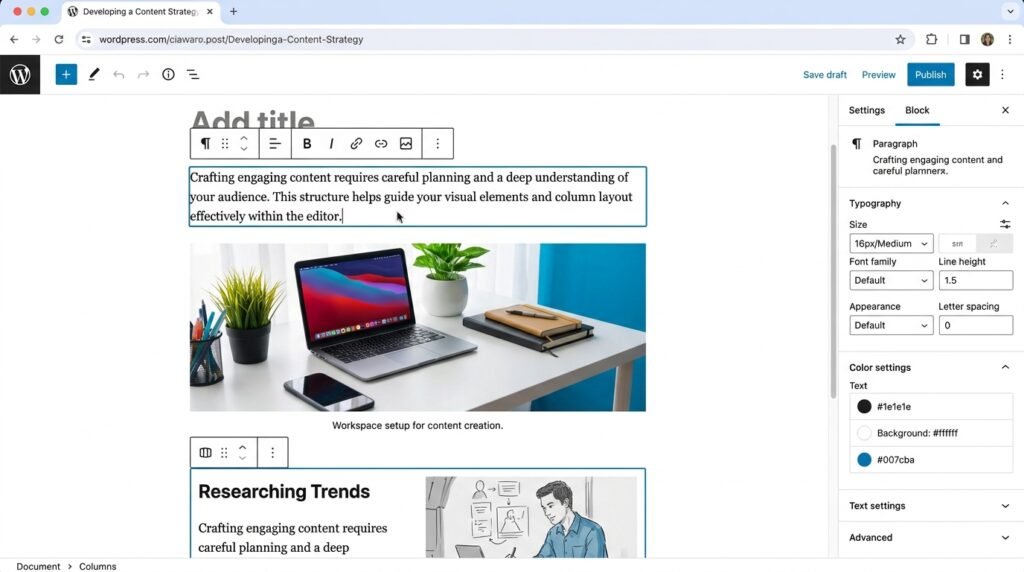
If you’ve recently opened the WordPress editor to write a post, you probably noticed something: it doesn’t look like a simple text box anymore. First, every paragraph, image, button, or gallery is its own block. Then, you can move them, style them, and combine them into complex layouts. This new editor is called Gutenberg, and it’s been the default WordPress editor since version 5.0 (released in December 2018).
When I first encountered Gutenberg a year ago, I was confused. However, I missed the old Classic Editor. But after spending a week with it, I realized: this is a game changer. As a result, I now build beautiful, complex layouts without writing code or buying expensive page builders.
What this guide covers:
- What Gutenberg is — and why it replaced the Classic Editor
- Gutenberg vs. Classic Editor — a full feature comparison
- The editor interface — anatomy of the block editor (toolbar, sidebar, plus button)
- All 60+ block types — grouped by category with examples
- How to add, move, and arrange blocks — click-by-click
- Global styles — how to design your entire site from one place
- Your first steps — 4 exercises to try today
This is the first article in a complete Gutenberg & Block Themes series. Let’s begin.
What Is Gutenberg?
First, Gutenberg is not just another editor. Then, it’s the core content editing experience in modern WordPress. It allows you to build pages and posts using blocks — individual components for text, images, videos, buttons, columns, and more.
Think of it like building with LEGO bricks. For example, each block is a brick. You can add, remove, rearrange, and style each brick independently. As a result, you get complete control over your layout without touching HTML or CSS.
In practice, this means a beginner can now build layouts that used to require a developer. That’s the entire point of Gutenberg.
Gutenberg vs. Classic Editor — Why Blocks Win
First, to understand Gutenberg’s power, let’s compare it to the old way — the Classic Editor that WordPress used before 2018.
| Feature | Classic Editor | Block Editor (Gutenberg) |
|---|---|---|
| Layouts (columns, groups) | Required HTML/CSS or shortcodes | Built-in Columns, Group, Row blocks — drag & drop |
| Images & galleries | Clunky insertion, limited alignment | Dedicated Image, Gallery, Cover, Media & Text blocks with rich settings |
| Buttons | Required custom HTML or plugins | Native Button block — design right in the editor |
| Embeds (YouTube, Twitter) | Manual URL paste | Paste URL — auto-converts to embed block |
| Reusable content | Not possible without plugins | Reusable blocks (sync or not) |
| Full site editing | No | Yes (with block themes) |
| Global styles | No | Yes — set site-wide colors, fonts, layout |
| Learning curve | Simple for text | Steeper, but more powerful |
In short: Gutenberg turns WordPress from a simple blogging platform into a visual site builder — and it’s built right in, for free.
💡 Pro tip: If you still prefer the Classic Editor, you can install the Classic Editor plugin to bring back the old interface. However, most new themes (including Kadence) are built for Gutenberg — so you’ll miss out on features.
Anatomy of the Block Editor
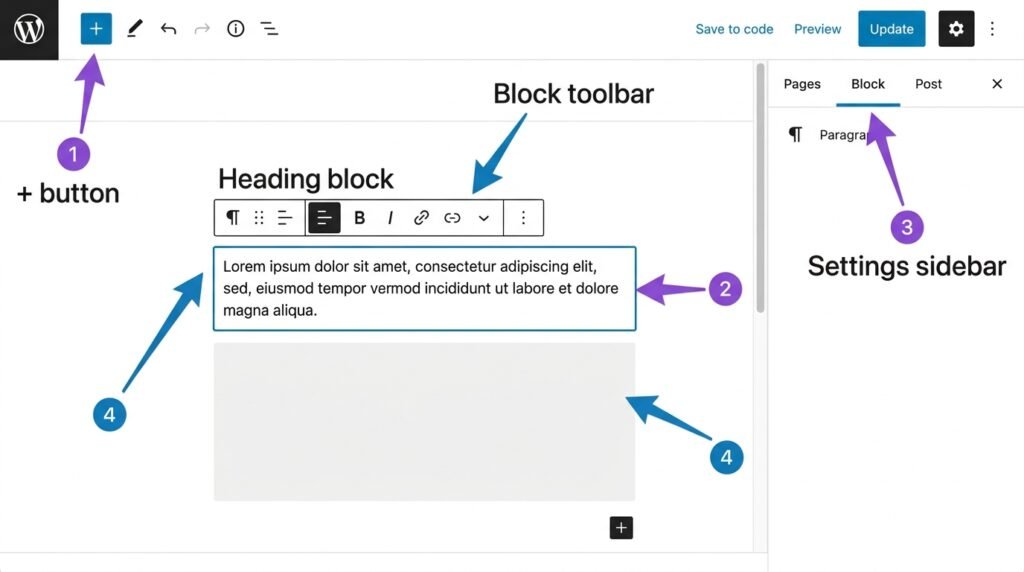
First, before we dive into individual blocks, let’s understand the editor interface. Then, you’ll know where everything is.
1. The Main Content Area
This is where you add and arrange blocks. For example, when you open a new post, you’ll see a Title field at the top, then a Paragraph block ready for content. Each block you add appears below the previous one.
2. Block Toolbar (Top of Each Block)
When you select a block, a toolbar appears above it with icons for:
| Icon | Function |
|---|---|
| Transform (block icon) | Change block type (e.g., Paragraph → Heading) |
| Drag (six dots) | Move block up/down |
| Move up/down (arrows) | Move one position at a time |
| Align | Left, center, right, wide, full width |
| Bold / Italic / Link | Text formatting (for text blocks) |
| More options (three dots) | Duplicate, remove, edit as HTML, add to reusable blocks |
3. Settings Sidebar (Right Panel)
Click the gear icon in the top-right corner of the editor to open or close it. It has two tabs:
Block tab — settings specific to the selected block:
- Color — text, background, link colors
- Typography — font size, line height, letter spacing
- Spacing — padding, margin
- Advanced — CSS class, anchor (for linking)
Post tab — global settings for the post/page:
- Permalink (URL slug)
- Categories and Tags
- Featured Image
- Excerpt
- Discussion (allow comments)
4. The Plus Button (+)
First, the plus button is how you add a new block. Then, you have two options to use it:
- Click the blue plus (+) icon in the top-left of the editor
- Type
/and start typing a block name — e.g.,/heading,/image,/button
💡 Pro tip: The / shortcut is much faster once you learn it. For example, typing /h2 instantly adds a Heading 2 block. See our How to Write Your First Blog Post guide for more keyboard shortcuts in Gutenberg.
All Block Types in WordPress (Complete Overview)
First, WordPress comes with over 60 built-in blocks. However, don’t be overwhelmed — you’ll use maybe 10–15 regularly. Then, the rest are there when you need them.
Here’s the complete list, grouped by category:
Text Blocks
| Block | What it does |
|---|---|
| Paragraph | Standard text block |
| Heading | H1–H6 titles |
| List | Bulleted or numbered lists |
| Quote | Blockquote with citation |
| Code | Monospace code snippets |
| Pullquote | Highlighted quote with distinct styling |
| Table | Simple data tables |
| Verse | Poetry with preserved line breaks |
| Preformatted | Text with preserved spacing |
Media Blocks
| Block | What it does |
|---|---|
| Image | Single image with caption, alt text, link |
| Gallery | Multiple images in a grid |
| Audio | Embed MP3, M4A, OGG |
| Video | Embed MP4, WebM |
| File | Download link for PDF or any file |
| Media & Text | Image beside text, side-by-side |
| Cover | Image/video with text overlay |
Design Blocks
| Block | What it does |
|---|---|
| Buttons | Styled call-to-action buttons |
| Columns | Side-by-side content |
| Group | Container for other blocks |
| Row | Horizontal arrangement (Kadence) |
| Stack | Vertical arrangement (Kadence) |
| Spacer | Empty vertical space |
| Separator | Horizontal line or design |
| Page Break | Split post across multiple pages |
Widget Blocks
| Block | What it does |
|---|---|
| Shortcode | Insert a shortcode from any plugin |
| Archives | Monthly archive list |
| Calendar | Post calendar |
| Categories | Category list |
| Latest Posts | Recent posts list |
| Latest Comments | Recent comments |
| Search | Search form |
| Social Icons | Links to your social profiles |
| Tag Cloud | Tag list |
| RSS | Feed from any RSS URL |
Theme Blocks (for Block Themes)
| Block | What it does |
|---|---|
| Navigation | Site menu |
| Site Logo | Site logo |
| Site Title | Site name |
| Site Tagline | Site description |
| Query Loop | Custom post grid — the most powerful block |
| Post Title | Post’s title (in Query Loop) |
| Post Content | Post’s content (in Query Loop) |
| Post Featured Image | Post’s featured image (in Query Loop) |
| Post Date | Post’s date (in Query Loop) |
| Post Author | Post’s author (in Query Loop) |
| Post Comments | Comment count (in Query Loop) |
| Post Terms | Categories/tags (in Query Loop) |
| Login/out | Login/logout link |
| Page List | List of pages |
Embed Blocks
Over 50 embed options, including: YouTube, X (Twitter), Instagram, Vimeo, Spotify, TikTok, SoundCloud, Reddit, GitHub, Figma, and more.
First, paste any URL from these services. Then, WordPress auto-converts it into a proper embed block. As a result, you don’t need shortcodes or custom HTML.
How to Add and Arrange Blocks (Step by Step)
First, here are the four fundamental actions you’ll use every day.
Adding a block
Method 1: Plus button
- Click the blue plus (+) icon in the top-left corner
- Browse categories or search for a block name
- Click the block to insert it
Method 2: Slash command (faster)
- Click where you want the block
- Type
/followed by the block name — e.g.,/image,/button,/heading - Press Enter to insert
Moving a block
Method 1: Arrows
- Select the block
- Click the up/down arrows in the block toolbar to move it one position
Method 2: Drag and drop
- Hover over the block
- Grab the six-dots icon (⋮⋮) on the left side
- Drag the block to a new position
Changing block type
First, select the block. Then:
- Click the block icon in the toolbar (e.g., the “T” for Paragraph)
- Select a different block type from the dropdown (e.g., “Heading”)
- WordPress transforms the block while preserving content
For example, you can transform a Paragraph into a Heading, or a Quote into a Pullquote — without retyping.
Deleting a block
Method 1: Toolbar
- Click the three dots in the block toolbar
- Select “Remove block”
Method 2: Keyboard
- Select the block
- Press Delete or Backspace on your keyboard
Global Styling (The Power of Blocks)
First, one of Gutenberg’s best features is global styling. Then, you can set site-wide colors, typography, and layout from one place — instead of styling every block individually.
How to access global styles
If you’re using a block theme (like Kadence, Twenty Twenty-Five, or Twenty Twenty-Four), go to:
Appearance → Editor (not Customizer — this is important)
There you’ll find:
| Menu | What it controls |
|---|---|
| Styles | Global colors, fonts, button styles, layout presets |
| Templates | Site structure — header, footer, single post, archive |
| Navigation | Menu structure |
| Pages | Manage all pages in your site |
Setting global colors and fonts
First, go to Appearance → Editor → Styles. Then:
- Click the pencil icon next to “Styles” to open the style editor
- Under Colors, set:
- Palette — your brand colors (primary, secondary, neutral)
- Text color — default for body text
- Background color — default for pages
- Under Typography, set:
- Text — base font for body text
- Headings — font for H1–H6
- Buttons — font for buttons
- Under Layout, set:
- Content width — max width of your post content
- Wide width — max width for wide blocks
As a result, every new block you add automatically uses these defaults. For example, if you set your primary color to deep blue, every button you add will be deep blue — without manual styling.
Per-block default styles
However, you can also set defaults for specific blocks. For example:
- Go to Appearance → Editor → Styles → Blocks
- Click on Heading
- Set the default font size, line height, and color for all Headings
- Save
As a result, every Heading you add from now on uses these defaults. In practice, this saves hours of manual styling — especially as your site grows.
For a full walkthrough of global styles in Kadence, see our Build a WordPress Homepage with Kadence guide.
Your First Steps After Reading This Guide
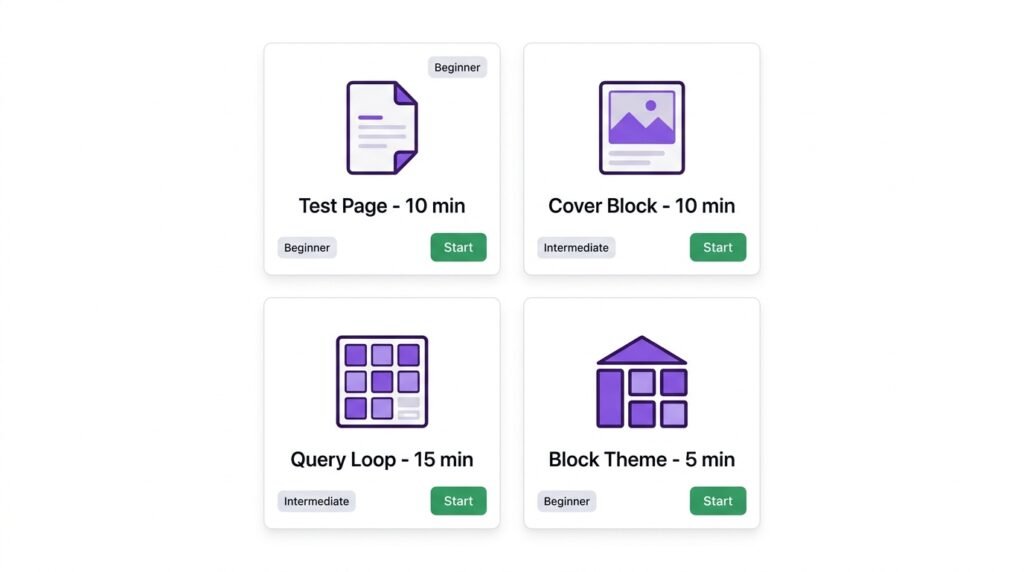
First, don’t just read — practice. Then, these four exercises will get you comfortable with Gutenberg in under an hour.
Exercise 1: Create a test page
- Go to Pages → Add New
- Add a Paragraph block — write a short intro
- Add a Columns block — set it to 2 columns
- Inside the left column, add an Image block
- Inside the right column, add a Paragraph with text
- Save as draft — don’t publish yet
Time: 10 minutes. What you’ll learn: Layout basics.
Exercise 2: Try the Cover block
- Create another new page
- Add a Cover block
- Upload an image (or select one from your media library)
- Add a Heading inside the Cover — like “Welcome to My Site”
- Add a Button below the heading — link it to your blog
- Adjust the opacity in the sidebar (70% works well for readability)
- Save
Time: 10 minutes. What you’ll learn: Overlay text on images.
Exercise 3: Experiment with the Query Loop
First, you’ll need a block theme (Kadence or Twenty Twenty-Five).
- Go to Appearance → Editor → Templates
- Click “Blog Home” or “Archive”
- The Query Loop block is already there — click it
- In the sidebar, adjust:
- Post type: Posts
- Order by: Newest first
- Items per page: 6
- Inside the Query Loop, click a Post Template block
- Change the layout: featured image + title + excerpt + read more button
- Save
Time: 15 minutes. What you’ll learn: How your blog archive is built.
Exercise 4: Switch to a block theme
First, if you’re still using a classic theme, try one of these:
- Twenty Twenty-Five (default, free)
- Kadence (excellent block support, free)
Then:
- Go to Appearance → Themes → Add New
- Search for the theme name
- Click Install, then Activate
- Go to Appearance → Editor to explore Full Site Editing
Time: 5 minutes. What you’ll learn: Full Site Editing unlocks the true power of blocks.
For a broader look at themes and plugins, see our Must-Have WordPress Plugins guide.
Frequently Asked Questions
Q1: Do I have to use Gutenberg, or can I still use the Classic Editor?
You can install the Classic Editor plugin to restore the old interface. However, most modern themes (including Kadence) are optimized for Gutenberg — using the Classic Editor means missing out on Full Site Editing, global styles, and the Query Loop. My recommendation: invest a week learning Gutenberg. It pays off permanently.
Q2: Is Gutenberg slower than the Classic Editor?
First, on the front end, no — Gutenberg produces cleaner HTML. Then, in the editor, Gutenberg can feel slower on low-end hosting because it loads more JavaScript. As a result, if your editor feels slow, upgrade hosting (see our Choosing the Right Hosting guide) or disable unused blocks.
Q3: What’s the difference between Reusable Blocks and Patterns?
Reusable Blocks are synced — if you edit one, every instance updates. Patterns are templates — you insert a copy, then edit each independently. For example, use Reusable Blocks for a footer CTA that appears on every post. Use Patterns for homepage layouts you want to customize per page.
Q4: Can I use Gutenberg with Elementor?
Yes, but they don’t mix well. First, Elementor has its own editor that replaces Gutenberg for pages built with it. Then, you end up with two systems — which confuses content management. My recommendation: pick one. If you’re starting fresh, use Gutenberg + Kadence Blocks — it’s lighter and faster.
Q5: How do I add custom CSS to a Gutenberg block?
First, select the block. Then, in the sidebar, go to Advanced and add a CSS class (e.g., my-custom-class). Finally, add the CSS in Appearance → Customize → Additional CSS — for example:
css
.my-custom-class {
    background: linear-gradient(to right, #6a11cb, #2575fc);
    padding: 40px;
    border-radius: 12px;
}
As a result, only blocks with that class get the styling. For more advanced techniques, see our Advanced Gutenberg Custom CSS guide.
Q6: What’s the best block theme for Gutenberg?
First, for beginners: Twenty Twenty-Five (free, default). Then, for more control: Kadence (free, includes Kadence Blocks). Finally, for agencies: Blocksy or GeneratePress. In practice, Kadence is the best balance of power and simplicity — which is why we used it for this site.
Q7: Will Gutenberg replace page builders like Elementor?
Gradually, yes. First, Gutenberg already handles most layouts page builders used to require. Then, as Full Site Editing matures, the gap narrows. However, page builders still offer more advanced animations and pre-built templates. For most blogs and small business sites, Gutenberg + a block theme is now sufficient.
Key Takeaways
- Gutenberg is the default WordPress editor since 2018. It replaced the Classic Editor.
- Everything is a block — paragraphs, images, buttons, columns, even your site header and footer
- Blocks give you visual control — no coding required for most layouts
- Use the plus (+) button or type
/ blocknameto add blocks - 60+ built-in blocks across 6 categories (Text, Media, Design, Widgets, Theme, Embeds)
- Global styles let you design your entire site from one place (if using a block theme)
- Practice with 4 exercises — test page, Cover block, Query Loop, block theme switch
- Full Site Editing unlocks the true power of blocks — but requires a block theme
What’s Next in This Series?
This is just the beginning. First, bookmark this page or subscribe to the newsletter. Then, here’s what’s coming next:
- Every text block (Paragraph, Heading, List, Quote, Table) — with settings and use cases
- Every media block (Image, Gallery, Cover, Audio, Video, File) — including alt text and responsive design
- Design blocks (Columns, Group, Row, Stack, Buttons, Spacer) — how to create complex layouts visually
- Query Loop deep dive — building custom blog feeds, portfolios, and grids
- Full Site Editing (FSE) — editing your header, footer, and templates directly in the block editor
- Creating your own block — basic introduction for non-coders
If you want a deeper dive right now, see our Query Loop Block guide — it’s the single most powerful block in WordPress.
Related Reading
- WordPress Block Patterns & Reusable Blocks — build pages 2× faster
- Gutenberg Text Blocks Guide — every text block explained
- Gutenberg Media Blocks Guide — images, galleries, video
- Gutenberg Design Blocks Guide — columns, groups, layouts
- Query Loop Block Guide — the most powerful block
- Full Site Editing Guide — edit your entire site visually